Convert a visualization project to a coding project
Convert a visualization project to a coding project.
Overview
This topic describes how to convert a visualization project to a coding project. You can use this method because a direct conversion feature is not yet available.
Procedure
In visualization development mode, press Ctrl+Shift+P to display the script. Then, copy the script content.
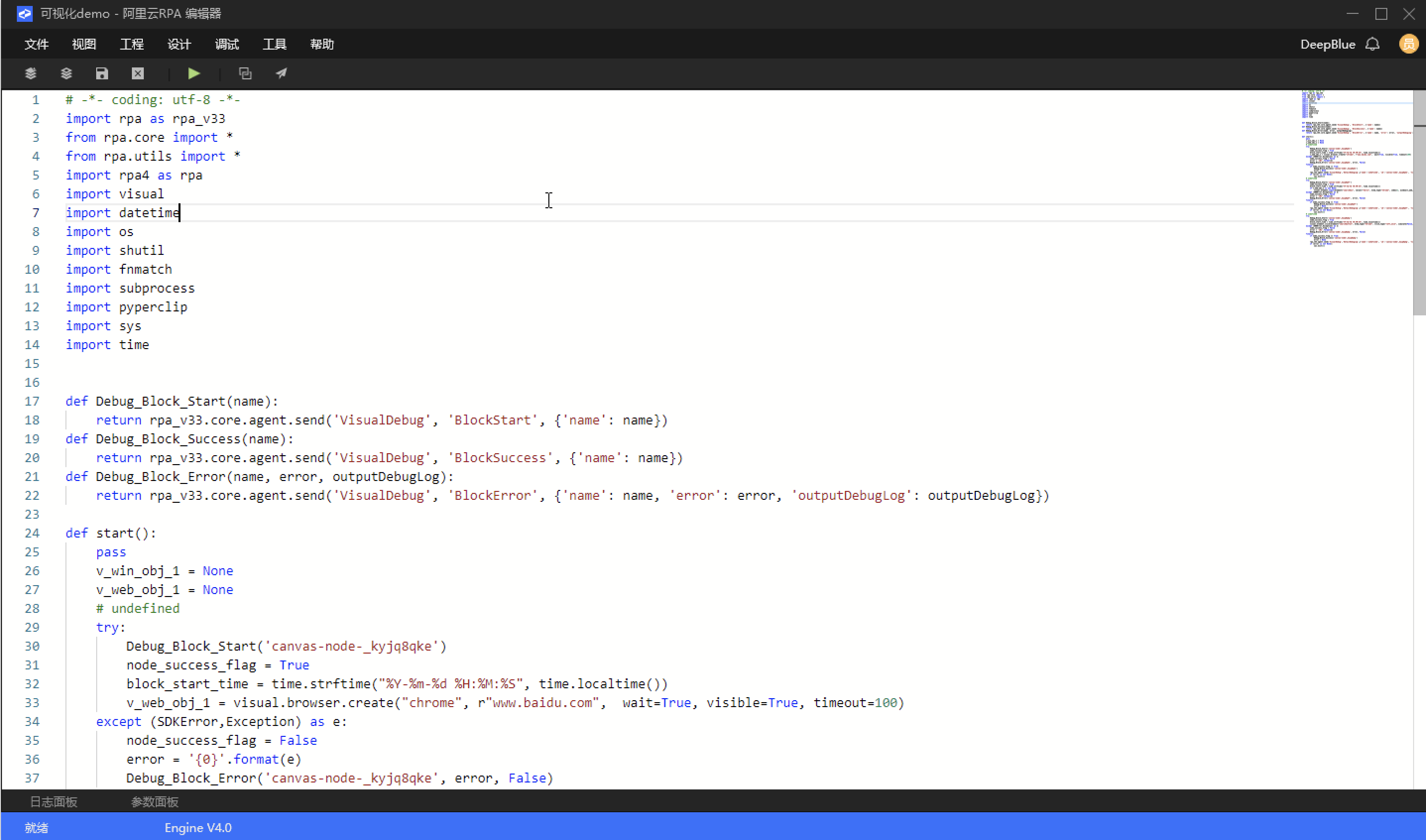
Close the visualization project. Create a local coding project and paste the copied content into the flow editor. Then, save and close the project.
Open the local folder of the visualization project and find the main.ctrl.json file. Copy this file and paste it into the coding project folder to replace the existing main.ctrl.json file.
NoteIf the project contains image recording controls, also copy the contents of the screenshot folder and paste them into the screenshot folder of the coding project. Note: The screenshot folder is a hidden file. You must configure your system to show hidden files to view it.

This section describes additional methods in the visual development mode.
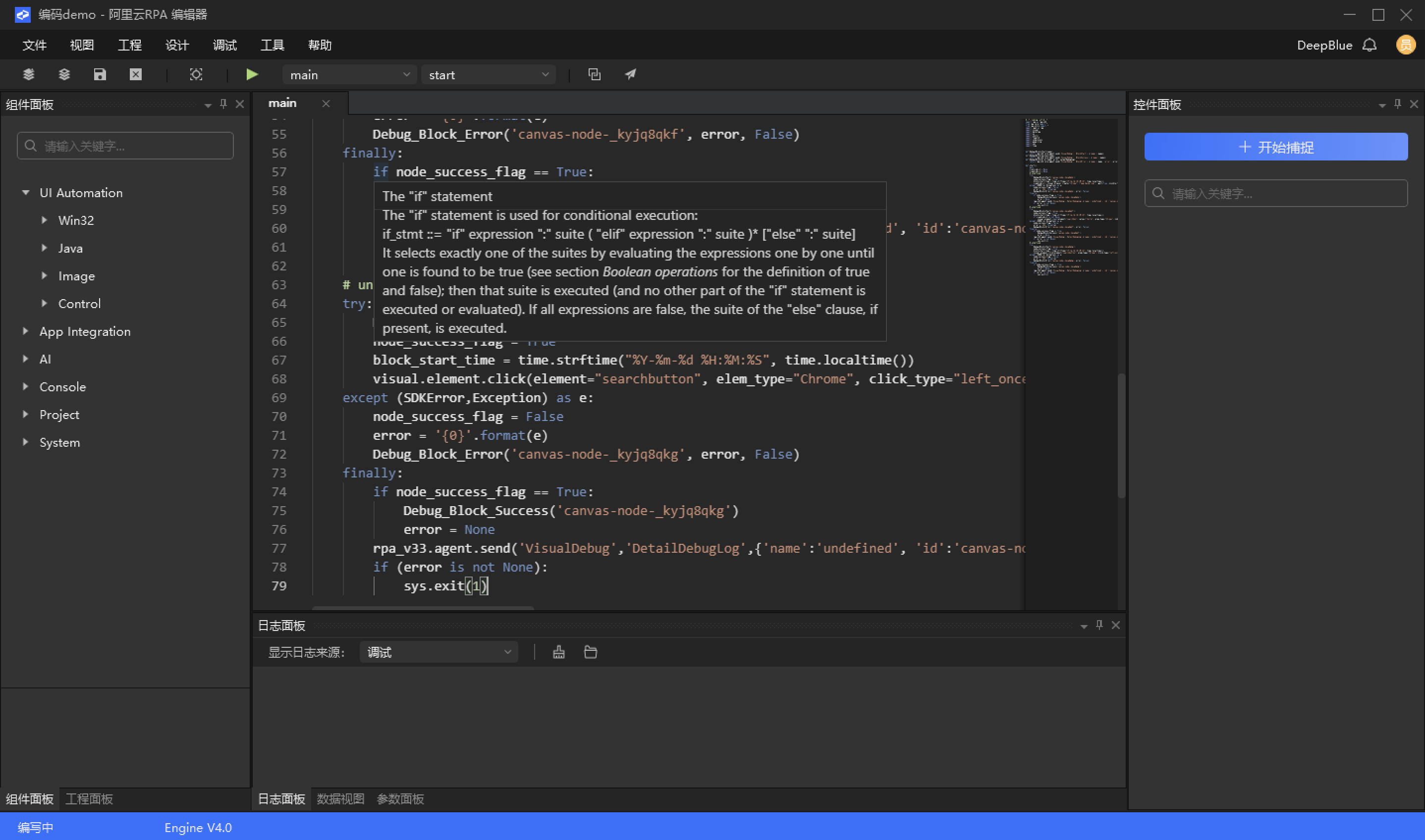
NoteReopen the coding project in the editor and press Ctrl+H to open the replace panel.
Replace Debug_Block_Start with #Debug_Block_Start.
Replace Debug_Block_Success with #Debug_Block_Success.
Replace Debug_Block_Error with #Debug_Block_Error.
Do not replace the method definitions at the beginning of the script, as shown in the first red box in the second figure.