Get element coordinates (CV)
Retrieves the coordinates of an element using Computer Vision (CV) mode.
1. Introduction
Obtaining CV pattern control element coordinates
2. Inputs
For information about each input, see the help text for the component's properties in the application flow editor.
3. Outputs
For information about each output, see the help text for the component's properties in the application flow editor.
4. Component usage example
4.1. Configuration example
For Target control, select the captured CV mode control element.
For Control index, enter the default value of 1.
Keep the default values for the advanced options.
4.2. Execution result
The component retrieves the coordinates of the CV mode control element on the interface and outputs them to the default variable v_cv_pos_data_1.
5. Example flow
Setup flow
Use the Get Window component to obtain the DingTalk window object, v_win_obj_1. Pass this object to the Opened window object parameter of the Activate Window component.
Use the Activate Window component to bring the DingTalk window to the foreground.
Use the Get element coordinates (CV) component to select the Send button.
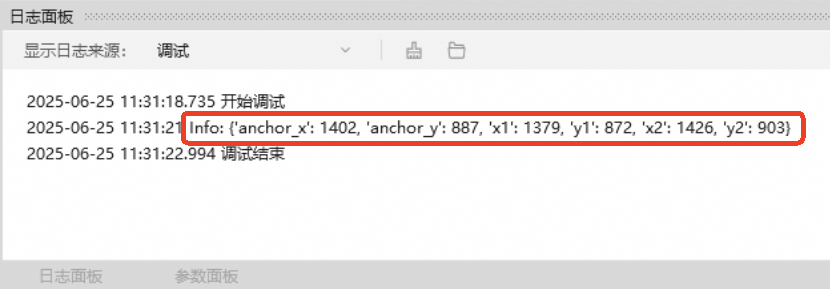
Use the Log Message component to print the coordinates returned by the CV control element.
Result
As shown in the following figure, the flow retrieves the coordinates of the Send button in the current chat window.
The flow first activates the DingTalk interface. Then, it retrieves the coordinates of the CV control element on the screen and prints them to a log.
If you found this helpful, please like it.