Run a local robot
Before you begin
Before running a robot, complete the following preparations:
A local robot is ready.
You have created a robot account and assigned the necessary robot permissions. For more information, see Assigning a Local Robot.
You have installed and logged in to the client. For more information, see Client Installation and Login.
Automation flows are published as applications. For more information, see Publish and manage applications.
Local robots support multiple trigger methods:
Trigger method | Prerequisites | |
Local trigger | Manual execution from the client |
|
Remote trigger | Scheduled execution |
|
API-triggered execution |
| |
Execution triggered by an MCP Tool |
| |
Assign execution permissions
Running an application on a local robot requires two types of permissions:
Application permissions, which define the scope of applications that the account can run.
Robot permissions, which define the scope of local robots that the account can use.
Set the application scope
Application permissions can be assigned in two ways: by user request or by an administrator.
Option 1: Request permissions (self-service)
Request the application from the my applications page in the console. You can access this page in one of the following ways:
From a logged-in robot client, click Apply for Application to be redirected.

Log in to the console directly and go to the my applications page.
Select the application and submit the permission request.
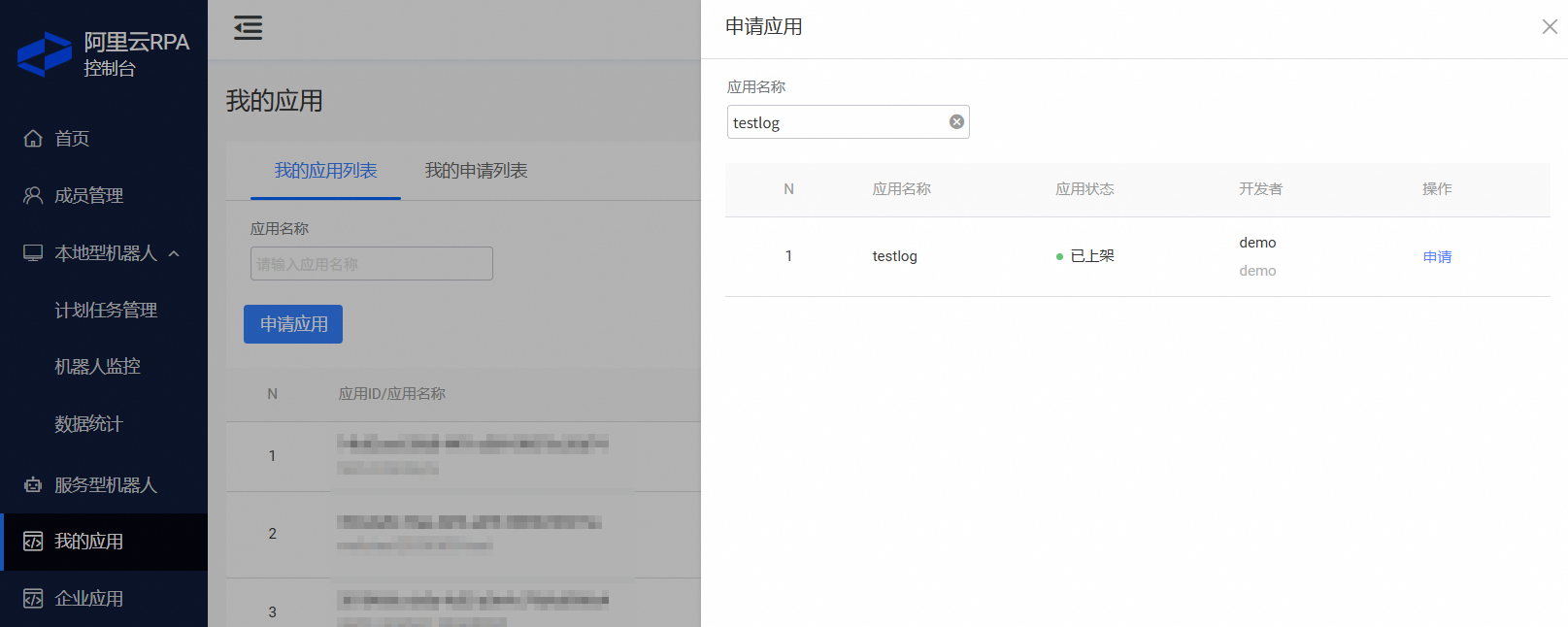
After the request is submitted, an administrator will review it. For more information, see Application Management. You can view the approval status on the my applications page.

Option 2: Assign permissions (administrator)
An administrator can directly assign permissions to member accounts from the Enterprise Applications page in the console. For more information, see Application Management.
Viewing permitted applications
Go to the my applications page in the console to view the applications you have permission to use.
Set the robot scope
For on-premises RPA server deployments, this feature requires version 4.15.0 or later.
If the server version is earlier than 4.15.0, an account can use all local robots within the tenant.
For more information, see Set the local robots that an account can use.
Manual execution from the client
In the client, select an application and click Run. To enter the required input parameters, click the arrow on the left.

Scheduled execution
Create a scheduled task
In the console, you can create a scheduled task by using the Create and Copy actions. Copying allows you to duplicate an existing scheduled task, which you can then modify. This section focuses on how to create a new scheduled task and configure its parameters.
First, enable the Allow to be scheduled option in the robot client. You can do this in one of the following ways:
Option 1: Configure it in the client, as shown.

Option 2: On the robot monitoring page in the console, set whether the robot can be scheduled. For more information, see Robot Monitoring.
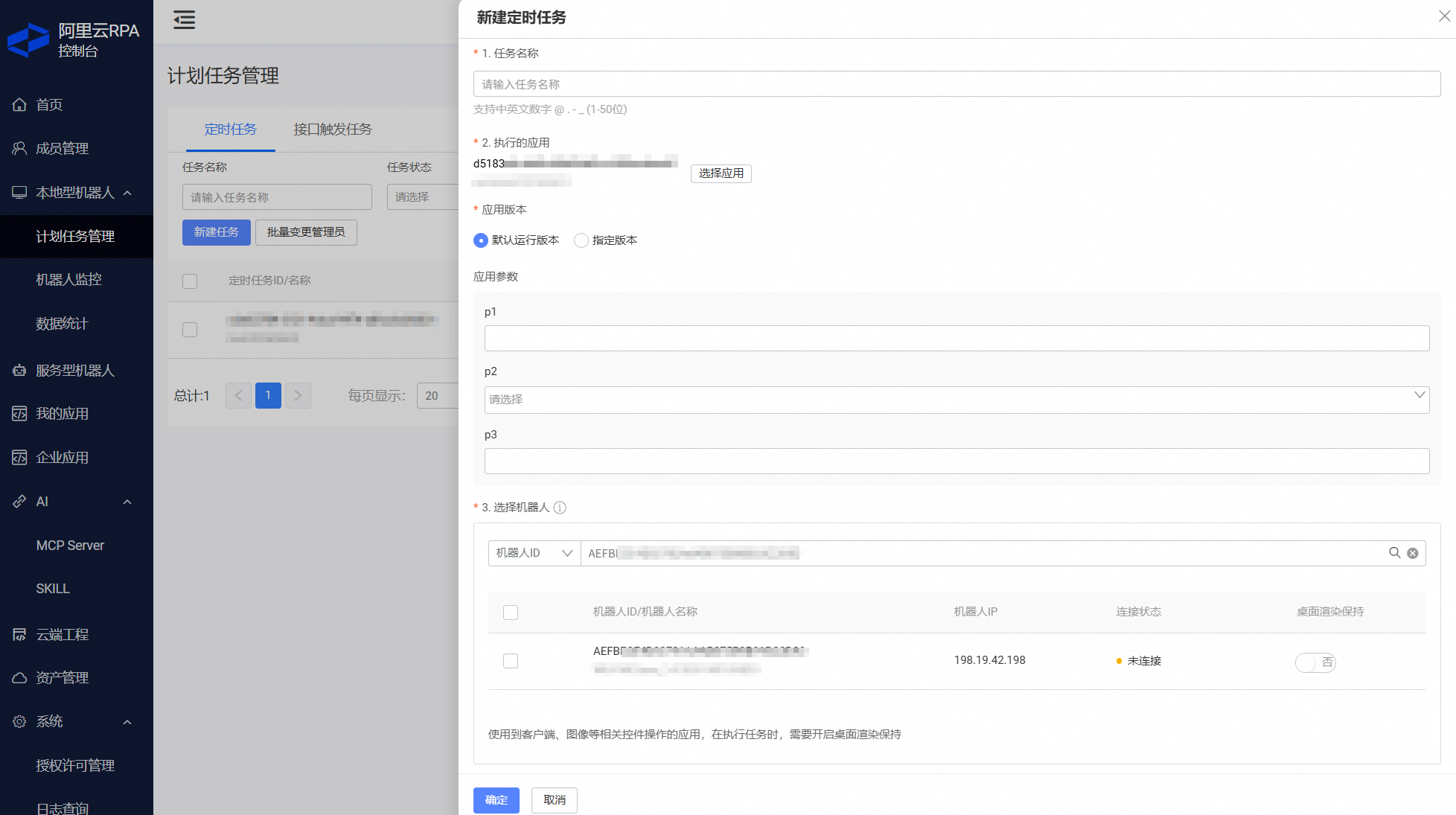
Configure scheduled tasks on the console > scheduled task management > scheduled tasks page.

The configuration parameters are as follows:
Parameter
Description
Application
Select the applications to run.
Application scope: You can only select applications that the current account is permitted to use.
Application version: You can select the default version or a specific version to run.
Application parameters: The parameters for the selected version are automatically listed and can be configured in the console.
Robot
Select the robots on which to run the scheduled task.
Available robots: You can only select local robots that the current account is permitted to use. For more information, see Set the local robots that an account can use.
Desktop rendering preservation. For more information, see Use desktop rendering preservation.
NoteIf the automation flow simulates client, image, mouse, or keyboard operations, the robot's Windows desktop must remain rendered. We recommend enabling this option.
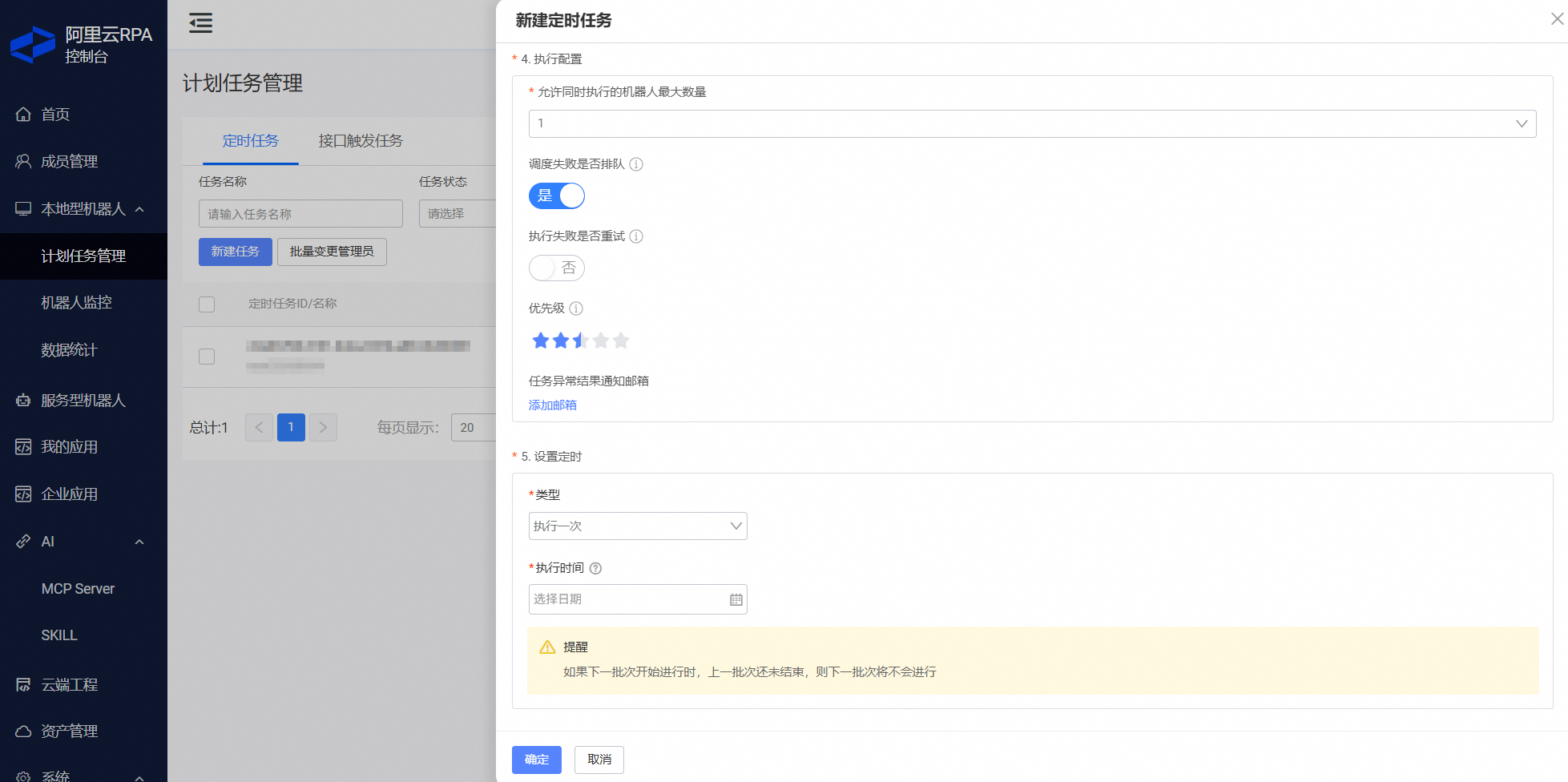
Execution configuration
Queue if scheduling fails: If enabled, tasks that cannot be executed at their scheduled time are added to a queue. If a task remains in the queue for more than 24 hours, the execution fails and is not retried. Tasks are not queued if the robot is not schedulable (for example, disconnected or not enabled for scheduling).
Failure retry: If enabled, the robot immediately retries the failed application, up to three times.
Task priority: When multiple tasks are assigned to the same robot simultaneously, higher-priority tasks run first.
Timing
Scheduling options include running immediately, running once at a specific time, running at intervals, and repeating daily, weekly, or monthly.
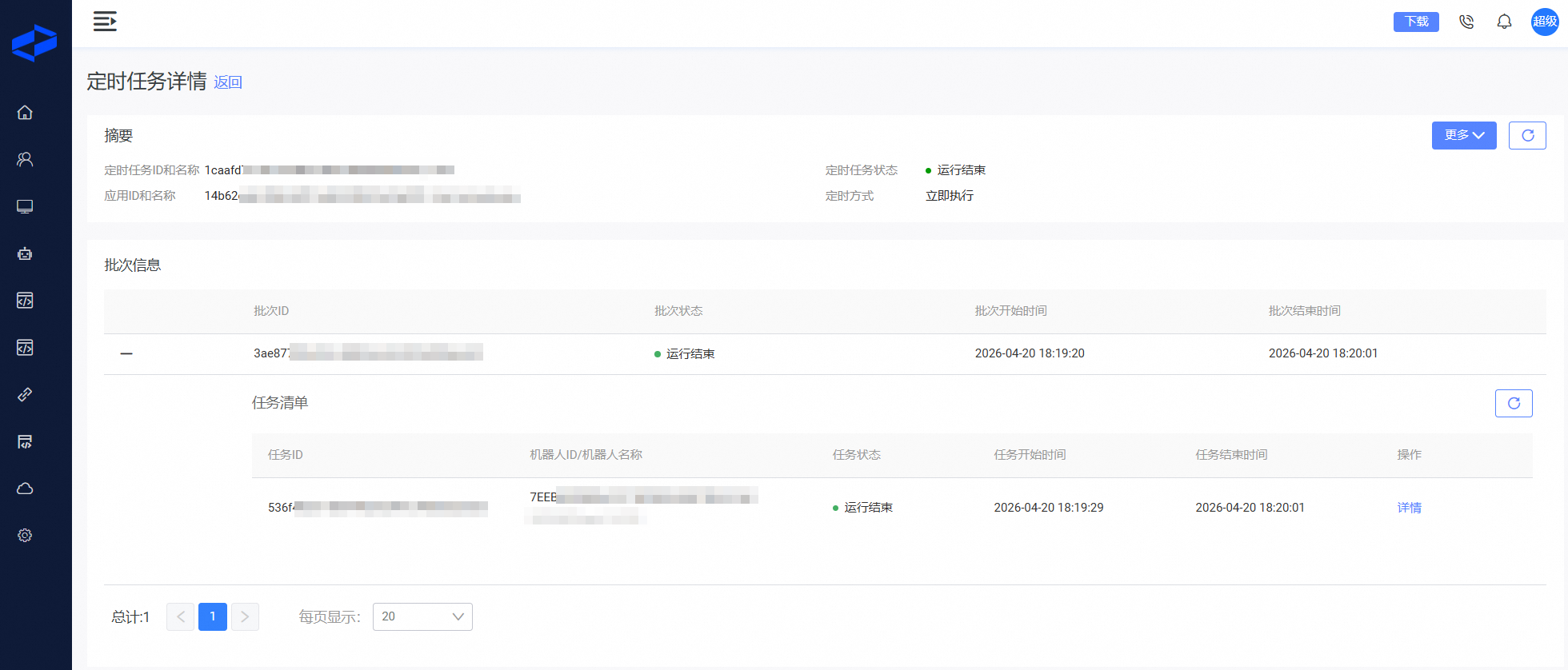
Viewing scheduled tasks
Managing scheduled tasks
Permission management
A scheduled task can only be managed by its administrator or a super administrator.
The user who creates a scheduled task automatically becomes its administrator.
A super administrator can manage all scheduled tasks within the tenant.
Changing the task administrator:
A super administrator can change the administrator for any scheduled task in the tenant.
A task administrator can change the administrator of the scheduled tasks they own.
API-triggered execution
API call
First, enable the Allow to be scheduled option in the robot client. This process is described earlier.
Key APIs:
Use the createServiceTask API to trigger an execution. For an example of how to call the API, see API Call Example.
Use the queryTaskStatus API to query the status of a task with a specific taskId. Use the queryServiceResult API to get the task_result for a specific taskId.
The main parameters for API calls are:
AccessKeyId and AccessSecret. Find the AccessKey for your account on the system settings > personal information page.
ImportantThe account associated with the AccessKeyId must have the required application permissions. Otherwise, the API call fails and returns a validation error.
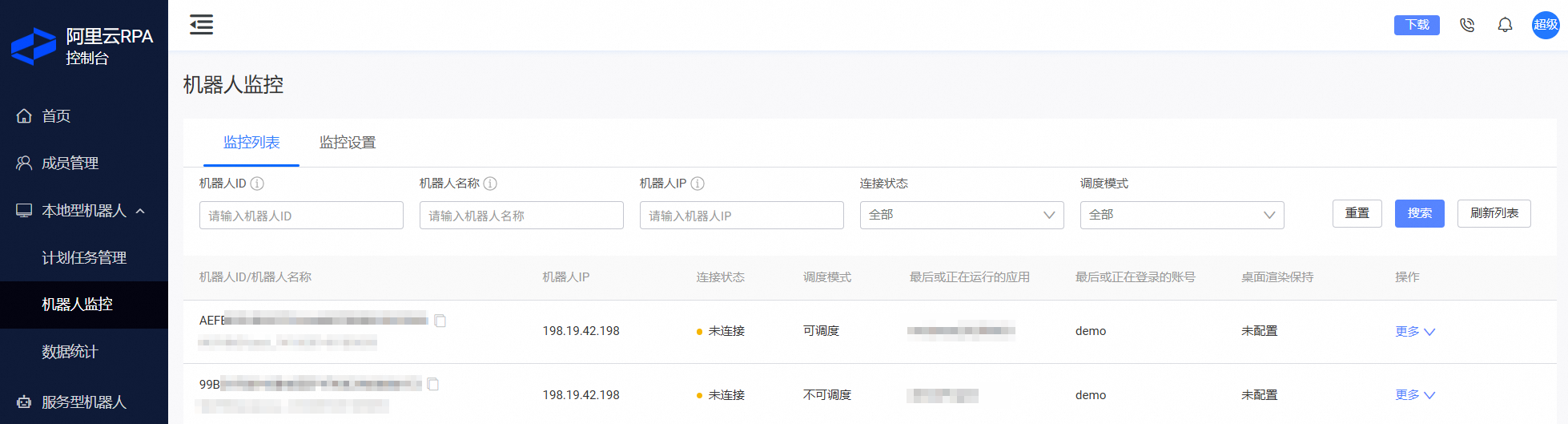
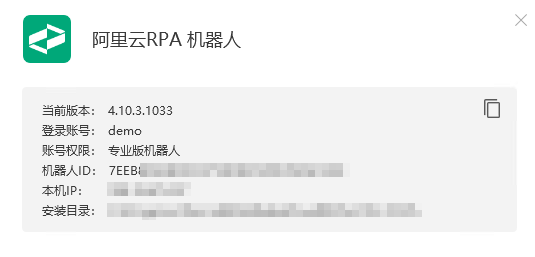
robot ID. You can find the robot ID in two ways:
Option 1: Go to the console > local robots > robot monitoring page to view the robot ID.
Option 2: Open the local robot client and go to the Settings > About screen to view the robot ID.
Application version.

Viewing API-triggered tasks
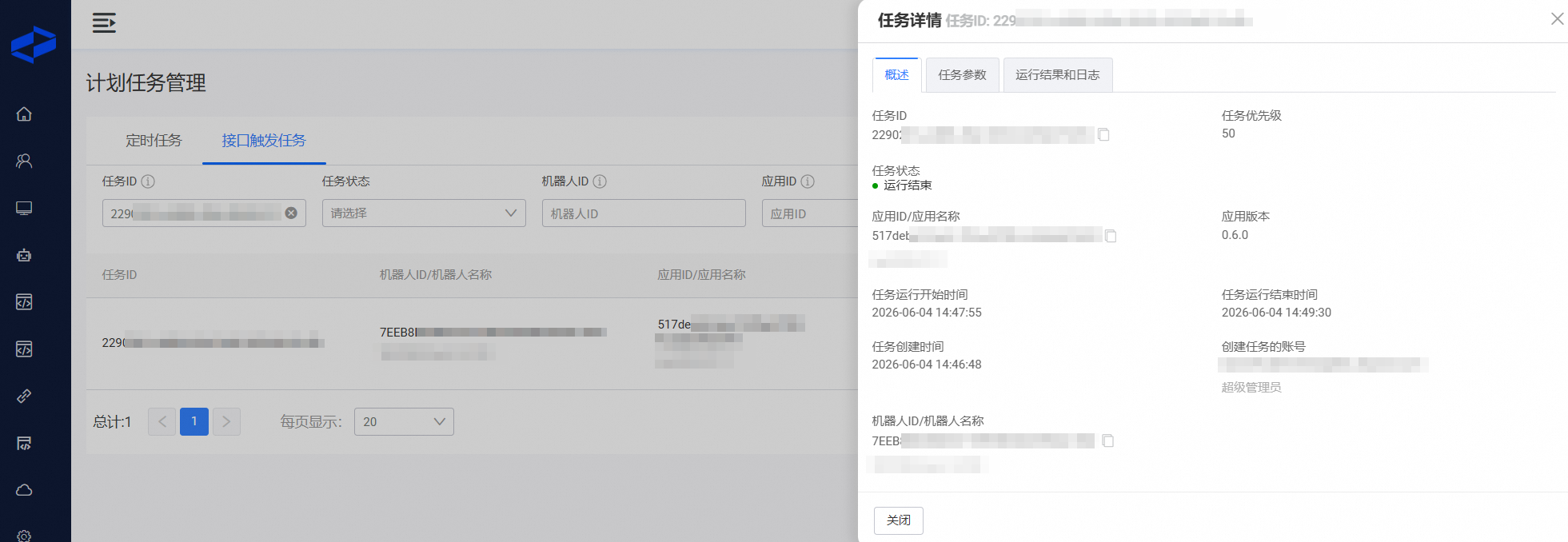
View these tasks on the scheduled task management > API-triggered tasks page.
MCP Tool execution
MCP Tool call
The application must be published as an MCP Tool. For more information, see Tool Management.
Enable the Allow to be scheduled option in the robot client. The configuration process is the same as described earlier.
Call the MCP Tool. For more information, see Calling an MCP Tool.
Viewing invocations
When an MCP Tool is called successfully, the RPA server automatically uses API-triggered execution to run the corresponding application version. You can view these calls on the scheduled task management > API-triggered tasks page. For more information, see Viewing API-triggered tasks.