Get started with ALB Ingress gateway routing in five minutes
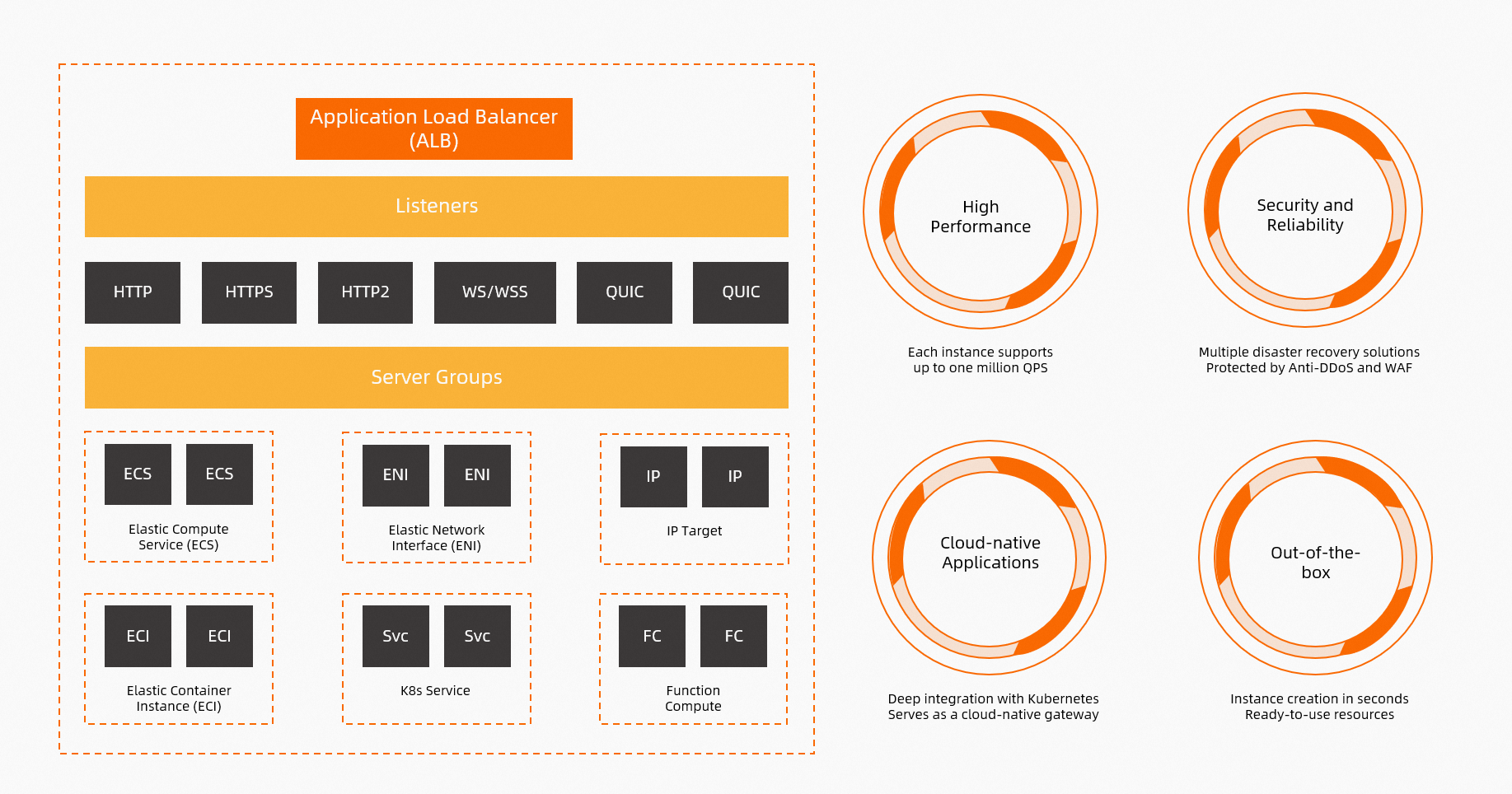
ALB Ingress gateway routing lets you expose HTTP, HTTPS, and QUIC traffic to applications running in Serverless App Engine (SAE). It uses Application Load Balancer (ALB) — Alibaba Cloud's cloud-native Layer 7 load balancer — as the entry point and syncs SAE routing rules to ALB listener configurations automatically. This guide walks you through attaching an ALB instance and configuring your first routing rule.
How it works
Concept | What it does |
Gateway entry point | An ALB instance you attach to a SAE namespace. All inbound traffic for that namespace enters through this instance. |
Routing rule sync | Each routing rule you create in SAE maps to a listener configuration on the ALB instance. Listener names always start with |
Traffic forwarding | The ALB instance, not SAE itself, handles the actual traffic. It evaluates each request against your forwarding rules and routes it to the matching backend application. |
Use cases
ALB Ingress gateway routing is suited for these scenarios:
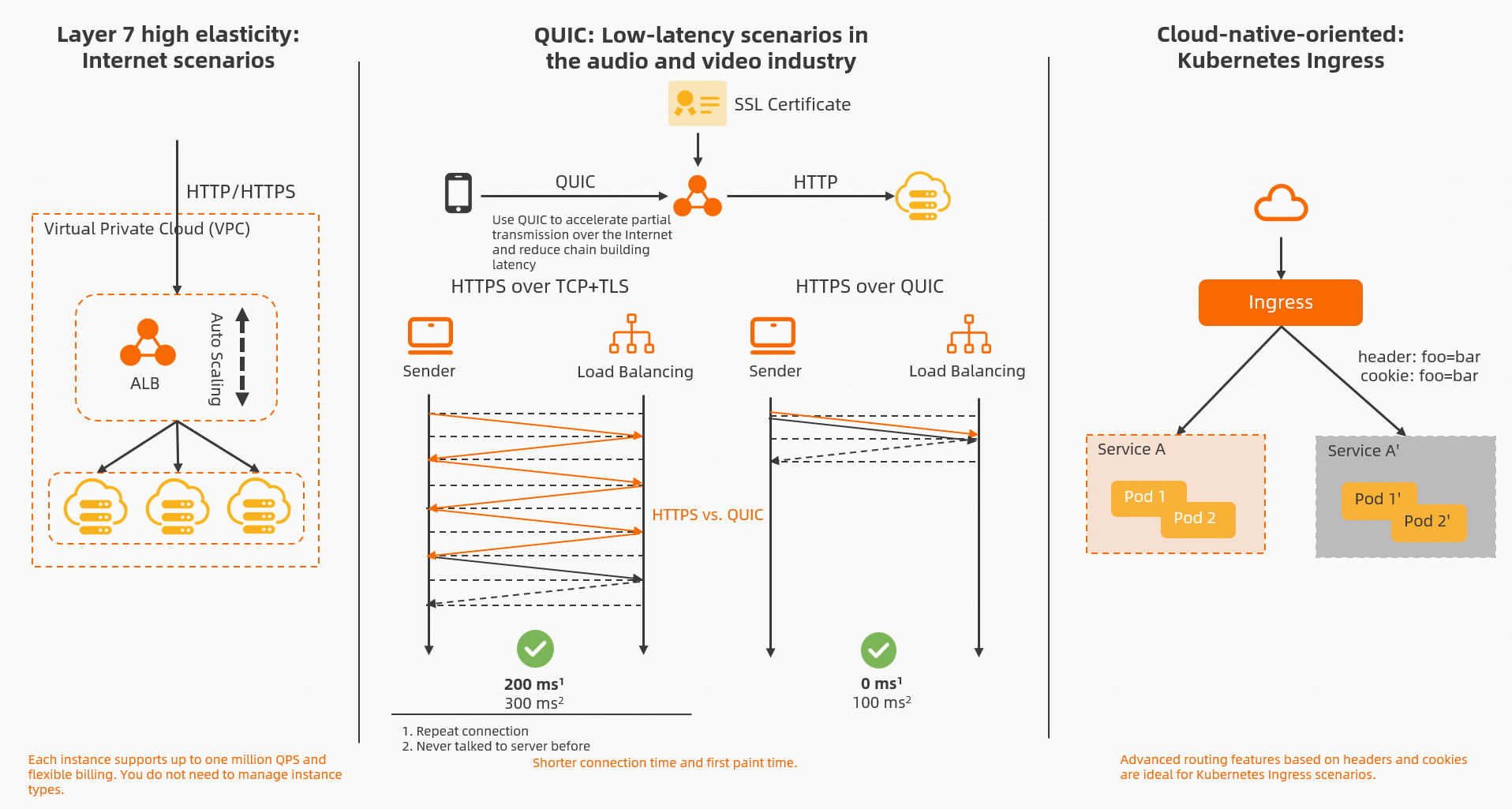
Single domain, multiple paths — Forward traffic for one or more applications that share a domain name but serve different paths.
Multiple domains, shared IP — Forward traffic for one or more applications that use different domain names resolving to the same IP address.
Protocol flexibility — Route HTTP, HTTPS, and QUIC traffic without running your own reverse proxy.
Before you begin
The SAE ALB Ingress Controller provides fully managed, O&M-free Ingress traffic management. It is compatible with Nginx Ingress semantics, supports automatic certificate discovery, and provides traffic ingress observability.
Prerequisites
Before you begin, make sure you have:
An ALB instance. See Create and manage an ALB instance.

Configure routing rules
Step 1: Attach the ALB instance
Open the Gateway Routing page for your namespace. When creating a routing rule, select your ALB instance as the gateway entry point.
Step 2: Configure forwarding rules
Set the domain name, path, and port for each forwarding rule. Select the backend application that will accept the traffic for each rule. Add a default rule to handle requests that do not match any custom rule.
The port values shown here are for demonstration only. Set ports based on your actual application configuration.
Verify the routing rule
After saving, go to the Gateway Routing page of your namespace to confirm the rule appears. Then access the corresponding backend service or application using Domain Name:Access Port/Path.
The following example shows a completed routing rule. Requests to www.example.com/path are forwarded to spring-boot-provider on port 8080. Requests that do not match any custom rule are forwarded to spring-boot-consumer.