Cost analysis
After you create an application in SAE, the system analyzes historical runtime data and provides optimization recommendations, such as adjusting resource configurations, configuring auto-scaling policies, and enabling idle mode to reduce costs.
-
This feature is in invitational preview. To use this feature, contact our technical support in the DingTalk group (group ID: 32874633) for access.
-
Idle mode is available only for the standard and professional editions of SAE applications.
Access
-
Log on to the SAE console. In the left-side navigation pane, choose Applications > Applications. Select the target region and namespace, and then click the target application's ID.
-
On the Basic Information page of the target application, click the Cost analysis tab.
Cost optimization items
Because this feature relies on historical data, the system requires sufficient data for analysis. The requirements are as follows:
-
If you have configured a scheduled scaling rule or a scheduled start/stop rule for your application, at least 10 hours of historical monitoring data is required.
-
If you have not configured a scheduled scaling rule or a scheduled start/stop rule for your application, at least 20 hours of historical monitoring data is required.
SAE provides three methods to optimize application costs:
-
Configure an auto-scaling policy: Dynamically adjust the number of instances based on the load to avoid resource waste.
-
Enable idle mode: Bill application instances at a lower unit price when they meet certain idle conditions.
-
Adjust the instance type: Optimize the CPU and memory specifications for each instance to improve resource utilization and balance performance and cost.
The following sections describe each optimization method. In production, adjust the system-generated recommendations based on your business requirements.
Auto-scaling policy
To forecast potential daily CU savings from an auto-scaling policy, the system requires at least 20 hours of historical data from an application that has three or more instances.
The system analyzes the last 20 hours of historical data (if no auto-scaling policy is configured) to determine whether a metric-based or scheduled auto-scaling policy suits the application. If a suitable policy type is found, the system generates a recommendation.
-
Metric-based auto-scaling policy:
If an application's historical data shows significant load fluctuations over time (for example, if CPU utilization fluctuates by more than 50% for over 2 hours), the system generates a suitable metric-based auto-scaling policy.
-
Scheduled auto-scaling policy:
If an application experiences a period of no traffic (for example, QPS is 0 and both CPU and memory utilization are extremely low for 3 consecutive hours), the system generates a suitable scheduled auto-scaling policy.
On the Optimized items for cost reduction tab, you can view the CUs saved on the current day by the system-generated auto-scaling policy.
Click Add a scaling policy. In the Create Auto Scaling Policy panel, you can view the system-generated configuration and adjust it to your business needs. For more information about how to configure an auto-scaling policy, see Configure an auto-scaling policy.
If you choose to use the system-generated auto-scaling policy to optimize costs, you must manually Enable the policy on the Auto Scaling tab after you add it.
Idle mode
When the system detects that the idle ratio of application instances exceeds 10%, it recommends enabling idle mode to optimize costs.
The idle ratio is the proportion of an application instance's total runtime spent in a low-traffic or no-traffic state.
On the Optimized items for cost reduction tab, you can view the estimated daily CU savings for application instances after you enable idle mode. The savings are calculated based on historical runtime data from the last 20 hours.
You can enable idle mode directly on this page. For more information about idle mode, see Idle mode (invitational preview).
After you enable idle mode, click View monitoring data on this page to view detailed resource usage in the Idle Instance Monitoring panel.
Instance type adjustment
SAE checks the CPU and memory consumption of each instance over the last 20 hours and recommends the smallest instance type suitable for your application. Adjust this recommendation based on your application's specific requirements.
On the Optimized items for cost reduction tab, you can view the system's recommended instance type and the potential CU savings.
Click Adjust configurations. In the Change Instance Specifications panel, adjust the instance configuration to meet your business needs. For more information about how to change an instance type, see Change an instance type.
Actual cost savings overview
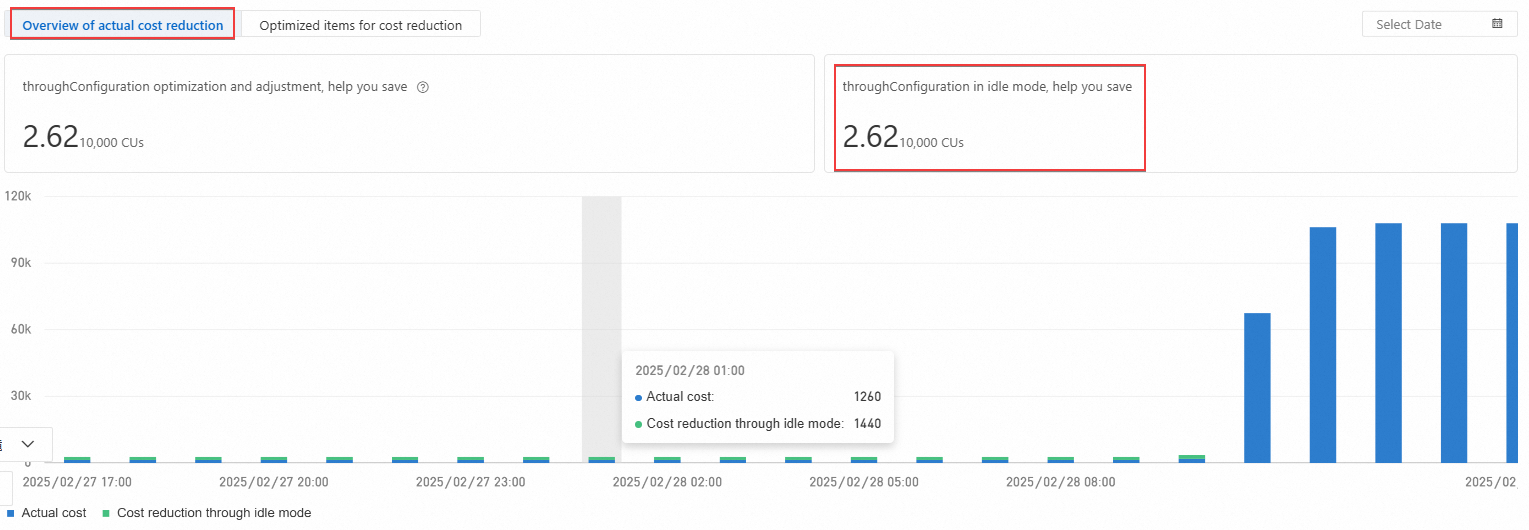
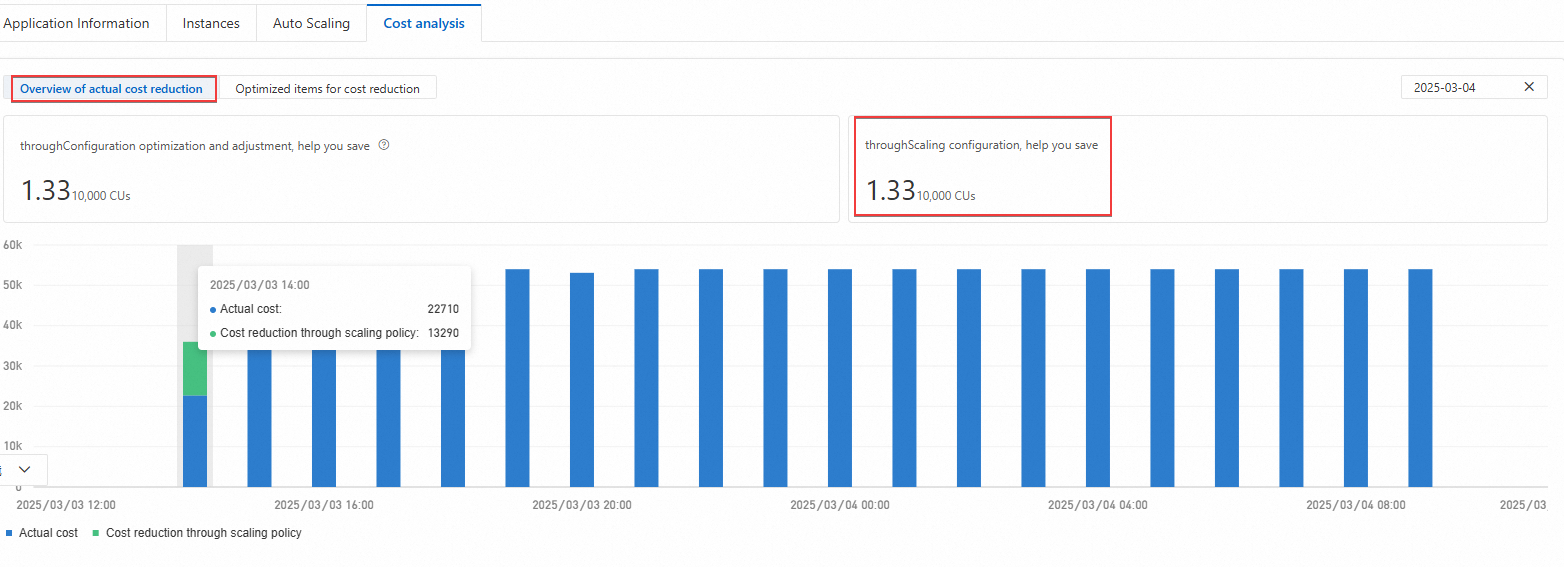
On the Overview of actual cost reduction tab, you can view the following information:
-
The current actual cost, based on the CU usage of the current resource configuration.
For more information about billing, see Billing.
-
The cost savings from configuring an auto-scaling policy, achieved by dynamically adjusting the number of instances.
-
The cost savings from enabling idle mode, achieved by reducing resource usage during off-peak periods.
-
By default, the auto-scaling savings for the current day are displayed. You can select a custom date to view historical data.
-
The CUs saved, as displayed on the Actual Cost Savings Overview tab, represent the total CUs saved on that day through auto-scaling policies or idle mode.
Auto-scaling savings
You must configure an auto-scaling policy for your application before you can track auto-scaling savings. For more information, see Optimize costs by configuring an auto-scaling policy.
Unlike traditional frameworks that provision static resources for peak load, auto scaling releases resources during low-traffic periods. SAE calculates auto-scaling savings with the following formula: Hourly auto-scaling savings = (Hourly CU usage at the peak number of instances) - (Hourly CU usage at the scaled-down number of instances).
For example, an application is configured to scale out to 10 instances from 06:00 to 20:00 and scale in to 2 instances from 20:00 to 06:00. Assume that the hourly CU usage is 200,000 from 06:00 to 20:00, and 50,000 from 20:00 to 06:00. In this case, the CUs saved between 20:00 and 21:00 is 150,000 (150,000 CU = 200,000 CU - 50,000 CU).
Idle mode savings
You must enable idle mode for your application before you can track idle mode savings. For more information, see Optimize costs by enabling idle mode.
When idle mode is enabled, instances are billed at a lower unit price during idle periods. SAE calculates idle mode savings with the following formula: CUs saved per hour by idle mode = CU usage per hour without idle mode - CU usage per hour with idle mode.
For example, an application uses 200,000 CUs per hour without idle mode. After you enable idle mode, the usage drops to 150,000 CUs per hour, saving the application 50,000 CUs per hour (50,000 CUs = 200,000 CUs - 150,000 CUs).