Create a scheduled start and stop rule
To save costs, you can create a scheduled start and stop rule for your applications. Stopped applications do not incur computing resource fees.
-
For manual batch operations, see Perform batch operations on applications.
-
To schedule batch start and stop operations, follow the steps in this topic.
1. Grant full SAE permissions to OOS
The scheduled start and stop feature uses CloudOps Orchestration Service (OOS). You must first create an OOSServiceRole RAM role and grant it the AliyunSAEFullAccess policy, which provides full permissions to manage SAE.
Log on to the RAM console as a RAM administrator.
In the left-side navigation pane, choose .
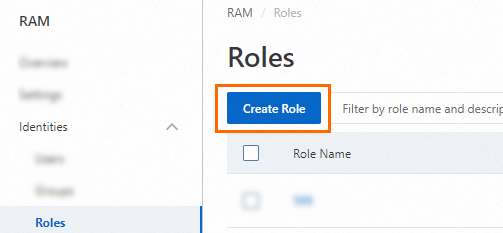
On the Roles page, click Create Role.
-
On the Create Role page, set Principal Type to AnyTunnel. In the Principal Name field, search for OOS, select CloudOps Orchestration Service, and then click OK.
-
In the dialog box that appears, enter
OOSServiceRoleas the Role Name. On the Permissions tab, click Grant Permission, search for and select theAliyunSAEFullAccesspolicy in the Policies area, and then click OK.
2. Manage scheduled start and stop rules
-
Navigate to the SAE Namespaces page. In the top navigation bar, select the target region. Click the name of the target namespace to go to its details page.
-
In the left-side navigation pane, click Scheduled Start and Stop Rules. On the Scheduled Start and Stop Rules page, click Create Scheduled Start and Stop Rule.
-
In the Create Scheduled Start and Stop Rule panel, configure the parameters and click OK.
Parameter
Description
Rule Name
A custom name for the scheduled start and stop rule.
Trigger
-
Batch Start Applications: Starts the selected applications in the namespace.
-
Batch Stop Applications: Stops the selected applications in the namespace.
Frequency
-
Only Once: Runs once at the specified time.
-
Scheduled: Runs on a recurring schedule defined by a cron expression. The valid values for each field are:
-
Minute: [0, 59].
-
Hour: [0, 23], where
0indicates midnight (00:00). -
Day of month: [1, 31].
-
Month: [1, 12] or [JAN, DEC]. This field cannot be modified.
-
Day of week: [1, 7] or [Sun, Sat].
1represents Sunday, and7represents Saturday. For example, to trigger the rule on Tuesday, Thursday, and Saturday, enter3,5,7orTue,Thu,Sat.
NoteThe notation [1, 7] indicates a value range. If you enter
1,7in the day-of-week field, the rule triggers only on Sunday and Saturday. -
Pre-execution Notification Configuration
Provide a webhook URL for a DingTalk chatbot. SAE sends a notification to this URL before each scheduled task runs, to notify you of system operations. The custom keyword for the DingTalk chatbot must be set to
SAE. For more information, see Obtain the webhook URL of a DingTalk chatbot.Triggered Applications
-
Start/Stop All Applications: Starts or stops all applications in the target namespace. Before each task execution, SAE automatically scans for the latest list of applications and then performs the start or stop operation.
-
Start/Stop Some Applications: After you select Start/Stop Some Applications, select the application type that you want to start or stop from the drop-down list, and then select the checkboxes next to the target applications.
After the rule is created, you can view it on the Scheduled Start and Stop Rules page. You can also Disable, Edit, or Delete existing rules.
-