Configure SAE Grafana dashboards and alert rules using Prometheus
Serverless App Engine (SAE) offers a wide range of monitoring metrics and data source types. By default, these metrics are integrated with Alibaba Cloud Managed Service for Prometheus. Managed Service for Prometheus is also integrated with Managed Service for Grafana. You can view preset dashboards in the shared version of Managed Service for Grafana. You can also create a paid Grafana workspace to perform custom development on SAE monitoring data.
Prerequisites
You have activated SAE and created an SAE application. For more information, see Deploy applications.
Usage notes
View the preset Grafana dashboards for a single application in SAE, such as the basic monitoring dashboard and the Application Real-Time Monitoring Service (ARMS) application monitoring dashboard.
View and configure the global Grafana observability dashboard for multiple applications. This includes statistics and Top N dashboards for metrics across all applications, tasks, instances, and change orders. You can configure custom monitoring dashboards as needed. This feature allows a single person to easily perform operations and maintenance (O&M) on hundreds or thousands of applications.
Configure monitoring and alerting rules for all SAE metrics in Prometheus to ensure business continuity and high service availability.
For more information, see What is Managed Service for Grafana? and Grafana.
Accessing the feature
On the SAE Application List page, select a region and namespace at the top, and click the ID of the target application to open the application details page.
In the navigation pane on the left of the Basic Information page, click Basic Monitoring. In the message that appears at the top of the page, click View Details.
Basic monitoring dashboard: This opens the basic monitoring dashboard in Grafana. For a dashboard example, see View the basic monitoring Grafana dashboard for a single application.
Application monitoring dashboard: Click the
 icon in the navigation pane on the left to return to the Grafana search page. To view the application monitoring dashboard, search for the keyword
 arms. Find the directory that starts witharms-metrics-<your-region>-. Expand the directory to view the monitoring metrics. For a dashboard example, see View the ARMS monitoring Grafana dashboard for a single application.
View the basic monitoring Grafana dashboard for a single application
This dashboard displays monitoring metrics for all instances of a single application and for the application itself. The metrics are as follows:
CPU utilization
Average system load
Memory usage
Inbound and outbound network rate
Network packets
Disk usage
Disk IOPS
Disk throughput rate
TCP connections
View the ARMS monitoring Grafana dashboard for a single application
The built-in ARMS monitoring feature in SAE is applicable only to Java applications.
This dashboard displays monitoring metrics from the API, Application, DB, and Machine dimensions. For more information about the metrics on the dashboard, see Application monitoring metrics.
API (Application overview monitoring view)
The application overview view shows monitoring metrics for an application and its upstream and downstream links, including the number of requests, response time (RT), and number of errors.
Application (Application details monitoring view)
The application details view includes monitoring metrics for service invocations (provided and invoked services), Java virtual machine (JVM), and instances.
DB (Monitoring view for the database associated with the application)
The monitoring view for the database associated with the application includes monitoring metrics such as the number of requests, number of errors, RT, and connection pool.
Machine (Application instance monitoring view)
The application instance monitoring view includes monitoring metrics for a specific application instance, such as CPU, memory, load, disk, network traffic, and network packets.
Configure a global Grafana observability dashboard for multiple applications
Creating a Grafana workspace incurs fees. For more information, see Billing rules.
If the basic and application monitoring dashboards do not meet your needs, you can configure a global observability dashboard. You can customize more comprehensive and fine-grained dashboard data. This helps you identify current issues, prevent potential risks, and analyze future trends from a global perspective.
Create a Grafana workspace. For more information, see Create a Grafana workspace.
You can view the new workspace on the Workspace Management page.
On the Workspace Management page, click the name of the target workspace. Then, on the Workspace Information page, integrate the SAE data sources in the Cloud Service Integration section.
Integrate the SAE data source. This data source contains SAE infrastructure monitoring data and platform-side data.
In the cloud service integration list, select Prometheus Service Monitoring and integrate the SAE self-monitoring data source for the corresponding region.
Integrate the ARMS data source. This data source contains SAE application monitoring data.
In the cloud service integration list, select ARMS Application Monitoring Service and integrate the data sources for the corresponding region.
Integrate the SLS data source. This data source contains SAE event information.
In the cloud service integration list, click Simple Log Service and add an SLS data source. For more information, see Cloud Service Integration.
When you create a data source, set the Project parameter to
aliyun-product-data-<user-id>-<region-id>and the logstore parameter tosae_event.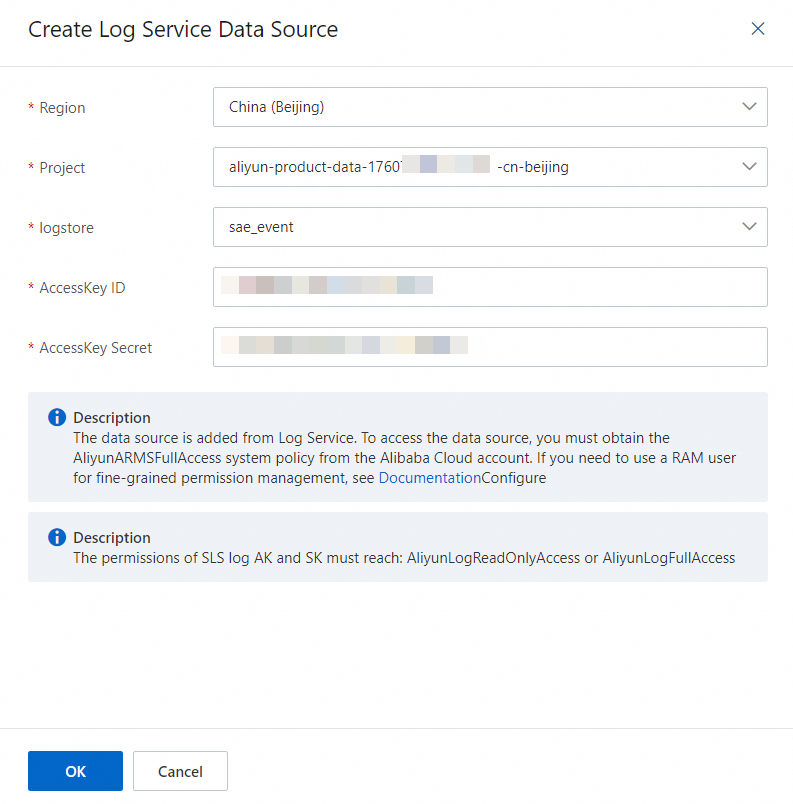 Note
NoteApplications not deployed before April 28, 2023 must be redeployed to generate data.
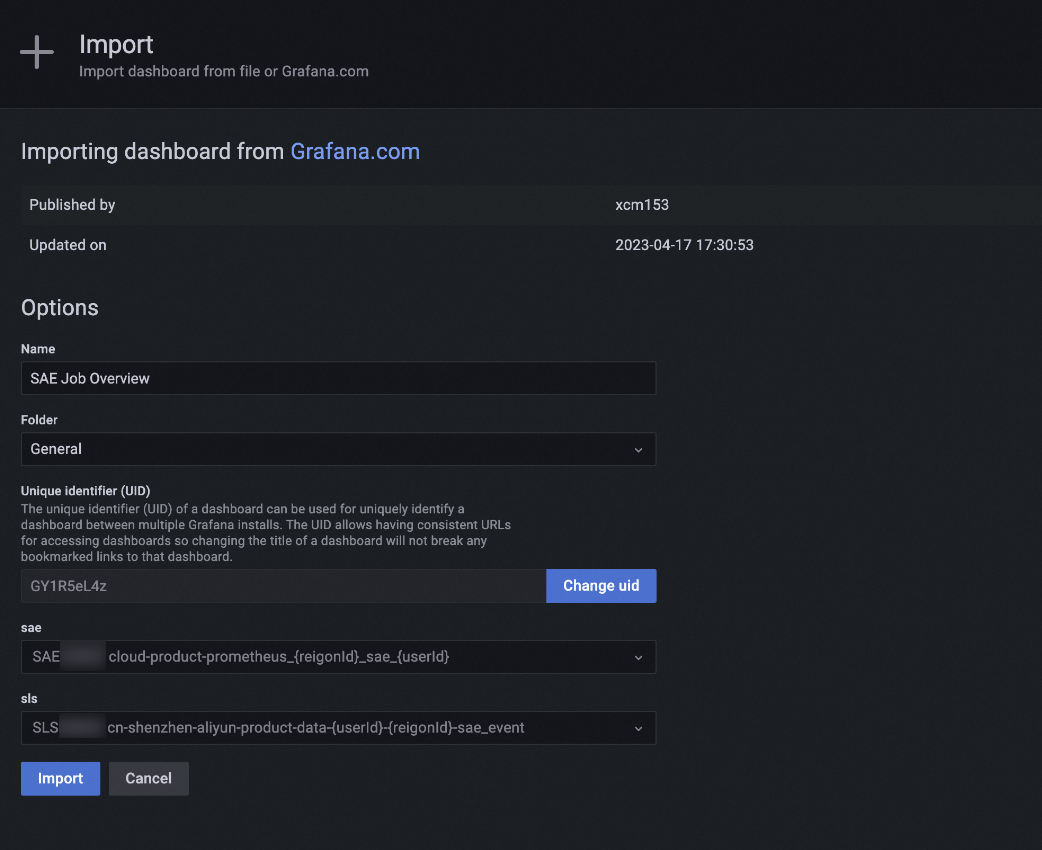
In Grafana, import dashboard templates.
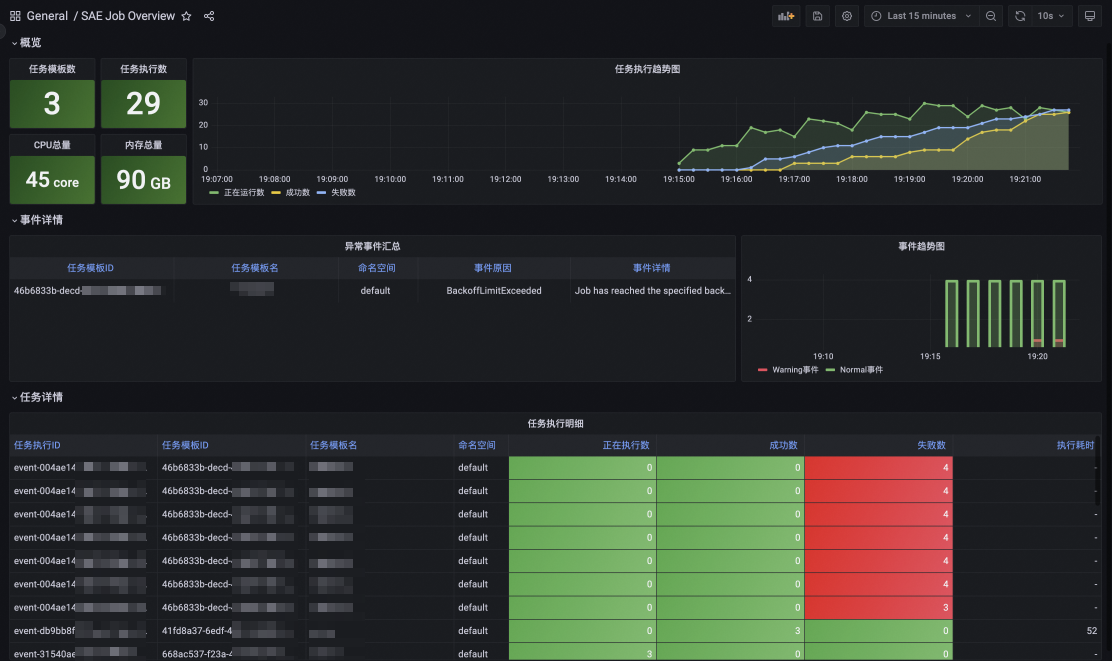
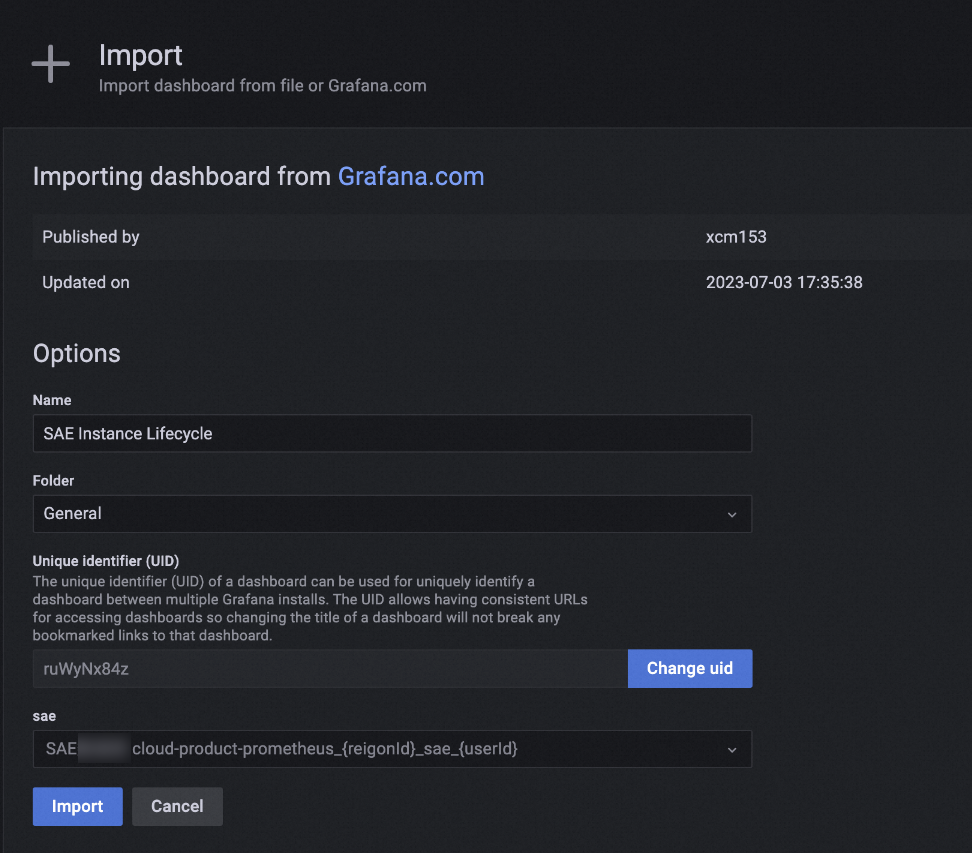
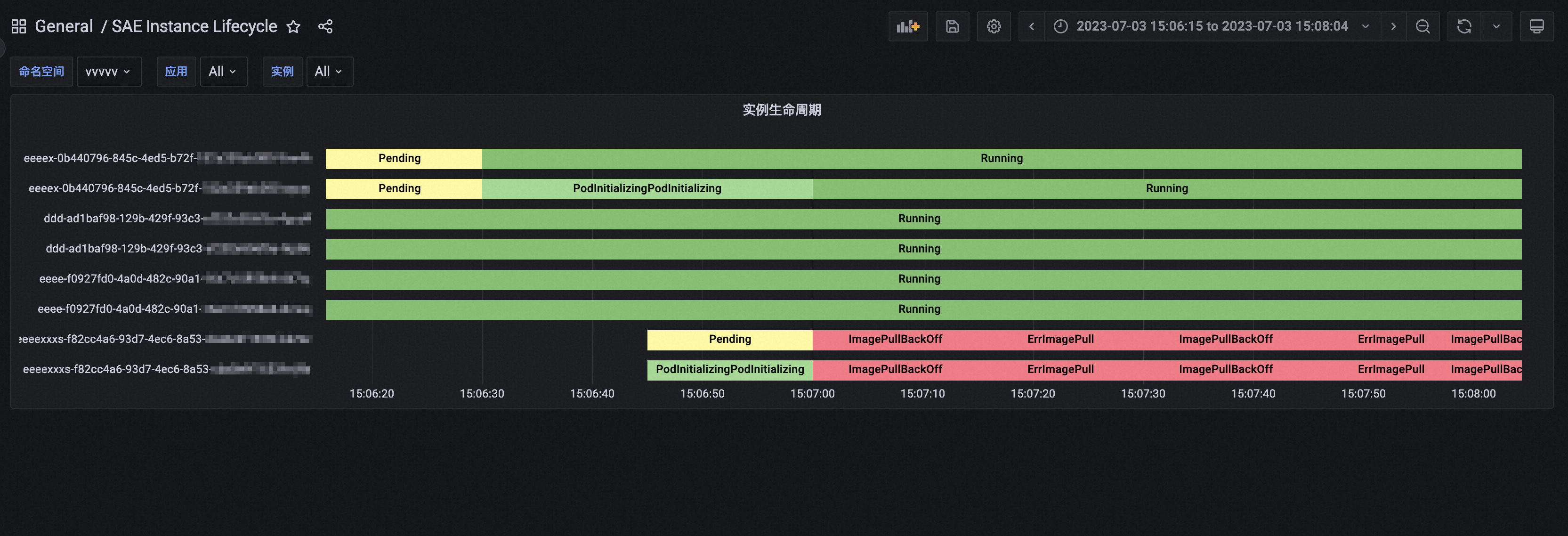
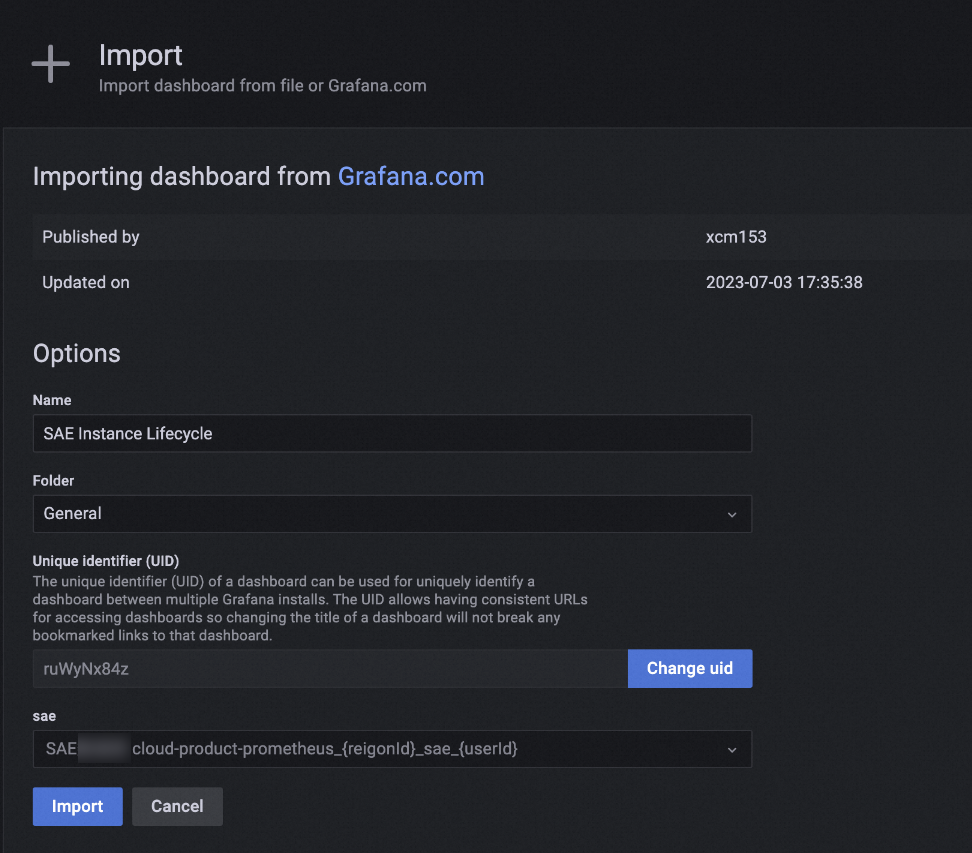
Enter the ID for each dashboard template to import it. Then, select the data source that you added in Step 2.After the dashboard template is imported, you can view the Grafana dashboard. For more information, see Add and use a Prometheus data source.
Category
Dashboard ID
Import data source
View monitoring metrics
Global application dashboard
18555
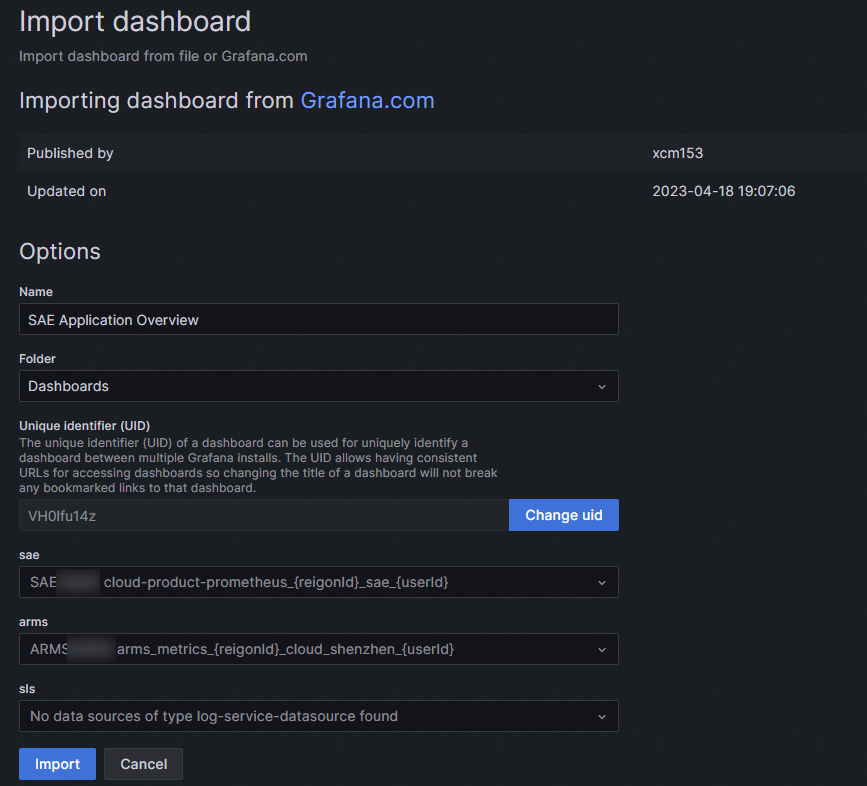
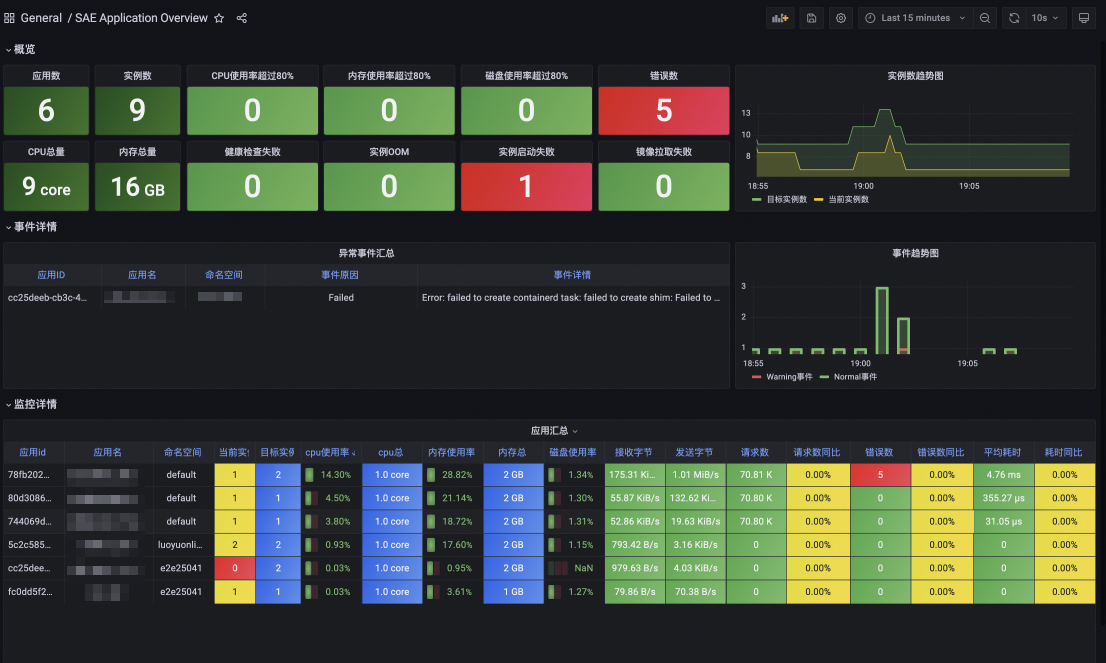
Global task dashboard
18556

Instance lifecycle dashboard
19098
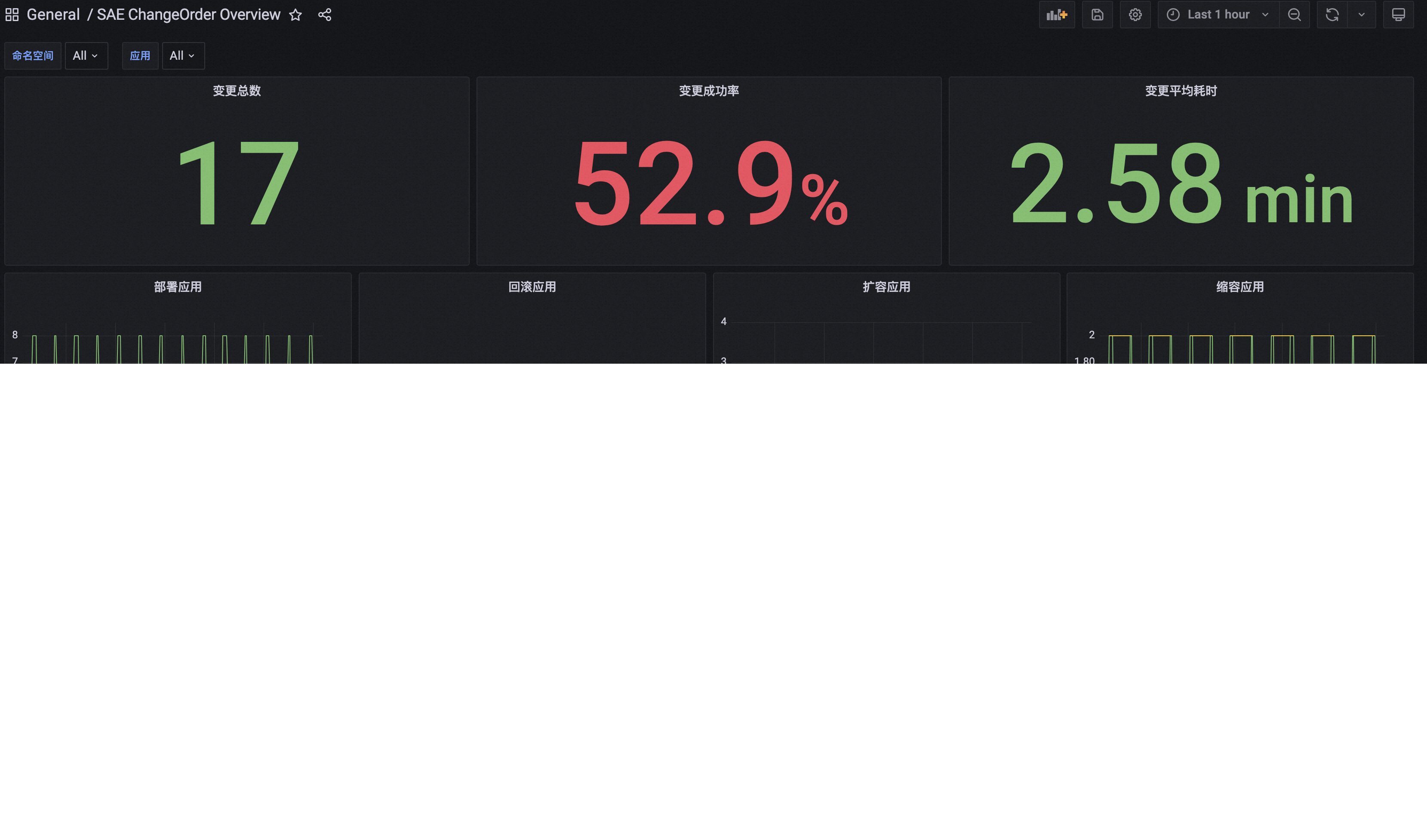
Change order dashboard
19099
Configure monitoring and alerting rules for SAE metrics using Prometheus
Creating a Grafana workspace incurs fees. For more information, see Billing rules.
By integrating the SAE data source with Managed Service for Prometheus, you can configure monitoring and alerting for key SAE metrics related to applications, tasks, instances, and change orders. This ensures business continuity and high service availability.
Supported SAE metrics
The following tables describe the built-in SAE metrics in Prometheus.
Configure monitoring and alerting rules
Integrate the SAE data source.
Create a Grafana workspace. For more information, see Create a Grafana workspace.
You can view the new workspace on the Workspace Management page.
On the Workspace Management page, click the name of the desired workspace. Then, on the Workspace Information page, integrate the SAE data source in the Cloud Service Integration section.
The SAE data source contains SAE infrastructure monitoring data and platform-side data.
In the list of cloud service integrations, select Prometheus Service Monitoring and filter for the SAE self-monitoring data source integration in the corresponding region.
Configure rules.
After you integrate the SAE data source, log on to the Prometheus console and create monitoring and alerting rules. For more information, see Create a Prometheus alert rule.