SAP HANA Scale-Out Deployment Guide
SAP HANA Scale-Out Deployment Guide
Install HANA
Version history
Version | Revision date | Change type | Effective date |
1.0 | 2018/5/14 | ||
1.1 | 2018/5/31 | 1. Added the installation of Metrics Collector. 2. Adjusted some page styles. | 2018/6/1 |
1.2 | 2019/7/4 | 1. Optimized NAS parameters. | 2019/7/4 |
1.3 | 2019/7/30 | 1. Updated some links. | 2019/7/30 |
1.4 | 2022/1/18 | 1. Modified the configuration instructions for HANA internal service communication. | 2022/1/18 |
Overview
This document describes how to deploy an SAP HANA Scale-Out installation in an Alibaba Cloud environment. This deployment uses a non-shared 3+0 architecture and the ECS automatic recovery feature to recover failed nodes. You do not need to purchase and maintain standby nodes for the SAP HANA instance.
This document is not a substitute for standard SAP documentation. The deployment methods in this document are for reference only. Before you deploy, read the official SAP installation and configuration documents and the recommended SAP Notes.
Architecture overview
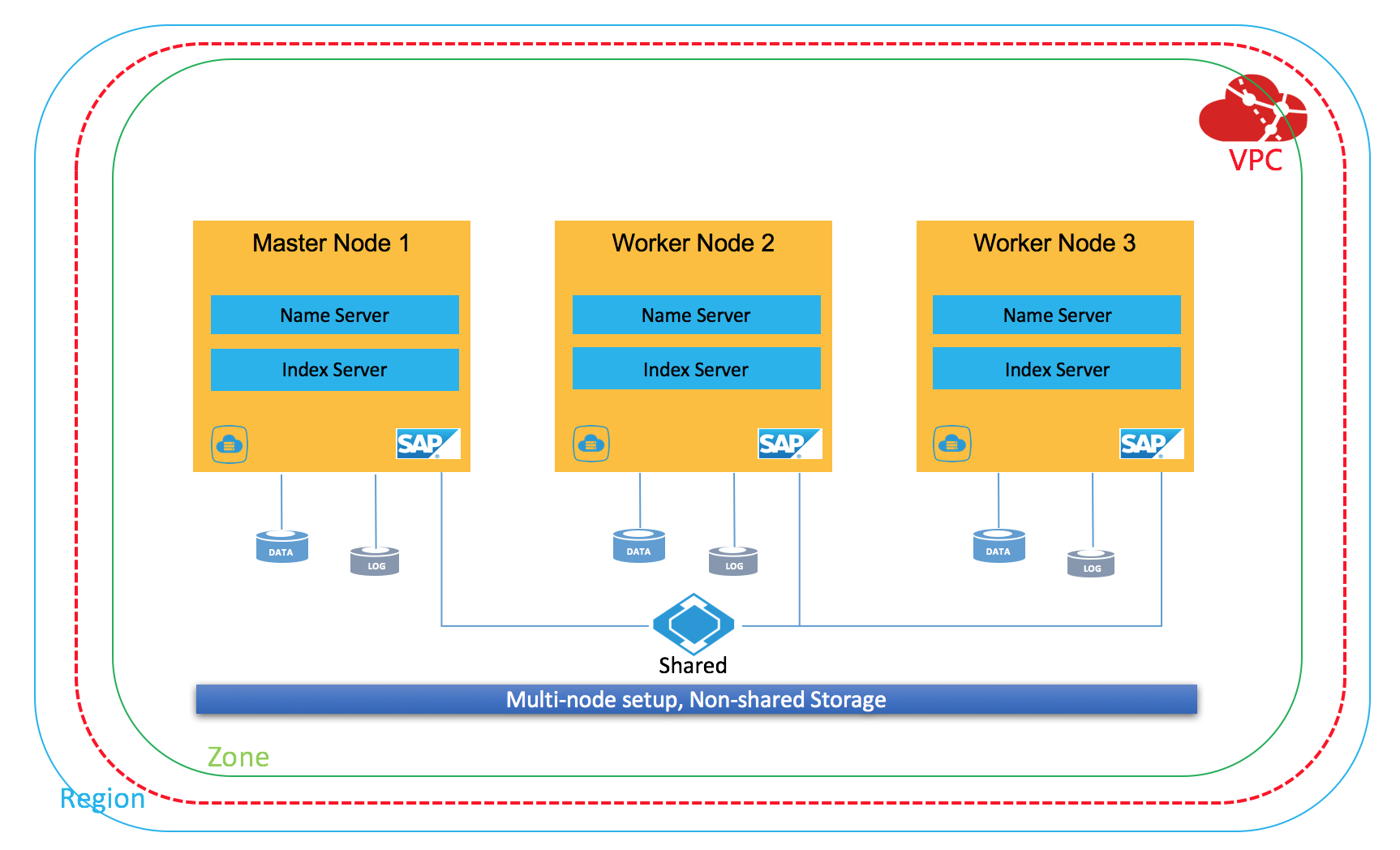
Resource planning
Network planning
Purpose | Location | Assigned CIDR block | vSwitch | VPC |
Business network | China (Beijing) Zone F | 192.168.10.0/24 | sap_business | SAP_Network |
SAP and host planning
SAP HANA SID: BWS
Hostname | IP address | Type | Instance number | SID | Notes |
hana01 | 192.168.10.4 | Master | 00 | BWS | Installed locally |
hana02 | 192.168.10.5 | Worker | 00 | BWS | Installed locally |
hana03 | 192.168.10.6 | Worker | 00 | BWS | Installed locally |
User and group planning
The user IDs and group IDs for SAP HANA must be the same on all nodes in the SAP HANA cluster.
User: In this example, the [sid]adm ID is set to 2000.
Group: In this example, the sapsys ID is set to 2000.
Swap space planning
SAP applications and HANA installations require swap space. You can create a separate standard SSD to use as a swap disk when you create the ECS instance. For recommendations on swap space, see SAP Note 1597355 - Swap-space recommendation for Linux [An SAP Service account is required for access].
File system planning
For global file systems, you can mount them using autofs. For information about sizing HANA file systems, see the official SAP documentation. This example uses an ECS instance type with 128 GB of memory. The following file system plan is for reference only.
File system | Type | LV | VG | Size | Disk type |
/hana/data | xfs | datalv | hanavg | 384 GB | Standard SSD |
/hana/log | xfs | loglv | hanavg | 64 GB | Standard SSD |
/hana/shared | NAS | N/A | N/A | 128 GB | Standard SSD |
Prerequisites
Alibaba Cloud account
If you do not have an Alibaba Cloud account, you can use your mobile phone number to create an account and complete identity verification on the Alibaba Cloud website or in the Alibaba Cloud app. You can also use the Alibaba Cloud app to manage cloud resources, monitor resource status, perform identity verification, and find information in the Q&A community.
VPC
A virtual private cloud (VPC) is an isolated network environment that you build on Alibaba Cloud. VPCs are logically isolated from each other. You have full control over your VPC. For example, you can select IP address ranges and configure route tables and gateways. For more information, see the product documentation.
Create a VPC and a vSwitch based on your plan.
ECS instances
Elastic Compute Service (ECS) is a basic cloud computing service that Alibaba Cloud provides. You can configure your ECS resources in the Management Console. For information about SAP NetWeaver and SAP HANA certifications on Alibaba Cloud, see SAP Note 1380654 - SAP support in public cloud environments.
Create an ECS instance
In the console, create an ECS instance. You can select a billing method and a zone.
Select a VPC and a security group. You can use the VPC and security group that you created or an existing one. For more information about security group settings, see Security group FAQ.
The security group rules in this example are as follows:
Protocol Type | Port Range | Scenario |
ICMP | -1/-1 | Allow ICMP protocol |
SSH | 22/22 | Linux SSH remote access |
TELNET | 23/23 | Default Telnet port |
HTTPS | 443/443 | HTTPS-based web access |
SAP HANA | 30015-39915 | SAP HANA |
VNC | 5801-5904 | Access for VNC viewer |
Based on your plan, create or modify the disks and their sizes. For more information about disk products and performance, see Elastic Block Storage performance.
In this example, the /hana/data file system uses three standard SSDs or enterprise SSDs (ESSDs) of the same capacity. The disks are striped using Logical Volume Manager (LVM) to meet the performance requirements of HANA. The /hana/log file system uses a single standard SSD or ESSD. The file systems are of the XFS type.
Review all options and create the ECS instances. You must create a total of three ECS instances for this deployment.
Install ECS Metrics Collector
The ECS Metrics Collector is a monitoring agent. It collects virtual machine configuration information and underlying physical resource usage information for SAP systems on the cloud platform.
When an SAP system runs on an ECS instance, the SAP Host Agent obtains the required information through metadata services and OpenAPI. This information is used to monitor the SAP system, including the operating system, network, storage, and SAP architecture. The information is then provided to the SAP application for transaction analysis and system performance analysis.
You must install the Metrics Collector for SAP agent on every ECS instance that runs an SAP system, including database and application instances.
For more information about how to deploy ECS Metrics Collector, see ECS Metrics Collector Deployment Guide.
File Storage NAS
Alibaba Cloud File Storage (NAS) is a file storage service for compute nodes such as Alibaba Cloud ECS instances, E-HPC, and Docker. NAS provides standard file access protocols. It offers a distributed file system with unlimited capacity and performance scaling, a single namespace, multiple shares, high reliability, and high availability without requiring you to modify your existing applications. For SAP deployments on Alibaba Cloud, you can use File Storage NAS for the global file system.
1. Create a NAS file system
Select a region and a storage class. This deployment uses the Performance (SSD) storage class. For more information about NAS performance, see Storage classes.
In the console, go to Storage > File Storage NAS. To create a file system, select a region, storage class, capacity, and zone. Then, select Create a new file system and attach a storage plan.
After you complete the payment, return to the console and refresh the page. The new NAS file system appears.
2. Record the NAS address
Based on your plan, create one NAS file system for /hana/shared and record its mount target.
ECS instance migration for failures
Instance migration for failures is a feature that improves the availability of ECS instances and reduces the impact of physical hardware failures on your services.
If the physical server that hosts your ECS instance experiences an issue such as an underlying performance anomaly or a breakdown, the migration feature detects that the server cannot be recovered. Alibaba Cloud then immediately notifies you by a text message.
After the migration is complete, Alibaba Cloud sends another text message. The metadata of the ECS instance, such as the instance ID, private IP address, and public IP address, remains unchanged.
Install SAP HANA
Maintain hostnames
On all SAP HANA nodes, maintain the hostnames. Add the following information to the /etc/hosts file based on your plan:
192.168.10.4    hana01
192.168.10.5    hana02
192.168.10.6    hana03
Create file systems
The /hana/shared file system uses NAS. The /hana/data and /hana/log file systems are of the XFS type.
1. /hana/data and /hana/log file systems:
1. First, check the disks.
2. Create the physical volumes (PVs).
3. Create the hanavg volume group (VG).
4. Create the datalv and loglv logical volumes (LVs).
5. Create the file systems.
6. Create the mount points and configure automatic mounting on startup.
fdisk -l
pvcreate /dev/vdb /dev/vdc /dev/vdd
vgcreate hanavg /dev/vdb /dev/vdc /dev/vdd
lvcreate -L 384G -n datalv -i 3 -I 64 hanavg
lvcreate -L 64G -n loglv -i 3 -I 64 hanavg

mkfs.xfs /dev/hanavg/datalv
mkfs.xfs /dev/hanavg/loglv
mkdir -p /hana/data
mkdir -p /hana/log
Edit the /etc/fstab file and add the following content:
/dev/mapper/hanavg-datalv       /hana/data      xfs     nobarrier,noatime,nodiratime,logbsize=256k     0       0
/dev/mapper/hanavg-loglv        /hana/log       xfs     nobarrier,noatime,nodiratime,logbsize=256k     0       0
After you complete all steps, run mount -a to mount all file systems.
3. Global file system
Use autofs for both /hana/shared and /hana/backup. You do not need to create directories.
To configure autofs, perform the following steps:
1. Edit the auto.master file.
vim /etc/auto.master
Add the entry /- /etc/auto.nfs.
2. Create and edit the /etc/auto.nfs file as follows:
/hana/shared -rw,hard,intr,noresvport,timeo=60,retrans=2 xxxxxxx.nas.aliyuncs.com:/3. Start the autofs service and enable it to start on boot.
systemctl start autofs
systemctl enable autofs
Then, you can change the directory to the file system to access it and view the mount status.
Prepare the OS and installation packages
The following configurations must be added on all cluster nodes. This example describes the operations on only one node.
1. Install required packages for HA configuration and optimization
Install the sap_cluster_connector and saptune packages.
zypper in -y saptune sap_cluster_connectorRun the following command to check if the installation was successful:
zypper se saptune sap_cluster_connector2. Check the NTP service
ECS instances provided by Alibaba Cloud have the Network Time Protocol (NTP) service enabled by default. If the time zone is not set to "Asia/Shanghai", you must make sure that the NTP service is enabled on all machines and that they are in the same time zone.
3. Install saptune
saptune is an upgraded version of the sapconf tool for SLES 12 SP2 and later. It helps you tune OS and DB parameters to optimize your NetWeaver or HANA system.
The syntax is as follows:
SAP Note
Tune system according to SAP and SUSE notes:
  saptune note [ list | verify ]
  saptune note [ apply | simulate | verify | customise | revert ] NoteID
SAP Solution
Tune system for all notes applicable to your SAP solution:
  saptune solution [ list | verify ]
  saptune solution [ apply | simulate | verify | revert ] SolutionName
The following is an example:
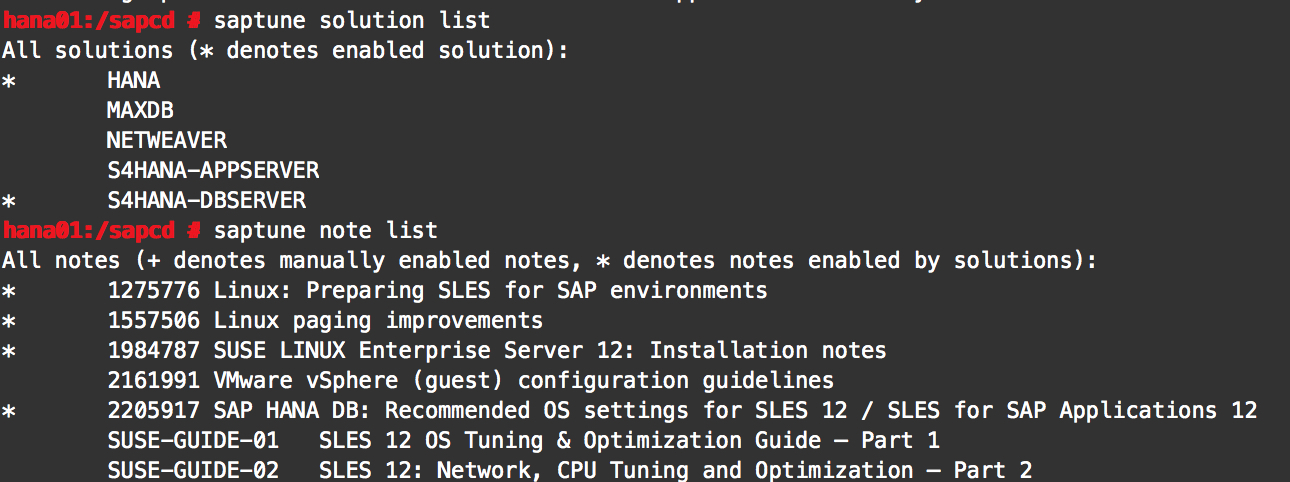
Start the daemon process:
saptune daemon startFor more information about saptune, see Prepare your Linux for your SAP solution with saptune or the official SLES documentation.
Install HANA
For more information about installing and configuring SAP HANA, see SAP HANA Platform.
1. Install the master node. (The installation procedure is omitted.)
After you install SAP HANA, you can modify the configuration parameters for the non-shared architecture.
Edit the /hana/shared/[SID]/global/hdb/custom/config/global.ini file and add the following line:
basepath_shared=noRun the following commands as the root user:
cd /hana/shared/[SID]/hdblcm
./hdblcm
Select 4 (configure_internal_network) and then specify the communication type for internal services.
This example uses an internal CIDR block of 192.168.10.0/24.
2. Install a worker node (The following steps use one worker node as an example. Repeat these steps for any additional worker nodes.)
Path to create an instance
mkdir -p /hana/data/[HANA_SID]
mkdir -p /hana/log/[HANA_SID]
You can modify directory permissions.
chmod -R 775 /hana/data/[HANA_SID]
chmod -R 775 /hana/log/[HANA_SID]
Install the worker node. The detailed installation steps are omitted.
As the root user, switch to the installation path by running the command cd /hana/shared/[HANA_SID]/hdblcm.
3. Configure SAP HANA for automatic startup
Log on to the HANA host as the root user to modify the parameters for all HANA instances.
Edit the /hana/shared/[SID]/profile/[SID]_HDB[instance_number]_[host_name] file.
Change the Autostart parameter from 0 to 1. Save the parameter and restart the HANA instance.
4. Install another worker node by repeating the previous steps.
Verifying the cluster installation
1. Run the su - [sid]adm command to switch to the instance user.
2. Verify the cluster.
cd /hana/shared/[SID]/exe/linuxx86_64/hdb/python_support/
python landscapeHostConfiguration.py
