Alert management lets you push timely notifications when important rules are hit. For example, if a customer is likely to file a complaint, you can subscribe to notifications through DingTalk. This lets you immediately receive and manage messages in your DingTalk group, so you can handle customer complaints promptly.
During a call between a customer service representative and a customer, the following situations may occur:
A dispute between the customer service representative and the customer leads to a complaint.
The customer service representative uses words that are strictly forbidden by the company.
Sensitive industry topics are discussed.
Promptly receiving information about these events is crucial for a business. The real-time alert feature is designed for this purpose. After you connect your call center to Smart Conversation Analysis, call recordings are automatically pushed for quality inspection after each call. If an important rule is hit, you are notified immediately through DingTalk or a webhook.
Video tutorial
Create an alert configuration
Click the Create Configuration button on the left side of the alert configuration list. On the page that appears, enter a configuration name, select the rules for which you want to enable alerts, and then choose a subscription method, as shown in the following figure:
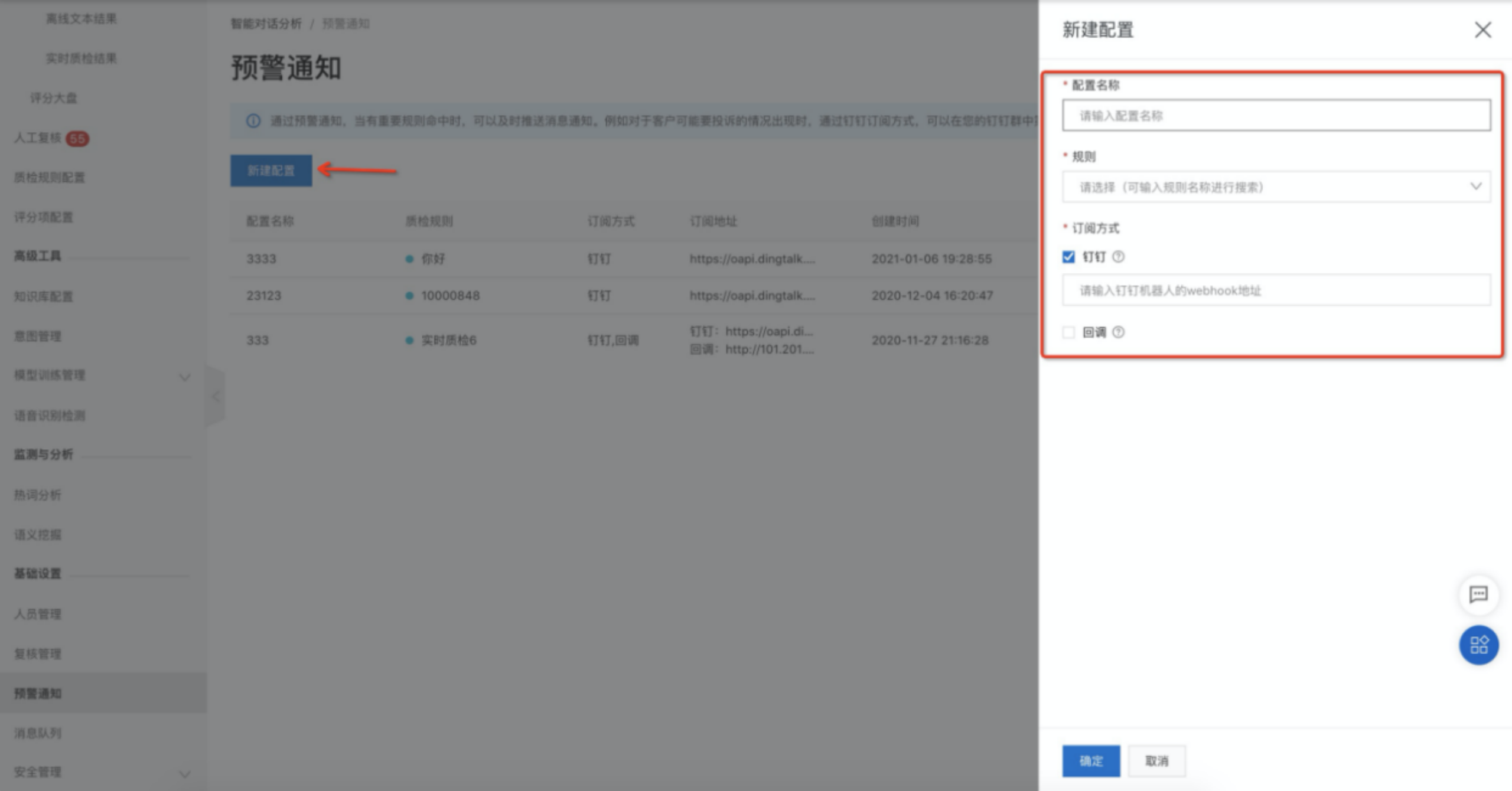
Details of the two subscription methods
1. DingTalk subscription
The DingTalk subscription method uses a DingTalk group chatbot. When a rule is hit, an alert is sent to your specified DingTalk group. The following section describes how to add a DingTalk group chatbot and obtain the webhook address required on the configuration page. Note that DingTalk is an Internet service. Ensure that your Smart Conversation Analysis service can access the public network. Otherwise, DingTalk notifications cannot be pushed. Follow these steps:
Open the DingTalk group where you want to receive alerts. In the group settings, click Group Assistant and then click Add Robot:
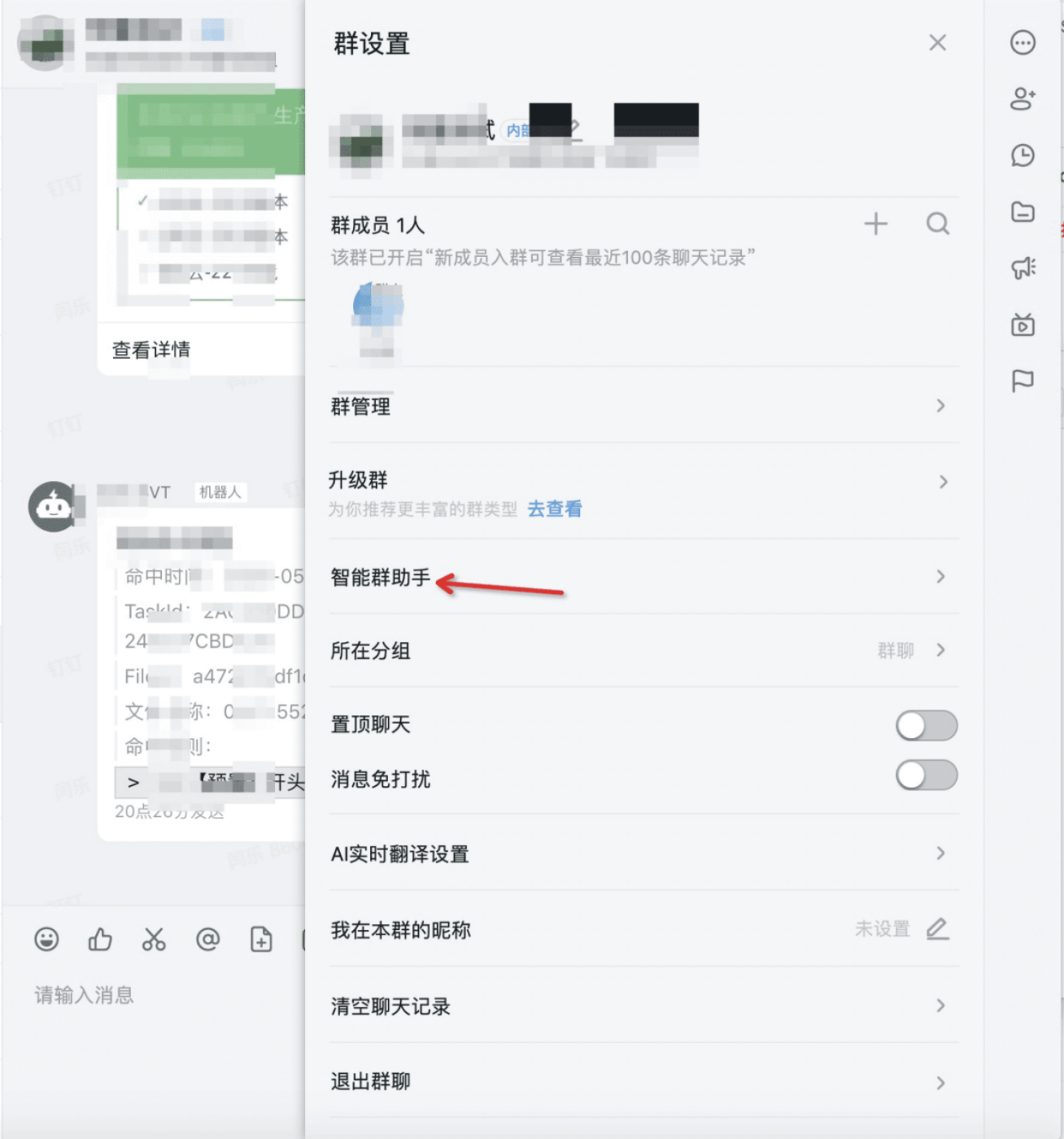
From the robot type list, select Custom and then click Add:
Enter a custom name for the robot. For Security Settings, select Custom Keywords, enter "hit" as the keyword, and then click Done:
After the group chatbot is added, the webhook address for the chatbot is displayed. Click the Copy button to copy the address:
Paste the copied webhook address into the create configuration page:
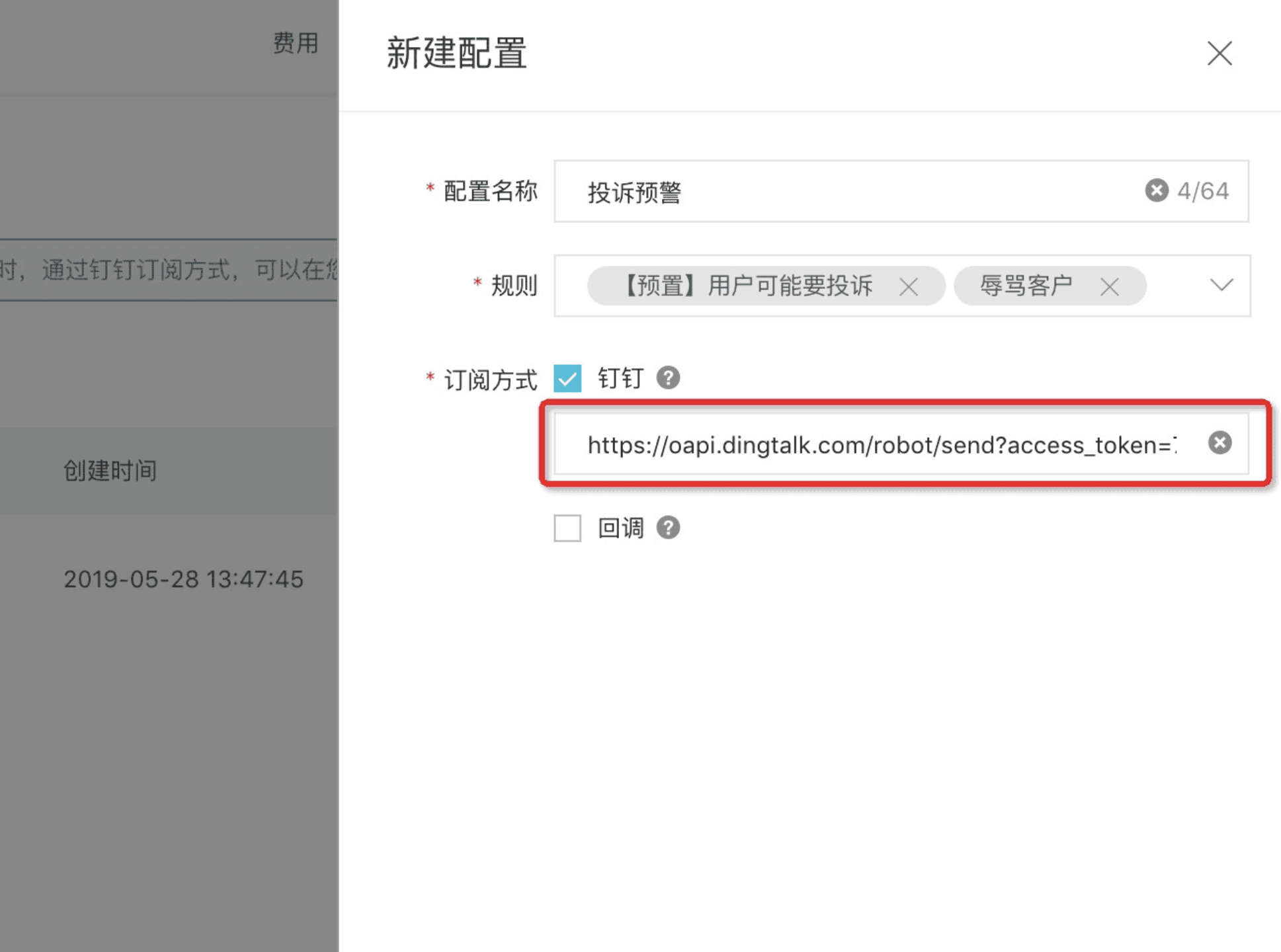
When a rule that you set is hit, you receive a message in the following format:
2. Webhook subscription
The webhook subscription method provides more freedom and flexibility for processing alert messages. Alerts are pushed to your specified public URL using HTTP POST requests. After you receive a callback message, you can process it further based on its content. Details are as follows:
2.1. Configure the webhook address:
First, you must provide a webhook URL that is accessible from the public network. The URL must be a domain name. IP addresses are not supported. Enter the webhook URL on the create configuration page.
2.2. Callback logic:
When a rule that you set is hit, your specified URL is invoked by an HTTP POST request. When the URL is invoked, the taskId, timestamp, and signature parameters are added to the URL. For example, if your specified webhook URL is http://aliyun.com/callback, the full URL for the callback is http://aliyun.com/callback?taskId=xxx×tamp=xxx&signature=xxx&event=RuleHit. The parameters are described as follows:
taskId: The task ID.
timestamp: The timestamp when the call is made, in milliseconds.
signature: The signature. You can use the signature to verify that the request is from Smart Conversation Analysis. To calculate the signature, encrypt the string `taskId=xxx×tamp=xxx&aliUid=xxx` using MD5 and Base64. The order of the parameters is important. After you receive the callback, you can obtain the taskId and timestamp from the webhook URL. The aliUid is the ID of your Alibaba Cloud account, which can be found in permission management. You can then calculate the signature and compare it with the signature in the URL to verify the request.
event: The event name. You can use the event name to determine which event triggered the callback. The event name for real-time alerts is RuleHit.
Signature code example:
StringBuilder sourceMsg = new StringBuilder("taskId=").append("${taskId}").append("×tamp=").append("${timestamp}").append("&aliUid=").append("${aliUid}");
MessageDigest messageDigest = MessageDigest.getInstance("MD5");
messageDigest.update(sourceMsg.toString().getBytes("UTF-8"));
Base64.encodeBase64String(messageDigest.digest());The call body contains the following parameters:
Parameter |
Data type |
Description |
fileName |
String |
The file name. |
taskId |
String |
The task ID. This is the taskId returned after the quality inspection task is uploaded. |
fileId |
String |
The file ID. This is the callId parameter from the request to upload the quality inspection task. If not specified, a random ID is generated. |
ruleIds |
List |
A collection of IDs for the rules hit by the file. Example: [213,434,675] |
ruleNames |
List |
A collection of names for the rules hit by the file. Example: ["[Preset] Customer may complain","Insulting customer"] |
date |
String |
The timestamp when the file hit the rule, in milliseconds. |
message |
String |
A summary of the preceding parameter information that can be displayed directly. Example: "[2019-05-28 22:33:44][7352C9F1-6E2E-41F4-A1CF-B8939D17B68E][0c03f497644e4ead928e293678055725]Voice-StudyAbroadRecording.wav hit rule: AlertTest01" |
Example POST request:
{
  "date":1559054024678,
  "fileName":"Voice-StudyAbroadRecording.wav",
  "ruleIds":"[4140]",
  "ruleNames":"["AlertTest01"]",
  "message":"[2019-05-28 22:33:44][7352C9F1-6E2E-41F4-A1CF-B8939D17B68E][0c03f497644e4ead928e293678055725]Voice-StudyAbroadRecording.wav hit rule:AlertTest01",
  "taskId":"7352C9F1-6E2E-41F4-A1CF-B8939D17B68E",
  "fileId":"0c03f497644e4ead928e293678055725"
}
When you receive a callback message, you can display it in your existing Operations and Maintenance (O&M) or message management system. You can also integrate Alibaba Cloud Short Message Service to send text message notifications to the relevant owners.