Before performing a quality inspection, you must create a quality inspection plan to configure inspection rules. Rules are required elements for quality inspection. For example, a basic service rule might require a customer service agent to use a greeting after answering a call. The system provides multiple preset templates for different industries. When you activate the service, seven preset templates become available. You can review the composition of the inspection rules to quickly understand how they are structured.
Feature Access
Log on to the Smart Conversation Analysis console. In the navigation pane on the left, choose Quality Inspection Rules and Plans. On the Plan Management page, you can create a quality inspection plan.
Create a new quality inspection plan
Above the list of quality inspection plans, click Create Quality Inspection Plan. You can choose to create a custom plan or use a preset plan.
Create a custom plan
Click Create Custom Plan. The first step is to enter basic information, as shown in the following figure:
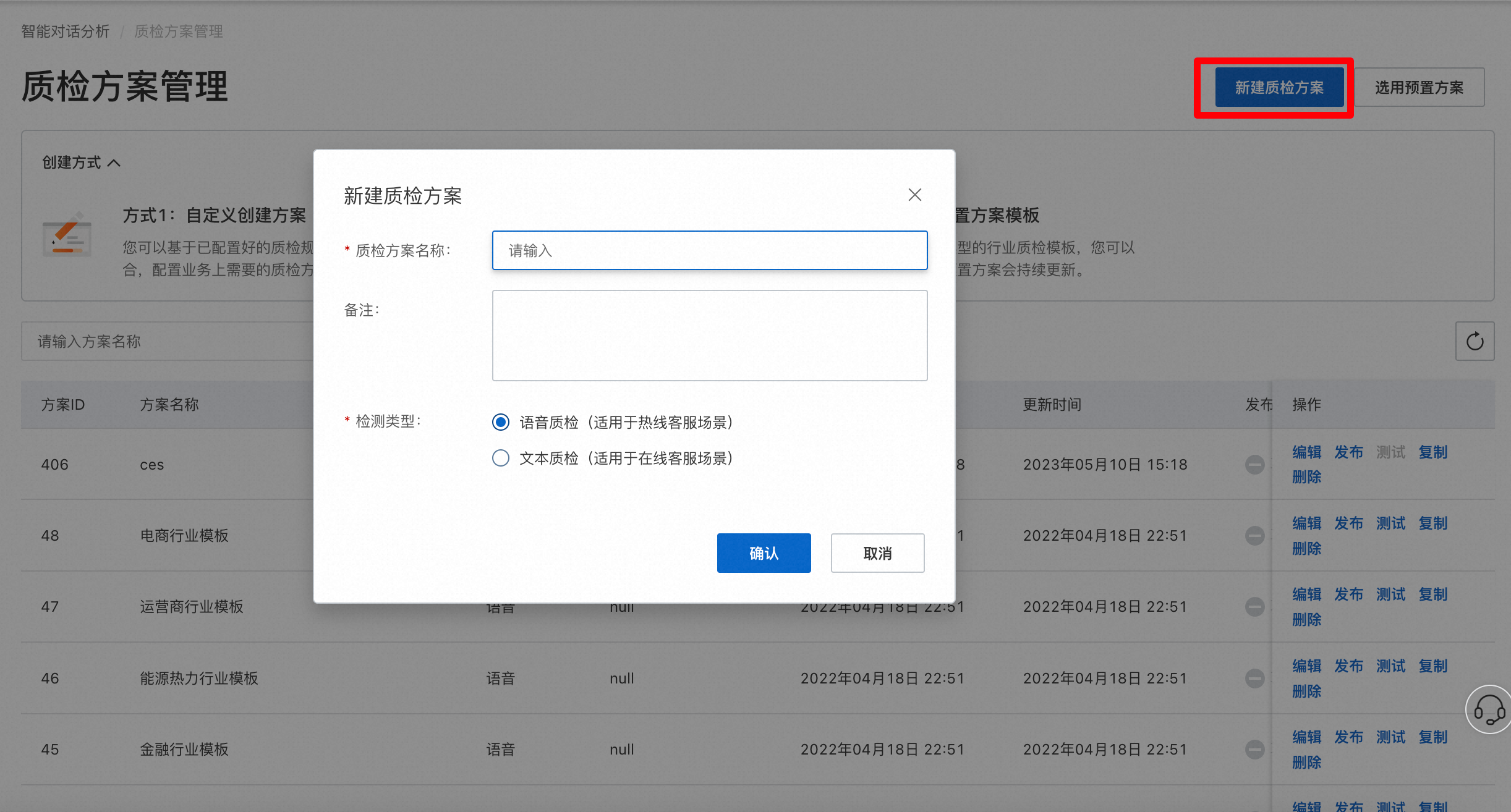
Quality Inspection Plan Name: Required. The name of the plan.
Remarks: Optional. Add notes about the plan's scenario, scope, or other information.
Detection Type: Quality inspection can be performed on text or voice. Text inspection is for online customer service scenarios, and voice inspection is for call center scenarios.
Plan Template: The system provides preset templates for some industries. You can select a template as needed. You can also use a previously created quality inspection plan as a template.
After you enter the basic information, click Confirm at the bottom of the page to complete the first step.
Use a preset plan
Click Use Preset Plan. The system provides seven preset industry templates that you can use as a reference for configuration.
Click an industry template to use it. A copy of the corresponding quality inspection plan is added to the plan list. You can modify the copy before you publish it.
Configure a quality inspection plan
Click Edit on an existing plan, or continue after creating a new custom plan, to go to the plan details page. The process has four main steps: Set inspection dimensions, Associate inspection rules, Test the plan, and Publish the plan.
Step 1. Set inspection dimensions
Edit an inspection dimension: Click the edit icon next to a dimension name to edit its name and total score.
Add an inspection dimension: Click Add Inspection Dimension to add a new dimension. You can add up to 10 dimensions. After a dimension is added, it cannot be deleted. If you no longer want to use a dimension, you can disable it.
The total inspection score is the sum of the scores of all inspection dimensions. After you set the score for each dimension, the total score is calculated automatically. To ensure valid business results, the total inspection score must be between 10 and 100 points.
Disable an inspection dimension: Click the disable icon next to a dimension name to disable the dimension. After a dimension is disabled, its associated inspection rules are no longer used for inspection, and its score is deducted from the total score.
View dimension statistics: After a quality inspection task is complete, go to the Effect Statistics page. On the Service Quality Analysis tab, you can view the score for each inspection dimension.
Step 2. Associate inspection rules: Associate pre-configured rules as needed for your business.
Associate an inspection rule:
Click Associate Inspection Rule to associate rules with each dimension. The associated rules apply to the current dimension. You can associate a maximum of 200 inspection rules with each plan. In the quality inspection plan, you can modify the score of a rule. The modified score overwrites the original score that was configured for the rule.
View an inspection rule:
Click View to see the details of an inspection rule. You cannot edit the rule on this page. To edit the rule, go to the Inspection Rule Configuration page.
Disassociate a rule:
Click Disassociate. After you confirm, the rule is disassociated from the quality inspection plan and removed.
Step 3. Test the plan
At the bottom of the page, click Test. You can enter multiple test sessions to test the plan. For example, you can use sessions from the education industry for booking trial classes.
Step 4. Publish the plan
At the bottom of the page, click Publish. The quality inspection plan is then published and can be used in quality inspection tasks.