Overview
Intelligent Conversation Analysis provides four types of quality inspection rules: general quality inspection rule, large model quality inspection rule, manual quality inspection rule, and session group quality inspection rule. Among these, the large model quality inspection rule uses the fine-tuned Lingque large language model to provide advanced quality inspection for marketing and service products. You can easily create quality inspection rules by providing the inspection scenario along with the corresponding detection dimensions and descriptions.
Access the feature
Log on to the Intelligent Conversation Analysis console and navigate to Quality Inspection Rule Configuration > Create Rule > large model quality inspection rule to open the feature configuration page. For information about creating a new rule, see 2. Configure basic information.
Feature configuration
Create a rule
After you click Create Rule, the rule configuration page appears. The configuration process involves three main sections: 1. basic information, 2. condition configuration, and 3. scoring configuration.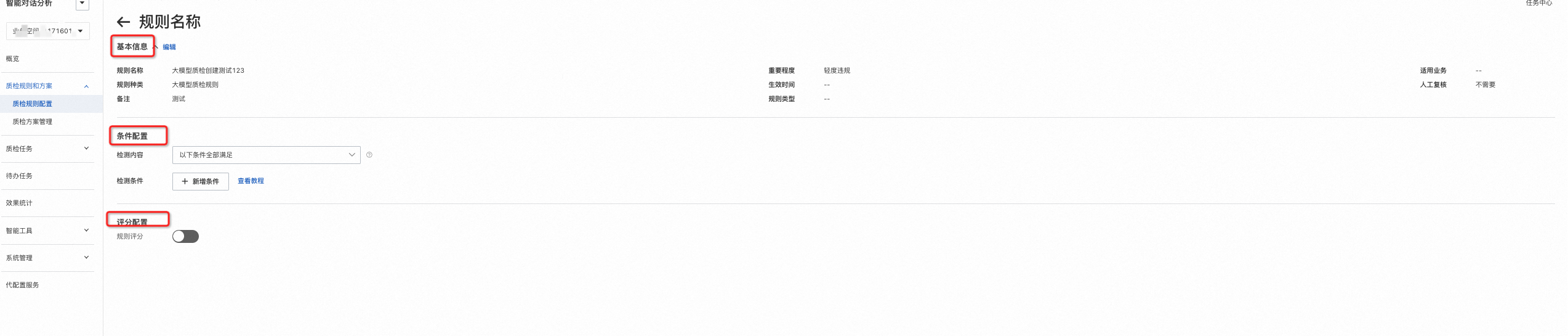
Basic information
The basic information includes: Rule Name, Rule Category, Remarks, severity, Effective Time, Rule Type, Applicable Business, and manual review. You can configure these settings based on your business requirements.
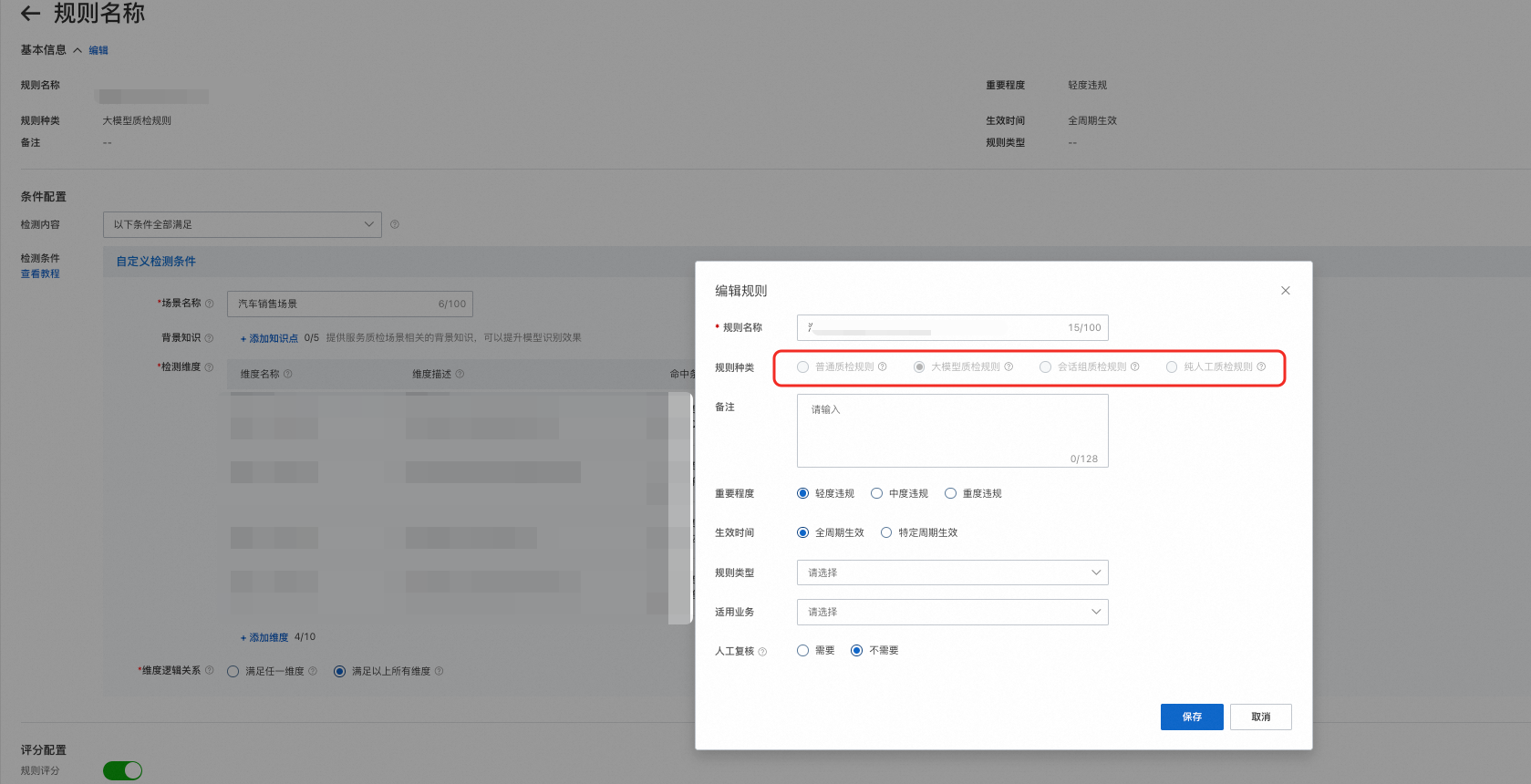
Key settings to note:
Severity: A label for the rule. During review, rules that a session hits are displayed in order from highest to lowest severity.
Rule Type: A customizable label for the rule. You can add more rule types as needed.
Applicable Business: Another customizable label for the rule. You can also add more types as needed.
Manual review: If you select Required, triggered rules are sent for manual review. If you select Not Required, the system automatically marks triggered rules as "Reviewed," requiring no manual action. This option is suitable for highly accurate rules that do not require manual verification.
Condition configuration
This is the main part of configuring a quality inspection rule, where you define conditions based on your business requirements.
Trigger rule
This setting specifies a prerequisite for triggering the quality inspection condition. If a rule is selected as a prerequisite, it must be triggered before the system evaluates the large model detection conditions.
Rule configuration mode
Choose between Simple mode and hybrid large and small model mode based on your business needs.
Simple mode
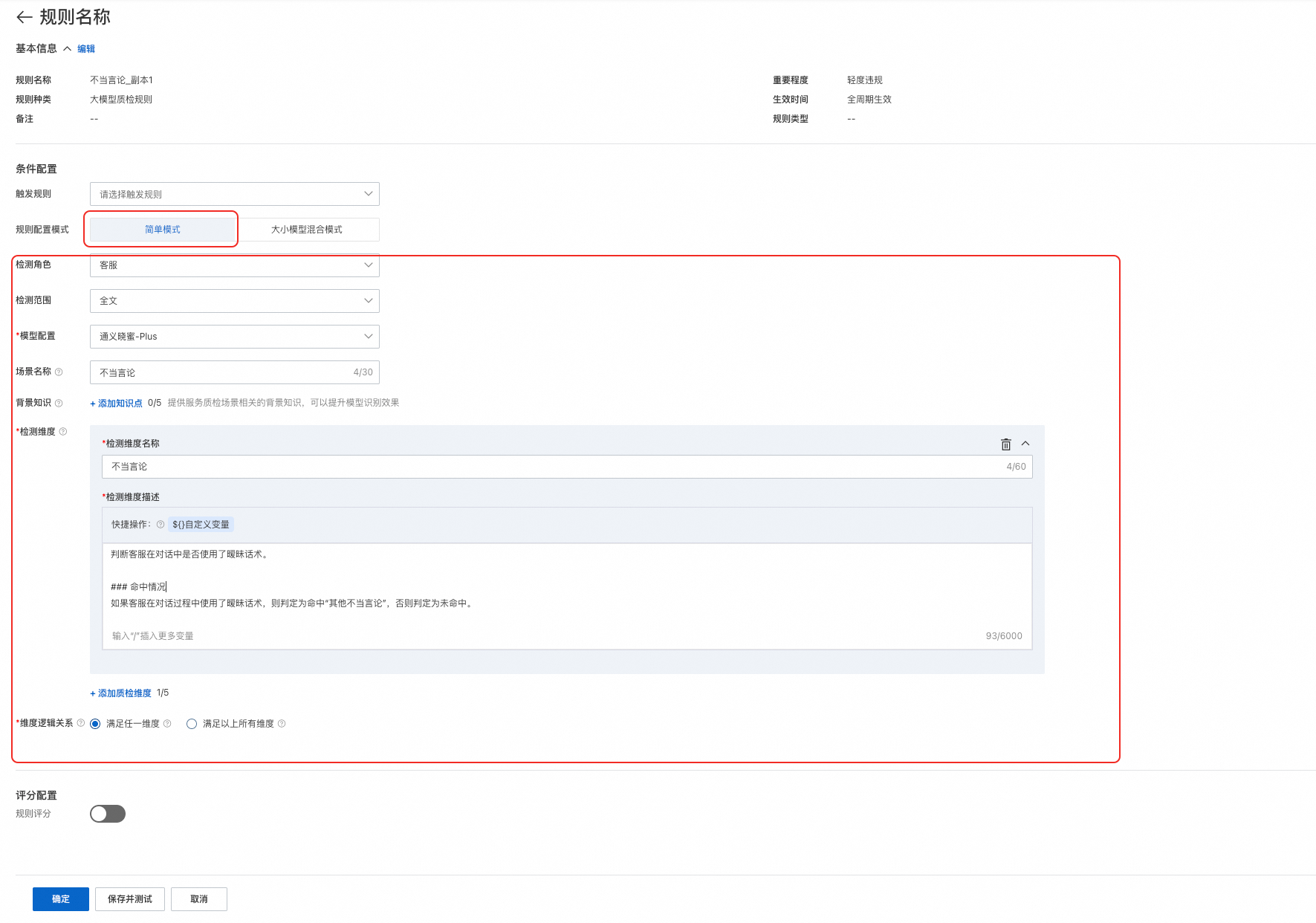
When you select this mode, you use only the large model rule. You need to configure settings such as detection role, detection scope, model configuration, scenario name, and background knowledge.
Hybrid large and small model mode
The hybrid large and small model mode lets you add small model rules, such as keyword check, speech rate check, and customer detection mode, to the large model rule. Because this mode supports multiple conditions, you must also set the condition fulfillment logic.
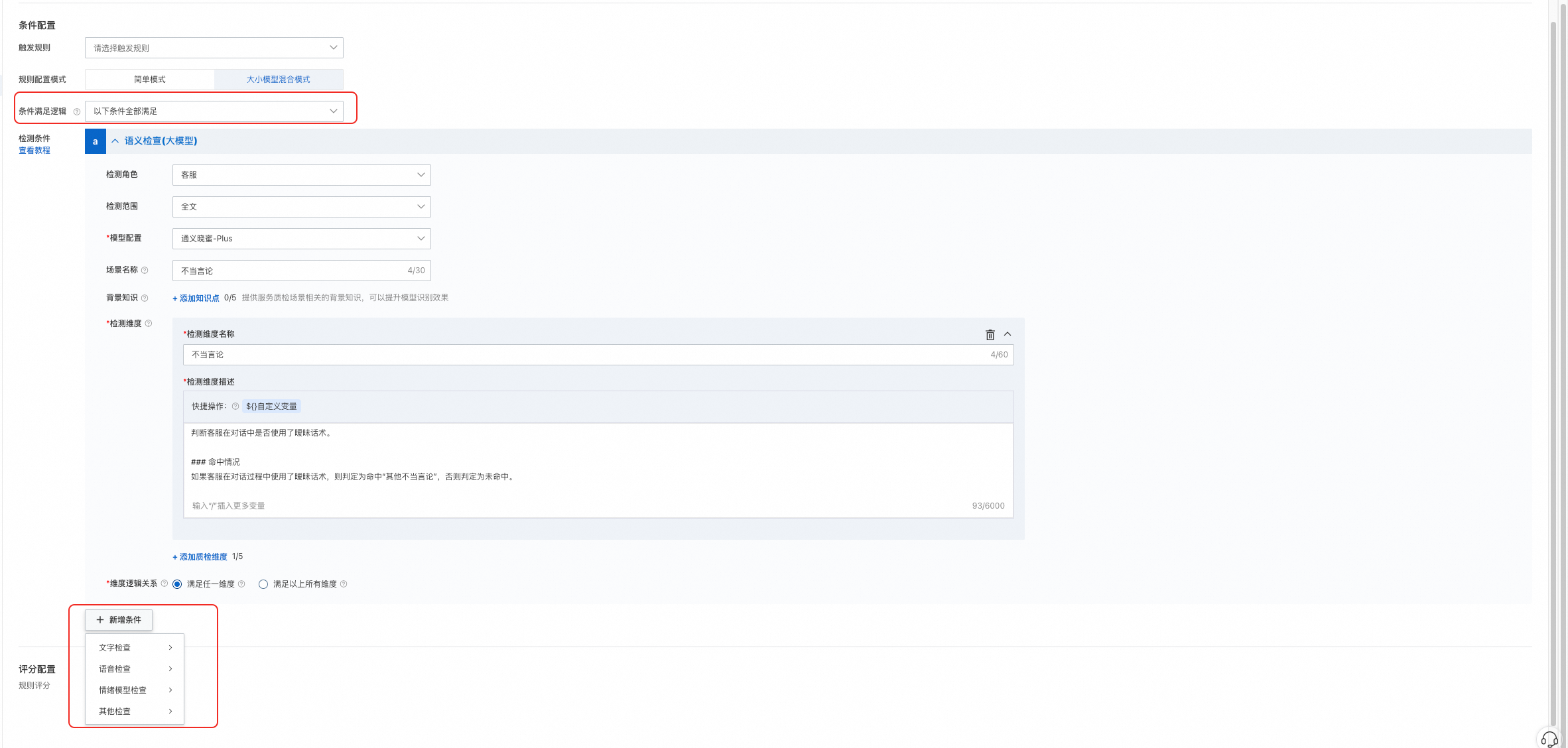
Condition fulfillment logic
You can select from All of the following conditions are met, Any of the following conditions is met, None of the following conditions are met, and Custom logical relationship. For more information, see Configure quality inspection condition logic.
Detection role
The system analyzes the dialogue content of the selected role. You can choose from Customer, Agent, or All Roles.
Detection scope
You can select Full text or Specified scope. If you select Specified scope, you must configure Time-based scope, Sentence-based scope, and Detection scope type.
Sentence-based and time-based scope: For more information, see Inspection scope.
Detection scope type:
The sentence start and end times overlap with the detection scope (default).
The rule triggers if the sentence start time (begin) is within the detection scope.
The rule triggers if the sentence end time (end) is within the detection scope.
The rule triggers only if the entire sentence is within the detection scope.
Model configuration
Select the model that best fits your business scenario.
Lingque large language model-Plus: Offers optimized performance for complex scenarios.
Lingque large language model-Turbo: A cost-effective model priced at one-tenth of the Plus model.
Lingque large language model-Agent: Intelligently routes tasks by automatically selecting either the Lingque large language model-Plus or Lingque large language model-Turbo based on the inspection task's context.
Scenario name
A description of the conversation scenario for quality inspection, such as "Mobile phone sales scenario". Maximum length: 100 characters.
Background knowledge
You can optionally provide background knowledge related to the quality inspection scenario to improve the model's recognition accuracy. For example, in a marketing scenario, if an agent recommends a specific financial product that the customer has not previously purchased, it is considered a marketing scenario. If the agent only mentions broad asset classes like stable assets or equity assets without naming a specific product, it is not a marketing scenario. You can configure up to 5 background knowledge entries, and each entry supports up to 2,000 characters.
Detection dimension
This is a list of detection dimensions for the quality inspection, including the name and definition of each dimension. It defines the criteria the large model uses to determine whether a dimension is met. You can configure up to 5 detection dimensions.
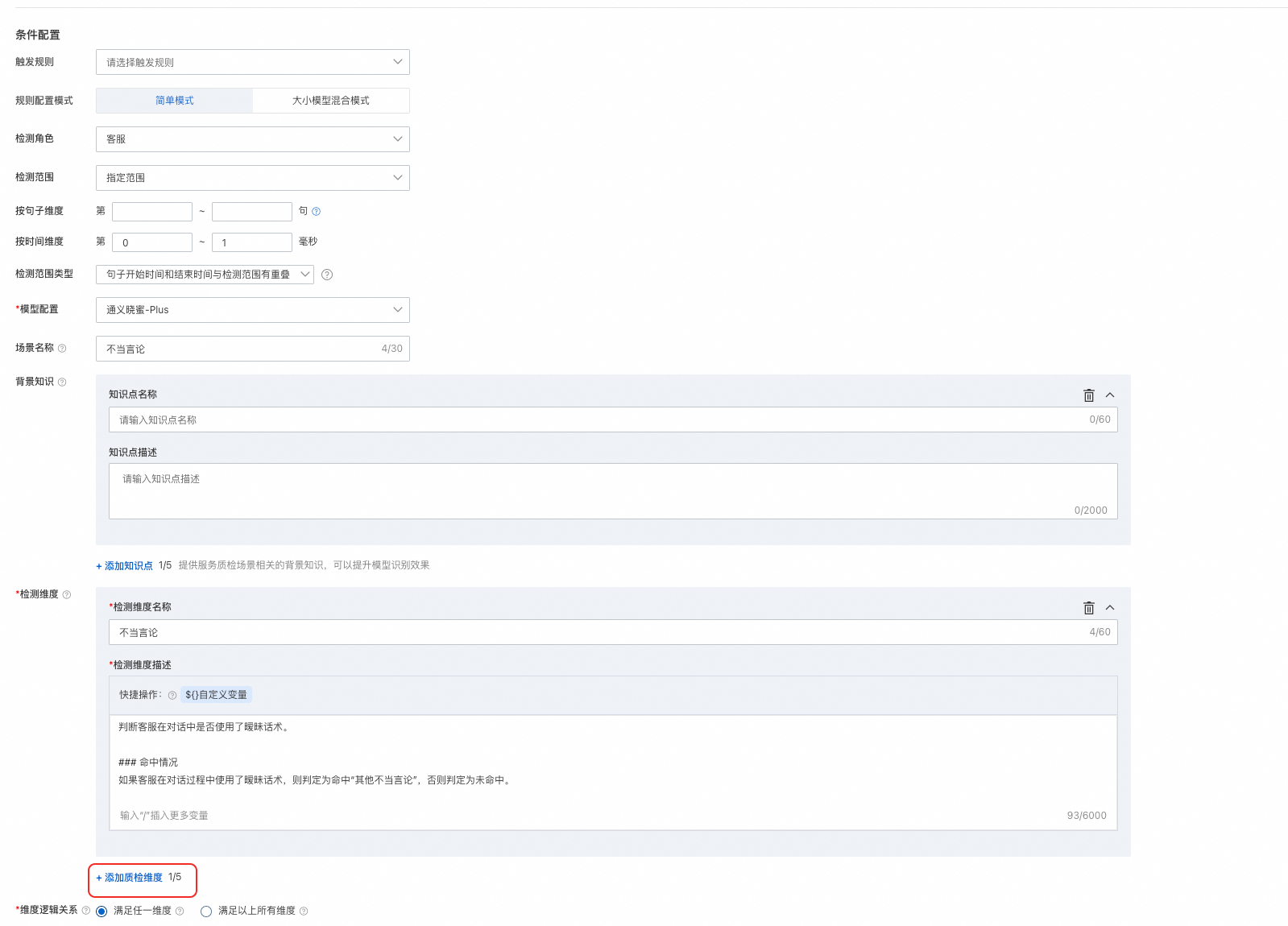
Detection dimension name: The name of the detection dimension, for example, "In-store greeting - Welcome message". Cannot exceed 60 characters.
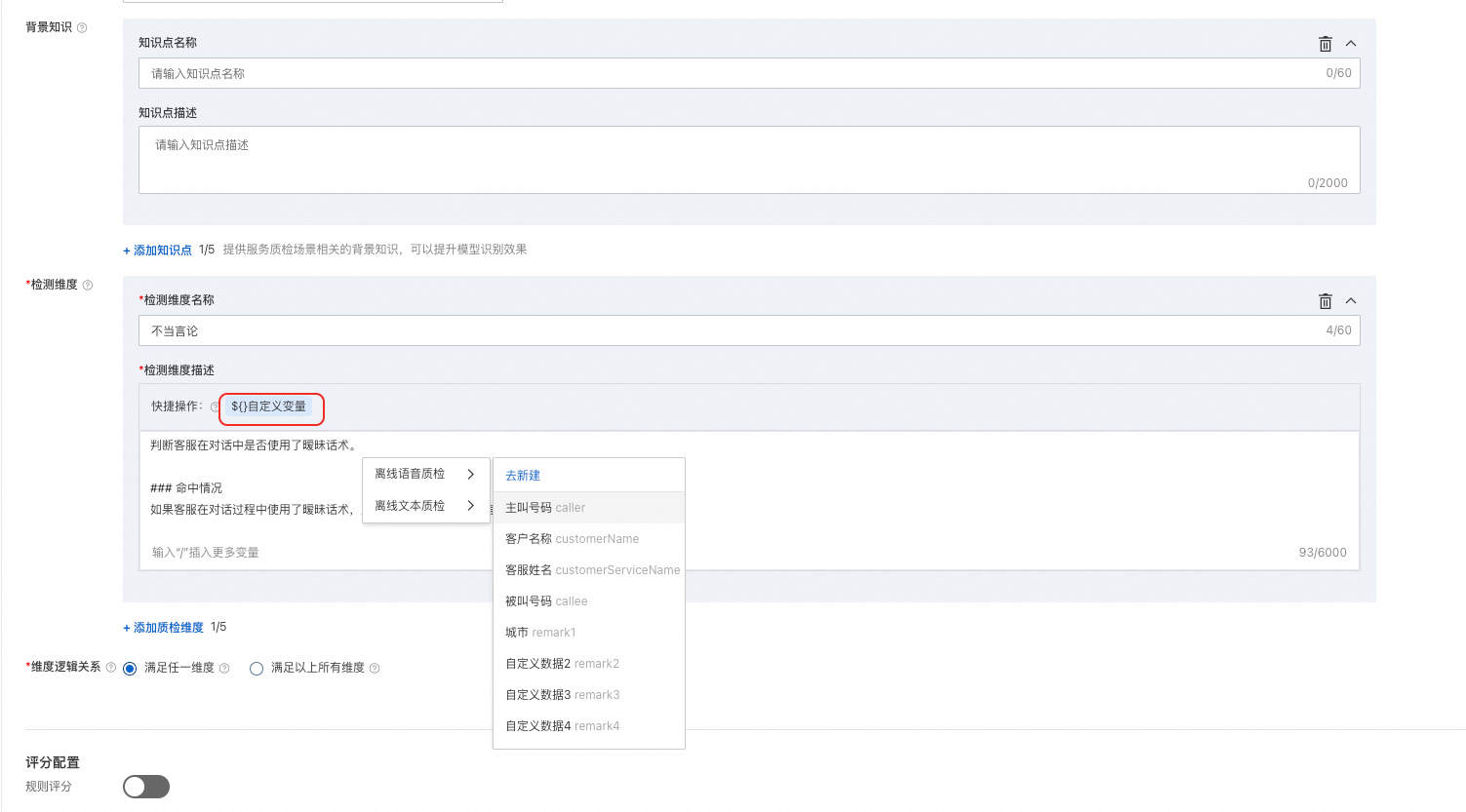
Detection dimension description: The definition of the detection dimension. This includes a specific description of what constitutes a match, as well as the hit condition and exclusion condition. Cannot exceed 6,000 characters.
Custom variable: You can insert a custom variable into the hit condition and exclusion condition. This variable acts as a call variable. When you create a quality inspection task by using an API, you can pass the corresponding call variable. For more information, see Configure a custom variable in a large model quality inspection rule.

Dimension logic
Satisfy any dimension: The rule triggers if any detection dimension is met.
Satisfy all of the above dimensions: The rule triggers only if all detection dimensions are met.
Save the rule
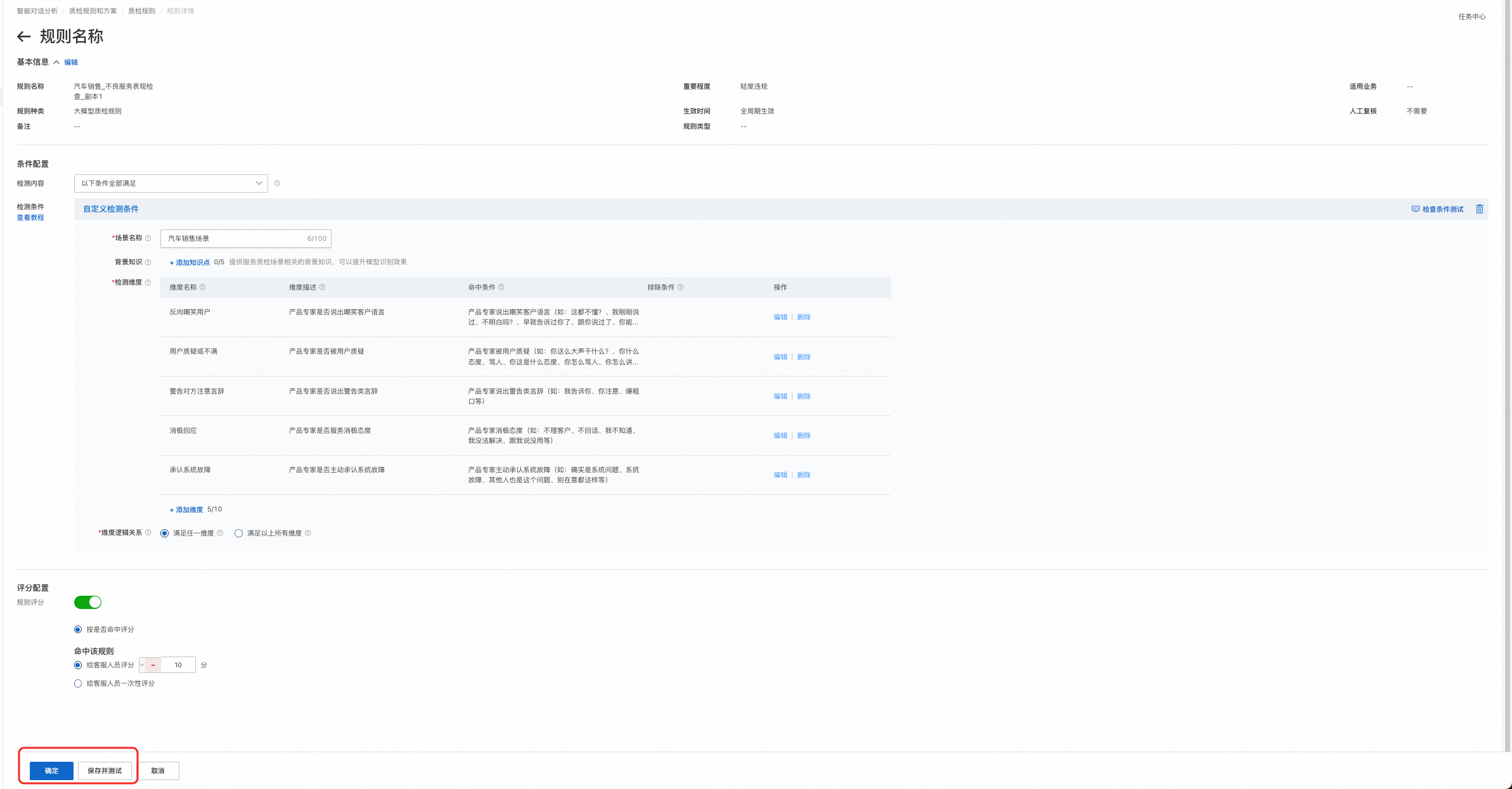
After you configure the basic information and condition configuration, click OK to save the rule. To test the rule immediately, click Save and Test.
Manage rules
You can manage your quality inspection rules at any time, including creating, deleting, updating, and querying them. Supported actions include Edit, Copy, Test, and Delete. You can also review the quality inspection results.
Edit a rule
On the Quality Inspection Rule Configuration page, click Edit to modify the rule.
You can modify the rule information and conditions to meet your requirements.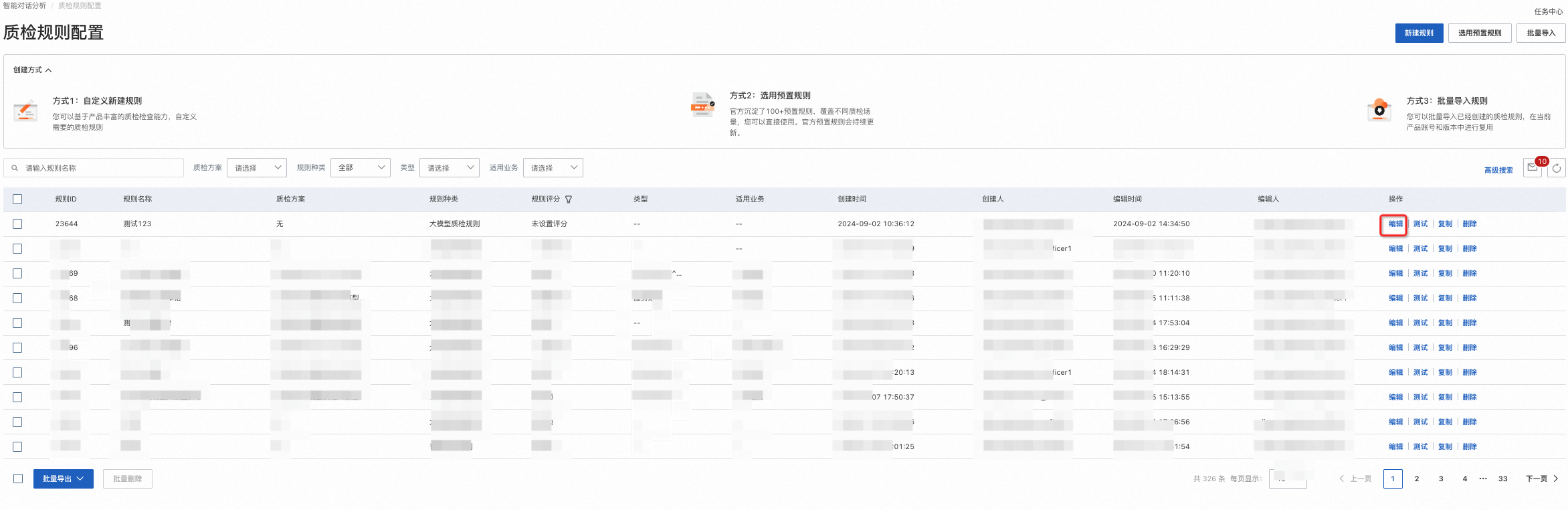
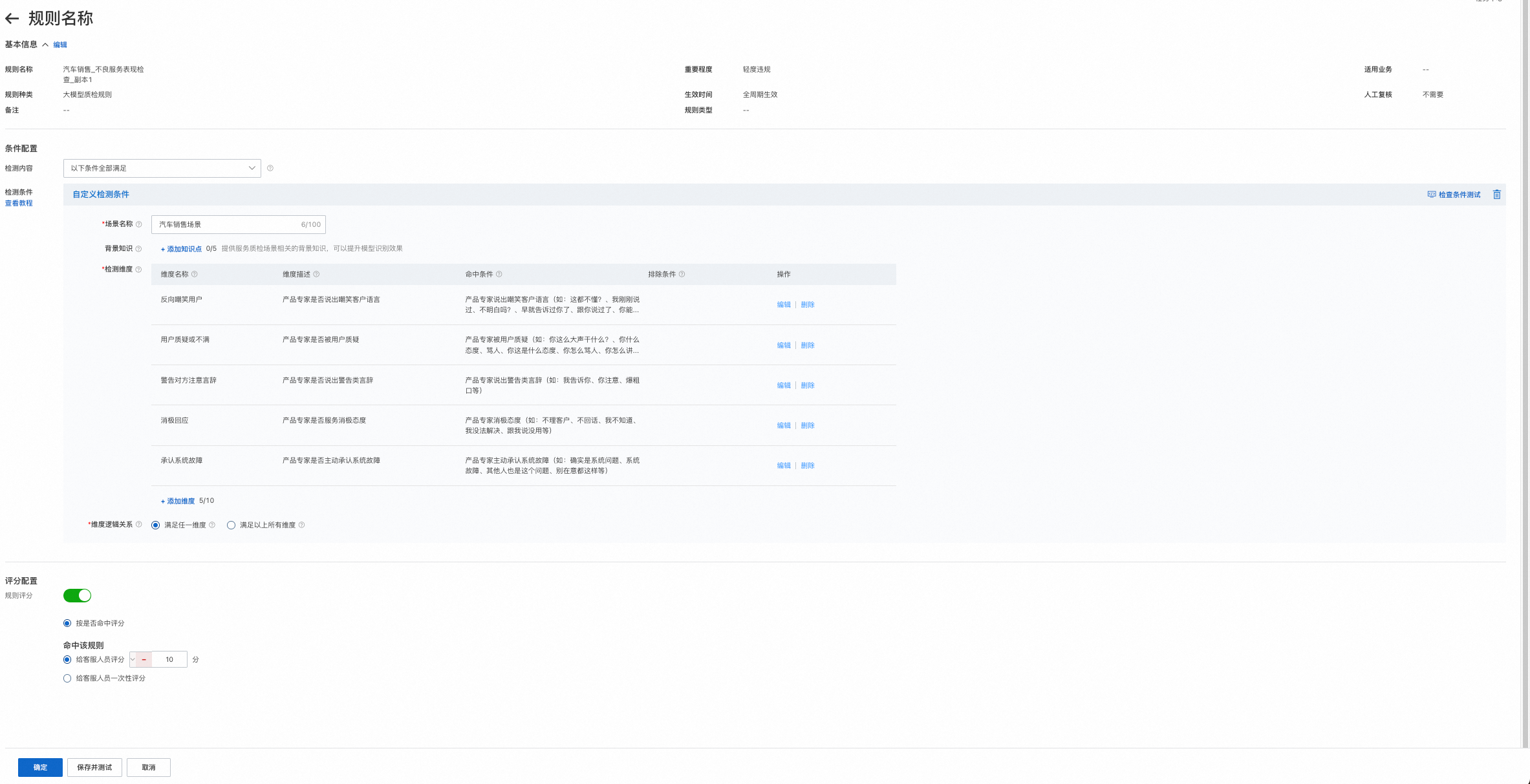
Copy a rule
You can also click Copy to duplicate an existing rule and then modify the rule information and conditions as needed.

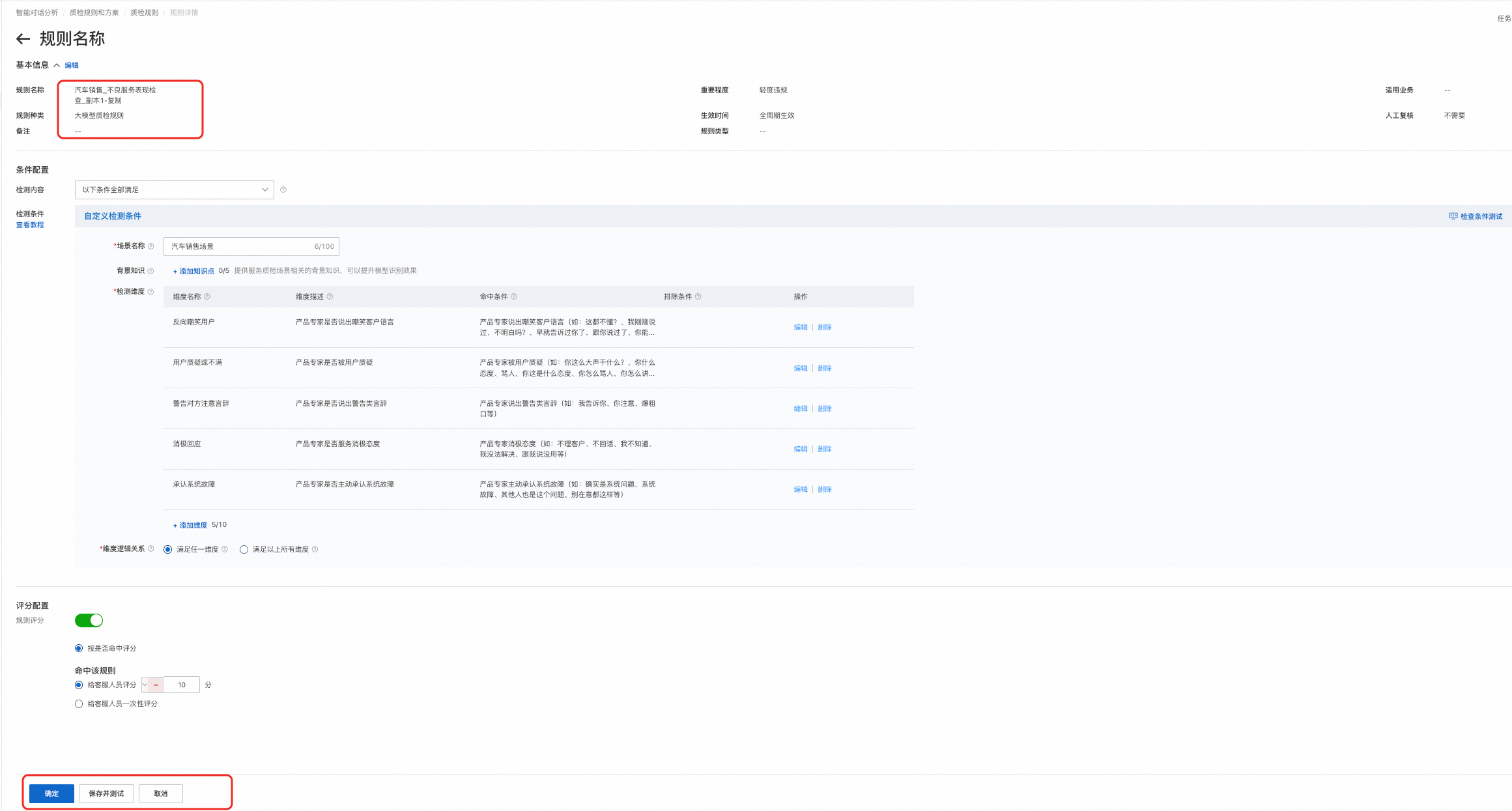
Test a rule
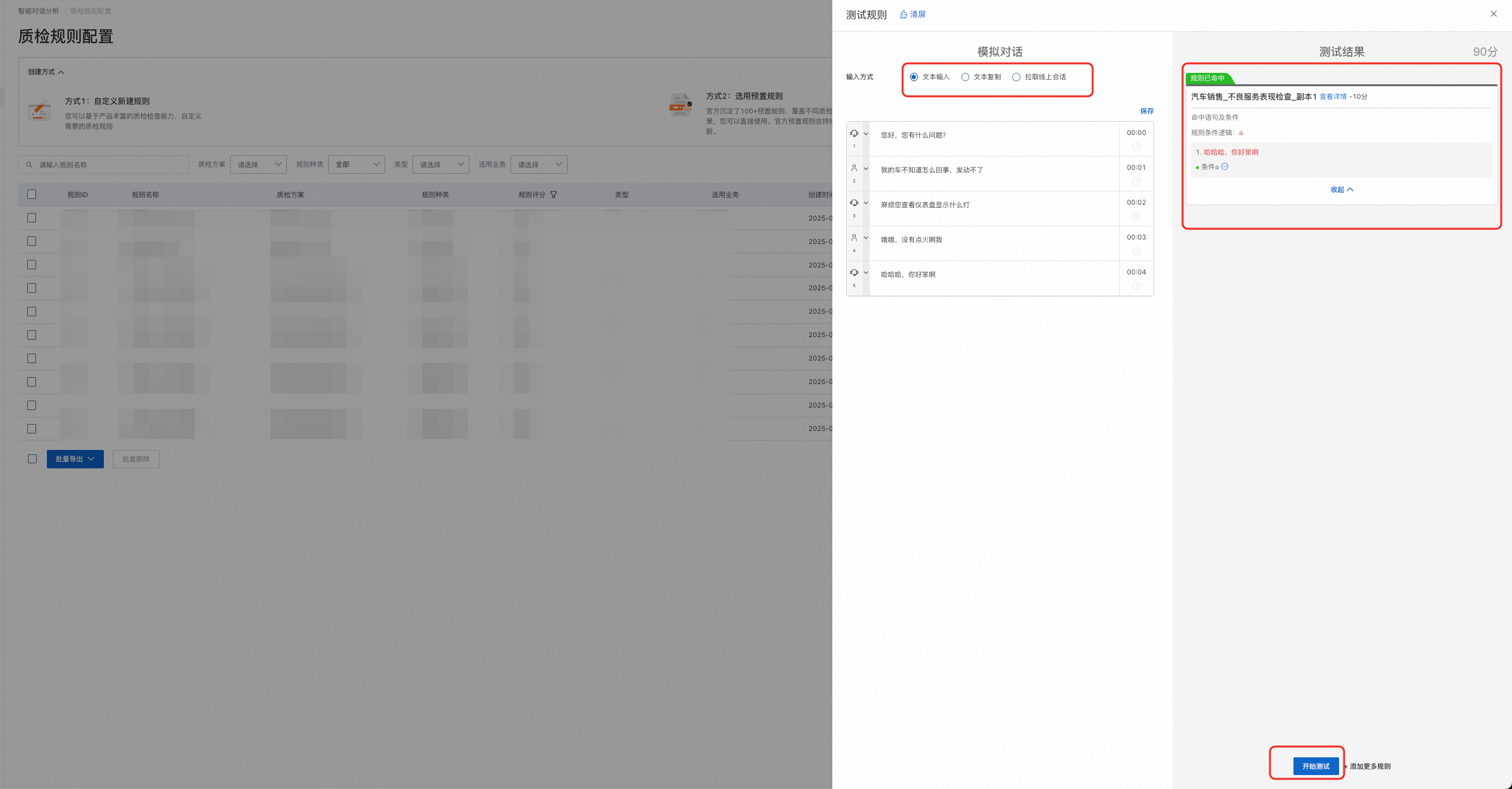
This example uses the preset detection condition "Car Sales_Poor Service Performance Check".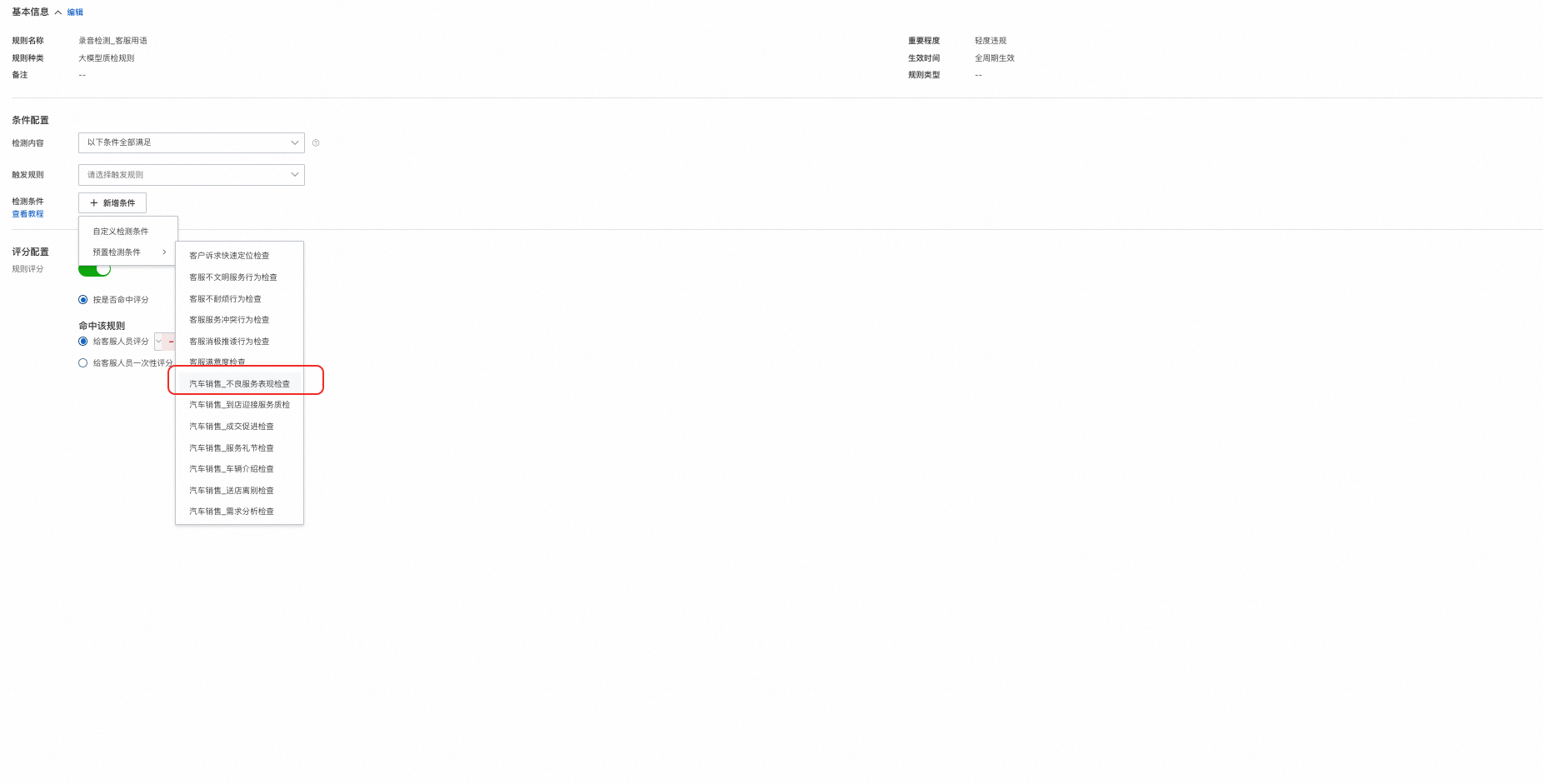
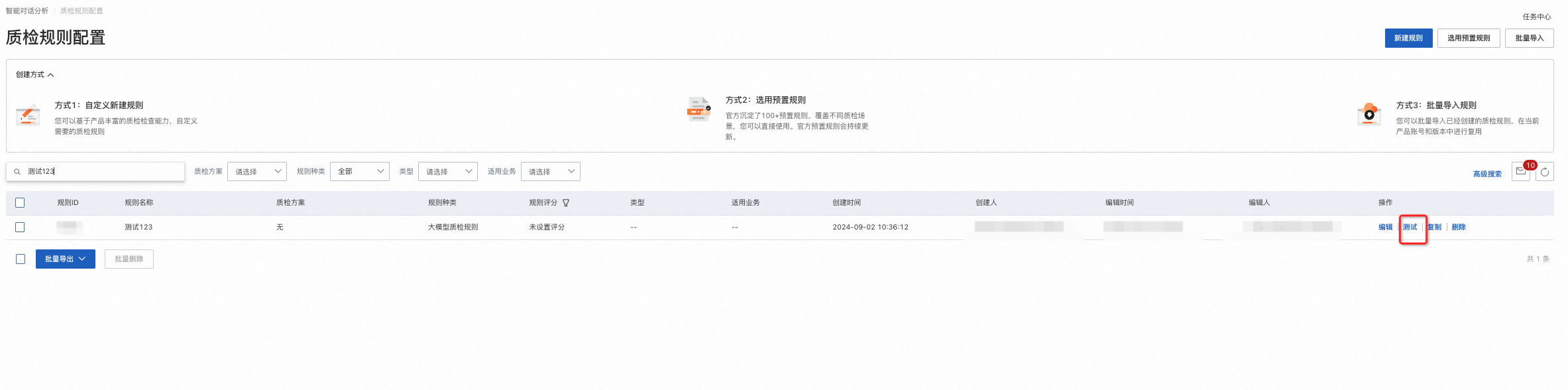
To test a rule, click Test in the Actions column on the Quality Inspection Rule Configuration page.
In the rule list, click Test in the Actions column.
You can choose one of three input methods:
1. text input: Manually enter simulated conversation content and define the roles of the customer and agent.
2. text copy: Paste conversation content from an Excel file. The data must include information such as role, start time, speech rate, and content.
3. fetch online session: Test a session from a call center task or dataset task. Enter the session name directly.
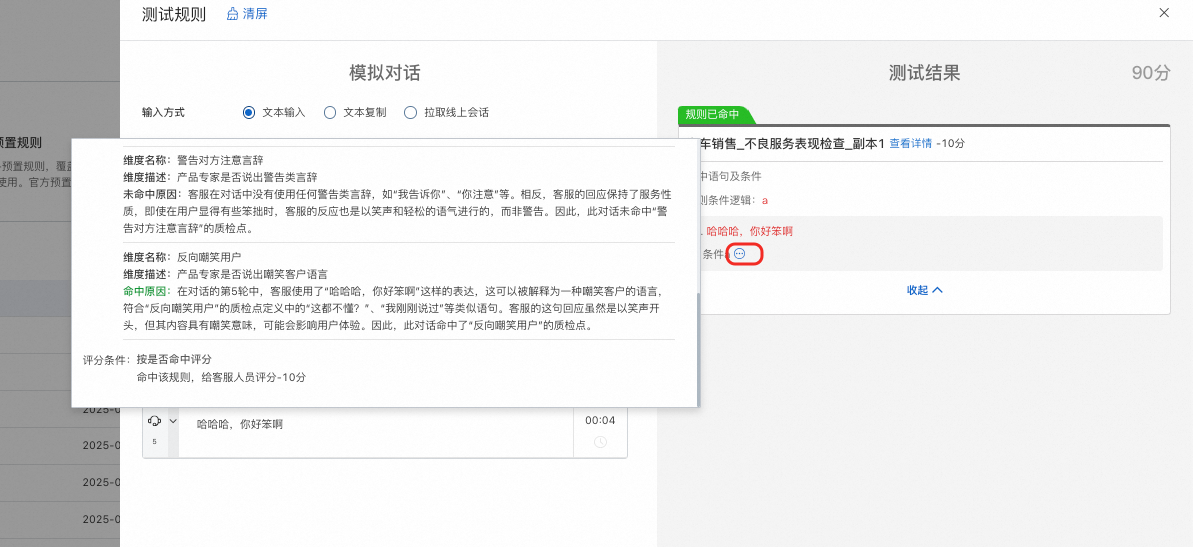
Test result: The result indicates whether the rule was triggered and provides trigger details.
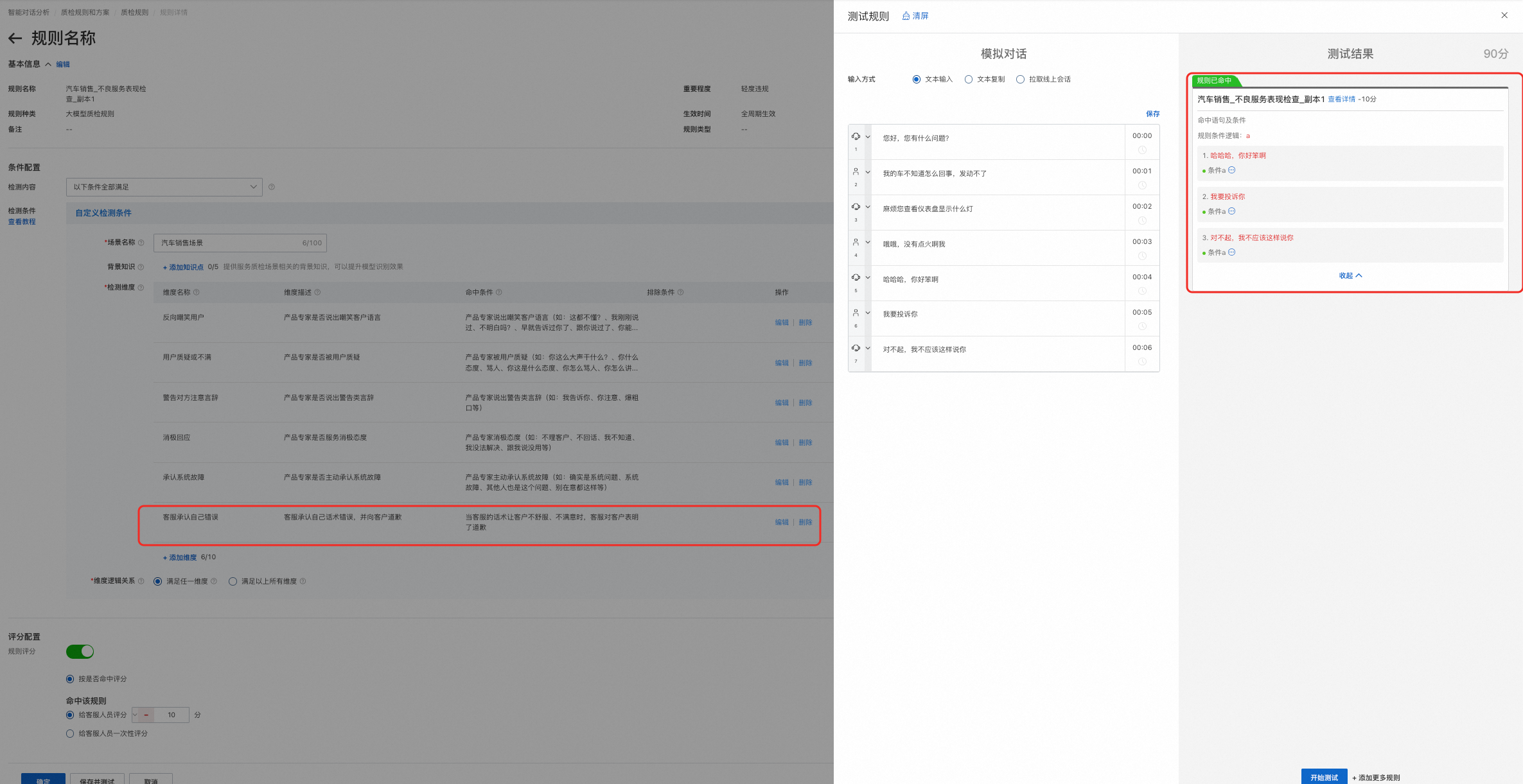
To test a rule after editing, click Save and Test.
If you need to modify a detection dimension, you can click Save and Test after editing it. The testing page appears with the updated dimension. For example, if a new detection dimension "Agent admits their mistake" is added, the rule can still be triggered.
Delete a rule
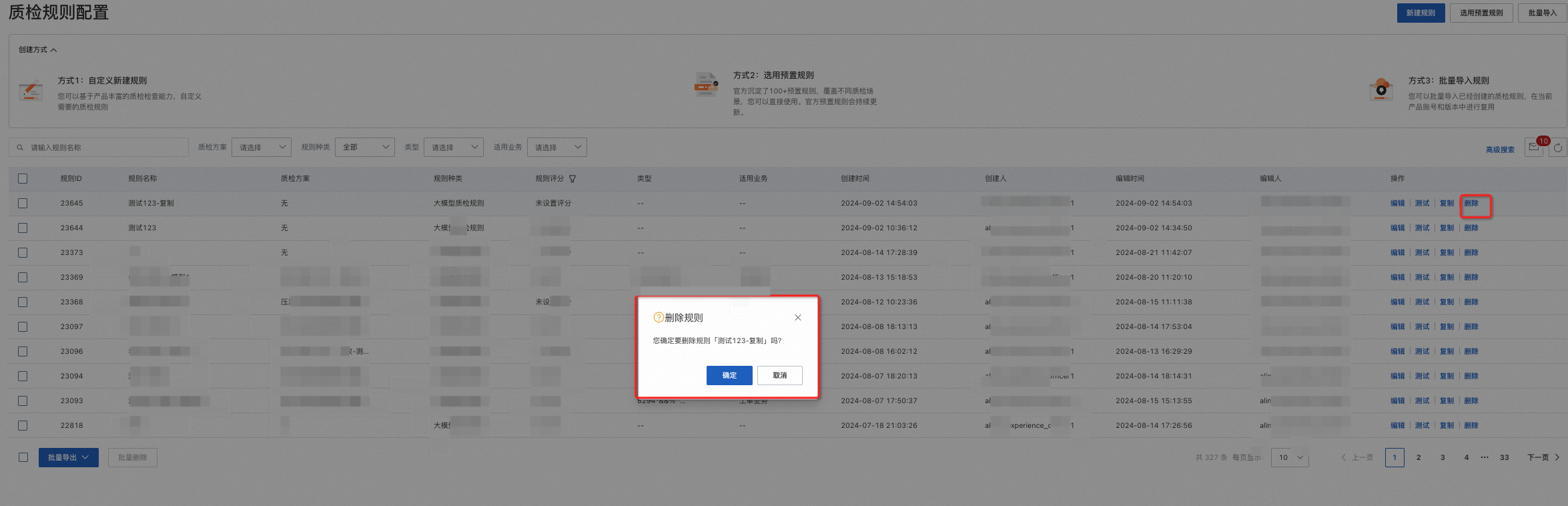
After testing is complete, you can also delete unneeded rules.