Script jobs
This topic describes how to create a script job by writing a Shell, Python, or PHP script.
How it works
The following diagram shows how script jobs work.
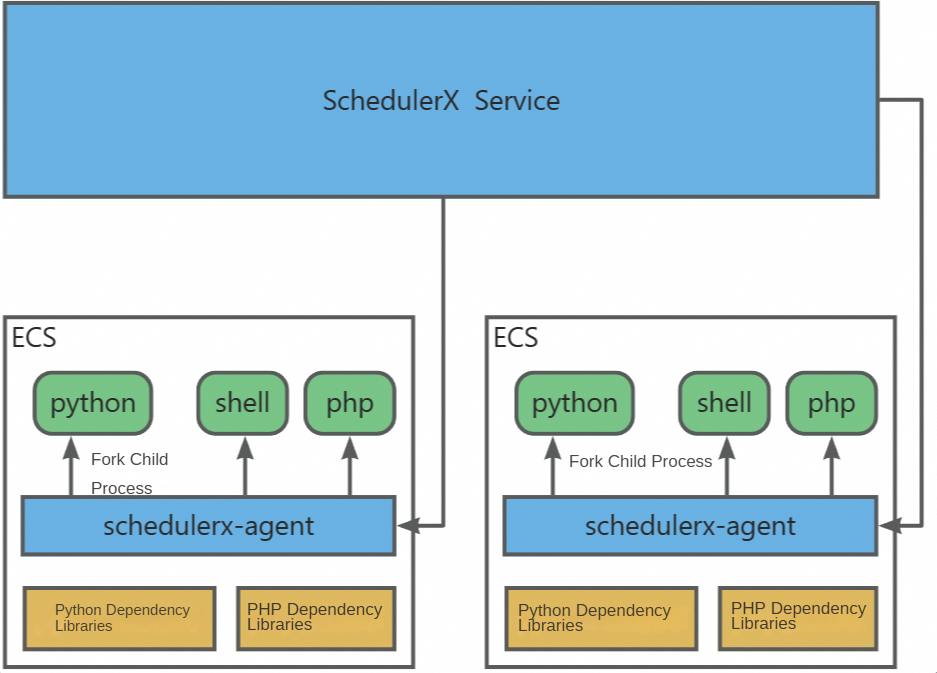
-
To use script jobs, you must deploy the
schedulerx-agenton your target machines. The agent communicates with the server, receives script execution commands, and returns the execution results. -
Install all required script dependencies, such as Python libraries or other files, on the target machines.
-
When a script executes,
schedulerx-agentforks achild processto run it. This child process consumes memory on the host machine, not from theschedulerx-agentitself. The amount of memory consumed depends on the script's operations. Running many script jobs simultaneously can exhaust the machine's memory. For resource-intensive scripts, we recommend using a Kubernetes job to run them in a pod.
Prerequisites
-
To run scripts, the schedulerx-agent must be deployed.
Create a script job
Log on to the SchedulerX console. In the left-side navigation pane, navigate to the Task Management page and create a job. Set the Job Type to script job.
Enter a Task Name and Description, select an Application ID, set the priority (Medium by default), and enter the required parameters in the Task Parameters field.
Step 1: Select a script language
Select a Script Language. SchedulerX supports Shell, Python, and PHP.
Step 2: Execution command
Specify the command to run the script for different languages:
-
Shell script: Defaults to
/bin/sh. -
Python script: Defaults to
python. You can change this topython2orpython3. -
PHP script: Defaults to
php.
Step 3: File format
The unix and windows file formats use different line endings.
-
If the script will run on a
Windowssystem, selectwindows. -
If the script will run on a
Linux/Unix/Macsystem, selectunix.
If you author the script on a Windows system but run it on a Linux system, set File format to unix.
Step 4: Execution mode
Prerequisite: The schedulerx-agent must be deployed. For more information, see Connect an agent (for Script or HTTP jobs).
Execution Mode:
-
Stand-alone operation: SchedulerX randomly selects one of your deployed agents to run the script.
-
Broadcast run: SchedulerX runs the script on all deployed agents simultaneously. This mode is used for batch operations and maintenance.
-
Shard run: Distributes the job execution across multiple agents. For more information, see Create a Python sharding job.
Write and edit the script
After you create a script job, SchedulerX generates a default script template based on the language you selected. On the Edit Script page, click Edit Script to modify the script.
The job list shows each job's Execution mode (such as Stand-alone operation), and provides an EditScript button for modifications.
Manage script versions
The Edit Script includes a script version history feature. On the EditScript page, enable the Historical versions switch to open the version comparison view.
-
The left pane shows the current version, and the right pane shows a historical version.
-
Select a version from the drop-down list to view its details, including the version notes and creation time.
-
After modifying the script, click Confirm and enter a new version name when prompted.
Demo
Broadcast run
-
Connect two
schedulerx-agentinstances.In the Connected Instances panel, verify that both instances (e.g., 172.16.13.125 and 172.16.13.120) are connected as version 1.12.5 pods and have a health status of Healthy.
-
Create a script job with Shell as the Script Language and Execution Mode as the Execution mode. Use the following script content:
#!/bin/bash # #{schedulerx.shardingId} is the shard ID echo "shard ID: #{schedulerx.shardingId}" # #{schedulerx.shardingNum} is the total number of shards echo "total shards: #{schedulerx.shardingNum}" echo "hello world" exit 0 -
In the Actions column for the target job, click Run once.
-
Navigate to the Execution List page. Find the job instance and click Log in the Operation column to view the output from each machine.
-
The log for
172.16.13.125shows that the shard ID is 1 and the total shards is 2.time : 2025-04-22 17:05:26 --- ip : 172.16.13.125:34487 executionId : 10496431_74039165530_1 level : INFO log : total shards: 2 time : 2025-04-22 17:05:26 --- ip : 172.16.13.125:34487 executionId : 10496431_74039165530_1 level : INFO log : hello world time : 2025-04-22 17:05:26 --- ip : 172.16.13.125:34487 executionId : 10496431_74039165530_1 level : INFO log : shard ID: 1 time : 2025-04-22 17:05:26 -
The log for
172.16.13.120shows that the shard ID is 0 and the total shards is 2.
-
Shard run
-
Create a script job with Shell as the Script Language and Execution Mode as the Execution mode. Configure the other job settings as follows:
Set Execution command to
/bin/sh, File format to unix, Executor to Agent, Priority to Medium, and Sharding parameter to0=hangzhou,1=shanghai,2=beijing,3=shenzhen. -
Once the job is created, click its Edit Script button and enter the following script content:
#!/bin/bash # #{schedulerx.shardingId} is the shard ID echo "shard ID: #{schedulerx.shardingId}" # #{schedulerx.shardingParameters} is the sharding parameter echo "sharding parameter: #{schedulerx.shardingParameters}" echo "hello world" exit 0 -
In the Actions column for the target job, click Run once.
-
Navigate to the Execution List page. Find the job instance and click Log in the Operation column to view the sharding parameter assigned to each machine.
-
The logs show that
172.16.13.120ran twice, processing thehangzhouandbeijingshards. -
The logs show that
172.16.13.125also ran twice, processing theshenzhenandshanghaishards.
-
Related documentation
For a list of built-in system variables, refer to System variables for script jobs.