Ingest logs from third-party security products
You can ingest logs from on-premises security products, such as Chaitin WAF or Fortinet firewalls, into Cloud Threat Detection and Response (CTDR). This lets you centrally manage threats in Security Center, which improves threat visibility and response efficiency. This topic describes how to ingest logs from third-party security products into CTDR.
Overview
Ingesting logs from third-party security products into Cloud Threat Detection and Response involves four steps:
Create a dedicated Logstore for CTDR: Create a dedicated Logstore in the Security Center console for a specific log type. This Logstore stores the log data that you want to ingest into
Collect logs into the dedicated Logstore: You can collect logs from your third-party security product and store them in the dedicated CTDR Logstore in Simple Log Service. If raw logs are stored in a single field, you can use a Logtail plugin for data processing in the Simple Log Service console to parse them into structured data. The data is then stored as key-value pairs in the dedicated Logstore.
Configure a parsing rule: Define a mapping rule between the log fields from a third-party security product in the dedicated Logstore and the standard CTDR log fields. This standardizes the logs for ingestion into CTDR.
Bind the data source to the parsing rule: In the Security Center console, configure the dedicated Logstore as a data source and bind it to the parsing rule. This completes the log ingestion process.
Supported third-party security products
Vendor Name | Supported Log Types |
Fortinet firewall |
|
Chaitin WAF |
|
Microsoft Active Directory | Microsoft AD logs |
F5 BIG-IP Local Traffic Manager (LTM) | F5 BIG-IP LTM alert logs |
Other |
|
If the security product you are ingesting logs from is not listed, you can first ingest the logs under the 'Other Products' category. If you have questions about log collection or parsing rule configuration, you can submit a ticket to Security Center technical support.
Billing
You are charged for the following three items when you ingest logs from third-party security products into Security Center:
Billable item | Billed to | Description | |
CTDR log ingestion traffic | Alibaba Cloud account that purchased CTDR | Billed daily based on the volume of log traffic ingested from the dedicated CTDR Logstore to CTDR. | |
CTDR log storage capacity | Alibaba Cloud account that purchased CTDR | Charged for storing standardized logs that are delivered to the Log Management feature of CTDR. | |
Dedicated CTDR Logstore |
| Alibaba Cloud Security Center |
|
| Alibaba Cloud account that purchased CTDR |
| |
Prerequisites
You have purchased log traffic for Agentic SOC and enabled the service. For more information, see What is Agentic SOC (formerly Cloud Threat Detection and Response)?.
Step 1: Create a dedicated Logstore for CTDR
Follow these steps to automatically create a dedicated Logstore for CTDR. This Logstore is used to receive and temporarily store logs from third-party security products.
Log on to the Security Center console.
In the navigation pane on the left, choose . In the upper-left corner of the console, select the region where your assets are located: Chinese Mainland or Outside Chinese Mainland.
On the Service Integration page, find the security product whose logs you want to ingest and click Ingestion Settings in the Actions column.
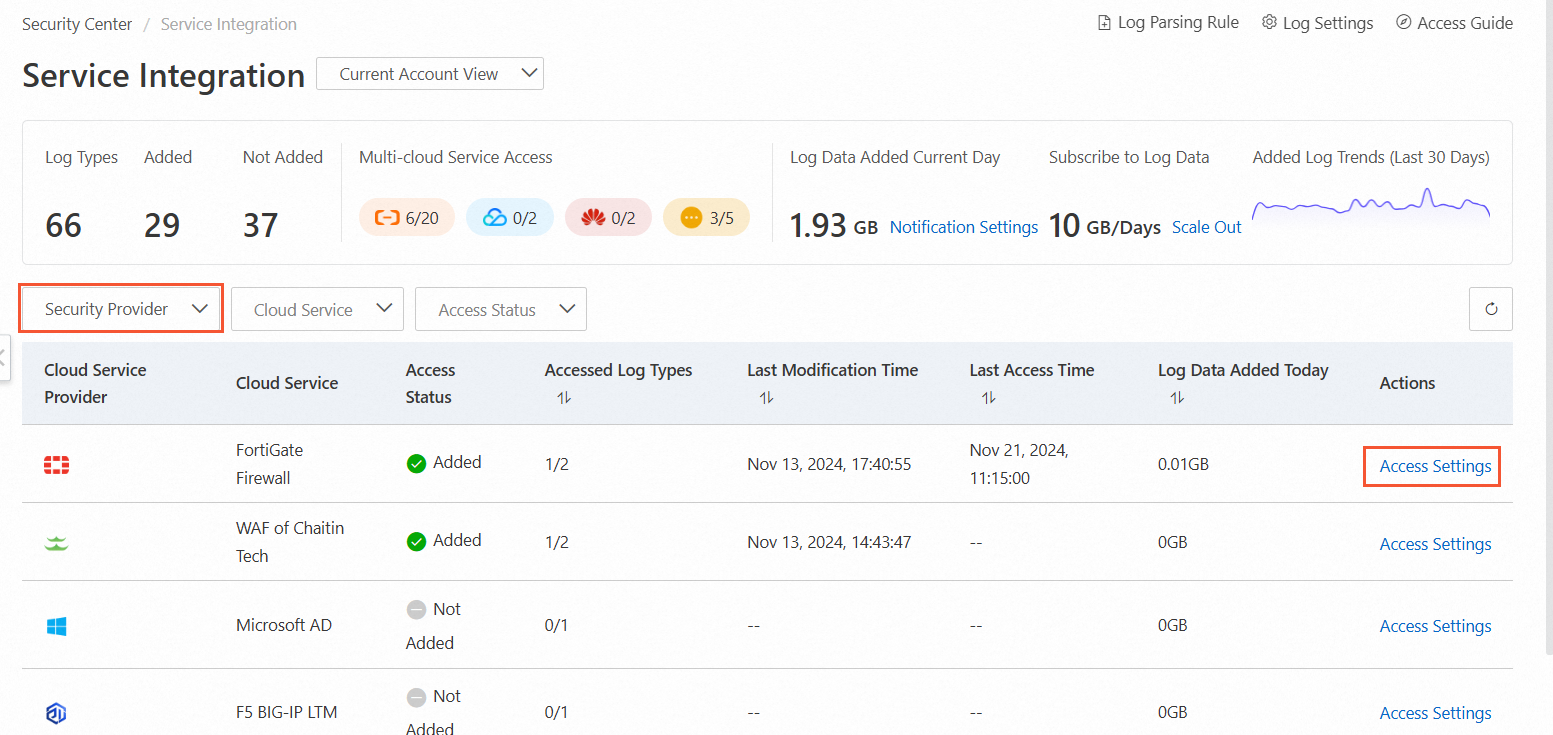
In the Cloud Product Ingestion Settings panel, find the log type that you want to ingest and click the number in the Accounts with Access column.
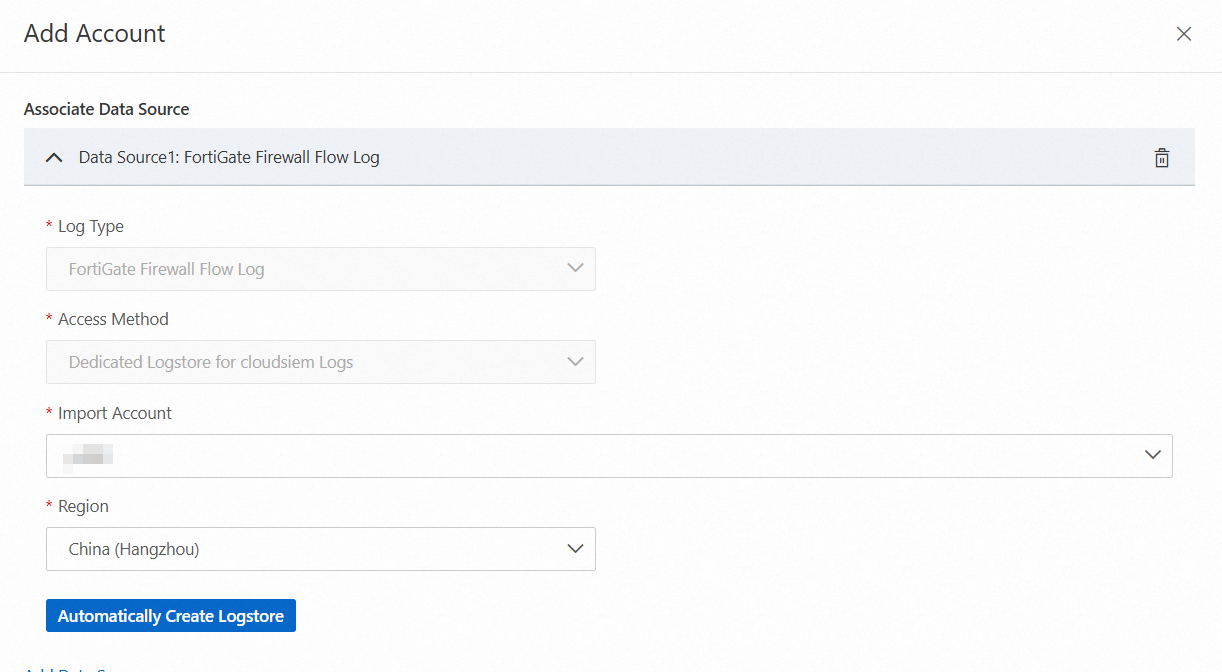
In the Add Account panel, select an Import Account and a Region, and then click Auto-create Logstore.
 Note
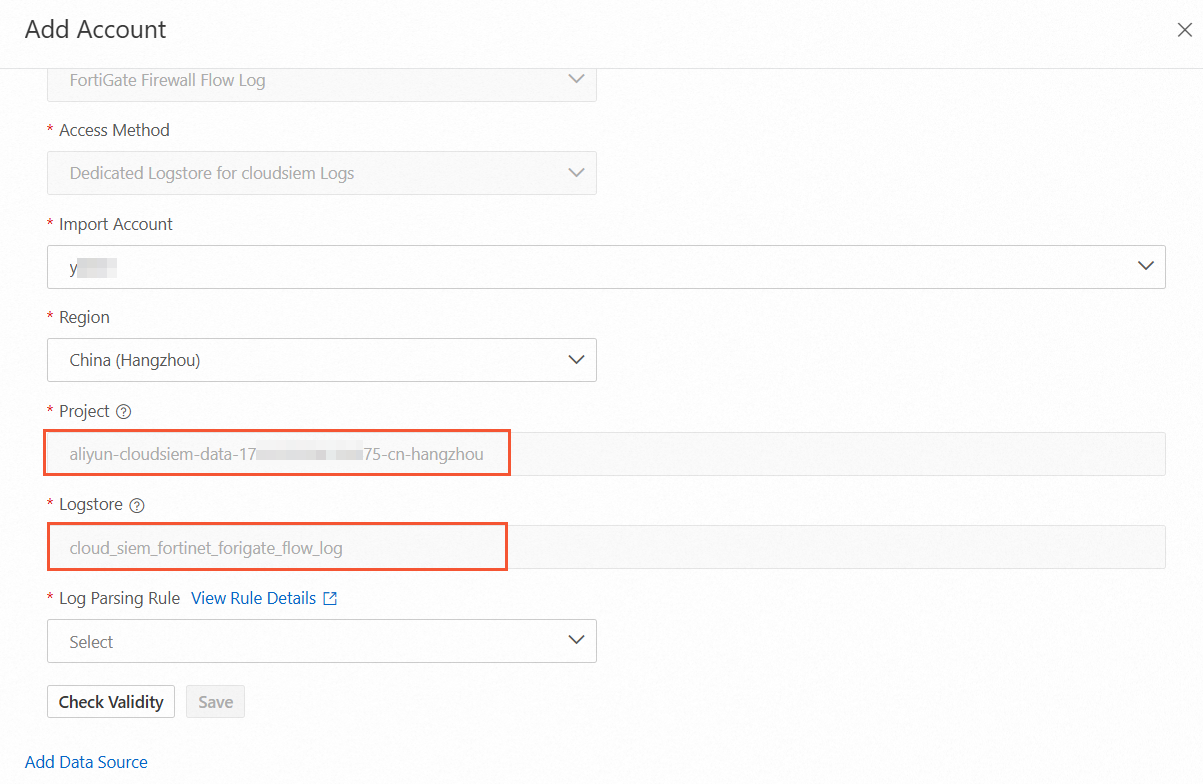
NoteThis step automatically creates the dedicated CTDR Logstore. The generated project and Logstore names are required to collect logs from your third-party security product and send them to Alibaba Cloud.
Record the Project and Logstore names displayed in the Add Account panel.
Step 2: Collect logs into the dedicated Logstore
In this step, ingest raw log samples from your third-party security product. Use a Simple Log Service (SLS) data collection method to parse the logs into key-value pairs and store them in the dedicated CTDR Logstore. This lets you map a log parsing rule in the CTDR console to standardize the logs.
If you encounter issues with log collection for the dedicated Logstore, you can submit a ticket to contact technical support. When submitting the ticket, set the Product Category to Simple Log Service.
Select a data collection method
Simple Log Service can collect data from various sources, such as servers, applications, open source software, Internet of Things (IoT) devices, mobile clients, standard protocols, and Alibaba Cloud products. You can use Logtail or other methods, such as the Kafka or Syslog protocol, to upload logs to an automatically created Logstore. For more information, see Overview of data collection.
If you use Logtail for data collection, you must first select a network type. For more information, see Logtail network types, startup parameters, and configuration files.
Configure Logtail for data collection
This section describes the procedure using Chaitin WAF as an example. For other on-premises security products, such as Fortinet firewalls, see the appendix.
To ingest Chaitin WAF logs, you must use a transit server because Logtail cannot be installed on the server where Chaitin WAF is deployed.
Prepare a transit server. Use the built-in syslog sending feature of Chaitin WAF to forward its logs to the transit server.
Install Logtail on the transit server. For more information, see Install Logtail on a Linux server and Install Logtail on a Windows server.
If your environment allows, you can also install Logtail directly on the server where the security product's logs are stored.
Configure a custom identifier for the server where Logtail is installed. This authorizes your Alibaba Cloud account to collect server logs using Logtail. For more information, see Configure a custom identifier.
Create a machine group in the Logstore that was automatically created.
To create an IP-based machine group, see Create an IP-based machine group.
To create a custom identifier-based machine group, see Create a custom identifier-based machine group.
Complete the data ingestion configuration.
Log on to the Simple Log Service console.
In the Quick Data Import section, you can click Import Data. In the Import Data dialog box, you can select Syslog - Plugin.
On the wizard's Select Logstore page, select the Project and Logstore that you recorded in Step 6, and then click Next.
On the Create Machine Group wizard page, click Use Existing Machine Groups.
On the Configure Machine Group page of the wizard, select a Scenario, an Environment, and the machine group that you created, and then click Next.
On the Data Source Settings page of the wizard, set Plugin Configuration as shown in the following example, and then click Next.
ImportantWhen you configure the plugin, remove the comments from the example.
The Logtail plugin for data processing in the following example expands the JSON content of the _content_ field in Chaitin WAF logs into key-value pairs. This allows CTDR to parse the corresponding fields. You can also adjust the Logtail plugin to meet your requirements for parsing logs into a key-value format. For more information, see Field processing plugins and Use native and extension plugins for data processing.
{
	"inputs": [{
		"type": "service_syslog",
		"detail": {
			"Address": "udp://0.0.0.0:9001",  # If one server forwards multiple log types, adjust the port for each log type.
			"ParseProtocol": "rfc3164"
		}
	}],
	"processors": [{
		"detail": {
			"ExpandArray": false,
			"ExpandConnector": ".", # Configure as needed.
			"ExpandDepth": 0,
			"IgnoreFirstConnector": true,
			"KeepSource": false, # Specifies whether to keep the source field. Configure as needed.
			"KeepSourceIfParseError": true,
			"NoKeyError": true,
			"Prefix": "", # Configure as needed.
			"SourceKey": "_content_", # The name of the field to expand from JSON.
			"UseSourceKeyAsPrefix": false # Configure as needed.
		},
		"type": "processor_json"
	}]
}
Preview the data and create an index. Then, click Next.
In the Simple Log Service console, check whether the logs are successfully ingested into the Logstore that was automatically created.
Other data collection methods
In addition to Logtail, you can use the Kafka or Syslog protocol to upload logs to the dedicated CTDR Logstore. The procedure is as follows:
Step 3: Configure a log parsing rule
Log on to the Security Center console.
In the navigation pane on the left, choose . In the upper-left corner of the console, select the region of your assets: Chinese Mainland or Outside Chinese Mainland.
On the Service Integration page, hover over the
 icon, and then click Log Parsing Rule under Third-party Security Products.
On the Log Parsing Rule page, click Create Rule.
On the Add Log Parsing Rule page, configure the rule by following the on-screen instructions.
Configuration Category
Configuration Item
Description
Basic Information Settings
Rule Name
Set a name for the log parsing rule.
Activity Category
Select the category for the logs you want to ingest. The following list shows the mappings for common log types:
Firewall alert logs: Security Logs > Firewall Alert Logs.
Firewall flow logs: Network Logs > 5-tuple Logs.
WAF alert logs: Security Logs > Web Application Firewall Alert Logs.
WAF flow logs: Network Logs > HTTP Logs.
Remarks
Set remarks for the log parsing rule.
View Sample Log
Region ID
Select the region where the automatically created Logstore is located.
Project
Enter the project where the automatically created Logstore is located.
Logstore
Enter the name of the automatically created Logstore.
Load Samples
You can click Load Samples to load the collected log fields from your third-party security product into the rule configuration list. After loading, you can select the imported log fields for mapping without having to enter them manually. You can also click View More Sample Logs to go to the Simple Log Service console and view the details of the ingested log fields.
Log Parsing and Mapping Settings
Configure parsing rule
In this section, configure a log parsing and mapping rule to map the collected log fields to the standard CTDR fields. The fields under Target Standard Field are required and cannot be modified. You can configure the other fields as needed.
Log Filter: To filter logs that are mapped to CTDR based on the values of specific fields, select the Advanced Settings check box and configure the fields and filter rules. To add multiple filter rules, click Add Filter Condition.
View Standard Fields: Click this button to view the list of standard fields supported by CTDR and their details in the Standard Fields panel.
Manage Mapping Dictionary: Click this button to manage mapping dictionaries in the panel. For more information, see Manage mapping dictionaries.
Parsing Function Documentation: This provides detailed descriptions and scenarios for parsing functions. Click this button to view the documentation in the Help Center. For more information, see Parsing functions.
Step 4: Bind the data source
On the Service Integration page, find the security product whose logs you want to ingest and click Ingestion Settings in the Actions column.

In the Cloud Product Ingestion Settings panel, find the log type that you want to ingest and click the number in the Accounts with Access column.
In the Add Account panel, select an Import Account and a Region, and then click Auto-create Logstore.
NoteIf a Logstore for the selected log type already exists in the selected region, a new one will not be created even if you click Auto-create logstore.
Select the Log Parsing Rule that you created in Step 3: Configure a log parsing rule, click Check Validity, and then click Save.
What to do next
Configure a custom detection rule to perform in-depth detection and analysis of logs from your third-party security products. For more information, see Add a custom rule.
NotePredefined rules are not supported for logs from third-party security products.
To view standardized log data in CTDR, use the Log Management feature. Before you can view the logs, you must purchase log storage capacity and enable log delivery for the corresponding log type. For more information, see Step 1: Enable log delivery.
Appendix
Dedicated Logstore for CTDR
After you complete Step 1: Create a dedicated Logstore for CTDR, Security Center automatically creates a dedicated project and Logstore for CTDR in Simple Log Service. This Logstore is used exclusively to store logs from third-party security products. You have restricted permissions for the dedicated CTDR Logstore and do not have permissions to modify data or create indexes in the Logstore. However, you can perform operations such as consuming, processing, and delivering logs in the Logstore.
A project is created only once in each region. Even if you run the automatic creation process again, a new project and Logstore will not be created.
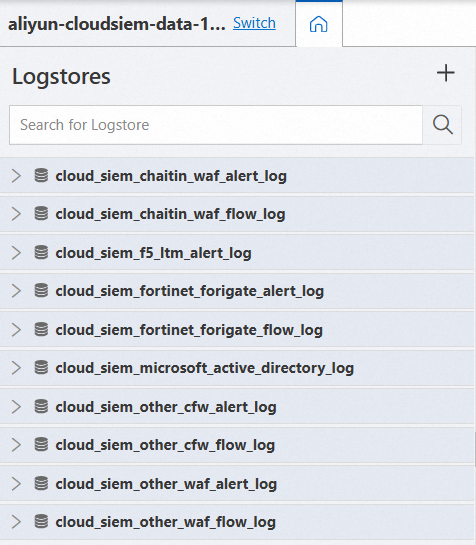
A project created in the China (Hangzhou) region is named aliyun-cloudsiem-data-Alibaba-Cloud-account-ID-cn-hangzhou. Security Center creates different Logstores for different log types. The following table describes the Logstore names and their purposes. When you configure data ingestion in the Simple Log Service console, use the Logstore that corresponds to your security product.
Logstore Name | Purpose |
cloud_siem_chaitin_waf_alert_log | Collects and parses Chaitin WAF alert logs into key-value pairs for structured storage. |
cloud_siem_chaitin_waf_flow_log | Collects and parses Chaitin WAF flow logs into key-value pairs for structured storage. |
cloud_siem_f5_ltm_alert_log | Collects and parses F5 BIG-IP LTM alert logs into key-value pairs for structured storage. |
cloud_siem_fortinet_forigate_alert_log | Collects and parses Fortinet firewall alert logs into key-value pairs for structured storage. |
cloud_siem_fortinet_forigate_flow_log | Collects and parses Fortinet firewall flow logs into key-value pairs for structured storage. |
cloud_siem_microsoft_active_directory_log | Collects and parses Microsoft Active Directory logs into key-value pairs for structured storage. |
cloud_siem_other_cfw_alert_log | Collects and parses firewall alert logs from other vendors into key-value pairs for structured storage. |
cloud_siem_other_cfw_flow_log | Collects and parses firewall flow logs from other vendors into key-value pairs for structured storage. |
cloud_siem_other_waf_alert_log | Collects and parses WAF alert logs from other vendors into key-value pairs for structured storage. |
cloud_siem_other_waf_flow_log | Collects and parses WAF flow logs from other vendors into key-value pairs for structured storage. |
Fortinet firewall log collection and response plugin example
You can collect Fortinet firewall logs in the dedicated CTDR Logstore using the Logtail collection method, which is similar to the method for Chaitin WAF logs. The following is an example of a Logtail plugin configuration:
In the following example, the Logtail plugin for data processing splits the content of the _content_ field in Fortinet firewall logs into key-value pairs. This allows CTDR to parse the corresponding fields. You can also customize the Logtail plugin to parse logs into a key-value format. For more information, see and Use native and extension plugins for data processing.
{
    "inputs": [
        {
            "type": "service_syslog",
            "detail": {
                "Address": "udp://0.0.0.0:9002",
                "ParseProtocol": "rfc5424"
            }
        }
    ],
    "processors": [
        {
            "detail": {
                "Delimiter": " ",
                "Separator": "=",
                "KeepSource": true,
                "SourceKey": "_content_",
                "UseSourceKeyAsPrefix": false
            },
            "type": "processor_split_key_value"
        }
    ]
}
Use one server to collect logs from multiple security products
To ingest logs from multiple third-party security products into CTDR, you can send the logs from each source to a different port on a single server. Then, install Logtail on that server and use the Simple Log Service console to configure a separate data source for each log type in a different Logstore. This process lets you collect these different types of logs into the dedicated CTDR Logstore.
For example, to ingest alert logs from Chaitin WAF and Fortinet firewalls into CTDR, you can use a syslog agent such as rsyslog to forward the syslog data to the IP address and specific ports of a server. For example, you can send Chaitin WAF alert logs to port 9001 and Fortinet firewall alert logs to port 9003. After you install Logtail on the server, configure Logtail in the corresponding Logstores in the Simple Log Service console:
Chaitin WAF alert logs: In the cloud_siem_chaitin_waf_alert_log Logstore, the inputs section of the plugin configuration is as follows:
{
     "inputs": [
         {
             "type": "service_syslog",
             "detail": {
                 "Address": "udp://0.0.0.0:9001",
                 "ParseProtocol": "rfc3164"
             }
         }
     ]
 }
Fortinet firewall alert logs: In the cloud_siem_fortinet_forigate_alert_log Logstore, the inputs section of the plugin configuration is as follows:
{
     "inputs": [
         {
             "type": "service_syslog",
             "detail": {
                 "Address": "udp://0.0.0.0:9003",
                 "ParseProtocol": "rfc3164"
             }
         }
     ]
 }
Notes on log collection
In addition to the Logtail collection method described in this topic, you can use other collection methods to send security logs to Simple Log Service. For more information, see Overview of data collection.
For information about how to troubleshoot heartbeat failures in a Logtail machine group, see Troubleshoot Logtail machine group issues (host scenarios).