Renew the subscription
You must renew your Security Center subscription before it expires to prevent the instance from being downgraded to the Free Edition, which causes your servers to lose protection. This topic describes the impact of instance expiration, data cleanup rules, and the manual renewal, renewal with configuration change, and auto-renewal operations.
Instance expiration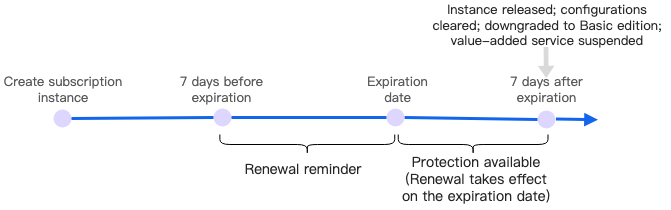
Expiration reminders
Seven days before your Security Center subscription instance expires, the system sends renewal reminders by text message, email, or internal message.
Impact of expiration
Upon expiration, the service instance is released. This means the paid edition is downgraded to the Free Edition. Your servers lose the protection of Security Center, which increases the risk of malicious intrusions and data breaches.
Data and configuration retention
After the instance expires, the system provides a 7-day grace period. After 7 days, the service instance is released, and data is cleared according to the rules in the following table.
Scenario | Data cleanup policy |
Within 7 days of expiration | The service authorization information, configuration policies, and service data for all features are retained. |
7 days after expiration |
|
15 days after expiration |
|
Renewal methods and scenarios
You can renew your Security Center instance at any time from the date of purchase until seven days after it expires.
Renewal method | Renewal type | Description | Scenarios |
Manual renewal | Standard Renewal | Manually renew your instance with its current configuration. | You do not want to change the current configuration or enable auto-renewal. |
Renewal with configuration change | You can change the configuration during renewal. The current configuration is not affected. The new configuration takes effect when the renewal order becomes active. To change the configuration immediately, you can upgrade or downgrade it. For more information, see Upgrade and downgrade. Important You cannot make another configuration change until the pending renewal order takes effect. | You want to keep the configuration for the current billing cycle and adjust it for the next one. | |
Auto-renewal | Auto-renewal | If you enable auto-renewal, the service is automatically renewed upon expiration. Note
| If you plan to use Security Center for a long time, enable auto-renewal to avoid frequent manual renewals. |
Manual renewal
Prerequisites
If you use the All Assets protection mode, ensure that the number of protected servers and virtual central processing unit (vCPU) cores that you purchased for your Alibaba Cloud account is greater than or equal to the number of servers and vCPU cores under your account.
If you have an insufficient quota, you can upgrade your Security Center subscription or reduce the number of protected assets. For example, you can detach servers or release Elastic Compute Service (ECS) instances. This ensures that the number of servers under your account matches the purchased quota (number of protected servers and number of vCPU cores). For more information, see Upgrade and downgrade. To protect only some of your servers, you can switch from All Assets protection mode to On-demand protection mode. For more information, see How do I manually upgrade from All Assets protection mode to On-demand protection mode?.
Renew with original configuration
Log on to the Security Center console.
On the Overview page, click Renew Subscription.
On the Standard Renewal tab, select the renewal duration, confirm the estimated expiration date, read and select the Security Center Terms of Service, and click Order Now.
To enable auto-renewal, select Enable auto-renewal to stay protected.
Renewal with configuration change
The number of protected servers and vCPU cores cannot be less than the quota that you have attached to your servers. If you want to reduce the number of protected servers or vCPU cores, you must first detach the servers from the quotas. For more information, see Manage protection versions for servers.
In All Assets protection mode, the number of protected servers and vCPU cores cannot be less than the number of servers and their vCPU cores that are connected to Security Center. If you want to reduce the number of protected servers or vCPU cores, you must release the Alibaba Cloud servers or detach the non-Alibaba Cloud servers that you no longer need to protect. This must be done before you renew your subscription with a configuration change.
To detach non-Alibaba Cloud servers, see Detach a non-Alibaba Cloud server.
To release Alibaba Cloud servers, see Release an instance.
You cannot submit another configuration change until the pending order takes effect.
Log on to the Security Center console.
On the Overview page, click Renew.
On the Upgrade/Downgrade Renewal tab, select an edition, set the number of protected servers or computing cores, select the value-added services and set the quantity, read and select the Security Center Terms of Service, and then click Order Now.
When you renew, upgrade, or downgrade your service, changes to quotas on the Overview page, such as Number of Purchased Licenses and Remaining Log Storage Capacity, do not immediately appear on the Overview page. The values are refreshed at the start of the next billing cycle.
In the upper-right corner of the Security Center console, choose Expenses > Orders. On the Product Orders tab, find the renewal order and click Details in the Actions column. You will be redirected to the Order Management page, where you can view the start and end time of the order.
Auto-renewal
When you purchase Security Center, you can enable auto-renewal by selecting Monthly Subscription, Quarterly Package (Continuous), or Semiannual in the Subscription Duration area. If you did not enable auto-renewal at the time of purchase, you can enable it by following these steps.
Log on to the Security Center console.
In the top menu bar, choose Expenses > Renewal Management.
On the Manual Renewal tab of the Renewal Management page, find the Security Center instance for which you want to enable auto-renewal and click Enable Auto-renewal in the Actions column.
In the Enable Auto-renewal dialog box, set the auto-renewal period and click Enable Auto-renewal.
ImportantPayment processing for auto-renewals begins nine days before the expiration date. Ensure that your account has a sufficient balance to ensure a successful renewal.