Configure security message recipients
Security Center sends alert notifications through Message Center. By default, only the primary account contact receives them. Add dedicated security contacts so the right teams can respond to incidents promptly.
Step 1: Configure security message recipients in Message Center
Subscribe to security messages
Add contacts to receive security notifications by email, text message, or internal message.
-
Log on to the Message Center console.
-
In the left-side navigation pane, choose .
-
In the upper-right corner, click Manage Contacts. You are redirected to Account Center. On the Address and Contact page, click Add Contact. Enter the required information, such as name, phone number, and email address, and then click Save.
-
Name: Name of the message recipient. Maximum 20 characters.
-
Email: Email address for receiving notifications.
-
Mobile Number: Phone number for text message notifications.
-
Position: Job title of the contact.
ImportantContacts must complete verification before receiving notifications. The system sends a verification message to the specified email address and phone number. Follow the instructions in the message to complete verification.
-
-
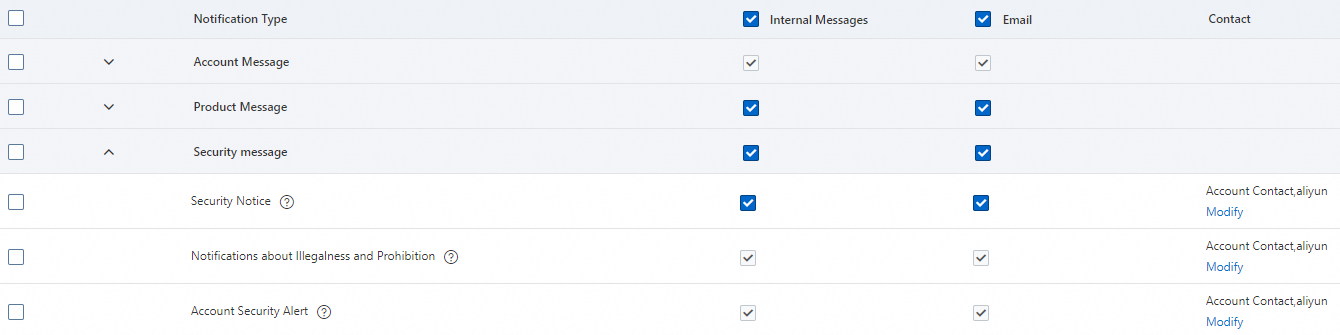
Return to the Message Settings page, find Security message, and click Modify in the Common Settings column for the target message type. This takes you to the Modify Message Receiving Configurations page.
Note-
Security Notice: Covers Security Center, Anti-DDoS, and Web Application Firewall. Subscribing to Security Notice applies to all related products.
Examples: security alerts, web tampering alerts, container microsegmentation alerts, and AccessKey leak notifications (Security Center); DDoS attack notifications (Anti-DDoS); domain ICP filing issues and Security Control events (Web Application Firewall).
-
For broader security coverage, also subscribe the contact to Illegal and Prohibited Content Notification and Account Security Alert.
-
Illegal and Prohibited Content Notification: Notifies about penalties for illegal activities on Alibaba Cloud resources. Security control rules.
-
Account Security Alert: Sends security alerts for your Alibaba Cloud account and RAM users, such as AccessKey leak risks.
-
-
-
On the Contact tab, select the checkbox for the contact and click Save.
-
In the subscription list, select the checkboxes in the Internal Messages, Email, and Text Messages columns to enable multiple notification methods.
If the new contact's name appears in the Contact column of the subscription list, the contact was added successfully. The configuration takes effect immediately.
Subscribe to voice call notifications
Configure voice call notifications to ensure critical alerts reach contacts in high-risk scenarios.
-
Log on to the Message Center console.
-
In the left-side navigation pane, choose .
-
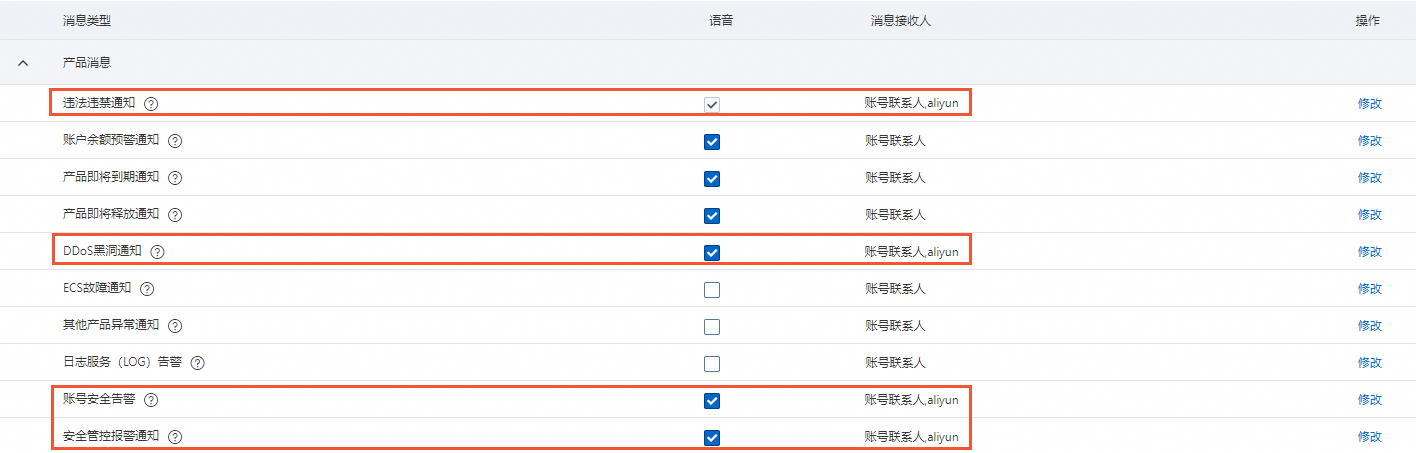
On the Voice Message Management page, find the desired security message type, select the checkbox in the Voice column, and then click Modify in the Action column.
The following table describes security-related message types. Configure these based on whether the contact needs voice call alerts.
Message type
Description
Illegal and Prohibited Content Notification
Notifies about penalties for illegal activities on Alibaba Cloud resources. Security control rules.
DDoS Blackhole Notification
Notifies you when a DDoS attack exceeds the blackhole threshold and network access is blocked. Handle the issue immediately. These notifications are also sent as voice calls at night, so configure with care.
Account Security Alert
Detects AccessKey leaks, such as keys exposed in public source code on platforms like GitHub.
Security Control Alert Notification
Notifies you when a resource IP address is penalized or suspended due to security control measures.
-
In the Modify Message Receiving Configurations dialog box, select the checkbox next to the target contact and click Save.
The contact is added successfully if their name appears in the Contact column of the subscription list. The configuration takes effect immediately.
Step 2: Configure notification settings in Security Center
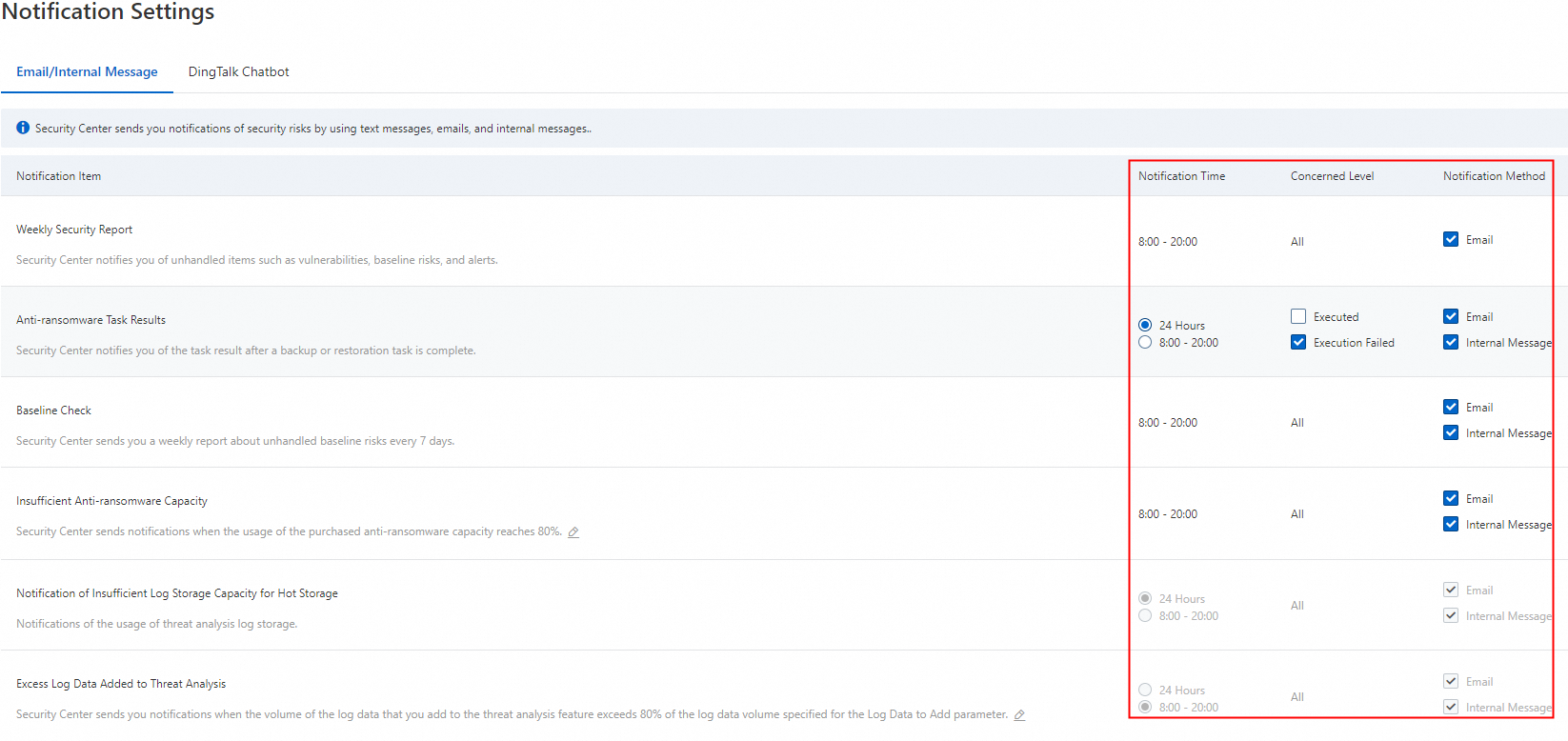
After subscribing a contact to Security Notice in Message Center, configure notification methods and frequency in Security Center. Configure notifications by text message, email, and internal message.
-
If you select only Internal Messages as the notification method for Security Notice, but select both Internal Message and Email for Baseline Check in the page of Security Center, the contact will receive only Internal message notifications.
-
To receive email notifications for a specific item, the contact must also be subscribed to Email for the Security Notice message type in Message Center.
References
-
Security Center supports DingTalk chatbot notifications. Configure DingTalk chatbot notifications.
-
Anti-DDoS provides alert notifications through CloudMonitor and Log Service. Set alerts for attack events in Anti-DDoS Basic and Anti-DDoS Origin.
-
Web Application Firewall provides notifications through CloudMonitor and Log Service. Configure alerting.