Import Azure logs into Security Center (Agentic SOC) to centralize log ingestion and enable unified parsing and threat detection across your multicloud environment. This integration uses the Kafka compatibility of Azure Event Hubs — Security Center connects as a Kafka client using an endpoint, topic name, and primary connection string.
To complete the integration, follow these two phases:
Phase 1 — Prepare Azure Event Hubs:
Create a resource group
Create an Event Hubs namespace
Create an event hub (this becomes the Kafka topic)
Get the primary connection string
Write your Azure log data to the event hub
Phase 2 — Configure Security Center:
Authorize Security Center to access the event hub
Create a data import task
After ingestion, configure parsing and detection rules to start analyzing the logs.
How it works
Security Center uses the compatibility between Azure Event Hubs and the Apache Kafka protocol, which lets an event hub act as a Kafka topic. Security Center connects as a Kafka client — using the endpoint, topic name, and primary connection string — to pull log data from the event hub. The retrieved data flows into unified normalization, parsing, and threat detection.

Prerequisites
Before you begin, make sure you have:
An active Azure account with permissions to create Event Hubs resources
A Security Center instance with Agentic SOC enabled
(Optional) A Simple Log Service (SLS) Logstore to receive the imported logs, if you plan to use User Log Service as the data source type
Prepare Azure Event Hubs
For full Azure documentation on creating event hubs, see Create an event hub using the Azure portal.
Step 1: Create a resource group
Log on to the Azure portal.
In the left navigation pane, select Resource groups, and then click Create.
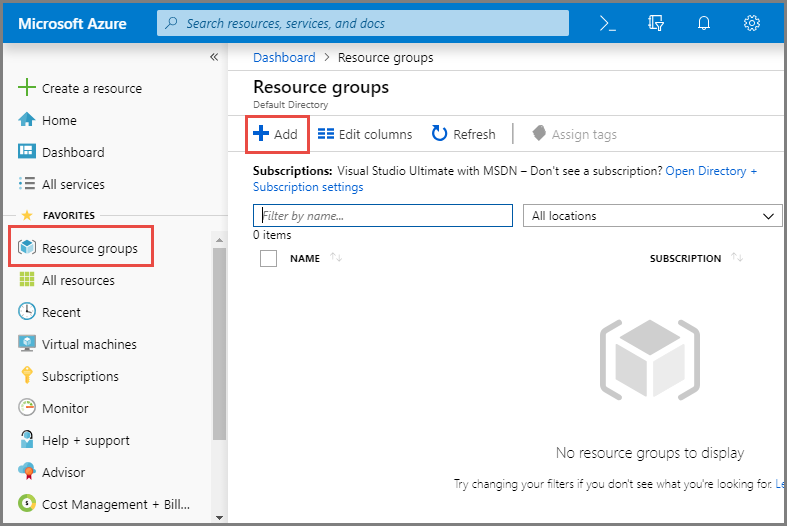
On the Create a resource group page, set the following parameters, and then click Review + create.
Parameter Description Subscription The Azure subscription for the resource group Resource group A unique name for the resource group Region The region for the resource group After confirming the information, click Create.
Step 2: Create an Event Hubs namespace
In the left navigation pane, click All services. In the Analytics area, click Event Hubs.
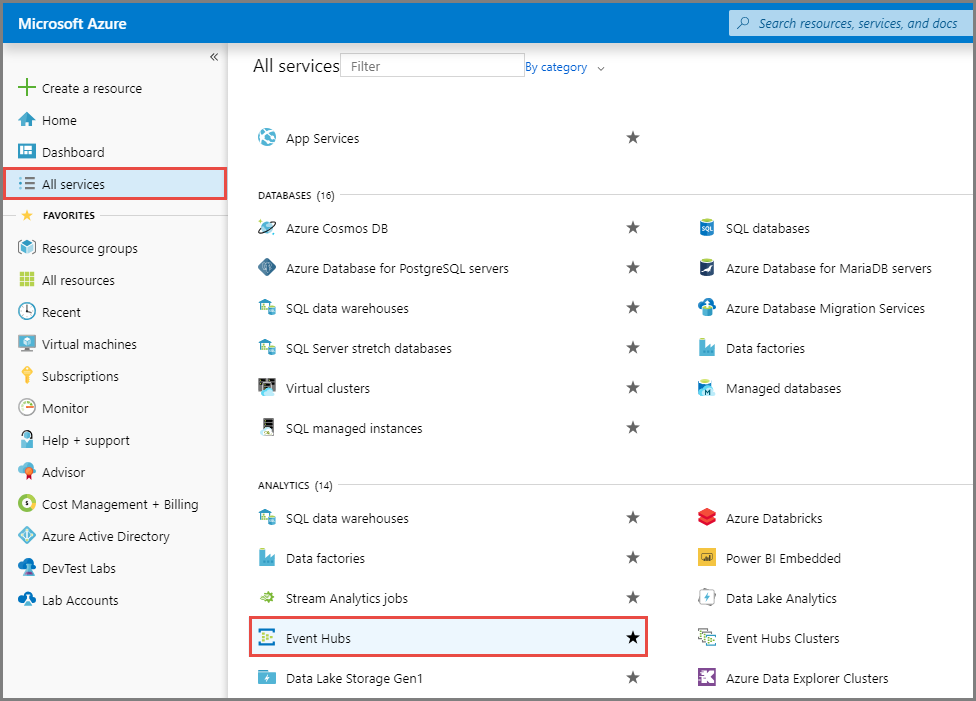
On the Event Hubs page, click Create and configure the following parameters.
For differences between pricing tiers, see Quotas and limits, Event Hubs Premium, and Event Hubs Dedicated. For throughput and processing units, see Scalability of Event Hubs.
Parameter Description Subscription The subscription from Step 1 Resource group The resource group from Step 1 Namespace name A name for the namespace. The corresponding Kafka broker endpoint appears below the field. Region The same region as the resource group in Step 1 Pricing tier Select Basic (default) for general use. To restrict access to Agentic SOC only, select Standard, Premium, or Dedicated — these tiers support network whitelisting. Throughput units / Processing units Keep the defaults. Auto-inflate Enable as needed. 
On the Networking tab, set Network connectivity to Public access, and then click Review + create at the bottom of the page.
ImportantTo restrict access so that only Agentic SOC can reach this namespace, configure a network whitelist in Azure. For details, see Configure an Event Hubs whitelist (optional).
After confirming the configuration, click Create and wait for the deployment to complete.
On the Your deployment is complete page, click Go to resource to open the namespace details page.
Alternatively, on the Event Hubs home page, click the namespace name in the list to open its details page.
Step 3: Create an event hub
On the namespace details page, click + Event Hub.
Enter the required information and click Review + create.
ImportantThe event hub name maps directly to the Kafka topic. Record this name — you'll enter it as the Topics value when configuring the data import task in Security Center.
Parameter Description Name A name for the event hub. This name becomes the Kafka topic name — use a descriptive, recognizable name. Other configurations Keep the defaults. On the confirmation page, click Create and wait for the task to complete.
Return to the namespace homepage to see the new event hub listed in the Event Center section.
Step 4: Get the primary connection string
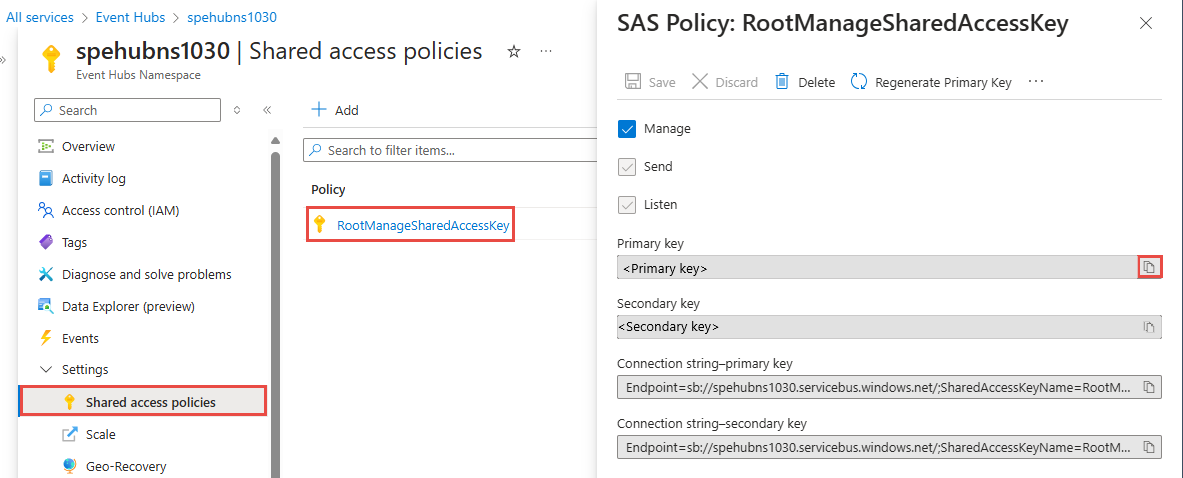
On the namespace page, in the left navigation pane under Settings, click Shared access policies.
Click the default policy RootManageSharedAccessKey. In the policy details pane, copy the Primary connection string.
ImportantThe primary connection string is the Kafka password used when authorizing Security Center. Copy the entire string — you'll paste it into the Password field in Security Center.
Step 5: Write data to the event hub
Follow the instructions in the official Azure documentation to write the data that you want to analyze to the event hub that you created in Step 3. For more information, see the following documents:
Configure data import in Security Center
Step 1: Authorize Security Center to access the event hub
Go to Security Center console > System Settings > Feature Settings. In the upper-left corner, select the region where your assets are located: Chinese Mainland or Outside Chinese Mainland.
On the Multi-cloud Configuration Management tab, click Multi-cloud Assets, then click Grant Permission and select IDC from the drop-down list.
In the panel that appears, set the following parameters.
Parameter Value Service Provider Apache Connection Type Kafka Endpoint <YOUR-NAMESPACE>.servicebus.windows.net:9093— replace<YOUR-NAMESPACE>with your Event Hubs namespace nameUsername $ConnectionString(fixed, cannot be changed)Password The primary connection string from Step 4 Communication Protocol sasl_sslSASL Authentication Mechanism plainFor AK Service Status Check, this parameter is not applicable — skip it.
Step 2: Create a data import task
2a. Create a data source
If you've already created a data source, skip to step 2b.
Go to Security Center console > Agentic SOC > Integration Center. In the upper-left corner, select the region where your assets are located: Chinese Mainland or Outside Chinese Mainland.
On the Data Source tab, create a data source to receive logs. For details, see Create a data source for Simple Log Service (SLS).
Parameter Value Source Data Source Type Agentic SOC Dedicated Collection Channel (recommended) or User Log Service Add Instances Create a new Logstore to keep Azure logs isolated from other data
2b. Add a data import task
On the Data Import tab, click Add Data.
In the panel that appears, configure the following parameters.
Parameter Value Data Source Type Kafka Endpoint <YOUR-NAMESPACE>.servicebus.windows.net:9093Topics The event hub name from Step 3 Value Type json Data Source Name The data source created in step 2a Destination Logstore The Logstore selected in step 2a Click OK. Security Center starts retrieving logs from the Azure event hub automatically.
Configure an Event Hubs whitelist (optional)
Restrict access to your Event Hubs namespace to only allow traffic from Agentic SOC.
The Basic pricing tier does not support network whitelisting.
For the full Azure procedure, see Configure IP firewall rules for an existing namespace.
On the Event Hubs namespace page, click Networking under Settings in the left navigation pane.
On the Network page, go to the Public Access tab and click Manage in the Public network access area.
In the Default action section, select Enable from selected networks.
In the IP Addresses section, add the IP addresses listed below, and then click Save.
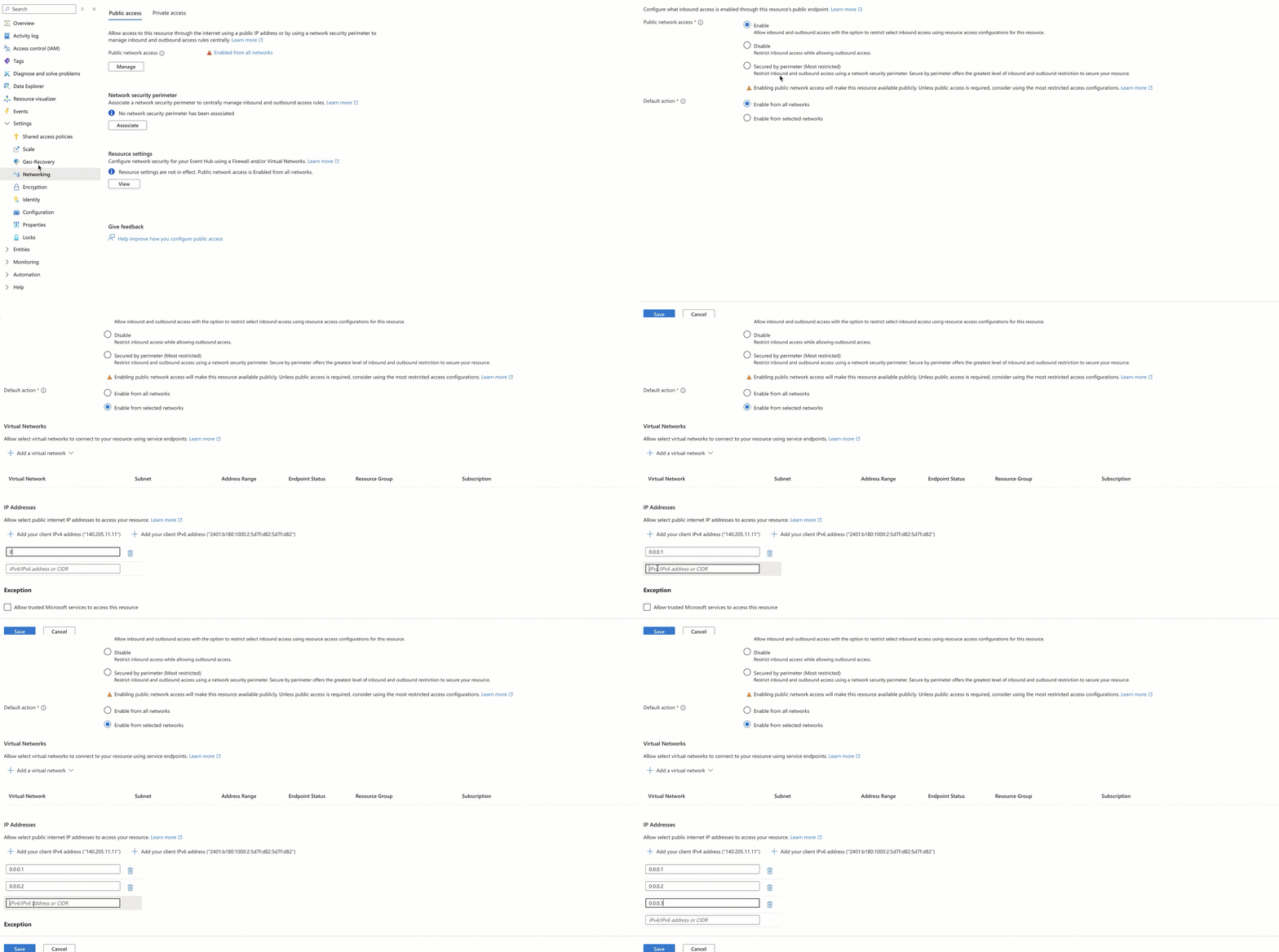
Add IP addresses for both of the following:
IP addresses of the region where your SLS project is located
All regions share the same VPC IP address whitelist: 100.104.0.0/16
| Region | Public IP address whitelist |
|---|---|
| China (Hangzhou) | 114.55.8.190, 47.99.57.53, 114.55.85.98, 47.99.212.49, 120.26.169.131, 118.178.236.24, 47.98.173.126 |
| China (Shanghai) | 101.133.151.144, 47.102.141.56, 106.15.248.175, 47.102.99.12 |
| China (Qingdao) | 47.104.146.34, 120.27.20.55 |
| China (Beijing) | 59.110.6.146, 39.105.19.110, 47.93.61.189, 182.92.187.76 |
| China (Zhangjiakou) | 8.142.80.93, 47.92.90.166, 8.142.152.234, 39.100.37.56 |
| China (Hohhot) | 39.104.61.213 |
| China (Ulanqab) | 8.130.10.99, 39.101.66.131 |
| China (Shenzhen) | 120.76.47.88, 119.23.150.175 |
| China (Heyuan) | 47.113.195.162, 47.113.192.163 |
| China (Guangzhou) | 8.134.56.134 |
| China (Chengdu) | 47.108.26.166 |
| China (Hong Kong) | 8.210.69.249, 47.52.240.106 |
| Singapore | 47.241.44.82, 47.88.153.120 |
| South Korea (Seoul) | 8.213.130.255 |
| Japan (Tokyo) | 47.74.56.187 |
| Malaysia (Kuala Lumpur) | 47.254.195.145 |
| Indonesia (Jakarta) | 149.129.233.70 |
| Philippines (Manila) | 8.212.131.139 |
| Thailand (Bangkok) | 8.213.194.187 |
| Germany (Frankfurt) | 47.91.76.65, 47.91.89.173 |
| UK (London) | 8.208.86.103, 8.208.3.16 |
| US (Virginia) | 47.253.208.218, 47.90.252.237 |
| US (Silicon Valley) | 47.88.8.7, 47.88.7.168 |
Agentic SOC region IPs
| Region | Public IP |
|---|---|
| Chinese Mainland | 106.14.241.32 |
| Outside Chinese Mainland | 8.222.217.173 |
Analyze imported data
After ingestion, configure parsing and detection rules so Security Center can analyze the logs.
Step 1: Create an integration policy
For details, see Product integration. When creating the policy, set the following:
| Parameter | Value |
|---|---|
| Data Source | The data source configured in the data import task |
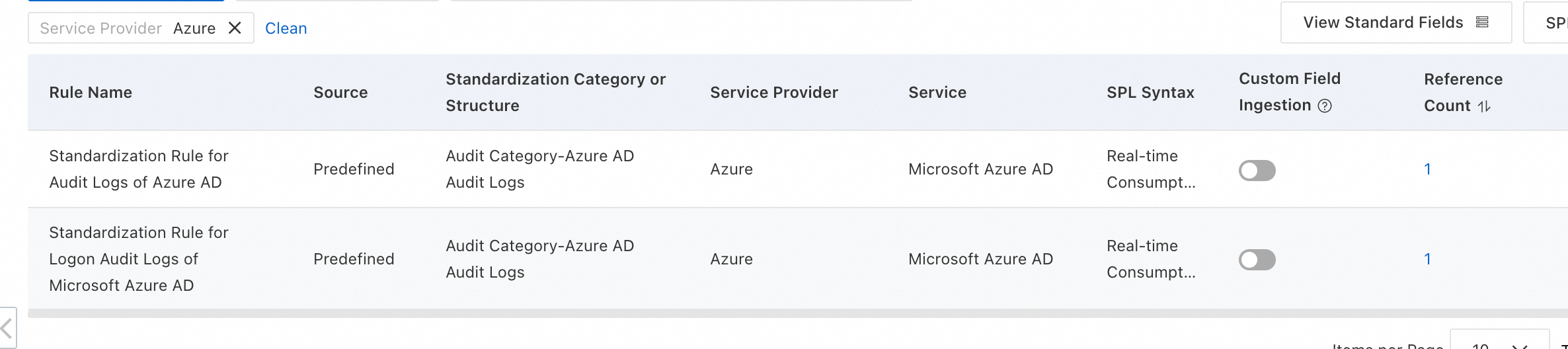
| Standardized Rule | Select a built-in rule if one is available for your log type |
| Standardization Method | Select Real-time Consumption (the only supported method for converting access logs to alert logs) |
Step 2: Configure threat detection rules
Enable or create log detection rules in rule management to analyze logs, generate alerts, and create security events. For details, see Detection Rules.
Billing
This integration incurs costs from both Azure and Alibaba Cloud. Review the billing documentation before proceeding.
Azure: Event Hubs pricing
Alibaba Cloud: Costs depend on the data source type you selected.
For Agentic SOC billing, see Billing details and Pay-as-you-go billing for Threat Analysis and Response. For SLS billing, see SLS billing overview.
| Data source type | Agentic SOC billable items | SLS billable items | Notes |
|---|---|---|---|
| Agentic SOC Dedicated Collection Channel | Log ingestion fee + log storage and write fees (both consume Log Ingestion Traffic) | Fees for items other than log storage and writes (such as public network traffic) | Agentic SOC creates and manages the SLS resources, so Logstore storage and write fees are billed through Agentic SOC. |
| User Log Service | Log ingestion fee (consumes Log Ingestion Traffic) | All log-related fees (storage, writes, public network traffic, and more) | All log resources are managed by SLS, so all log-related fees are billed through SLS. |