Integrate OpenClaw (formerly Moltbot and Clawdbot) with Feishu

更新时间:
复制 MD 格式

This guide shows you how to integrate OpenClaw with Feishu. Once integrated, you can use natural language to interact with OpenClaw in Feishu group chats and one-on-one conversations.

Before you begin

Before you configure a channel, you must purchase and configure a Simple Application Server instance with the OpenClaw application image by following the steps below or the instructions in Deploy an OpenClaw image. If you have already done this, you can skip this section.

Purchase and configure a Simple Application Server instance with the OpenClaw application image

Step 1: Purchase an OpenClaw package

Important

If you have already purchased a Simple Application Server, you can skip this step and deploy OpenClaw by resetting the system. When you reset the system, select the OpenClaw image under Application Images. However, resetting the system erases all data on the system disk of the Simple Application Server. Make sure that you back up your data as needed. For more information, see Reset system.

  1. Purchase a Simple Application Server instance pre-installed with the OpenClaw application.

  2. The Simple Application Server page has preset resource configurations. If you need to change them, review the following details:

    • Servers: Memory must be 2 GiB or higher. You can switch packages based on your requirements.

    • Region: The default region is China (Beijing).

    • Purchase Settings: The default subscription period is 12 months. You can change the duration as needed.

Step 2: Configure OpenClaw

OpenClaw provides two configuration methods. Select the tab for your image version below to view the instructions.

OpenClaw 2026.5.19 and later (recommended)

  1. Log on to the Simple Application Server console, click the instance ID on the server card, and then click the Server Overview tab on the Application Details page.

  2. On the Application Details page, click the Initialize button in the lower-left corner and follow the wizard to complete Step 1: Model Configuration.

    • Large Model Platform: Select a model provider from the drop-down list. Supported providers include Alibaba Cloud Model Studio Token Plan (Team Edition), Alibaba Cloud Model Studio Coding Plan, Alibaba Cloud Model Studio, DeepSeek, Kimi, GLM Coding Plan, and Zhipu.

    • API key: Select the region for your API key and enter the API key.

    • Model: Select or manually enter the model name.

    After completing the configuration, click Configure Now to proceed to the next step.

  3. In Step 2: Use Web UI of the initialization wizard, first click Allow Access in the Allow OpenClaw Access Port area to open the port. Then, click Log in to Web UI to access the OpenClaw Web UI and start a conversation with the OpenClaw agent.

    Important

    Opening the port exposes the service to the public internet. After initialization, you can disable public access with the Public access switch in the status bar at the top of the Application Details page. For more information, see How to enable or disable public access to the OpenClaw Web UI.

  4. (Optional) View the token. After initialization, you can copy the full token by clicking the copy button next to the token field in the status bar at the top of the Application Details page.

    Warning

    Do not disclose the full URL that contains the token. This link includes authentication credentials, and anyone with this link can bypass login verification and gain administrator access to the OpenClaw console.

OpenClaw before 2026.5.19

  1. In the Simple Application Server console, click the instance ID on the server card, and then click the Server Overview tab on the Application Details page.

  2. In the OpenClaw Usage Steps area, under Allow Port Access, click Run Command to open the firewall for the OpenClaw service runtime port.

    Important
  3. Click Run Command under Run Command to configure the Model Studio API key.

    You can configure two types of Model Studio API keys:

    • Coding Plan exclusive API key (recommended): This is a fixed monthly fee model that provides a monthly request quota. Calls that exceed the quota will fail without incurring charges, which helps prevent unexpected costs.

      The Coding Plan currently supports models such as qwen3.5-plus, kimi-k2.5, MiniMax-M2.5, and glm-5. For a detailed list of models, see Coding Plan overview.
    • Pay-as-you-go Model Studio API key based on token usage.

    Configure the API key. Select the Coding Plan API key from the drop-down list or directly enter the pay-as-you-go API key. After selecting a model, click Next.

    If you manually enter an API key, ensure that the selected region matches the region of the API key. Otherwise, calls to the model may fail.
    Important

    The Model Studio Token Plan is not supported during the initial configuration process. Attempting to enter it will cause an error. If you need to use the Token Plan, complete the initialization first, and then refer to How do I connect to the Model Studio Token Plan Team Edition in OpenClaw? for configuration.

  4. Under Access Web UI panel, click Run Command to obtain the URL for the OpenClaw Web UI. You can then interact with the OpenClaw agent.

    You can disable public access to the Web UI at any time if needed. For more information, see Disable public access to the OpenClaw Web UI.
  5. (Optional) View the token.

    Navigate to Application Details > Basic Configuration > View token and click View to retrieve and save the token.

    Warning

    Do not disclose the full URL that contains the token. This link includes authentication credentials, and anyone with this link can bypass login verification and gain administrator access to the OpenClaw console.

Integrate with Feishu

The OpenClaw plugin integration method is only supported for instances with image version OpenClaw 2026.2.9 or later. To integrate this channel on an older version, see Integrate a channel by using AppFlow. You can view the current image version of your instance in the Basic Information > Image information section of the Simple Application Server overview page.

OpenClaw offers two Feishu integration methods. Select the tab that matches your image version to view the corresponding steps.

OpenClaw 2026.5.19 and later

Connect via console QR code

  1. Log on to the Simple Application Server console, find your OpenClaw server, and go to the Application Details tab.

  2. On the Channels card, click Add Channel and select Feishu from the drop-down list.

  3. Keep the default IM access by QR code tab selected and click Scan to Configure.

  4. After the command finishes running, a QR code appears. Scan the QR code with Feishu to connect.

    Generating the QR code usually takes 30 seconds to 2 minutes. Please wait.
  5. After scanning the code, click Close.

  6. Verify the connection by talking to the bot.

    The first conversation may take 30 seconds to 2 minutes to initialize. Please wait.

OpenClaw versions earlier than 2026.5.19

Complete the integration in the Channel configuration section of the old console.

Console QR code

This method is supported only for OpenClaw image versions 2026.3.28 and later. For other versions, use the Manual configuration method.
  1. Log on to the Simple Application Server console, find your OpenClaw server, and go to the Application Details tab.

  2. In the Channel configuration section, find the Feishu area and click Scan to Configure.

  3. After the command finishes running, a QR code appears. Scan the QR code with Feishu to connect.

    Generating the QR code usually takes 30 seconds to 2 minutes. Please wait.
  4. After scanning the code, click Close.

  5. Verify the connection by talking to the bot.

    The first conversation may take 30 seconds to 2 minutes to initialize. Please wait.

Manual configuration

1. Create a Feishu application

  1. Go to the Feishu Open Platform and click Create custom app. Enter the application name and description, select an icon, and click Create.

  2. In the left-side navigation pane, click Credentials & Basic Information. Copy the App ID (for example, cli_xxx) and App Secret.

  3. In the left-side navigation pane, click Permission Management. Click the Batch import/export permissions button, paste the following JSON configuration, click Next, confirm to add permissions, and then click Request to enable.

    JSON configuration content

    {
      "scopes": {
        "tenant": [
          "aily:file:read",
          "aily:file:write",
          "application:application.app_message_stats.overview:readonly",
          "application:application:self_manage",
          "application:bot.menu:write",
          "cardkit:card:write",
          "contact:user.employee_id:readonly",
          "corehr:file:download",
          "docs:document.content:read",
          "event:ip_list",
          "im:chat",
          "im:chat.access_event.bot_p2p_chat:read",
          "im:chat.members:bot_access",
          "im:message",
          "im:message.group_at_msg:readonly",
          "im:message.group_msg",
          "im:message.p2p_msg:readonly",
          "im:message:readonly",
          "im:message:send_as_bot",
          "im:resource",
          "sheets:spreadsheet",
          "wiki:wiki:readonly"
        ],
        "user": ["aily:file:read", "aily:file:write", "im:chat.access_event.bot_p2p_chat:read"]
      }
    }
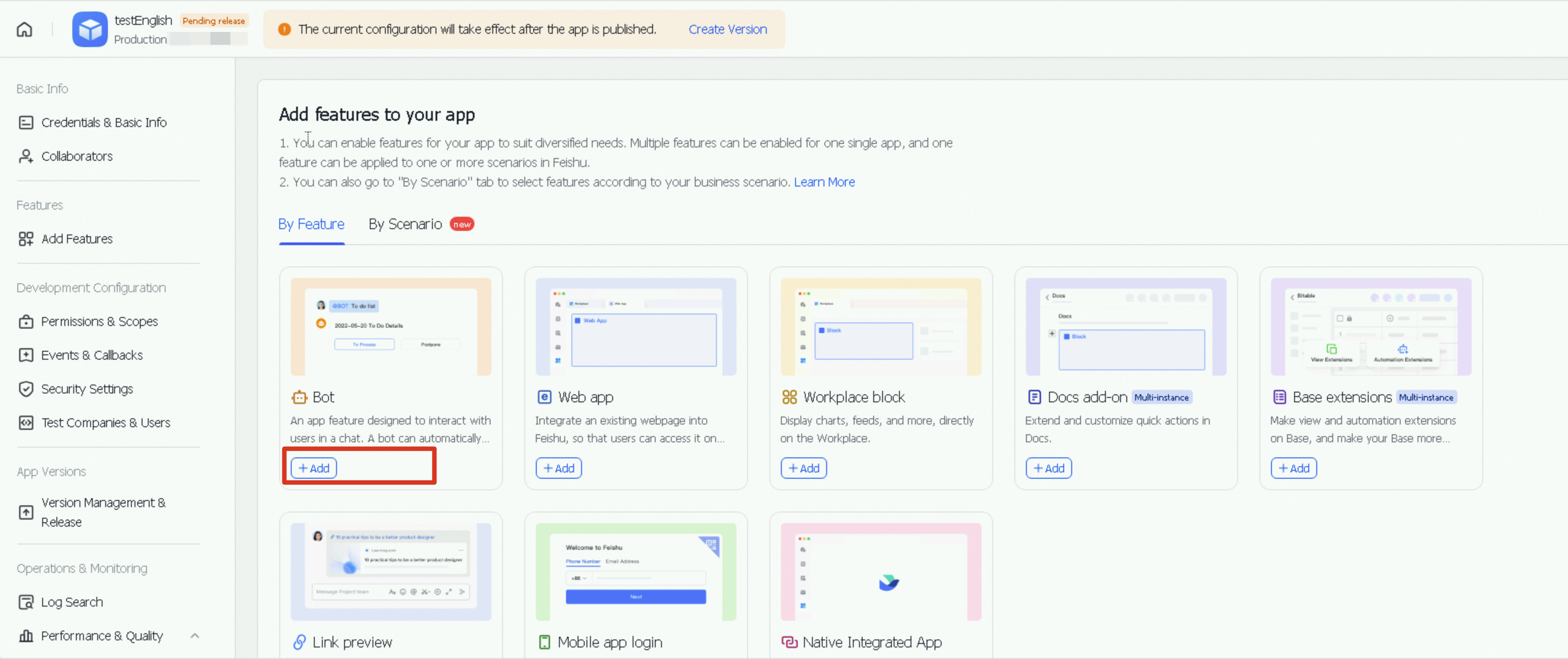
  4. In the left-side navigation pane, click Add features. Select the By feature tab, find the Bot card, and click Configuration.
    image

  5. Configure event subscriptions.

    1. In the Simple Application Server console, go to the instance details page. In the Application Details > Channel configuration > Feishu section, enter the App ID and App Secret you obtained earlier and click Application.

    2. On the Feishu Open Platform, click Event subscriptions in the left-side navigation pane. On the Event configuration tab, for Subscription type, select Receive events via long connection, and click Save.

    3. On the Event configuration page, click Add event, search for the event im.message.receive_v1 (Receive message), and click OK.

  6. On the Version Management & Release page, create a version. Enter the App version and Release notes, click Save, and then submit the version for review and publication.

2. Configure the bot

You can create a new group chat or add the bot to an existing one. In the Feishu group, mention the bot by using @bot to start a conversation, or search for the bot to start a private chat for testing.

To use the bot in an external group, see the configuration document Bot supports external groups and one-on-one chats with external users.
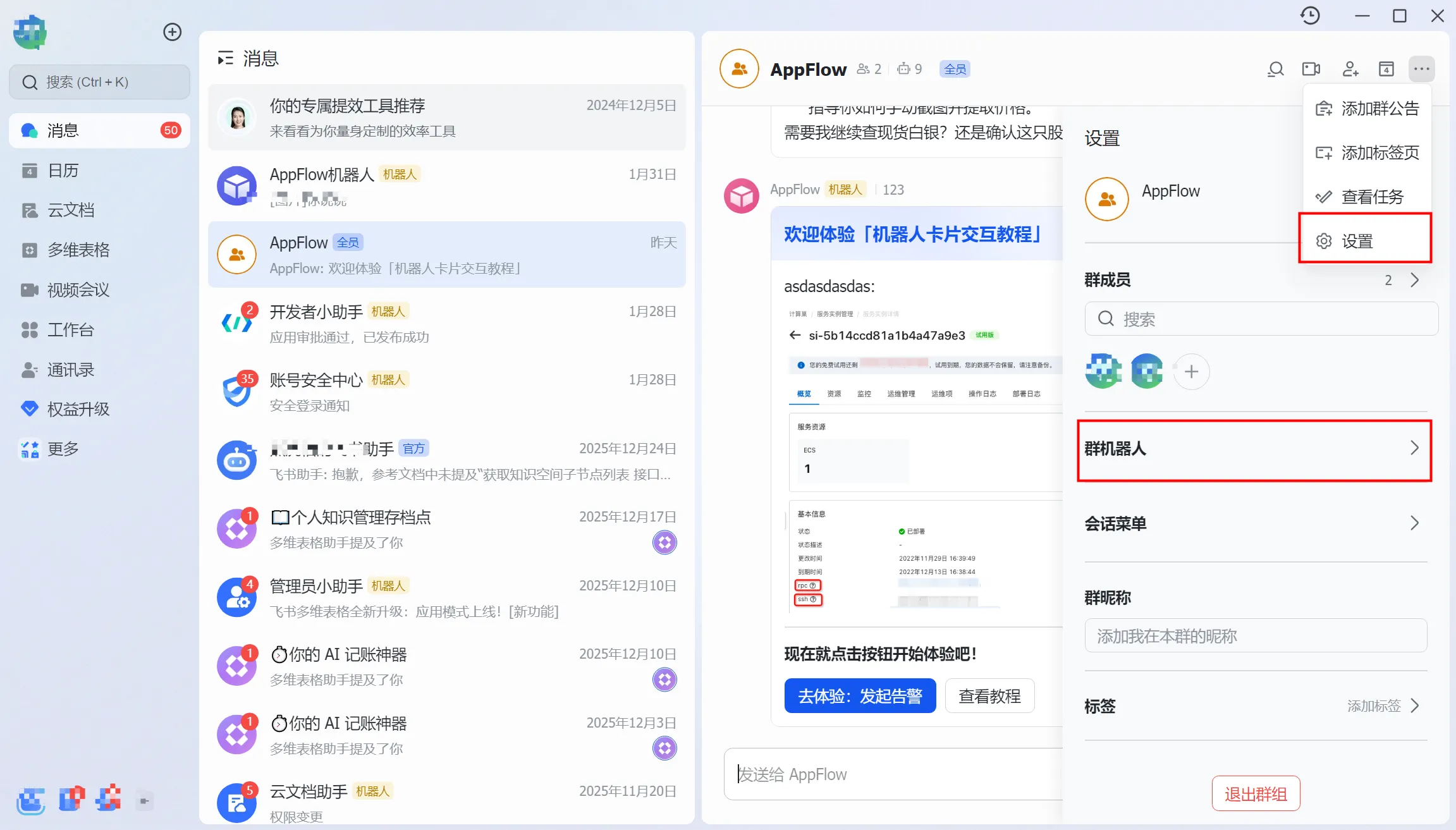
  1. Add the bot by following this path: ... > Configure > Group bot > Add bot.

  2. Click the bot's avatar and then click Send Message to send a private message to the bot. You can also mention the bot in a group chat to send it a message.

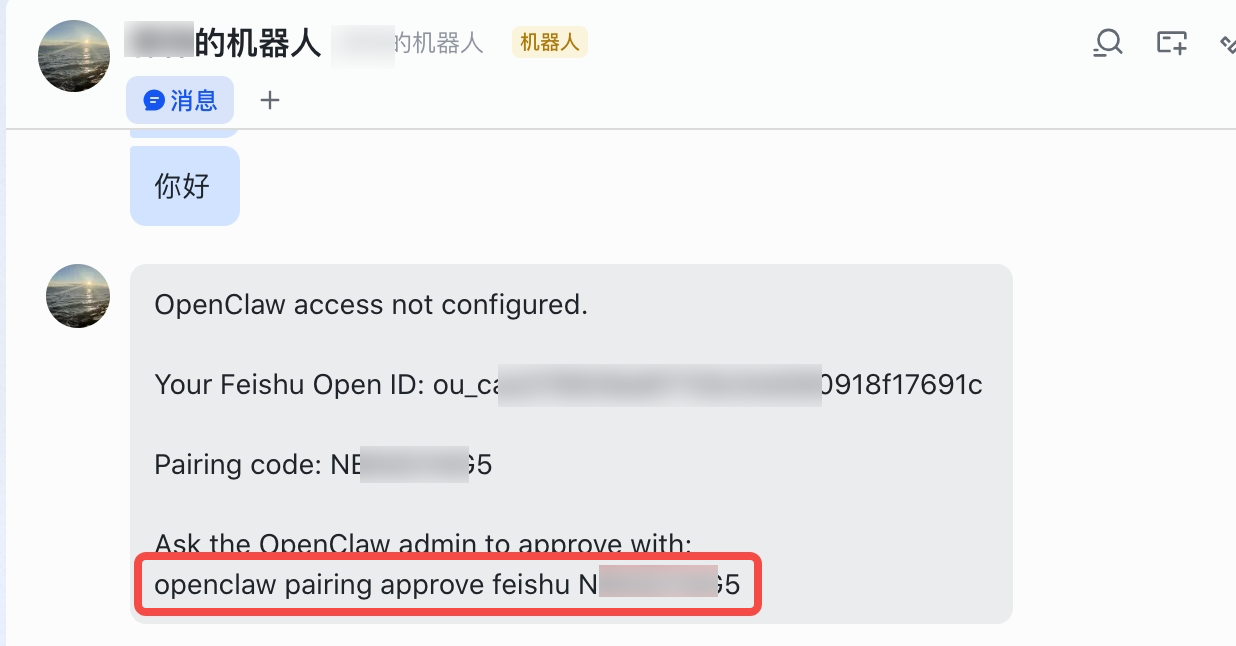
For OpenClaw versions earlier than 2026.3.13, you need to use a pairing code to connect to the bot. Follow the steps below.

Connect to the bot using a pairing code

  1. Send a private message to the bot. The bot will reply with a pairing code.
    image

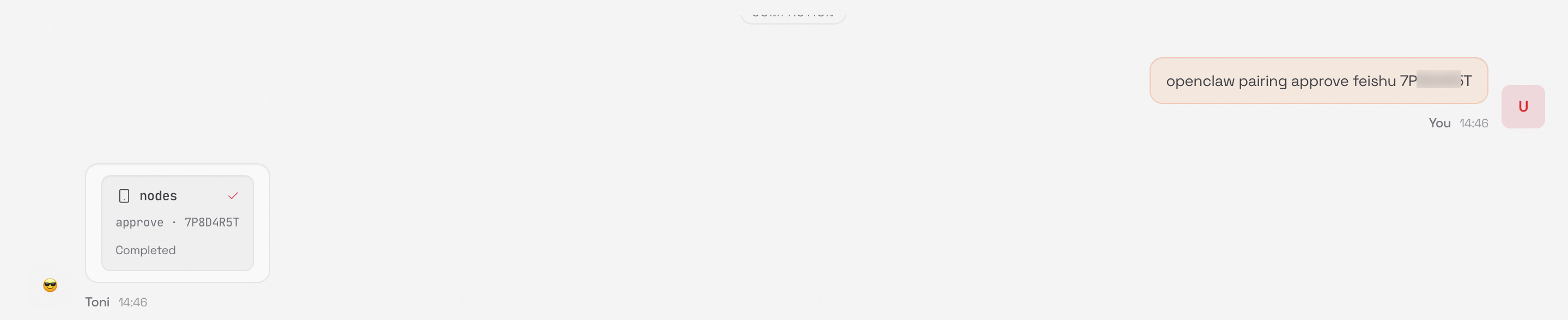
  2. In the web UI, enter openclaw pairing approve feishu <pairing_code> to complete the pairing.

    The <pairing_code> is the code the bot sent in the previous step.
    image

    Important

    If you see the error "No pending pairing requests," see How do I pair OpenClaw with Feishu by using terminal commands?.

FAQ

Pair with Feishu via terminal

  1. Log on to the server.

    1. Log on to the Simple Application Server console.

    2. In the server list, find the target server card and click Remote Connection. In the connection window that appears, click Log on Now in the Connect with One-click on Workbench section.

  2. Get the pairing code.

    In the terminal, run the following command to find the pairing code for a Feishu bot with a pending pairing request. Copy the pairing code from the query results.

    openclaw pairing list feishu

    image

  3. Complete the pairing.

    In the terminal, run the following command to approve the pairing request. Replace YXXX with the actual pairing code you obtained in the previous step.

    openclaw pairing approve feishu YXXX 

Configure scheduled tasks for Feishu

You can create a scheduled task by talking to OpenClaw.

  1. Get the webhook URL of the group bot:

    1. In the group chat, click Configure > Group bot.

      image

    2. Click Add bot and select Custom bot. Enter a name and description for the bot, click Add , and copy the webhook URL.

  2. In your conversation with OpenClaw, create the task. The required format is the scheduled task content followed by the group bot's webhook URL. For example, you can create a scheduled task to check the real-time weather.

  3. To verify the scheduled task, ask the agent to send the message immediately for a test. Then, check the group chat where the bot is located to confirm that the task was executed.

If you need to modify or cancel a scheduled task, you can ask the agent to do so directly in the conversation.

To configure scheduled tasks using AppFlow, see How to configure scheduled tasks using AppFlow.