Use Logtail SPL to parse logs
Logtail 2.0 introduces SPL mode, combining the performance of native plugins (C++) with the flexibility of extension plugins (Go). Use SPL statements to replicate native and extension plugin functionality for parsing and processing log data.
Prerequisites
-
Simple Log Service is activated. Storage resource hierarchy.
Limitations
-
SPL log collection requires Logtail 2.0 or later.
-
Console configuration supports text logs only. For other data types, use an API or CRDs.
Usage examples
Use SPL to collect text logs provides a complete walkthrough.
Best practices for data processing with SPL covers common use cases.
Procedure
Modify a configuration
Log on to the Simple Log Service console.
In the Projects section, click the one you want.

-
On the Log Storage > Logstores tab, click > next to the target Logstore, then choose Data Collection > Logtail Configuration.
-
In the Logtail Configuration list, find the target configuration and click Manage Logtail Configuration in the Actions column.
-
Click Edit. In Processor Configurations, in Processor Configurations, select SPL for Processing Method, then click Save.
Global Configurations
Parameter
Description
Configuration Name
Enter a name for the Logtail configuration. The name must be unique in a project, and cannot be changed later.
Log Topic Type
Select a method to generate log topics. For more information, see Log topics.
-
Machine Group Topic: The topics of the machine groups are used as log topics. Select this option to distinguish the logs from different machine groups.
-
File Path Extraction: Specify a custom regular expression. A part of the file path that matches the regular expression is used as the log topic. Select this option to distinguish the logs from different sources.
-
Custom: Specify a custom log topic.
Advanced Parameters
Optional. Configure the advanced parameters that are related to global configurations. For more information, see CreateLogtailPipelineConfig.
Input Configurations
Parameter
Description
File Path
Specify the directory and name of log files based on the location of the logs on your server, such as an Elastic Compute Service (ECS) instance.
-
Linux file paths must start with a forward slash (/). Example:
/apsara/nuwa/**/app.Log. -
Windows file paths must start with a drive letter. Example:
C:\Program Files\Intel\**\*.Log.
You can specify an exact directory and an exact name. You can also use wildcard characters to specify the directory and name. When you configure this parameter, use only the asterisk (*) or question mark (?) as wildcard characters.
Simple Log Service scans all levels of the specified directory to find the log files that match the specified conditions. Examples:
-
If you specify
/apsara/nuwa/**/*.log, Simple Log Service collects logs from the log files suffixed by .log in the/apsara/nuwadirectory and its recursive subdirectories. -
If you specify
/var/logs/app_*/**/*.log, Simple Log Service collects logs from the log files that meet the following conditions:-
The file name is suffixed by
.log. -
The file is stored in a subdirectory of the
/var/logsdirectory or one of its recursive subdirectories. -
The name of the subdirectory matches the
app_*pattern.
-
-
If you specify
/var/log/nginx/**/access*, Simple Log Service collects logs from the log files whose names start withaccessin the/var/log/nginxdirectory and its recursive subdirectories.
Maximum Directory Monitoring Depth
Specify the maximum number of levels of subdirectories that you want to monitor. The subdirectories are in the log file directory that you specify. This parameter specifies the levels of subdirectories that can be matched by the
**wildcard characters included in the value of File Path. A value of 0 specifies that only the log file directory that you specify is monitored.File Encoding
Select the encoding format of log files.
First Collection Size
Specify the size of data that Logtail can collect from a log file the first time it does so. Default value: 1024. Unit: KB.
-
If it's less than 1,024 KB, Logtail collects data from the beginning of the file.
-
If it's equal to or greater than 1,024 KB, Logtail collects the last 1,024 KB of data in the file.
You can configure First Collection Size based on your business requirements. Valid values: 0 to 10485760. Unit: KB.
Collection Blacklist
If you enable this, configure a blacklist to specify the directories or files that you want Simple Log Service to skip when it collects logs. You can specify exact directories and file names. You can also use wildcard characters to specify directories and file names. When you configure this parameter, you can use only the asterisk (*) or question mark (?) as wildcard characters.
Important-
If you use wildcard characters to specify a value for File Path and you want to skip some subdirectories in the specified directory, configure Collection Blacklist to specify the subdirectories. You must specify complete ones.
For example, if you set File Path to
/home/admin/app*/log/*.logand you want to skip all subdirectories in the/home/admin/app1*directory, select Directory Blacklist and enter/home/admin/app1*/**in the Directory Name field. If you enter/home/admin/app1*, the blacklist does not take effect. -
When a blacklist is in use, computational overhead is generated. We recommend a maximum of 10 entries per blacklist.
-
You cannot specify a directory that ends with a forward slash (/). For example, if you specify the
/home/admin/dir1/directory, the directory blacklist does not take effect.
The following types of blacklists are supported:
File Path Blacklist
-
If you select File Path Blacklist and enter
/home/admin/private*.login the File Path Name field, all files prefixed by private and suffixed by .log in the/home/admin/directory are skipped. -
If you select File Path Blacklist and enter
/home/admin/private*/*_inner.login the File Path Name field, all files suffixed by _inner.log in the subdirectories prefixed by private in the/home/admin/directory are skipped. For example, the/home/admin/private/app_inner.logfile is skipped, but the/home/admin/private/app.logfile is not.
File Blacklist
If you select File Blacklist and enter
app_inner.login the File Name field, all files whose names areapp_inner.logare skipped.Directory Blacklist
-
If you select Directory Blacklist and enter
/home/admin/dir1in the Directory Name field, all files in the/home/admin/dir1directory are skipped. -
If you select Directory Blacklist and enter
/home/admin/dir*in the Directory Name field, all files in the subdirectories prefixed by dir in the/home/admin/directory are skipped. -
If you select Directory Blacklist and enter
/home/admin/*/dirin the Directory Name field, all files in the dir subdirectory in each second-level subdirectory of the/home/admin/directory are skipped. For example, the files in the/home/admin/a/dirdirectory are skipped, but those in the/home/admin/a/b/dirdirectory are not.
Allow File to Be Collected Multiple Times
By default, you can use only one Logtail configuration to collect logs from a log file. If you want to collect multiple copies of logs from a log file, turn on Allow File to Be Collected Multiple Times.
Advanced Parameters
Optional. Configure the advanced parameters that are related to input processors. For more information, see CreateLogtailPipelineConfig.
Processor Configurations
Parameter
Description
Log sample
A sample log entry for configuring processing parameters.
[2023-10-01T10:30:01,000] [INFO] java.lang.Exception: exception happened
    at TestPrintStackTrace.f(TestPrintStackTrace.java:3)
    at TestPrintStackTrace.g(TestPrintStackTrace.java:7)
    at TestPrintStackTrace.main(TestPrintStackTrace.java:16)
Multi-line mode
-
A multi-line log spans multiple consecutive lines. Define a pattern to distinguish each log entry.
-
Custom: Uses a Regex to Match First Line to identify each log entry.
-
Multi-line JSON: Each JSON object is expanded into multiple lines. Example:
{
  "name": "John Doe",
  "age": 30,
  "address": {
    "city": "New York",
    "country": "USA"
  }
}
-
-
Action on parsing failure:
Exception in thread "main" java.lang.NullPointerException
    at com.example.MyClass.methodA(MyClass.java:12)
    at com.example.MyClass.methodB(MyClass.java:34)
    at com.example.MyClass.main(MyClass.java:½0)
If log splitting fails:
-
Discard: Discards the log entry.
-
Retain Single Line: Retains each line as a separate log entry. In this example, four entries are retained.
-
Processing mode
Set Processing Method to SPL.
SPL statement
SPL syntax documents all available statements. Before parsing, log content is stored in the
contentfield by default.Timeout
Maximum time allowed for a single SPL statement execution.
-
Create a configuration
Log on to the Simple Log Service console.
-
In the Data Import area, click Import Data. In the Quick Data Import dialog box, on the Self-managed Open Source/Commercial Software tab, select a data source that includes Text Logs in its name.
NoteCurrently, console configuration supports text logs only. For other data sources (such as Kubernetes or Docker stdout), use an API or CRDs.
In Quick Data Collection, click Collect Data.
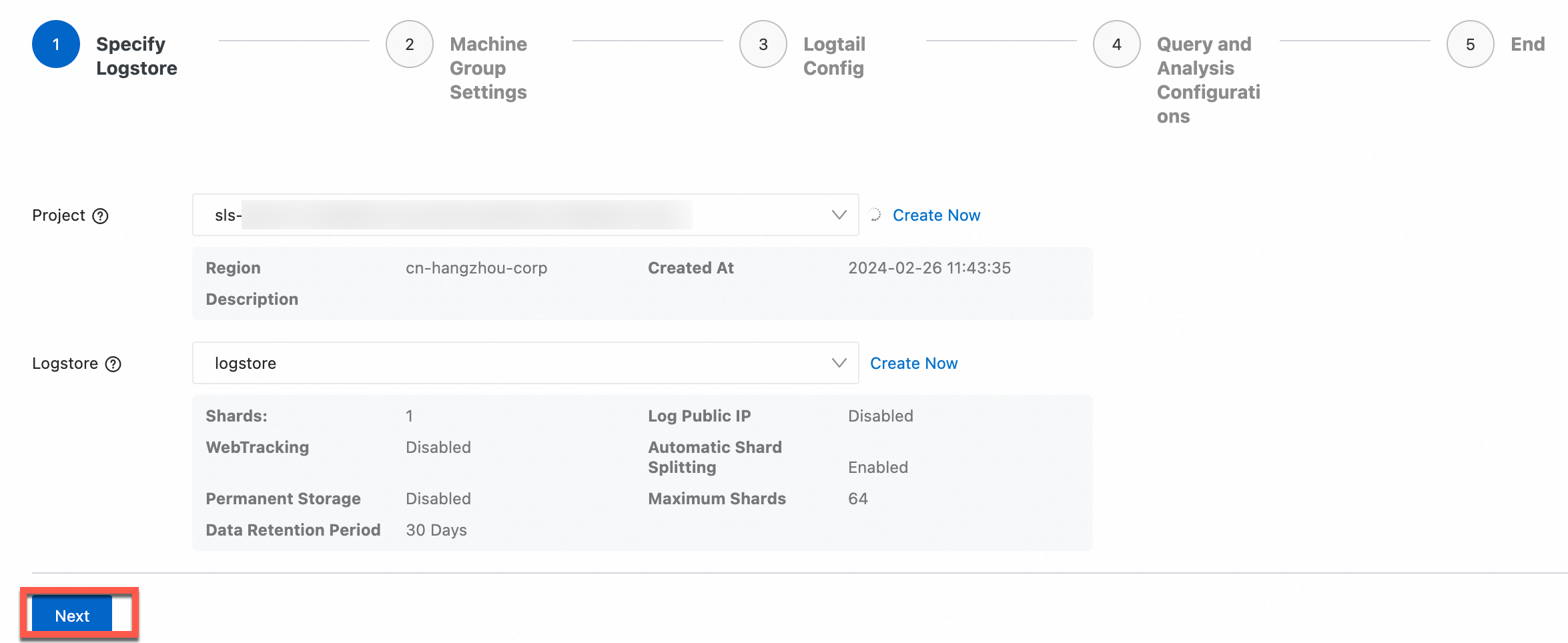
In the Select Logstore step, select a project and a logstore and click Next.
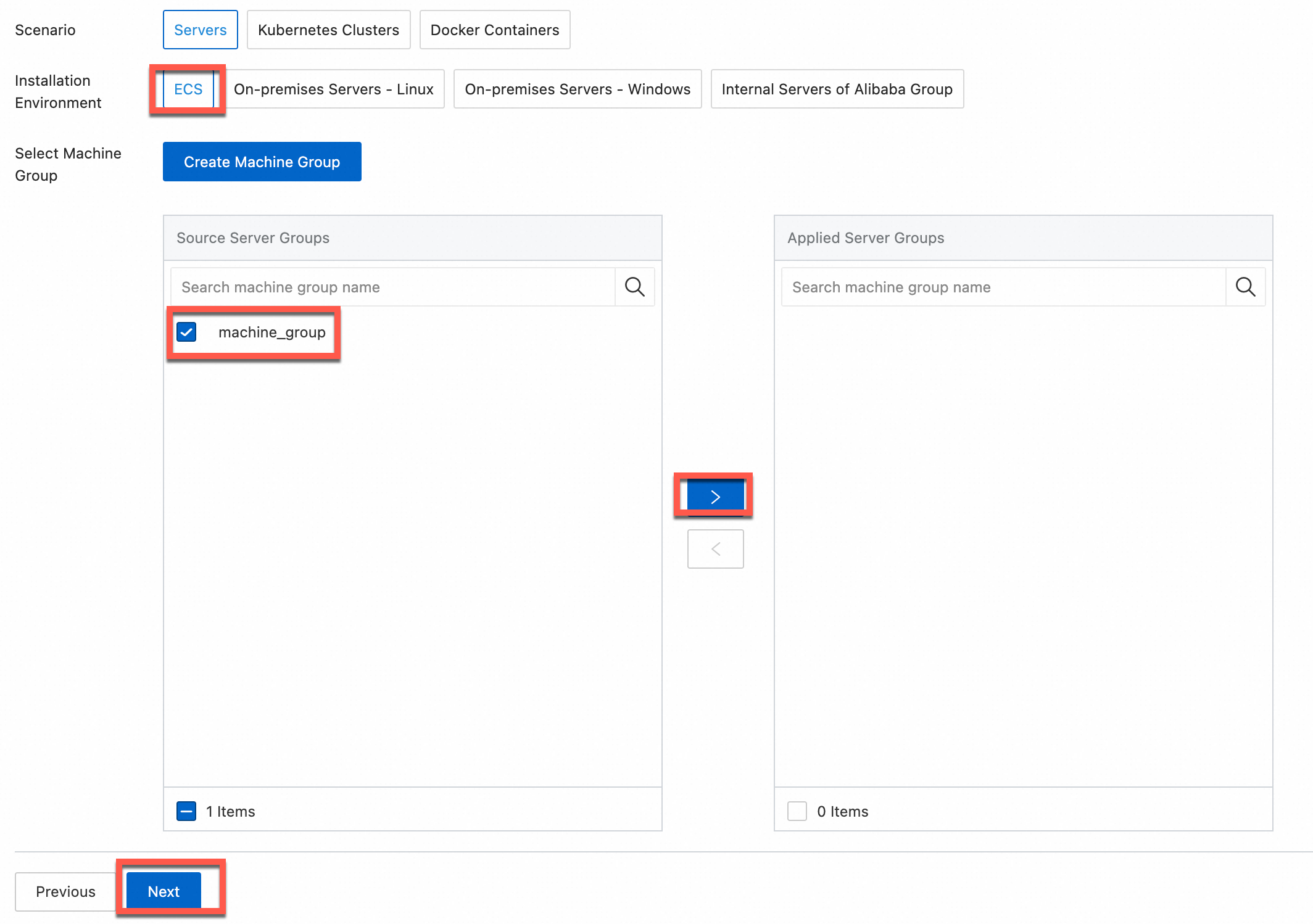
In the Machine Group Configurations step, configure a machine group.
Configure the Scenario and Installation Environment parameters as needed.
ImportantYou must configure the Scenario and Installation Environment parameters regardless of whether a machine group is available. The parameter settings affect subsequent configurations.
Ensure that a machine group is displayed in the Applied Server Groups section, and click Next.
Machine group available
Select a machine group from the Source Machine Group section.
No machine group available
Click Create Machine Group. In the Create Machine Group panel, configure the parameters. You can set the Machine Group Identifier parameter to IP Address or Custom Identifier. For more information, see Create a custom identifier-based machine group or Create an IP address-based machine group.
ImportantIf you apply a machine group immediately after you create the machine group, the heartbeat status of the machine group may be FAIL. This issue occurs because the machine group is not connected to Simple Log Service. To resolve this issue, you can click Automatic Retry. If the issue persists, see What do I do if no heartbeat connections are detected on Logtail?
-
Create a Logtail configuration and click Next. Global Configurations and Input Configurations are the same as in the previous section. In Processor Configurations section, set Processing Method to SPL.
-
Global Configurations
Parameter
Description
Configuration Name
Enter a name for the Logtail configuration. The name must be unique in a project, and cannot be changed later.
Log Topic Type
Select a method to generate log topics. For more information, see Log topics.
-
Machine Group Topic: The topics of the machine groups are used as log topics. Select this option to distinguish the logs from different machine groups.
-
File Path Extraction: Specify a custom regular expression. A part of the file path that matches the regular expression is used as the log topic. Select this option to distinguish the logs from different sources.
-
Custom: Specify a custom log topic.
Advanced Parameters
Optional. Configure the advanced parameters that are related to global configurations. For more information, see CreateLogtailPipelineConfig.
-
-
Input Configurations
Parameter
Description
File Path
Specify the directory and name of log files based on the location of the logs on your server, such as an Elastic Compute Service (ECS) instance.
-
Linux file paths must start with a forward slash (/). Example:
/apsara/nuwa/**/app.Log. -
Windows file paths must start with a drive letter. Example:
C:\Program Files\Intel\**\*.Log.
You can specify an exact directory and an exact name. You can also use wildcard characters to specify the directory and name. When you configure this parameter, use only the asterisk (*) or question mark (?) as wildcard characters.
Simple Log Service scans all levels of the specified directory to find the log files that match the specified conditions. Examples:
-
If you specify
/apsara/nuwa/**/*.log, Simple Log Service collects logs from the log files suffixed by .log in the/apsara/nuwadirectory and its recursive subdirectories. -
If you specify
/var/logs/app_*/**/*.log, Simple Log Service collects logs from the log files that meet the following conditions:-
The file name is suffixed by
.log. -
The file is stored in a subdirectory of the
/var/logsdirectory or one of its recursive subdirectories. -
The name of the subdirectory matches the
app_*pattern.
-
-
If you specify
/var/log/nginx/**/access*, Simple Log Service collects logs from the log files whose names start withaccessin the/var/log/nginxdirectory and its recursive subdirectories.
Maximum Directory Monitoring Depth
Specify the maximum number of levels of subdirectories that you want to monitor. The subdirectories are in the log file directory that you specify. This parameter specifies the levels of subdirectories that can be matched by the
**wildcard characters included in the value of File Path. A value of 0 specifies that only the log file directory that you specify is monitored.File Encoding
Select the encoding format of log files.
First Collection Size
Specify the size of data that Logtail can collect from a log file the first time it does so. Default value: 1024. Unit: KB.
-
If it's less than 1,024 KB, Logtail collects data from the beginning of the file.
-
If it's equal to or greater than 1,024 KB, Logtail collects the last 1,024 KB of data in the file.
You can configure First Collection Size based on your business requirements. Valid values: 0 to 10485760. Unit: KB.
Collection Blacklist
If you enable this, configure a blacklist to specify the directories or files that you want Simple Log Service to skip when it collects logs. You can specify exact directories and file names. You can also use wildcard characters to specify directories and file names. When you configure this parameter, you can use only the asterisk (*) or question mark (?) as wildcard characters.
Important-
If you use wildcard characters to specify a value for File Path and you want to skip some subdirectories in the specified directory, configure Collection Blacklist to specify the subdirectories. You must specify complete ones.
For example, if you set File Path to
/home/admin/app*/log/*.logand you want to skip all subdirectories in the/home/admin/app1*directory, select Directory Blacklist and enter/home/admin/app1*/**in the Directory Name field. If you enter/home/admin/app1*, the blacklist does not take effect. -
When a blacklist is in use, computational overhead is generated. We recommend a maximum of 10 entries per blacklist.
-
You cannot specify a directory that ends with a forward slash (/). For example, if you specify the
/home/admin/dir1/directory, the directory blacklist does not take effect.
The following types of blacklists are supported:
File Path Blacklist
-
If you select File Path Blacklist and enter
/home/admin/private*.login the File Path Name field, all files prefixed by private and suffixed by .log in the/home/admin/directory are skipped. -
If you select File Path Blacklist and enter
/home/admin/private*/*_inner.login the File Path Name field, all files suffixed by _inner.log in the subdirectories prefixed by private in the/home/admin/directory are skipped. For example, the/home/admin/private/app_inner.logfile is skipped, but the/home/admin/private/app.logfile is not.
File Blacklist
If you select File Blacklist and enter
app_inner.login the File Name field, all files whose names areapp_inner.logare skipped.Directory Blacklist
-
If you select Directory Blacklist and enter
/home/admin/dir1in the Directory Name field, all files in the/home/admin/dir1directory are skipped. -
If you select Directory Blacklist and enter
/home/admin/dir*in the Directory Name field, all files in the subdirectories prefixed by dir in the/home/admin/directory are skipped. -
If you select Directory Blacklist and enter
/home/admin/*/dirin the Directory Name field, all files in the dir subdirectory in each second-level subdirectory of the/home/admin/directory are skipped. For example, the files in the/home/admin/a/dirdirectory are skipped, but those in the/home/admin/a/b/dirdirectory are not.
Allow File to Be Collected Multiple Times
By default, you can use only one Logtail configuration to collect logs from a log file. If you want to collect multiple copies of logs from a log file, turn on Allow File to Be Collected Multiple Times.
Advanced Parameters
Optional. Configure the advanced parameters that are related to input processors. For more information, see CreateLogtailPipelineConfig.
-
-
Processor Configurations
Parameter
Description
Log sample
A sample log entry for configuring processing parameters.
[2023-10-01T10:30:01,000] [INFO] java.lang.Exception: exception happened
    at TestPrintStackTrace.f(TestPrintStackTrace.java:3)
    at TestPrintStackTrace.g(TestPrintStackTrace.java:7)
    at TestPrintStackTrace.main(TestPrintStackTrace.java:16)
Multi-line mode
-
A multi-line log spans multiple consecutive lines. Define a pattern to distinguish each log entry.
-
Custom: Uses a Regex to Match First Line to identify each log entry.
-
Multi-line JSON: Each JSON object is expanded into multiple lines. Example:
{
  "name": "John Doe",
  "age": 30,
  "address": {
    "city": "New York",
    "country": "USA"
  }
}
-
-
Action on parsing failure:
Exception in thread "main" java.lang.NullPointerException
    at com.example.MyClass.methodA(MyClass.java:12)
    at com.example.MyClass.methodB(MyClass.java:34)
    at com.example.MyClass.main(MyClass.java:½0)
If log splitting fails:
-
Discard: Discards the log entry.
-
Retain Single Line: Retains each line as a separate log entry. In this example, four entries are retained.
-
Processing mode
Set Processing Method to SPL.
SPL statement
SPL syntax documents all available statements. Before parsing, log content is stored in the
contentfield by default.Timeout
Maximum time allowed for a single SPL statement execution.
-
-