Server Migration FAQ
This topic describes common questions and solutions related to Server Migration Center (SMC).
Billing
General questions
Migration source issues
Migration task issues
Server migration
How do I estimate the time required for SMC migration? How do I test transfer speed?
How do I filter out or exclude files or directories that I don't want to migrate?
Does SMC support Bring Your Own License (BYOL) migration to the cloud?
After migrating a Windows server, how do I check the system?
After completing a migration, how do I perform another migration?
After migration completes and I get a custom image, what should I do next?
How do I assign a static IP address to an intermediate instance?
Which public endpoints and ports must my source server access outbound?
I accidentally released the intermediate instance. What should I do?
What instance types are available for intermediate instances?
The migration source is offline. I can't create a migration task. What should I do?
How long before a migration task expires? What happens after expiration?
I can't select a destination instance when creating a migration task. What should I do?
Does changing the incremental sync frequency take effect immediately?
Operating system migration (OS replacement)
VMware agentless migration
Simple Application Server migration
How is SMC billed?
SMC is a free service. However, minimal Alibaba Cloud ECS resource charges apply during migration, including intermediate instances, snapshots, and cloud disks (system and data disks) attached to intermediate instances. For more information, see Billing.
What are the SMC service domains?
To use Alibaba Cloud Server Migration Center (SMC) for server migration, your source server must have public network access to download the SMC client from OSS and connect to SMC services. If your source server's network has firewall restrictions, add SMC service domains to your firewall whitelist to ensure smooth communication with SMC services and successful migration.
SMC service domains include the client download address, the default activation code domain, and the Alibaba Cloud AccessKey ID/Secret (AK/SK) domain, as described below:
SMC client storage address:
Default public domain: https://p2v-tools.oss-cn-hangzhou.aliyuncs.com
Default public domain (for command-line import or client import by generating and entering an activation code, or entering an AK/SK):
Default public domain: https://smc.aliyuncs.com (server IP addresses: 101.37.132.1, 47.111.202.72).
Private domain (private network migration):
Activation code private domain: https://.axt.aliyun.com (accessible only from within Alibaba Cloud ECS).
AK/SK private domain: https://smc.vpc-proxy.aliyuncs.com (accessible only from within Alibaba Cloud ECS).
By default, SMC domains use HTTPS protocol on port 443. HTTP protocol on port 80 might not be supported.
If you can directly access an Alibaba Cloud VPC from your on-premises data center, virtual machine environment, or cloud host, we recommend using SMC's private network migration solution. Private network migration is faster and more stable than public network migration, improving migration efficiency.
How do I choose a method to import a migration source?
SMC provides multiple methods to import migration sources. Choose the method that best fits your scenario.
Import method | Description | Conditions | Advantages | Supported scenarios |
Automatically import Alibaba Cloud ECS instances via console | In the SMC console, select Alibaba Cloud ECS instances and use Cloud Assistant to automatically import migration sources. This method offers good visualization and simple operations. | The Alibaba Cloud ECS instance must be running and Cloud Assistant must be available. For details, see Check Cloud Assistant status and handle abnormal states. Note ECS instances created after December 1, 2017, using public images come pre-installed with the Cloud Assistant Agent. If not installed, install the Cloud Assistant Agent. | Fully automated | ECS instance migration |
One-click import via command line (recommended) | In the SMC console, generate an activation code command as needed, then run the activation code command on the source server to import the migration source. |
| Semi-automated and widely applicable |
|
Import via SMC client | Manually download the SMC client and install and run it on the source server to import the migration source. |
| Flexible and versatile operation | |
Import via VMware agentless connector configuration | Deploy the VMware agentless connector using an OVF template, then run the SMC client in the connector to import the migration source. |
For more information, see Agentless migration for VMware VMs. Note Note If your environment doesn't meet the requirements for VMware agentless migration, we recommend using the one-click command-line import method. |
| Agentless migration for VMware VMs |
How do I find a migration source?
Take finding a server migration source as an example. Follow these steps:
-
Go to the Server Migration page in the SMC console.
On the Server Migration page, click the search box and select a search criterion.
Search criteria include Migration Source Name, Migration Source ID, Status, Instance ID, and Last Migration Task ID.
Enter the search value and press
Enter.
I want to re-import a migration source. What should I do?
Delete the migration source first, then re-run the client to import it again. If the migration source is associated with a migration task, delete the associated migration task before deleting the migration source.
Why can't I delete a migration source?
The migration source is associated with an unfinished migration task. Pause and delete the migration task first, then delete the migration source.
When should I use server migration?
SMC migrates physical servers, virtual machines, and cloud hosts from other platforms to Alibaba Cloud ECS in one stop, supporting mainstream Windows and Linux operating systems. For more information, see What is Server Migration Center.
How do I migrate a server?
See User Guide to migrate a server.
How do I estimate the time required for SMC migration? How do I test transfer speed?
The migration cycle consists of three parts: pre-migration, migration, and post-migration. Migration duration is proportional to the number of servers and actual data volume. We recommend evaluating based on actual migration test drills.
For methods to estimate migration time and test transfer speed, see Estimate migration time and test transfer speed.
How do I filter out or exclude files or directories that I don't want to migrate?
To exclude files or directories from a Linux server migration, configure before running the SMC client. Configuration files are in the client's Excludes directory, including the following files.
Troubleshooting files or folders on Windows servers is not currently supported.
If block replication is enabled, excluding files or directories is not supported.
If a configuration file is missing or accidentally deleted, you can create it manually.
System disk configuration file: rsync_excludes_linux.txt.
Data disk configuration file: Named with the suffix disk[disk index number] based on the system disk file, such as rsync_excludes_linux_disk1.txt.
Examples for excluding files or directories on a Linux server:
System disk (root directory /)
Files or directories to exclude:
/var/mydirs/docs/words
/var/mydirs/docs/excels/report1.txt
Add to rsync_excludes_linux.txt:
/var/mydirs/docs/words/
/var/mydirs/docs/excels/report1.txt
Data disk
Files or directories to exclude:
/mnt/disk1/mydirs2/docs2/words2
/mnt/disk1/mydirs2/docs2/excels2/report2.txt
Add to rsync_excludes_linux_disk1.txt:
/mydirs2/docs2/words2/
/mydirs2/docs2/excels2/report2.txt
NoteWhen excluding Linux paths, remove the path prefix (scr_path), such as /mnt/disk1 in the examples above.
Does SMC support Bring Your Own License (BYOL) migration to the cloud?
Yes. BYOL migration to the cloud currently supports Microsoft, Red Hat Enterprise Linux, and SUSE Linux Enterprise Server. You can quickly purchase software licenses for ECS instances on Alibaba Cloud for Red Hat Enterprise Linux, SUSE Linux Enterprise Server, and others. For details, see Purchase software licenses for ECS instances.
Does SMC support resumable uploads?
Yes. If data transfer is interrupted, re-run the client and restart the migration task to continue.
Does SMC support incremental data migration?
Yes. For details, see Incremental server migration.
After migrating a Windows server, how do I check the system?
After the initial startup of a migrated Windows instance, perform the following checks:
Check if system disk data is complete.
Check if data disk data is complete. If data disks are missing, check Disk Management for missing drive letters. For details, see After migrating a Windows server, data disks are missing or drive letters are incorrect after instance startup. How do I fix this?.
Check if hostname configuration and network services are normal.
Check if other system application services are normal.
After migrating a Linux server, how do I check the system?
After the initial startup of a migrated Linux instance, perform the following checks:
Check if system disk data is complete.
Check if data disk data is complete. If data disks are missing, mount them manually. For details, see After migrating a Linux server, original data disk directories are empty after instance startup. How do I fix this?.
Check if hostname configuration and network services are normal.
Check if other system services are normal.
After completing a migration, how do I perform another migration?
Create and start a new migration task for the migration source.
After migration completes and I get a custom image, what should I do next?
Create a pay-as-you-go instance using the image first to check if the system works properly. After confirming the image is usable, choose an instance type suitable for your business and create one or more ECS instances. For more information, see Instance families and Customize instance purchase.
What is the result after migration completes?
After migration completes, SMC generates results based on the target type selected in the migration task:
If the target type is cloud service image: SMC generates an ECS image, which you can use to create ECS instances.
If the target type is cloud service image destination instance: The source server migrates directly to the destination instance.
If the target type is container image: SMC generates a container image, which you can use to deploy containerized applications.
How do I migrate source environments to Alibaba Cloud?
SMC supports multiple Windows and Linux operating system versions. You can migrate source servers from on-premises data centers, local virtual machines, or other cloud providers to Alibaba Cloud. For details, see Migrate various source environments to Alibaba Cloud.
How do I migrate between Alibaba Cloud ECS instances?
For migration between Alibaba Cloud ECS instances, we recommend first considering Alibaba Cloud's image copy and image sharing features. For details, see Copy custom images and Share custom images. If image copy and sharing aren't suitable, use SMC for migration. For details, see Migrate between ECS instances across accounts or within the same account.
If migration is interrupted or fails, how do I handle it?
If a migration task is interrupted or fails, handle it as follows:
If the SMC client exits abnormally or migration progress stalls, try re-running the SMC client and restarting the migration task to resume.
If the migration task status is Error, view migration task log files in the SMC console to identify the cause.
If the issue persists, join the support DingTalk group. For more contact options, see Contact us.
How do I assign a static IP address to an intermediate instance?
Request an Elastic IP Address and bind it to the intermediate instance. For details, see Elastic IP Address Quick Start.
Which public endpoints and ports must my source server access outbound?
Ensure your source server can access the following service endpoints and ports.
Server Migration Center (SMC):
https://smc.aliyuncs.comon port 443.Intermediate instance: Public IP address on ports 8080 and 8703. When using private network transfer in network mode, access the private IP address.
Your source server doesn't need to open any inbound ports, but must access the above public endpoints and ports outbound.
How do I migrate a source server to a container image?
SMC supports migrating source servers to container images for low-cost containerized application migration. For details, see Containerized migration.
How do I migrate a source server to a destination instance?
SMC supports migrating source servers to destination instances. If you've purchased an ECS instance, you can migrate the source server directly to it. For details, see Migrate source servers to destination instances.
I accidentally released the intermediate instance. What should I do?
If you accidentally clean up intermediate resources, delete the current migration task and create and start a new migration task for the migration source.
What should I know about intermediate instances?
Notes about intermediate instances:
SMC automatically creates, starts, stops, and releases intermediate instances with the tag
No_Delete_SMC_Transition_Instance. Do not interfere with the intermediate instance's running state to ensure successful migration.The default security group for intermediate instances opens ports 8080 and 8703 inbound—these are migration service ports. Do not modify or delete this security group configuration.
After migration completes, the intermediate instance is automatically released. If migration fails, release the instance manually. For details, see Release instances.
What instance types are available for intermediate instances?
SMC selects instance types in the following order based on inventory availability to create intermediate instances:
x86 architecture:
1 vCPU 2 GiB
1 vCPU 4 GiB
2 vCPU 2 GiB
2 vCPU 4 GiB
t6, burstable instance family
t5, burstable instance family
2 vCPU 8 GiB
ARM64 architecture:
Instance type
vCPU
Memory (GiB)
ecs.c6r.large
2
4
ecs.g6r.large
2
8
ecs.c6r.xlarge
4
8
ecs.g6r.xlarge
4
16
ecs.c6r.2xlarge
8
16
ecs.g6r.2xlarge
8
32
ecs.c6r.4xlarge
16
32
If all the above instance types are out of stock, the system selects other instance types that balance performance and cost.
What should I note when enabling block replication?
Block replication notes:
We recommend enabling block replication for higher transfer speeds and more complete, consistent partition data.
Block replication doesn't support filtering or excluding files or directories—the exclusion settings won't take effect.
Block replication is enabled by default for Windows server migration, requiring the built-in Volume Shadow Copy Service (VSS) to work properly. It supports disk partitions between 1 GB and 10 TB.
Block replication is enabled by default for Linux server migration. If block replication isn't supported, possible reasons include the following:
The SMC client installs block replication components at runtime. If installation fails, block replication isn't supported. This process requires accessing p2v-tools.oss-cn-hangzhou.aliyuncs.com on port 443 (IP: 118.31.232.152).
Disk partitions with actual data exceeding 500 GB don't support block replication.
The kernel version doesn't support block replication (common with vendor-customized kernels).
Common Linux kernel versions that support block replication:
OS version
Kernel version range
CentOS/RedHat 5.x
2.6.18-53 to 2.6.18-398
CentOS/RedHat 6.x
2.6.32-71 to 2.6.32-754
CentOS/RedHat 7.x
3.10.0-123 to 3.10.0-1160
CentOS/RedHat 8.x
4.18.0-80 to 4.18.0-348
Ubuntu 12.04/14.04/16.04/18.04/20.04
4.4.0 to 5.4.0 (partial)
Debian 8.11/9.13
3.16.0 to 4.19.0 (partial)
OpenSUSE 42.3/15.1/15.2
4.4.76-1-default
4.12.14-lp151.27-default
4.12.14-lp151.28.52-default
5.3.18-lp152.x (partial)
SUSE 11/12/15
3.0.101 (partial)
4.12.14 (partial)
The migration source is offline. I can't create a migration task. What should I do?
Fix the migration source status to online first, then create a new migration task. Fix methods:
Migration source status is Offline:
This status means the migration source has lost connection with the SMC console. Re-run the SMC client and keep it running until migration completes. For details, see Import migration sources via SMC client.
Migration source status is Abnormal: Check console logs, client logs (in the Logs directory), and error messages displayed in the client interface, then follow the prompts to resolve. You can also refer to error codes and solutions in this document. If you still can't fix the issue, contact us.
How do I install Rsync?
Choose the appropriate command based on your source server's operating system to install Rsync.
CentOS: Run yum -y install rsync.
Ubuntu: Run apt-get -y install rsync.
Debian: Run apt-get -y install rsync.
SUSE: Run zypper install rsync.
Other distributions: Refer to your distribution's official installation documentation.
How do I disable SELinux?
We recommend running setenforce 0 to temporarily disable SELinux, or edit the /etc/selinux/config file to set SELINUX=disabled.
The data disk configuration option doesn't appear on the Create Migration Task page. What should I do?
When importing a migration source via the SMC client, only mounted disk partitions are detected. If your migration source has no data disks or data disks aren't mounted, the data disk configuration option won't appear on the Create Migration Task page. To migrate unmounted data disks, do the following:
Mount the data disk.
Re-run the SMC client.
Refresh the migration source page in the SMC console, then reopen the Create Migration Task page.
Can I create a new migration task for a migration source while a migration is in progress or has failed?
No. Handle as follows:
If the associated migration task is running, pause and delete it first, then create a new migration task for the migration source.
If the associated migration task has failed, delete it first, then create a new migration task for the migration source.
How long before a migration task expires? What happens after expiration?
When creating a migration task via the SMC console, since the console doesn't provide an expiration time setting, the default validity period is 30 days. When creating a migration task via CreateReplicationJob, you can set the validity period as needed (7 to 90 days).
Validity starts counting from task creation. After expiration:
If the migration task status is Running, no action is taken.
If the migration task status is Ready, Stopped, or InError, it's marked as Expired. After 7 days, SMC automatically cleans up the task.
What are the migration task statuses? What do they mean?
Migration task statuses fall into two categories:
Main migration task status: Represents the task's lifecycle status. For more information, see Main migration task status table.
Business migration task status: Represents phase statuses when the task is Running. For more information, see Business migration task status table.
The relationship between main and business statuses is shown in the following figure.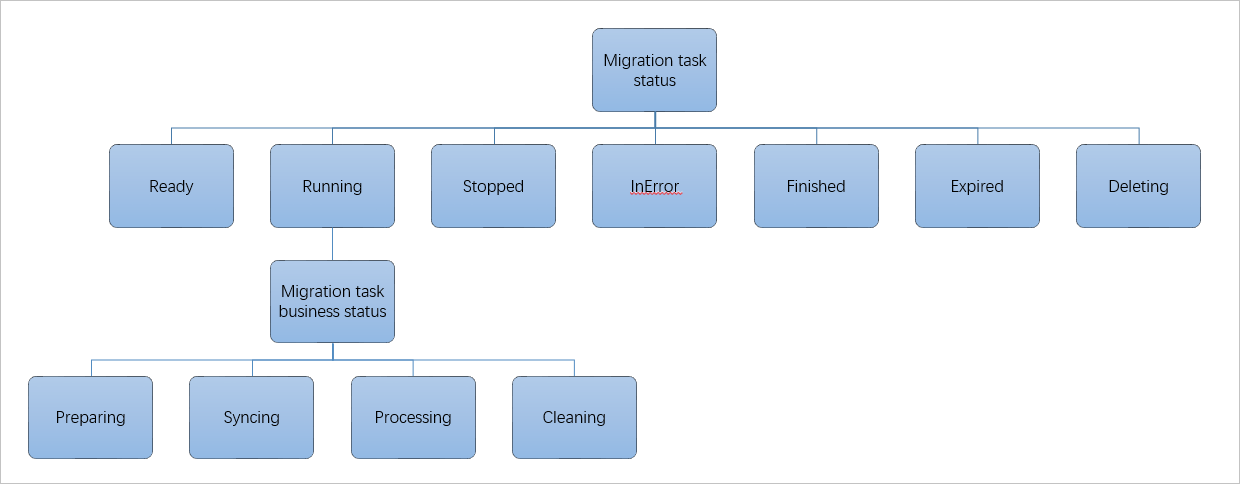
Table 1. Main migration task status table
Main migration task status | Status description | Actions available in this status |
Ready | Migration task created but not started. | Start the migration task. |
Running | Migration task is running. The Running status isn't directly displayed in the SMC console but appears as a business status in the Status column. For more on business statuses, see Business status. | Wait for migration to complete, or pause the task when its business status is Syncing. Note You can't delete a running migration task. |
Stopped | Migration task paused. | Restart or delete the migration task. |
InError | Migration task failed. | Check client or console prompts or migration logs to identify the failure cause and fix the issue. If the failure is client-related (e.g., migration source offline or abnormal), restart the client first, then restart the migration task. |
Finished | Migration task completed successfully. | Go to the Custom Images page in the ECS console image list to view the image generated by SMC. |
Waiting | Applies only to incremental migration tasks, indicating the task is waiting for the next scheduled automatic execution. For details on incremental migration, see Incremental server migration. | In this status, you can:
|
Expired | Migration task expired. | Delete the migration task. Note The default validity period is 30 days. After expiration, the task is marked as Expired and retained for 7 days, then automatically cleaned up by SMC. For more information, see How long before a migration task expires? What happens after expiration? |
Deleting | Migration task being deleted. | Wait for deletion to complete, or create a new migration task for the migration source. Note During deletion, SMC automatically releases related resources created during migration, such as intermediate instances. This takes time—please be patient. |
Table 2. Business migration task status table
Business migration task status | Status description | Actions available in this status |
Preparing | After starting the migration task, its status updates to Preparing. | None. |
Syncing | Migration task starts uploading source data. | You can pause the migration task. |
Processing | Migration task is creating the target image. | None. |
Cleaning | Cleaning up the staging environment. The migration task is about to complete. | None. |
I can't select a destination instance when creating a migration task. What should I do?
When creating a migration task to migrate to a destination instance, if the destination instance isn't selectable in the dropdown list, troubleshoot as follows:
For cross-account migration, verify you're creating the migration task in the destination account.
Verify the destination region is correct.
If the source server runs Windows, the destination instance must also run Windows. If the source server runs Linux, the destination instance must also run Linux.
I have a single-instance Oracle database on a physical host. When migrating to Alibaba Cloud, should I migrate the entire server (including OS and database) or just the database? What are the pros and cons of each approach?
Choose the migration method based on your actual needs. Pros and cons of each approach:
If you only need the Oracle database application, migrating just the Oracle application is lighter and more suitable. The downside is you'll need to reconsider Oracle's deployment and access method.
If you need both the Oracle application and depend on the overall OS application environment, migrating the entire server to Alibaba Cloud is more convenient. The downside is that if the server is large, migration takes longer.
How do I install the OpenSSH service on a Windows server?
Using Windows Server 2016 as an example, follow these steps to install OpenSSH:
Download and extract OpenSSH-Win64.zip to a directory, for example: C:\OpenSSH-Win64.
Open Windows PowerShell as an administrator and navigate to the extraction directory.
cd \OpenSSH-Win64Run the following command to install OpenSSH.
powershell.exe -ExecutionPolicy Bypass -File install-sshd.ps1Sample output:
PS C:\OpenSSH-Win64> powershell.exe -ExecutionPolicy Bypass -File install-sshd.ps1
  [*] C:\OpenSSH-Win64\moduli
Inheritance is removed from 'C:\OpenSSH-Win64\moduli'.
'BUILTIN\Users' now has Read access to 'C:\OpenSSH-Win64\moduli'.
      Repaired permissions
[SC] SetServiceObjectSecurity succeeded
[SC] ChangeServiceConfig2 succeeded
[SC] ChangeServiceConfig2 succeeded
sshd and ssh-agent services successfully installed
Run the following commands to configure SSH remote commands.
cmd /c sc.exe config sshd start=auto
cmd /c sc.exe config ssh-agent start=auto
cmd /c net.exe start sshd
New-ItemProperty -Path "HKLM:\SOFTWARE\OpenSSH" -Name DefaultShell -Value "C:\Windows\System32\WindowsPowerShell\v1.0\powershell.exe" -PropertyType String -Force
New-ItemProperty -Path "HKLM:\SOFTWARE\OpenSSH" -Name DefaultShellCommandOption -Value "/c" -PropertyType String -Force
For more information, see Install OpenSSH.
For incremental migration, does the generated image reflect data at the start or end of the migration task?
Each incremental migration captures data from the source server at the start of the incremental task. Data generated on the source server during incremental migration is migrated in the next incremental task.
Does changing the incremental sync frequency take effect immediately?
No. Changing the sync repeat frequency in an incremental task takes effect in the next cycle, not the current one.
After migrating a Windows server and using the image to create an ECS instance, why do extra disks appear?
When creating a migration task, disk size is rounded up to the nearest GB, usually adding a few hundred MB beyond the source server's system partition. After migration, you can delete extra drive letters using Disk Management.
After a server migration fails or is interrupted, why does disk usage on the source server keep increasing?
If disk usage keeps increasing after migration fails or is interrupted, it's likely due to snapshot files created by SMC. If you no longer need to migrate, clean up disk space promptly. Steps:
Linux server
Remotely connect to the Linux source server.
Run the following command to enter the SMC client directory.
The default SMC client directory for console auto-import is /smc/go2aliyun_client****. This example uses /smc/go2aliyun_client2.6.6_linux_x86_64.
cd /smc/go2aliyun_client2.6.6_linux_x86_64Run the following command to clean up snapshots.
sudo ./Check/client_check --ssclear smcssThe following output indicates that snapshot cleanup is complete.
[ecs-user@iZbp1dqulfhozse3jbp**** go2aliyun_client2.6.6_linux_x86_64]$ sudo ./Check/client_check --ssclear smcss
clear snapshot with smcss: smcssbd_destroy...
smcssbd_destroy ioctl return 0
Windows server
Open CMD on the Windows source server.
Run the following commands to list existing VSS shadow copies and note the shadow_id.
cd \WINDOWS\System32
vssadmin list shadows
In the output,
Shadow Copy IDis the shadow_id, for example: {ad39055a-3aa0-494c-b787-f8589ab8****}.C:\Windows\System32>vssadmin list shadows vssadmin 1.1 - Volume Shadow Copy Service management command-line tool (C) Copyright 2001-2013 Microsoft Corp. Contents of shadow copy set ID: {36a6e61f-e42b-4337-9b63-b4795fxxx} Containing 1 shadow copies at creation time: 2023/3/9 13:27:28 Shadow Copy ID: {ad39055a-3aa0-494c-b787-f858xxx} Original Volume: (C:)\\?\Volume{d6cc72c6-be2d-11ed-80b6-806exxx63}\ Shadow Copy Volume: \\?\GLOBALROOT\Device\HarddiskVolumeShadowCopy1 Originating Machine: iZea8vxxx12Z Service Machine: iZea8vxxx12Z Provider: 'Microsoft Software Shadow Copy provider 1.0' Type: ClientAccessible Attributes: Persistent, Client-accessible, No auto release, No writers, Differential, Auto-recoverRun the following command to delete the VSS snapshot.
ImportantVerify the creation time matches your SMC migration task time. Confirm the shadow_id of the VSS snapshot to delete before cleaning. For multiple snapshots, specify each shadow_id sequentially.
vssadmin delete shadows /shadow={shadow_id}Example command:
vssadmin delete shadows /shadow={ad39055a-3aa0-494c-b787-f8589ab8****}Type Y in the output to confirm deletion.
C:\Windows\System32>vssadmin delete shadows /shadow={ad39055a-3aa0-494c-b787-f8589a1  1}
vssadmin 1.1 - Volume Shadow Copy Service management command-line tool
(C) Copyright 2001-2013 Microsoft Corp.
Do you really want to delete 1 shadow copies (Y/N): [N]? Y
Successfully deleted 1 shadow copies.
How do I migrate an operating system?
CentOS plans to discontinue maintenance for CentOS 7, CentOS 8, and other Linux projects. If you want ongoing maintenance and support, migrate your CentOS OS to another Linux LTS distribution. For details, see Operating system migration (Linux).
Does instance information change after OS migration?
After OS migration, the instance ID, image ID, VPC, public/private IP addresses, and hostname remain unchanged. Only the instance OS changes to the target OS. Subsequently, snapshots or images created from the migrated instance will show the target OS as the platform type.
For example, migrating an instance with image ID win2008 to Windows Server 2012 keeps the image ID as win2008, but the OS becomes Windows Server 2012. This mismatch between image ID and OS is normal and doesn't affect internal system usage.
Which operating systems does operating system migration support?
CentOS 7/8
|
Architecture |
Source |
Destination |
|
x86 |
CentOS 7.x |
|
|
CentOS 8.x |
|
|
|
ARM64 |
CentOS 7.x |
|
|
CentOS 8.x |
|
Red Hat 7/8
|
Architecture |
Source |
Destination |
|
x86 |
Red Hat 7.9 |
|
|
Red Hat 8.x |
|
Alibaba Cloud Linux 2
|
Architecture |
Source |
Destination |
|
x86 |
Alibaba Cloud Linux 2 |
Alibaba Cloud Linux 3 |
For more information, see Operating system migration (Linux).
What is VMware agentless migration?
VMware agentless migration provides non-intrusive migration without installing agents in the client OS or consuming client OS compute resources, effectively addressing user concerns about server security and performance. For details, see Agentless migration for VMware VMs.
What are the advantages of VMware agentless migration?
VMware agentless migration offers the following advantages:
No resource consumption
The SMC client doesn't run inside the VM, so it doesn't consume VM resources.
High migration efficiency
No need to install agents on each VM, saving time and effort.
High security
No operations performed inside the VM OS, eliminating security concerns.
High compatibility
Doesn't depend on the VM OS environment, resulting in higher migration success rates.
In VMware agentless migration, how do I directly configure VMs under a specific host or specific VMs?
Log in to the VMware agentless connector.
From a terminal with network connectivity to the VMware agentless connector, run the following command to connect remotely. The default username is
root, and the password is empty by default.ssh root@<VMware agentless connector IP address>ImportantFor security, change the password promptly.
Run the following command to configure connection information.
cd /root/smc
./dist/connect_configure
Configure the VMware vCenter or ESXi IP address, username, password, and port number (default 443 recommended). Sample output:
[root@localhost ~]# cd /root/smc
[root@localhost smc]# ./configure.sh
Please input vCenter/ESXI IP:192.168.XX.XX
Please input username:administr****@vsphere.local
Please input password:
Please input port number(default 443):443
Test to connect the vCenter/ESXI...
Connect success!
save to ./vmware_connect_config.json
Run the following command to add VMs under a specific host or specific VMs.
Add VMs under a specific host
Run the following command to add VMs under a specific host.
./dist/migrate_configure -h <host name>For vCenter deployments, replace <host name> with the actual host name.
For ESXi deployments, the default host name is
localhost.localdomain.Taking the deployment of the VMware agentless connector in an ESXi environment as an example, the command is as follows:
[root@smc-connector smc]# ./dist/migrate_configure -h localhost.localdomain
========Aliyun SMC VMware Configure Tool 1.2========
Connect success!
Host List:
------------------------------------------------------------------------
ID       Name                       Version                  Connected
1        localhost.localdomain      7.0.3                         *
------------------------------------------------------------------------
Please input the ID of Host(input 0 to exit):1
After entering the host ID, a VM list appears. Enter the ID of the VM to migrate (select only VMs with "Connected" status, indicated by * in the Connected column).
Test to connect localhost.localdomain
Connect success!
 Getting vm list progress:
 [>>>>>>>>>>>>>>>>>>>>>>>>>>>>>>>>>>>>>>>>>>>>>>>>>>100.00%]time: 2.3s
VM List of 192.168.XX.XX:
------------------------------------------------------------------------
ID      Name                               Connected      CBT      Add
1080    test1                                  *
1084    win16bios                              *
1011    centos7-bios-2                         *
3008    centos7-uefi                           *
2001    centos-hw10                            *
------------------------------------------------------------------------
Please input the ID of VM to be migrated (input 0 to exit):1084
Add a specific VM
ImportantIf identical VM names exist in vCenter, avoid adding by VM name directly.
Run the following command to add a specific VM, then enter the VM ID from the output.
./dist/migrate_configure -v <VM name>Example command:
[root@smc-connector smc]# ./dist/migrate_configure -v centos7-sta
========Aliyun SMC VMware Configure Tool 1.2========
Connect success!
VM List of 192.168.XX.XX:
------------------------------------------------------------------------
ID          Name         Connected         CBT            Add
3005        centos7-sta      *
------------------------------------------------------------------------
Please input the ID of VM to be migrated (input 0 to exit):3005
Enter the architecture number corresponding to the VM, for example:
0.-------------------------------------------------------------- 0 x86_64 1 i386 2 arm64 -------------------------------------------------------------- Please choose the architecture:0Confirm whether the OS type provided by the system matches the VM's actual OS.
Enter
yif it matches.Enter
nif it doesn't match. After enteringn, enter the OS number from the provided list, for example:10.NoteThe OS type preset in vCenter during VM creation might not reflect the actual OS. Confirm the system-provided OS type matches your VM's actual OS.
Is [CentOS 7 (64-bit)]' truly the OS of VM (y or n)?n
------------------------------------------------------------------------
0  CentOS
1  Ubuntu
2  SUSE
3  OpenSUSE
4  Debian
5  RedHat
6  Others Linux
7  Windows Server 2003
8  Windows Server 2008
9  Windows Server 2012
10  Windows Server 2016
11  Windows Server 2019
12  Windows Server 2022
------------------------------------------------------------------------
Please choose the OS of VM:
Select the system disk (default is virtual disk number
0).-------------------------------------------------------------- 0 [datastore1] win16bios/wins16bios-000001.vmdk 1 [datastore1] wins16bios/wins16bios_1-000001.vmdk -------------------------------------------------------------- Please choose the system disk (default 0):0For VMs with
Addshowing*, addition was successful.VM List of 192.168.XX.XX: -------------------------------------------------------------- ID Name Connected CBT Add 481 TEST_CLONE_1 * 389 win16bios * * 338 hanjun_test_001 * 386 Aliyun_SMC_Agent_6.5 * 393 win16uefi -------------------------------------------------------------- Please input the ID of VM to be migrated (input 0 to exit):0Deploy the VMware agentless connector with vCenter:
To migrate multiple VMs, continue entering VM IDs.
For a single VM, enter 0 to return to the host selection. To migrate VMs from other hosts, repeat the steps. Otherwise, enter 0 to exit.
Deploying the VMware agentless connector in a single ESXi environment
For a single VM, enter 0 to return to host selection, then enter 0 again to exit.
To reconfigure, continue entering VM IDs.
Which source servers support migration to Simple Application Server?
SMC supports migrating lightweight servers from other providers (Tencent Cloud Lighthouse, AWS Lightsail, and Huawei Cloud HECS) to Alibaba Cloud Simple Application Server. For details, see Migrate lightweight servers to Alibaba Cloud Simple Application Server.
Are temporary disks and snapshots created during migration to Simple Application Server billed?
No charges apply.