Create a data model
API Gateway lets you define a data model for the request and response parameters of an API. When you create an API, you can directly reference the parameters from the data model, which improves parameter configuration efficiency. This topic describes how to create a data model.
Procedure
Go to the console. In the navigation pane on the left, choose API Publish > Data Model.
On the Model List page, click the Create Data Model button in the upper-right corner.
On the Create Data Model page, configure the following parameters:
Model Name: Required. A unique identifier for the data model. The name can contain digits, letters, and underscores (_). It must be up to 32 characters in length and start with a letter or an underscore.
Model Description: Optional. A description of the data model, such as its business purpose or scope. The description can be up to 64 characters in length. You can leave this empty.
Model Parameters: Required. Configure the model parameters.
Click the Add button and provide the following information for the parameter:
Parameter Name: Required. The unique identifier for the parameter.
Type: Required. The available parameter types are String, Int, Long, Double, Float, Boolean, List, Object, and Map.
Default Value: Optional. The default value to use if the parameter value in an API request is empty. The type of the default value must match the parameter type.
Description: Optional. A description of the parameter, such as its business purpose. You can leave this empty.
After you provide the parameter information, click Save. You can repeat this process to add more parameters.
After you confirm that the information is correct, click Create.
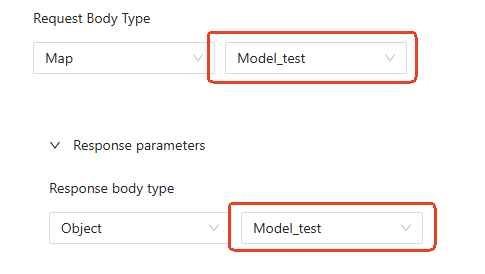
After the data model is created, you can directly select and attach the data model when you configure request or response parameters for an API. The following figure shows an example: