API version management
Subscribers can use an API only after it is published. After you create an API, you can edit, unpublish, or re-edit and republish it. When you publish a new version, the previous version is automatically unpublished and saved as a historical version.
The API version lifecycle is as follows:
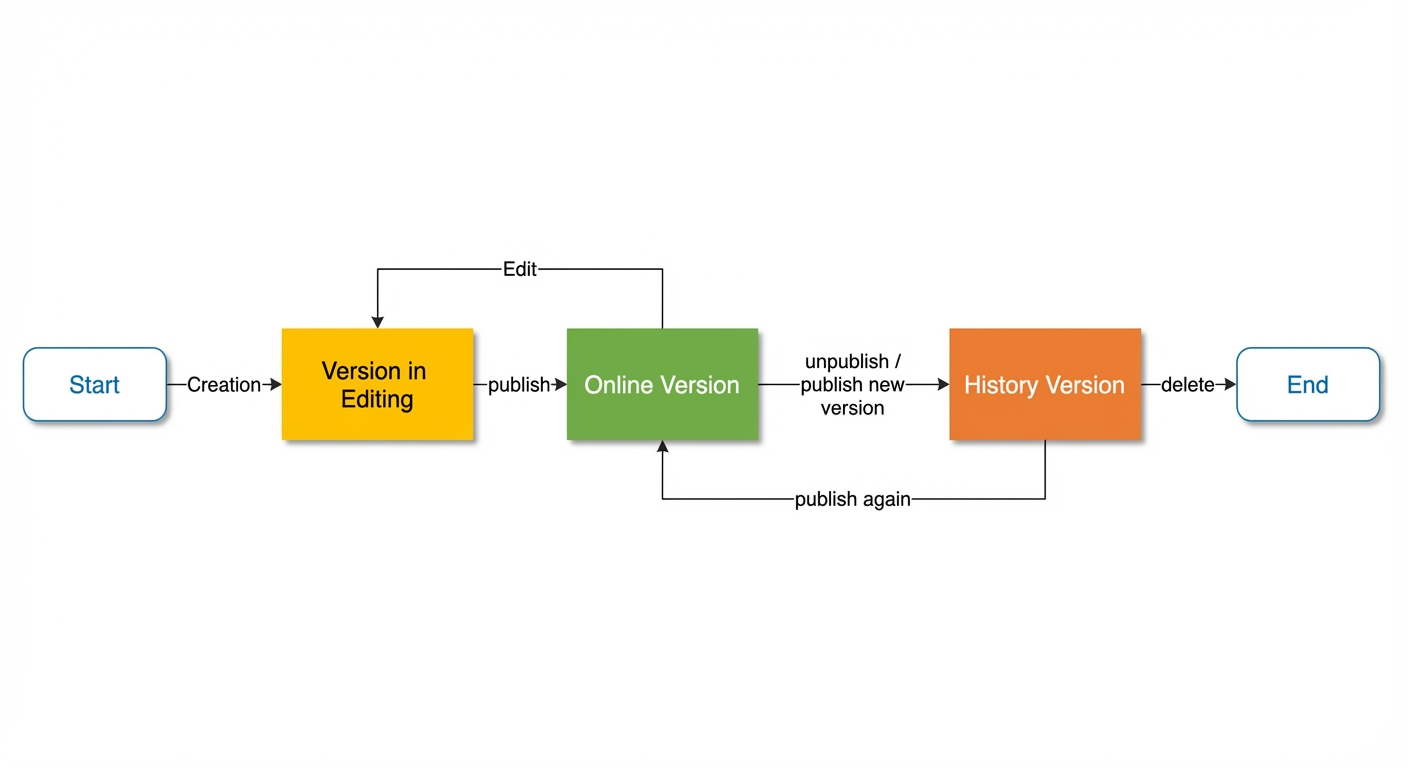
Version notes:
Each time you publish a version, the system assigns a new version number to it.
Each time you save a draft, the system assigns a new version number to the unpublished draft.
An API can have only one version in the editing state. Saving a new draft automatically overwrites the existing unpublished draft.
View versions
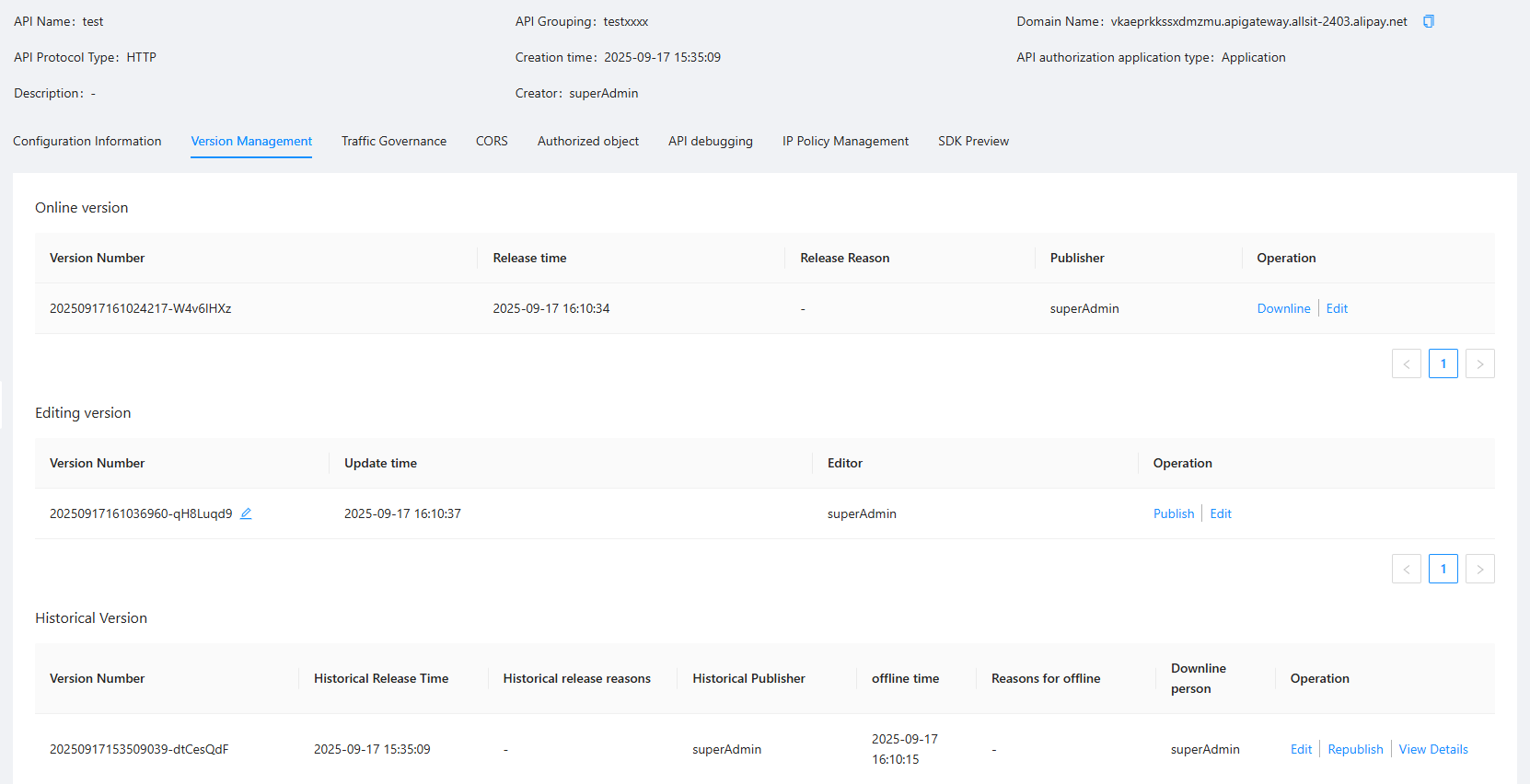
On the API Management page, click an API to open its details page. On the Version Management tab, you can view the online version, the version in editing, and historical versions, as shown in the following figure.
Publish versions
You can re-edit and then publish an online or historical version. You can also directly publish a version that is in the editing state.
Re-edit and publish an online version
In Version Management > Online Version, click Re-edit in the Actions column.
On the edit page, modify the API information and click Save.
After you save your edits, click Publish Now.
In the Publish window, enter an optional reason for the version change and click OK to publish the version.
Publish a version in editing
In Version Management > Version in Editing, click Publish in the Actions column.
In the Publish window, enter a reason for the version change and click OK to publish the version.
Re-edit and republish a historical version
In Version Management > Historical Versions, click Re-edit and Republish in the Actions column.
On the edit page, modify the API information and click Save.
After you save your edits, click Publish Now.
In the Publish window, enter an optional reason for the version change and click OK to publish the version.
Unpublish a version
You can unpublish an API that is online. After you unpublish an API, its status changes to Unpublished and applications that subscribe to it can no longer call it. You can unpublish the online version of an API in one of the following ways:
In the API list, select the API that you want to unpublish and click Unpublish > Confirm.
On the API details page, click the Unpublish button in the upper-right corner.
On the Version Management tab of the API details page, click the Unpublish button to the right of the Online Version.