Deploy SSL certificates to cloud services
This topic describes how to create a deployment task to deploy SSL certificates to Alibaba Cloud services individually or in bulk at a scheduled time.
Before you begin
This topic does not cover Elastic Compute Service (ECS) or Simple Application Server. To deploy a certificate to an ECS instance or a Simple Application Server instance, see Update an existing certificate on an Alibaba Cloud ECS instance or a Simple Application Server instance.
You have purchased and applied for a certificate by using the SSL Certificates Service, and its Status is Issued. To purchase and apply for a certificate, see Purchase a paid certificate and Apply for a certificate.
The SSL certificate alias must not contain Chinese characters. The following figure shows an example.
The domain name has completed MIIT ICP filing (for services deployed in the Chinese mainland only).
Verify the certificate status and confirm that the certificate matches the target domain names.
To create a deployment task, a RAM user must be granted the
AliyunYundunCertFullAccesssystem policy or a custom policy that includes theyundun-cert:CreateDeploymentJobpermission.To obtain cloud service resource IDs by calling API operations, the RAM user must also be granted the
yundun-cert:ListWorkerResourcepermission to call theListCloudResourcesoperation.
Limitations
If your product is not supported by the "cloud product deployment" feature, refer to the product's documentation for deployment instructions. Products that support one-click push are listed in the table below.
"Update existing certificate" in the table below refers to the scenario where a certificate is already deployed on a cloud product and you need to replace it.
Cloud product | Certificate configuration scenario | Applicable condition |
Cloud Web Hosting | Enable HTTPS access for websites | Initial deployment, Update existing certificate |
Container Registry (ACR) | Access a Container Registry Enterprise Edition instance over HTTPS with a custom domain name | Update existing certificate |
Container Service for Kubernetes (ACK) | Update AlbConfig certificates and Secret certificates in ACK managed and dedicated clusters Important Do not manually modify a Secret in ACK. The system creates a new Secret automatically. | Update existing certificate |
Serverless App Engine - gateway routing | Configure HTTPS as the forwarding protocol for gateway routing (ALB and CLB) | Update existing certificate |
Function Compute (FC) | HTTP function scenario | Update existing certificate |
Microservices Engine - cloud-native gateway | Cloud-native gateway routing scenario | Update existing certificate |
Cloud-native API Gateway | Access an API over HTTPS with a domain name | Update existing certificate |
Global Accelerator (GA) | Accelerate HTTPS domain name access securely | Update existing certificate |
| Forward requests over HTTPS using an HTTPS listener (server certificate) Note To deploy a client certificate, see End-to-end HTTPS encryption. | Update existing certificate |
Content Delivery Network (CDN) | HTTPS secure acceleration | Initial deployment, Update existing certificate |
Dynamic Route for CDN (DCDN) | HTTPS secure acceleration | Initial deployment, Update existing certificate |
Edge Security Acceleration (ESA) | HTTPS secure acceleration | Update existing certificate |
Object Storage Service (OSS) | Access OSS over HTTPS Note If your domain name uses CDN acceleration, replace the certificate in the CDN console. | Update existing certificate |
Web Application Firewall (WAF) | CNAME access scenario | Update existing certificate |
Anti-DDoS Pro and Anti-DDoS Premium | Domain name access for Anti-DDoS Pro and Anti-DDoS Premium | Update existing certificate |
ApsaraVideo for Live | HTTPS secure acceleration for stream ingest and playback | Initial deployment, Update existing certificate |
ApsaraVideo for VOD | Content distribution and acceleration | Initial deployment, Update existing certificate |
Platform for AI (PAI) | Elastic Algorithm Service (EAS) model serving: use a custom domain name for a dedicated gateway | Update existing certificate |
Deploy a China Cryptography Standard SSL certificate (SM2, supported only by CDN, DCDN, and Anti-DDoS)
Content Delivery Network (CDN): SetCdnDomainSMCertificate.
Dynamic Route for CDN (DCDN): Configure ShangMi for HTTPS.
Anti-DDoS: Update an HTTPS certificate.
Procedure
Step 1: Purchase deployment quota
Deployment quota is consumed only when you deploy certificates of the Uploaded type. If your certificate is not of the Uploaded type, skip to Step 2: Check authorizations.
If you do not have enough deployment quota, purchase deployment quotas. Each deployment costs CNY 30 and is valid for one year.
Deployment quota is not consumed for certificates other than the Uploaded type, or for certificates shared between Alibaba Cloud accounts that belong to the same verified individual or enterprise. If a deployment fails, the consumed quota is refunded.
Step 2: Check authorizations
If your deployment task does not involve ACK, skip to Step 3: Deploy the certificate to cloud service resources.
Before deploying a certificate to Container Service for Kubernetes (ACK), log on to the ACK console with your Alibaba Cloud account and grant the AliyunCASDefaultRole RAM role the permissions to manage the destination cluster. Otherwise, the Certificate Management Service console cannot discover the cluster namespace.
Go to the Authorization Management page in the ACK console. On the RAM Roles tab, enter
AliyunCASDefaultRoleand click Modify Permissions.On the Permission Management tab, grant the O&M Engineer permission for the destination cluster.

Step 3: Deploy the certificate
Single deployment
If this is your first time using the deployment service, follow the on-screen prompts to grant the required permissions before you can create deployment tasks. For more information, see Grant permissions to access cloud resources.
Log in to the Certificate Management Service console.
On the SSL Certificate Management page, click the appropriate certificate tab. In the certificate list, find the certificate you want to deploy and click Deploy in the Actions column.
Certificates issued by Private CA are listed on the Uploaded Certificates tab, where you can manage them.
On the Create Task page, in the Select Resource step, select or adjust the cloud services and resources, and then click Preview and Submit.
The system automatically matches cloud service resources that already have an SSL certificate configured. In the automatic matching dialog box, click OK. The matched resources are added to the Selected Resources area. You can then adjust the selection as needed.

The system automatically discovers and retrieves all resources from your cloud services. If you cannot find a target resource, check the following:
In the Total Resources section, check whether resource synchronization is complete. If resources are still being synchronized (shown in a grayed-out state), wait for synchronization to finish. The time required depends on the number of resources in your cloud services.
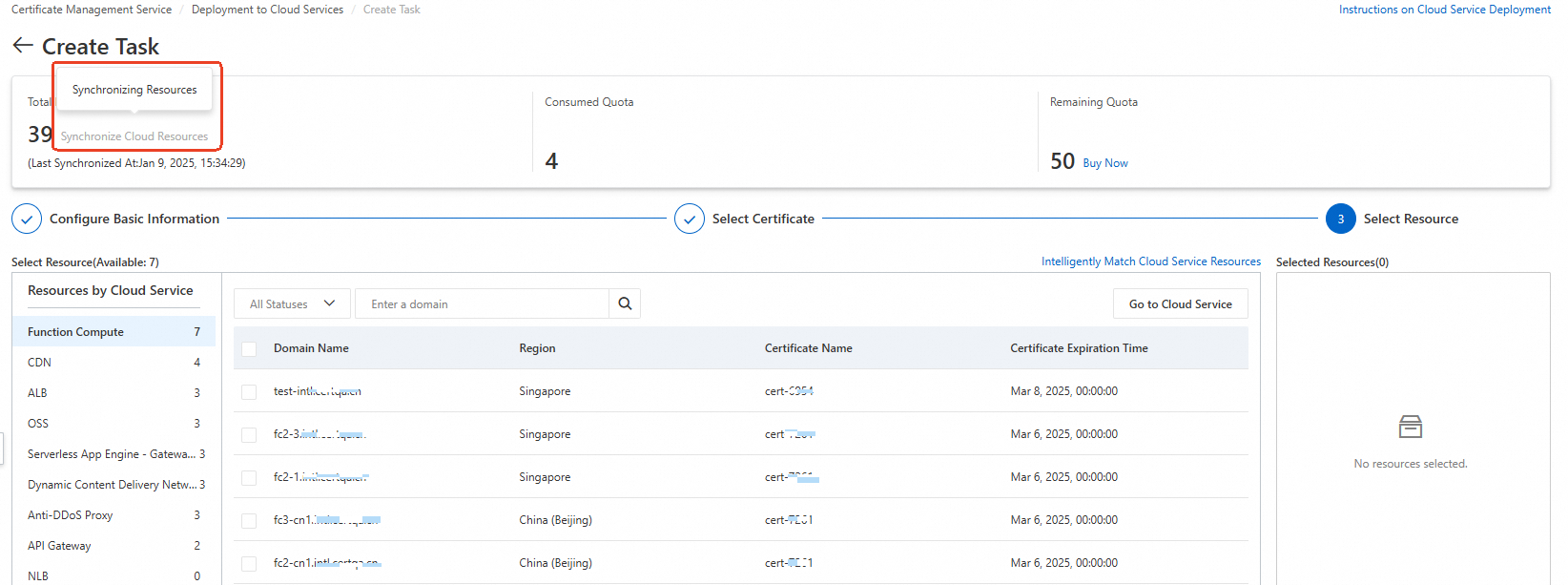
If you still cannot find the resource after synchronization is complete, verify that you meet the deployment prerequisites.
In the Task Preview panel, review the certificate and resource details. If everything looks correct, click Submit.
The preview page shows the number of matched certificates for each cloud service and the deployment quota to be consumed. A match count of 0 means the certificate does not match the resource, and the deployment will fail. Review your selection carefully.
Bulk deployment
If this is your first time using the deployment service, follow the on-screen prompts to grant the required permissions before you can create deployment tasks. For more information, see Grant permissions to access cloud resources.
Log in to the Certificate Management Service console.
In the navigation pane on the left, choose .
On the Deployment to Cloud Services page, click Create Task and deploy the SSL certificates.
In the Configure Basic Information step, configure the task name, contact, and deployment time. Then, click Next.
Parameter
Description
Task Name
Enter a custom name for the deployment task.
Contact
Select contacts to receive deployment task notifications. You can add up to 10 contacts.
Deployment Time
Deploy Now: Deploys the certificates to cloud services immediately.
Custom Time: Schedules the deployment task to run at a specific time.
In the Select Certificate step, select the SSL certificates that correspond to the cloud resources. Then, click Next.
Certificates issued by Private CA are listed on the The ID of the certificate in Alibaba Cloud. You must upload a certificate first. tab, where you can select them.
Each deployment task can include only certificates of a single type.
In the Select Resource step, select or adjust the cloud services and resources, and then click Preview and Submit.
NoteBulk deployment is not supported for Server Load Balancer (SLB) listeners that are bound to multiple server certificates.
The system automatically matches cloud service resources that already have an SSL certificate configured. In the automatic matching dialog box, click OK. The matched resources are added to the Selected Resources area. You can then adjust the selection as needed.
The system automatically discovers and retrieves all resources from your cloud services. If you cannot find a target resource, check the following:
In the The total resource requests for all replicated pods exceed the recommended resource requests (4 vCores and 8 GB of memory). This may lead to quick consumption of resource plans. section, check whether resource synchronization is complete. If resources are still being synchronized (shown in a grayed-out state), wait for synchronization to finish. The time required depends on the number of resources.
If you still cannot find the resource after synchronization is complete, verify that your scenario supports initial certificate deployment. For more information, see Before you begin.
In the Task Preview panel, review the certificate and resource details. If everything looks correct, click Submit.
The preview page shows the number of matched certificates for each cloud service and the deployment quota to be consumed. A match count of 0 means the certificates do not match the resources, and the deployment will fail. Review your selections carefully.
Related operations
View deployment task details
On the Deployment to Cloud Services page, find the target deployment task and click Details in the Actions column.
On the task details page, you can view the deployment status of each instance resource. If a resource deployment fails, check the Actions column for the failure reason and take the appropriate action.
If you cannot determine the specific failure reason, contact a product technical expert for assistance. For more information, see One-on-one expert service.
Roll back a deployment task
Deployment quota is not refunded after a successful rollback.
After a certificate is deployed successfully, if you find that the wrong certificate was deployed or you need to undo the deployment for another reason, you can roll back to the pre-deployment state:
On the Deployment to Cloud Services page, find the target deployment task and click Details in the Actions column.
On the task details page, click the cloud service, find the target instance resource, and then click Roll Back in the Actions column.
After a successful rollback, the task status changes to Rolled Back.
Delete a deployment task
Deleted tasks cannot be recovered. Proceed with caution.
On the Deployment to Cloud Services page, find the target deployment task and click Delete in the Actions column. You can also select multiple deployment tasks and click Delete at the bottom of the list.
FAQ
Cross-account certificate deployment
You cannot directly deploy Alibaba Cloud SSL certificates across different accounts.
If multiple accounts belong to the same verified identity, you can use the certificate sharing feature to deploy certificates across accounts at no charge. For more information, see Upload, synchronize, and share SSL certificates.
If the accounts belong to different verified identities, you must download the certificate from the source account and then manually upload and deploy it to the destination account.
Does deployment enable HTTPS automatically?
Deploying a certificate from the SSL Certificates Service console only pushes it to the target cloud service. You must still verify the deployment in that service's management console.
Cloud service resources shown as 0
When you create a deployment task, the system automatically identifies and retrieves all resources from your cloud services. If you cannot find the target resource, check the following items:
In the Total Resources section, check whether resource synchronization is complete. If resources are being synchronized (the status is gray, as shown in the following figure), wait for the synchronization to complete. The synchronization duration depends on the number of resources in the cloud service.

If the resource is not found after synchronization is complete, check whether the initial configuration requirements for certificate deployment are met. If not, you must deploy the certificate in the management console of the cloud service.
After an SSL certificate is issued, do I only need to configure an A record pointing to a public IP address to enable HTTPS?
No. Configuring an A record only resolves the domain name to an IP address; it does not enable HTTPS encryption. After an SSL certificate is issued, you must also complete the following steps to access your site over HTTPS:
Deploy the certificate: Install the SSL certificate on your web server (such as Nginx or Apache) or on Alibaba Cloud services, and ensure that the certificate file and private key are correctly configured.
ICP filing: The domain name can be accessed only after the ICP filing is completed.
How do I deploy an issued SSL certificate to API Gateway and verify that HTTPS is working?
Deployment steps:
Log on to the API Gateway console and bind the issued SSL certificate to the corresponding HTTPS service or group.
Wait for the configuration to take effect (this typically takes a few minutes).
Verification:
Use the curl command to verify that HTTPS is working:
curl -v https://<domain-name>Check the following in the response:
The message
SSL certificate verify okappears, indicating that the certificate has been verified.Certificate details (such as
subjectandexpire date) are displayed — confirm that the certificate matches your expectations.The HTTP status code is normal (such as 200 or the expected business status code), indicating that the service is accessible.
If all of the above conditions are met, the SSL certificate has been successfully deployed to API Gateway and HTTPS is working correctly.