Common Terraform commands
Terraform is a client tool for managing IT resources. You can use Terraform commands to manage all your resources. This topic describes common commands for resource management and state management.
Common commands for resource management
Resource management in Terraform primarily involves managing the resource lifecycle. You can use commands to create, modify, view, and delete the resources defined in your Terraform templates.
terraform plan: Preview resources
The `plan` command previews the resources defined in a template. It is used in the following scenarios:
Preview the resources defined in the current template to verify that they match your expectations. This is similar to the preview feature in Markdown.
If a state file already exists for the current template, the `plan` command displays the differences between the template definition and the state file content. If there are changes, the command output shows the results.
For a DataSource, you can run the `plan` command to retrieve and display the resource you want to query and its properties.
terraform apply: Create and change resources
The `apply` command creates or changes actual resources. For security, the command includes an interactive step that requires you to manually confirm the operation. You can also use the --auto-approve parameter to skip this confirmation.
The `apply` command is used in the following scenarios:
Create new resources.
Change resource properties by modifying template parameters.
If you remove a resource definition from the current template, the `apply` command deletes the resource. Removing a resource is also considered a change.
terraform show: Display resources
The `show` command displays all managed resources in the current state and all their property values.
terraform destroy: Release resources
The `destroy` command releases resources. For security, the command includes an interactive step that requires you to manually confirm the operation. You can use the --force parameter to skip the manual confirmation.
By default, `terraform destroy` releases all resources defined in the current template. To release only a specific resource, you can specify it using the
-target=<resource_type>.<resource_name>parameter.terraform import: Import resources
The `import` command imports existing cloud resources into the Terraform state to manage them with Terraform. This command is used in scenarios that include, but are not limited to, the following:
You have existing cloud resources that were created and managed through the console, Alibaba Cloud Command-Line Interface (CLI), Resource Orchestration Service (ROS), or direct API calls, and you now want to manage them using Terraform.
You need to refactor resource definitions in the resource template without affecting the operation of the resources.
An Alibaba Cloud provider is upgraded to a new version. The new provider version supports more parameters for resources that are defined in the original template, and you need to sync the latest parameters.
NoteFor more information about how to manage existing resources using the `import` command, see How to manage existing cloud resources.
terraform taint: Mark a resource as tainted
The `taint` command marks a resource as tainted. When you next run the `apply` command, the tainted resource is first released and then recreated. This is equivalent to deleting and then recreating that specific resource.
The command format is:
terraform taint <resource_type>.<resource_name>. For example:$ terraform taint alicloud_vswitch.this Resource instance alicloud_vswitch.this has been marked as tainted.terraform untaint: Unmark a resource as tainted
The untaint command is the reverse of the taint command. It removes the tainted mark and restores the resource to its normal state. The command format is similar to the taint command:
terraform untaint <resource_type>.<resource_name>. For example:$ terraform untaint alicloud_vswitch.this Resource instance alicloud_vswitch.this has been successfully untainted.terraform output: Print output parameters and their values
If you explicitly define an output parameter in the template, its value is displayed after the `apply` command runs but not after the `plan` command runs. To view the output value at any time, you can run the `terraform output` command:
$ terraform output
vswitchId = vsw-gw8gl31wz********
Common commands for state management
State management in Terraform involves managing the data in the state file. The state file stores all resources managed by Terraform and their properties. Terraform automatically stores the content. To ensure data integrity, do not manually modify the content of the state file. You can use the terraform state command to perform operations on state data.
terraform state list: List all resources in the current state
The state list command lists all resources in the current state, including data sources, in the
<resource_type>.<resource_name>format. For example:$ terraform state list data.alicloud_slbs.default alicloud_vpc.default alicloud_vswitch.thisterraform state show: Show the properties of a specific resource
The state show command displays all properties and their values for a specific resource in a key-value format. The full command format is
terraform state show <resource_type>.<resource_name>. For example:$ terraform state show alicloud_vswitch.this # alicloud_vswitch.this: resource "alicloud_vswitch" "this" { availability_zone = "eu-central-1a" cidr_block = "172.16.0.0/24" id = "vsw-gw8gl31wz******" vpc_id = "vpc-gw8calnzt*******" }terraform state pull: Pull and display the current state content
The state pull command displays the raw data of the current state file, similar to the `cat` command in a shell. For example:
$ terraform state pull
{
    "version": 4,
    "terraform_version": "0.12.8",
    "serial": 615,
    "lineage": "39aeeee2-b3bd-8130-c897-2cb8595cf8ec",
    "outputs": {
     ***
 }
 },
"resources": [
 {
        "mode": "data",
        "type": "alicloud_slbs",
        "name": "default",
        "provider": "provider.alicloud",
     ***
 },
 {
        "mode": "managed",
        "type": "alicloud_vpc",
        "name": "default",
        "provider": "provider.alicloud",
     ***
 }
 ]
}
terraform state rm: Remove a specific resource
The state rm command removes a resource from the state file, but it does not actually delete the resource. The command format is:
terraform state rm <resource_type>.<resource_name>. For example:$terraform state rm alicloud_vswitch.this Removed alicloud_vswitch.this Successfully removed 1 resource instance(s).After the resource is removed from the state, if the template content remains unchanged and you run the apply command again, a new, identical resource is created. You can re-add the removed resource using the import command.
terraform state mv: Move a specific resource
To change the state file where a resource is stored, you can use the state mv command. This is similar to the mv command in a shell. This command has multiple options. You can run the terraform state mv --help command for details. This topic describes the most common usage:
terraform state mv --state=./terraform.tfstate --state-out=<target_path>/terraform-target.tfstate <resource_type>.<resource_name_A> <resource_type>.<resource_name_B>. For example:$ terraform state mv --state-out=../tf.tfstate alicloud_vswitch.this alicloud_vswitch.default Move "alicloud_vswitch.this" to "alicloud_vswitch.default" Successfully moved 1 object(s)The preceding command omits the default
--state=./terraform.tfstateoption. The command moves the vSwitch resource from the current state to a state file namedtf.tfstatein the parent directory and renames the vSwitch resource from "this" to "default".terraform refresh: Refresh the current state
The refresh command refreshes the content of the current state. It calls the API again to retrieve the latest data and writes it to the state file.
Other common commands
In addition to commands for resource and state management, other common commands are used in various scenarios that involve templates and providers.
terraform init: Initialize and load modules
The init command initializes and loads required modules, such as providers, provisioners, and modules.
terraform graph: Output the resource dependency graph
Resources defined in a template have dependencies on each other. To view the resource dependency graph, you can use the terraform graph command:
$ terraform graph
digraph {
 compound = "true"
 newrank = "true"
 subgraph "root" {
 "[root] alicloud_vpc.default" [label = "alicloud_vpc.default", shape = "box"]
 "[root] alicloud_vswitch.this" [label = "alicloud_vswitch.this", shape = "box"]
                ******
 "[root] output.vswitchId" -> "[root] alicloud_vswitch.this"
 "[root] provider.alicloud (close)" -> "[root] alicloud_vswitch.this"
******
 "[root] root" -> "[root] provider.alicloud (close)"
 }
}
You can also export the output of this command to an image file by running the
terraform graph | dot -Tsvg > graph.svgcommand. You must first install Graphviz by runningbrew install graphviz.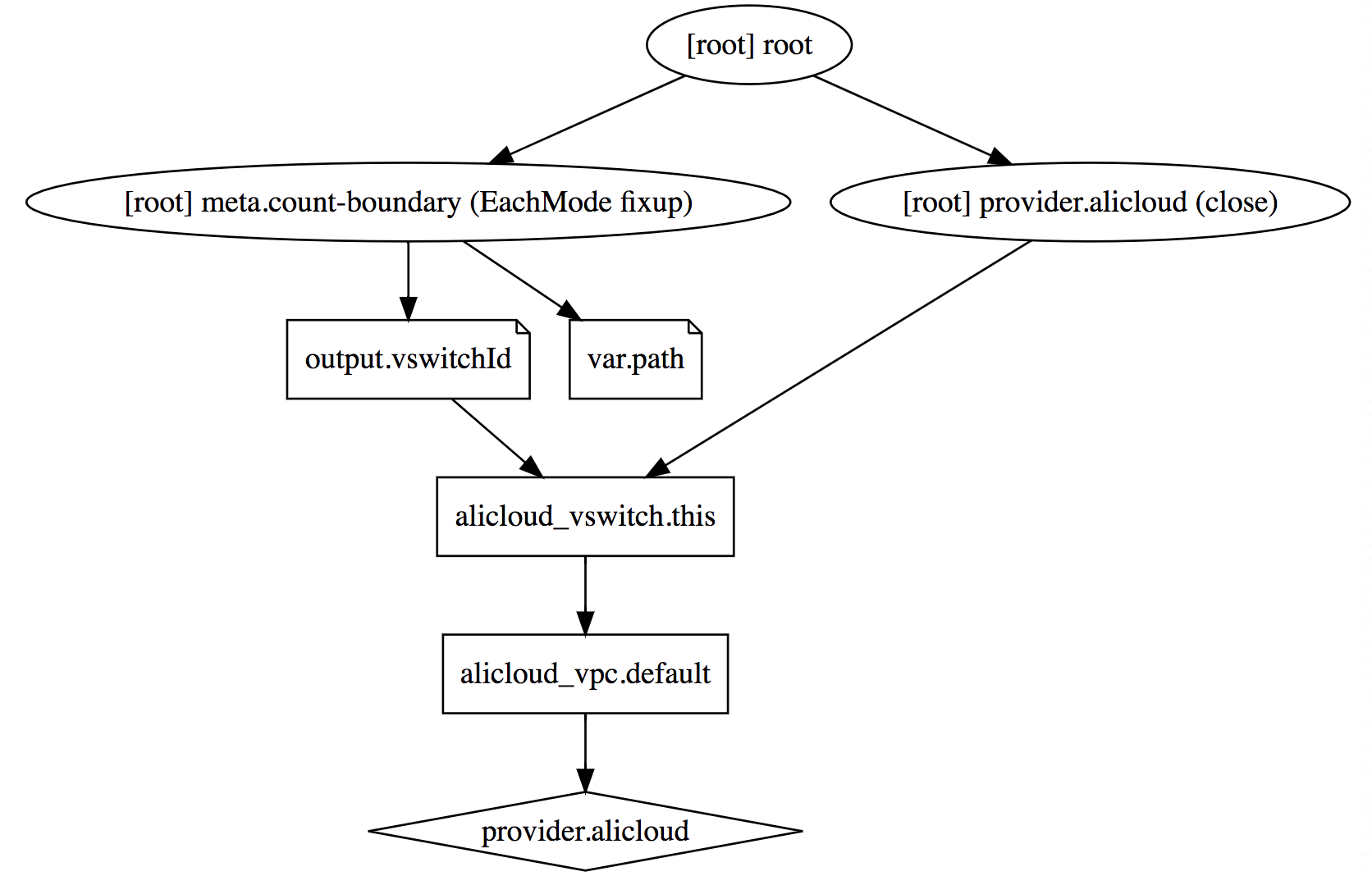
terraform validate: Validate the template syntax
Writing a Terraform template requires you to follow a simple set of syntax rules defined by Terraform. After you write a template, if you want to check for syntax errors, or if a syntax error is reported when you run the plan or apply command, you can run the terraform validate command to check for and locate the position and cause of the error.