Make payments using a third-party account
To top up your account using a third-party account where the bank account name differs from the name used for your Alibaba Cloud account's identity verification, you must first sign a long-term tripartite payment agreement. You can make the bank transfer after the agreement takes effect. The three parties are Party A (Alibaba Cloud), Party B (the delegating party and payee), and Party C (the delegated party and payer).
The payment agreement applies to corporate bank transfers. It does not apply to Alipay top-ups or balance transfers from other Alibaba Cloud accounts.
If a payment agreement is not signed, Alibaba Cloud reserves the right to reject bank transfers that are deemed abnormal after careful review.
Payment process
You can create and sign a tripartite payment agreement online. After the agreement takes effect, you can initiate the transfer. The main process is as follows:
Create a payment agreement
Party B (the delegating party) navigates to the Expenses and Costs > Remittance > Third-party Billing Agreement page. On this page, create the agreement and enter the verification information and the mobile phone number that will receive text messages for signing.Party B (the delegating party) signs the agreement
After creating the agreement, the delegating party signs it electronically using eSign. Before signing, you must register an eSign account and complete identity verification. You can then use your electronic signature to sign the agreement.Party C (the delegated party) signs the agreement
The delegated party, who can be an individual or an enterprise, receives a text message notification. They can use the link in the message to access eSign and complete the signing process. Before signing, they must also register an eSign account and complete identity verification. The identity verification information must match the delegated party's identity information.The agreement takes effect
After both parties sign the agreement, the tripartite payment agreement takes effect. Then, the third-party account can be used to initiate bank transfers. Party B (the delegating party) can view and download the effective agreement on the Expenses and Costs > Remittance > Third-party Billing Agreement page.
Instructions
Party B (the delegating party) creates the agreement
If you need an entity with a different identity than the one verified for your account to make payments and top up your account, you must first create a payment relationship by managing payment agreements.
On the Remittance Claim page in Expenses and Costs, click the Payment Agreement tab. On the Payment Agreement page, you can create and query the long-term tripartite payment agreement, hereinafter referred to as the payment agreement.
Click Create Payment Agreement. In the dialog box that appears, enter and confirm the information for Party A, Party B, and Party C.
Party A name: Defaults to "Alibaba Cloud Computing Co., Ltd.".
Party B (Principal) information:
Authentication Type: The system automatically populates this field based on your Alibaba Cloud account's identity verification information. This field cannot be modified.
Certification for individuals
When the verification type is Individual, the system automatically detects the name and ID card number.
You must provide a mobile phone number to receive text message notifications related to signing. The mobile phone number must be consistent with the account's identity verification information.
Enterprise certification
When the verification type is Enterprise, the system automatically detects the enterprise name and Unified Social Credit Code. You must provide the handler's information:
Contract Agent Name: The handler receives text message notifications for signing and completes the signing process on behalf of the enterprise after their identity is verified.
Mobile Phone Number for Contract Agent: This number is used to receive text message notifications for signing. Make sure that the number is correct. The mobile phone number must be consistent with the handler's identity verification information.
Party C (Agent) information:
Individual authentication type for Party C
When the verification type is Individual, you must provide the following information:
Name: Enter the name of the delegated party.
ID Card Number: Enter the ID card number.
Mobile Phone Number: This number is used to receive text message notifications for signing. Make sure that the number is correct. The identity verification for the mobile phone number must be consistent with the delegated party's name.
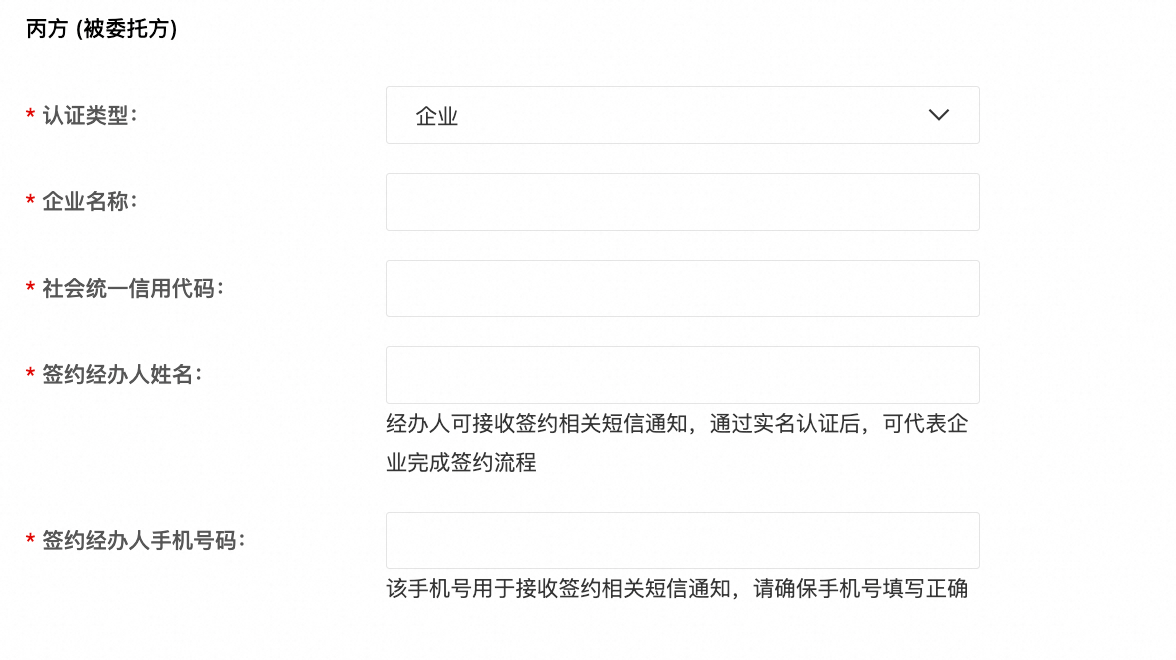
Third-party verification type: Enterprise
When the verification type is Enterprise, you must provide the following information:
Enterprise Name: Enter the full legal name of the delegated enterprise.
Three-in-one Unified Social Credit Number: Enter the Unified Social Credit Code.
Contract Agent Name: The handler receives text message notifications for signing and completes the signing process on behalf of the enterprise.
Mobile Phone Number for Contract Agent: This number is used to receive text message notifications for signing. Make sure that the number is correct. The mobile phone number must be consistent with the handler's identity verification information.
 Important
Make sure that you enter the correct name for the signing handler so that they can pass identity verification before signing the payment agreement.
Make sure that you enter the correct contact phone number so that the delegating and delegated parties receive the text message to sign the agreement.
After you enter the information, click Submit. In the dialog box that appears, confirm that you want to start the agreement signing process.
Click Confirm: The system redirects you to the Payment Agreement page, where you can view the successfully created online payment agreement. In the Operations column, click Sign to start the signing process.
Click Start Signing: The system redirects you to the eSign page to sign the agreement.
At the same time, Party B (the delegating party) receives a text message with a link to the eSign interface.
Party B (the delegating party) signs the agreement
On the eSign page, Party B (the delegating party) enters their account information and clicks Log on and Authorize.
When you use eSign, you must complete identity verification. For more information about identity verification for individuals, see the eSign guide for individual identity verification. For more information about identity verification for enterprises, see the eSign guide for enterprise identity verification.
You are redirected to the agreement signing interface where you can view and sign the payment agreement.
After you click Submit for Signing, you must complete identity verification:
After the identity verification is complete, the system displays the signing result. This completes the signing process for Party B (the delegating party).
Party C (the delegated party) signs the agreement
After Party B (the delegating party) signs the agreement, the system sends a text message to Party C (the delegated party) using the phone number that was provided when the agreement was created. You must remind the delegated party to sign the agreement promptly.
Party C clicks the link and follows the prompts to sign the payment agreement. The process is the same as the signing process for Party B.
After both Party B and Party C have signed the agreement, Party B receives a text message that confirms that the payment agreement has been fully signed. The signing process is now complete.
Query and manage agreements
If the agreement is not signed within 15 calendar days after the signing process is initiated, it automatically expires.
On the Payment Agreement page in Expenses and Costs, you can query the agreements that you have created. You can search for agreements using criteria such as Agreement Number, Agreement Type, Status, and Initiated At.
In the payment agreement list, you can perform operations such as View, Cancel, and Download for each agreement:
To void a payment agreement that is in the Signing or Effective state, click the Void button in the Operations column on the right and then click OK in the confirmation dialog box. The agreement status changes to Revoked, and Party B (the delegating party) receives a text message notification.
If a payment agreement is in the Effective state, you can click Download to download the file in PDF format.
Remittance and invoicing
After the payment agreement takes effect, you can use Party C's (the delegated party's) bank account to make a bank transfer. For more information, see Corporate bank transfer.
The top-up amount is a prepayment and cannot be directly invoiced. Invoices can be issued only for the amount spent on cloud products.
The invoice title matches the identity verification information of your account. If you need an invoice with the title of Party C (the delegated party), see Issue an invoice to change the title.
FAQ
How do I add a bank account for third-party payment for a corporate bank transfer?
To add a third-party payment bank account in Alibaba Cloud, you can sign a tripartite payment agreement. For more information, see Instructions.
Why has the payment not arrived after the payment agreement was signed?
Check whether the agreement has been fully signed. You can view the agreement status on the Expenses and Costs > Payment Agreement page. If the status is Signing, Party C has not yet signed the agreement. In this case, contact the contact person for Party C and ask them to sign the agreement by following the instructions in the text message that they received.
When I start the signing process, why do I see the prompt "The ID card number and Unified Social Credit Code must be 18 digits"?
This prompt appears because you used a different type of certificate when you previously verified your Alibaba Cloud account. As a result, the system cannot detect your identity verification information or Unified Social Credit Code. You must submit a ticket to request an offline payment agreement.
Why did the signer for Party C not receive the signing text message?
The system sends the text message to the signer for Party C only after Party B completes the signing. This issue may occur in the following situations:
Party B has not completed the signing.
The signer for Party C has enabled text message blocking on their mobile phone.
Party B and Party C have the same signer. In this case, two text messages are sent sequentially, and you may have missed the second one.
Party C signed the agreement, but why is it not yet effective?
This may occur if Party C, which is usually an enterprise, has used eSign before and automatically enabled the seal usage approval feature. This causes the current signing request to be sent for seal usage approval. The signer for Party C can click the Under Review text, as shown in the figure, to view the approver's information and contact them to expedite the review. When seal usage approval is required, the system automatically sends a text message to the approver's mobile phone. The approver can click the link in the message to handle the review.
Why do I see the prompt "Failed to create payment agreement. Please try again later"?
This prompt usually appears in the following situations:
The signers are different, but the same mobile phone number was entered for both signers.
The provided mobile phone number has been verified, but the verified person's information does not match the signer's name that you entered.
An enterprise name was entered for the signing handler instead of an individual's name.
You cannot create a payment agreement in these scenarios. Correct the signer information and then try to create the agreement again.
What should I do if voiding the agreement fails?
The payment agreement is pending seal usage approval and cannot be voided at this time. You must contact the seal usage approver to approve or reject the review.
What if the approver is a former employee?
If the approver is a former employee, you can visit the help page on the eSign official website to learn how to change the approver. Alternatively, you can submit a ticket to request an offline payment agreement.
How do I complete identity verification on eSign?
For more information about individual identity verification, see the eSign guide for individual identity verification. For more information about enterprise identity verification, see the eSign guide for enterprise identity verification.
Does the payment agreement support a specified validity period?
No, specifying a validity period is not supported. A signed long-term payment agreement can be voided in the system at any time. After an agreement is voided, you must create and sign a new one.