Player SDK for Web FAQ
Solutions to common issues with Player SDK for Web.
License-related issues
Resolve invalid or expired license issues in License FAQ.
Player SDK for Web license configuration and authorized domain names
Player SDK for Web validates a License against the domain name of the web page that hosts the player. Use this entry to configure the authorized domain name, handle License errors during initialization, and complete the License configuration when you upgrade the SDK.
-
license resource init errorduring initialization: This error usually occurs when debug mode is enabled, for example, whenvconsoleis enabled. It does not affect normal playback. Disable debug mode, or check the browser developer tools (Console and Network) for any other errors that are reported. -
Authorization page stuck on a loading placeholder: If the SDK list or the License authorization page cannot read data and keeps showing a loading placeholder, create a Player SDK for Web application and bind the authorized domain name directly.
-
Upgrade to the latest Player SDK for Web version: Replace the CSS and JavaScript reference URLs. The rest of your code stays compatible, so you do not need to integrate the API operations again. You must add the
licenseparameter, which containsdomainandkey, to the initialization configuration. Apply for a free License in the console and bind the authorized domain name before you initialize the player.
Common issues across platforms
-
For platform-independent issues, check Cross-platform player FAQs.
-
Experienced developers can also troubleshoot playback errors independently.
Development issues
Switching vid and playauth in the HTML5 player
Call replayByVidAndPlayAuth().
player.replayByVidAndPlayAuth(newVid, newPlayAuth)Does replayByVidAndPlayAuth trigger the ready event?
Yes. The ready event fires once the player has finished initializing the video and rendering the UI. At that point, you can safely call methods such as seek. Listen for the event with:
player.on('ready', function(){...});Adjusting the play button size and position
-
Override the CSS to resize the play button. Example (half size):
.prism-player .prism-big-play-btn { width: 45px; height: 45px; background-size: 128px 256px; } -
Set the x and y properties of
bigPlayButtoninskinLayoutto reposition the play button.skinLayout: [ { name: "bigPlayButton", align: "blabs", x: 30, y: 80 }, { name: "H5Loading", align: "cc", }, { name: "controlBar", align: "blabs", x: 0, y: 0, children: [ { name: "progress", align: "tlabs", x: 0, y: 0 }, { name: "playButton", align: "tl", x: 15, y: 26 }, { name: "timeDisplay", align: "tl", x: 10, y: 24 }, { name: "fullScreenButton", align: "tr", x: 20, y: 25 }, { name: "volume", align: "tr", x: 20, y: 25 }, ], }, ]
After calling the seek method, how does the player implement the pause button?
The button reflects the player's prior state. Call player.pause() after seeking to show the pause button.
Setting the initial playback position
Set watchStartTime to specify the initial playback position.
new Aliplayer({
  watchStartTime: 60, // Start playback from the 60th second.
})Enabling automatic full-screen on autoplay
Mute the video, set autoplay to true, and call fullscreenService.requestFullScreen in the ready event listener.
var player = new Aliplayer(
  {
    id: "player-con",
    source: "//example.aliyundoc.com/video/media02.mp4",
    width: "100%",
    height: "500px",
    autoplay: true,
    qualitySort: "asc",
    mediaType: "video",
    preload: true,
    isLive: false,
  },
  function (player) {
    player.mute();
    console.log("The player is created");
  }
);
player.on("ready", function () {
  player.fullscreenService.requestFullScreen();
});
What is the difference between preload: true and preload: false in Aliplayer?
preload: true enables preloading. preload: false disables preloading.
Disabling seek on the progress bar
Set disableSeek: true to prevent users from dragging the progress bar. Disable dragging the progress bar.
Getting the current playback time periodically
Use a timer to call player.getCurrentTime() every second. Clear the timer when playback is paused, an error occurs, or playback ends.
var timer = null;

timer = setInterval(() => {
  var current = player.getCurrentTime();
  console.log(current);
}, 1000);

// Clear the timer.
function clear() {
  if (timer) {
    clearTimeout(timer);
    timer = null;
  }
}
player.on("ended", function (e) {
  clear();
});
player.on("pause", function (e) {
  clear();
});
player.on("error", function (e) {
  clear();
});
Other common issues with Player SDK for Web
-
Precision of the
seekmethod:seekaccepts floating-point values (for example,10.5). For better compatibility, round down or use fewer decimal places. -
Reconnecting after a live stream disconnects: You can configure the number of reconnection attempts. If playback does not recover after the configured attempts, listen for the
errorevent to handle the failure, for example:player.on('error', (e) => { var code = String(e.paramData.error_code); }) -
License Key and the download feature: The License Key used for playback is not interchangeable with the download feature. Downloads are generated based on app information.
-
Control bar shows text but no icons: Check that
aliplayer-min.cssis correctly included. Do not useskinLayoutIgnoreandskinLayouttogether —skinLayoutIgnoretakes precedence and removes the component. Set a fixed height (400px or more) on the player container to avoid layout collapse. You can also compare your setup against the official Vue demo for debugging. -
Player SDK for Flutter for iOS error 537067523: Set a trace ID with
FlutterAliplayer.setTraceIDto help with log troubleshooting; upgrade Player SDK for Flutter to 7.14.0 or later, which optimizes the network library; if you are not using Alibaba Cloud CDN, contact your CDN provider to check the request logs.
How do I check and upgrade the Player SDK for Web version?
-
Check the version: Look at the
aliplayer-min.jsfile included in your project, or the version field in its configuration. -
Upgrade the version (as provided by the requester): Edit the version variable on line 30 of each of the following language pack files:
language.SC_UTF8.php,language.SC_GBK.php,language.TC_UTF8.php,language.TC_BIG5.php. Update all 4 files to the new version number (for example, from2.27.1to2.37.8).
Pending confirmation (needs sign-off before this is finalized): the upgrade steps above are specific to a particular site/CMS integration, not the standard Player SDK for Web upgrade path (the standard approach is to update the version referenced in the aliplayer-min.js/aliplayer-min.css CDN link or npm package). Please confirm whether to: (a) keep this content as-is and explicitly scope it to that integration, (b) replace it with the standard upgrade steps, or (c) include both.
Playback issues and errors
H.265-encoded video fails to play
Player SDK for Web 2.14.0+ supports H.265-encoded video. You must obtain a license and configure H.265 parameters. Play H.265/H.266 encoded video streams.
Cross-origin error when playing FLV or M3U8 files
If you see "Access is denied for this document" or "Access-Control-Allow-Origin" errors, enable cross-origin access for your playback domain. Configure cross-origin access.
HTML5 player cannot enter landscape mode
The player SDK does not provide a landscape mode API. On iOS, landscape mode depends on system orientation settings. On Android, the player enters landscape mode automatically in full-screen mode.
Missing Referer header in FLV playback requests
-
Player requests follow your website's Referrer-Policy. Ensure your
Referrer-Policyallows video requests to include a Referer header. -
If the
Referrer-Policyallows a Referer header but it is missing from video requests, Referer-based ACL may block playback. SetenableWorker: falseto resolve this.
Removing black bars from the player window
Black bars appear when the video does not fill the player window.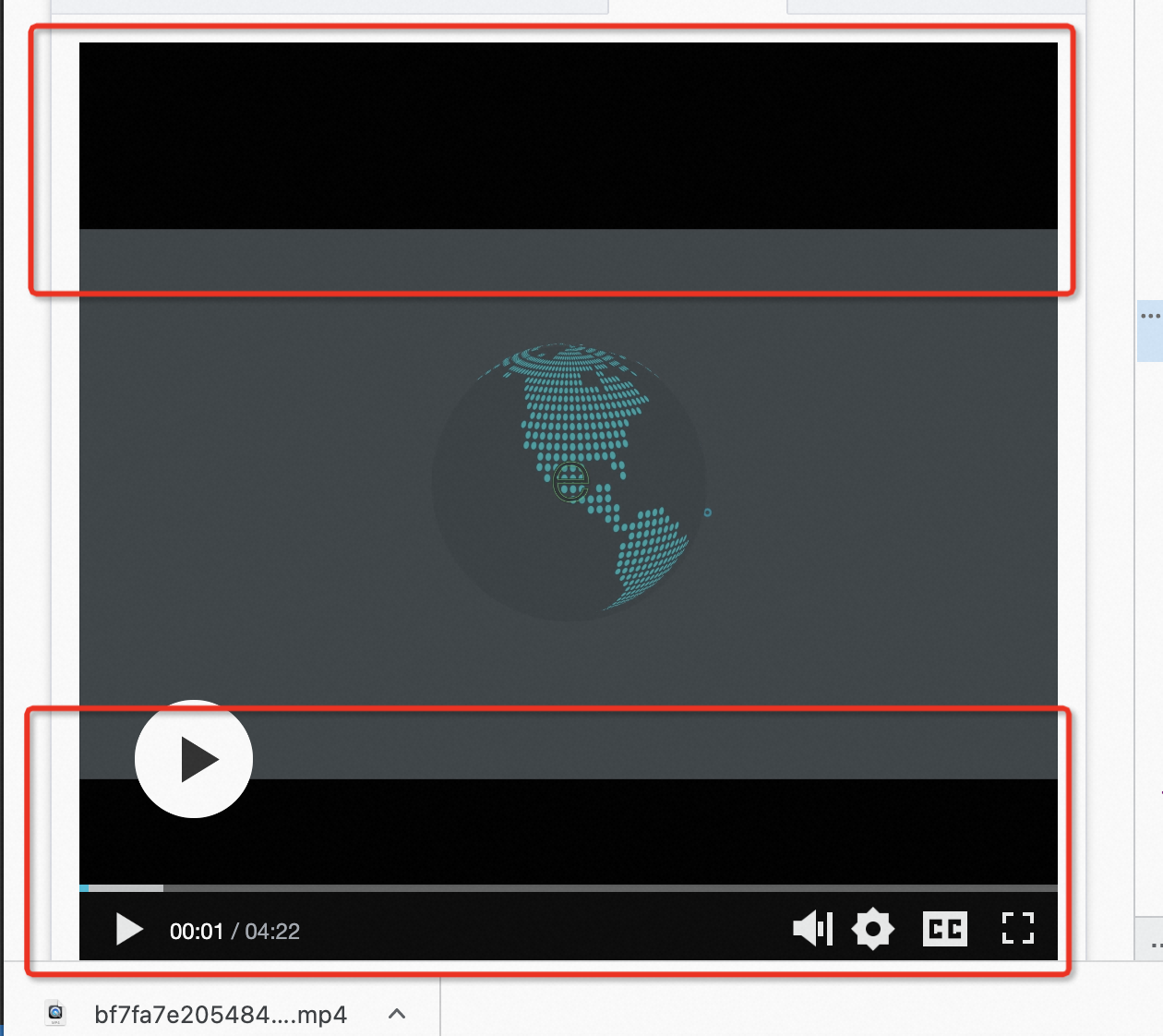
The black bars are the player container's background. Apply object-fit: cover; to the <video> tag to remove them.
This property may crop the video frame. Check the CSS object-fit documentation for visual effects.
AliPlayer initialization fails with TypeError: Failed to execute 'getComputedStyle' on 'Window'
Cause: During initialization of the controlBar.volume component, the internal _getBottom() method retrieves a DOM element that is null or not an Element (usually because the container has not finished rendering). Calling getComputedStyle on this value throws and blocks the rest of initialization.
Solution 1 (recommended): Upgrade Player SDK for Web to 2.37.8 or later, which fixes this compatibility issue.
Solution 2 (workaround): Add skinLayoutIgnore: ["controlBar.volume"] to the player configuration to skip initializing the volume control. If you need to keep the volume control, check that the container element exists and its offsetWidth is greater than 0 before initializing the player; if not, delay initialization by 200ms and retry.
Handling DNS resolution failures
Network errors such as general network errors, address retrieval failures, M3U8 fetch failures, or request failures may result from DNS resolution issues. Configure Secure DNS for your browser to resolve them.
Configure Secure DNS by browser:
-
Chrome/Edge: Chrome configuration.
-
Firefox: Firefox configuration.
For other browsers, configure Secure DNS at the OS level:
-
Windows: Windows configuration.
-
Mac OS: Mac OS configuration.
-
Linux: Linux configuration.
-
Android: Android configuration.
If the DNS address returns an "invalid address" error, try one of these alternatives:
// Primary address
https://dns.alidns.com/dns-query
// Backup address
https://doh.pub/dns-query
loadByUrl does not work on iOS and Android
// `seek` only jumps to the time, but does not play.
// `play` restarts playback from the beginning on iOS.
// On iOS, full-screen playback is hijacked by the native player.

document.querySelector(".no1").onclick = function () {
  player.loadByUrl("//player.alicdn.com/resource/player/qupai.mp4");
};

// Listen for 'play' and 'canplay' events to call seek. This might not work in some browsers. As an alternative, consider calling seek on the first 'timeupdate' event.
player.on("canplay", function () {
  player.seek(20);
});
// No workaround is available for full-screen hijacking on iOS.
Previous video continues to play after the video source is switched
In Player SDK for Web 2.9.11, loadByUrl fails in 360 Browser's compatibility mode on Windows 10. The previous video continues playing after the source is switched.
Cause: browser compatibility issue.
Solution: upgrade to Player SDK for Web 2.9.19 or later.
The player.seek() method fails on iOS
Call player.seek() within the play or canplay event listener. Otherwise, the call may not take effect.
// Call seek in the `play` and `canplay` events. Otherwise, it may not take effect.
player.on("canplay", function () {
  player.seek(20);
});
Catching up to the live edge after resuming a stream
Problem description
If you switch your application to the background when you are playing a live stream, the playback is paused. After you return to the application, the live stream continues to play from the point in time at which the pause occurs. Is there any configuration that can be made to reduce the playback latency so that the latest clip can be played after playback is resumed?
Solution
After you resume the playback, the live stream continues to play from the point in time at which the pause occurs. You cannot configure parameters to speed up the playback. We recommend that you pull the live stream again and then use the player to play the live stream again.
Using Player SDK for Web in WeChat mini programs
Player SDK for Web does not run in WeChat mini programs. Use the mini program's built-in video component instead. WeChat mini program.
Cross-origin stream pulling fails for a live stream
If local cross-origin validation fails, check your Domain Management configuration. Requests from localhost fail if only your own domain is configured. By default, localhost passes validation when no domains are configured.
VOD video playback fails on iOS
Possible cause: Safari on iOS may fail to decode videos with a high compression ratio or high encoding profile.
Solution: Transcode the video before playback. Audio and video transcoding.
Video playback fails on some computers with error code 4400
Error code 4400 indicates that the resource cannot be loaded due to server or network issues, or an unsupported format. Check whether an SSL certificate is configured.
Platform-specific issues
Removing the default thumbnail in WebView
On some Android WebViews, omitting the poster attribute on the <video> tag causes a default thumbnail (gray background with a play button) to appear.
Solution: Set an invalid poster attribute on the <video> tag to override the default.
extraInfo: { poster: 'noposter' } // The content of the player parameter `extraInfo` is passed to the <video> tag.Enabling highest document mode in IE
For Internet Explorer versions earlier than IE 10, enable the highest available document mode.
<meta http-equiv="x-ua-compatible" content="IE=edge" >Enabling autoplay in WeChat
<script src="http://res.wx.qq.com/open/js/jweixin-1.0.0.js"></script>
<script>
function autoPlay() {
  wx.config({
      // Configuration details. wx.ready can be used even if the details are incorrect.
      debug: false,
      appId: '',
      timestamp: 1,
      nonceStr: '',
      signature: '',
      jsApiList: []
  });
  wx.ready(function() {
      var video=$(player.el()).find('video')[0];
      video.play();
  });
};
// Workaround for autoplay issue on iOS.
autoPlay();
</script>
Browser hijacking of video playback
Browser hijacking occurs when the browser's native player replaces the Player SDK's <video> element and blocks JavaScript or CSS modifications. Symptoms include unexpected styling, broken player features, extra UI elements or ads, and forced full-screen playback.
This typically occurs in mobile browsers such as WeChat, UC Browser, and QQ Browser.
Bullet comments fail in iOS full-screen mode
Symptom: On iOS devices, bullet comments work correctly during standard playback but disappear in full-screen mode.
Solution: The native iOS UI takes control of the <video> element at the highest layer, blocking overlays like bullet comments. As a workaround, set the player container's height and width to fill the entire screen to simulate full-screen mode while keeping bullet comments functional.