Digital watermarks
Digital watermarking imperceptibly embeds information into audio or video files without affecting visual quality or integrity. It supports copyright protection, leak tracing, and file verification. ApsaraVideo VOD provides two types of digital watermarks: copyright watermarks and tracing watermarks.
Use cases
Digital watermarks apply to the following scenarios.
Copyright watermark
-
Copyright protection: Embed copyright information into a video as a watermark. You can later extract this watermark to confirm copyright ownership.

-
Institution tracing: Trace copyright leaks during distribution to identify the responsible institution. For example, a movie distributor sends copies of a film to several institutions. If the film is leaked, the copyright holder can identify which institution was the source of the leak, stop further unauthorized distribution, and hold the responsible parties accountable.

Tracing watermark
-
User tracing: Trace copyright leaks back to a specific user during playback. Video leaks commonly occur when end users download or record content. Tracing watermarks allow you to identify the specific user responsible for the leak.


Features
Visually appealing: The watermark is invisible and does not affect the normal playback of the media.
Content security: The watermark is imperceptible, which makes it difficult to attack directly. The embedded information is specially encoded, which makes it hard to tamper with or forge.
Accurate extraction: The specially encoded watermark ensures accuracy during extraction. The extracted information is both unique and correct.
Robust: The watermark is strong and can withstand common piracy attacks. These attacks include video compression, rotation, resolution changes, frame rate changes, screen recording, cropping, and scaling.
Encrypted: The watermark information is specially encoded and encrypted. This makes it difficult to modify and ensures its accuracy upon extraction.
Billing
Digital watermarking in ApsaraVideo VOD is a paid service. You are charged for both generating and extracting digital watermarks. For more information, see Digital watermark billing.
Limitations
-
The digital watermark feature is available only in the China (Shanghai) and China (Beijing) regions.
-
Certain features of the tracing watermark, such as calling the Get Play Info API to generate an M3U8 video stream with a tracing watermark, are available only to whitelisted users. You can submit a ticket to apply for these features.
-
When you generate a video with a digital watermark, the following limitations apply:
-
Input
-
The video duration must be 6 minutes or longer.
-
The bitrate must be greater than 1000 Kbps.
-
The HLS format is not supported.
-
-
Output
-
Copyright watermarks support MP4, HLS, and FLV formats.
-
Tracing watermarks support only the HLS format.
-
-
-
When you extract a digital watermark, the following requirements apply to the input video:
The digital watermark extraction algorithm provides different robustness levels based on video duration. Robustness determines the resistance to factors such as compression bitrate and external recording. Because video content such as motion speed and texture complexity affects watermark robustness, the requirements in the following table apply to videos with relatively static scenes, such as online courses. For high-motion videos such as action movies, the bitrate must be higher than the recommended values in the table.
Video duration
6 ≤ Duration < 10
10 ≤ Duration < 20
Duration ≥ 20
Recommended video bitrate (Kbps)
≥ 2000
≥ 1000
≥ 500
Extraction support for externally recorded videos (for example, from a phone or camera)
The video is too short. We recommend that you do not use externally recorded videos for extraction.
External recording can severely degrade watermarks. For extraction from an externally recorded video, we recommend a bitrate greater than 3000 Kbps.
Prerequisites
ApsaraVideo VOD is activated. For more information, see Activate ApsaraVideo VOD.
The RAM user or RAM role that you use has corresponding permissions to access ApsaraVideo VOD. We recommend that you use a RAM user or RAM role to perform operations to improve the security of your account and resources. For more information, see Create and grant permissions to a RAM user.
Use copyright watermarks
Before you begin, make sure that you understand and meet the requirements in the Limitations section for generating and extracting copyright watermark videos. Otherwise, the operation may fail.
Step 1: Generate a copyright watermark video
-
Create a transcoding template group with the copyright watermark feature enabled.
A transcoding template group with the copyright watermark feature can be created only in the ApsaraVideo VOD console.
-
Transcode the video and add a copyright watermark.
Use the transcoding template group that you created in the previous step to transcode the video and add a copyright watermark. For more information, see Submit transcoding jobs or Workflow-based transcoding.
Step 2: Simulate video theft
Common methods of video theft:
-
Direct distribution: Obtain the playback URL of the video with a copyright watermark and download the video to a local device.
-
Screen recording: Use a screen recording tool to record the video while it is playing.
-
External recording: Use a device such as a phone or camera to record the video while it is playing.
Step 3: Extract the copyright watermark
-
Upload the pirated video to ApsaraVideo VOD.
Upload the pirated video that you downloaded or recorded in Step 2: Simulate video theft to ApsaraVideo VOD, and save the video ID.
Note-
Make sure that the pirated video and the original video from Step 1: Generate a copyright watermark video are uploaded to the same ApsaraVideo VOD region. Otherwise, the copyright watermark cannot be extracted.
-
You cannot upload local M3U8 files by using the ApsaraVideo VOD console. You must use the ApsaraVideo VOD API or an SDK. For more information, see Upload local M3U8 files.
This section provides an example of uploading an MP4 video in the ApsaraVideo VOD console. For more information about upload methods, see Overview.
-
-
Extract the copyright watermark from the pirated video.
ImportantDigital watermark extraction tasks are billed based on the duration of the video being processed. To avoid extra costs, do not submit multiple extraction tasks for the same video.
Extract using the console
-
Log on to the ApsaraVideo VOD console.
-
In the left navigation bar, select Tools > Digital Watermark Extraction Tool to go to the Digital Watermark page.
-
Submit a copyright watermark extraction task.
-
In the Digital Watermark Extraction Tool section, configure the parameters for the digital watermark extraction task.
-
Task Type: Select Submit Watermark Extraction Job.
-
Watermark Type: Select Copyright watermark.
-
Video ID: Enter the video ID of the infringing video that you uploaded in the previous step.
-
-
Click Submit.
After the task is submitted, you can click Query Result in the dialog box that appears to view the task processing status. Please wait for the task to be successfully processed, and then query the extracted copyright watermark information.
-
-
Query the extracted copyright watermark information.
NoteThe ApsaraVideo VOD console displays only the most recent extraction result for a video. To query all historical results for that video, call the GetDigitalWatermarkExtractResult operation.
-
In the Digital Watermark Extraction Tool section, configure the query parameters for the digital watermark extraction results.
-
Task Type: Select Query Watermark Extraction Result.
-
Watermark Type: Select Copyright Watermark.
-
Video ID: Enter the video ID of the infringing video uploaded in the previous step.
-
-
Click Submit.
-
After submission, in the Digital Watermark Extraction Result Query dialog box, confirm that the Status is Success and the Watermark Information displays Alibaba Cloud ApsaraVideo VOD Copyright Watermark, indicating successful copyright watermark extraction.
-
If the copyright watermark extraction fails, see Why did the extraction of a digital watermark from a pirated video fail? for troubleshooting.
-
-
Extract using OpenAPI
-
Submit a copyright watermark extraction task.
Call the SubmitDigitalWatermarkExtractJob operation and set the following required parameters to submit a copyright watermark extraction task.
-
MediaId: Set this parameter to the video ID of the pirated video. -
ExtractType: Set this parameter toCopyrightMark.
-
-
Query the extracted copyright watermark information.
NoteAfter you submit the copyright watermark extraction task, wait about 10 minutes before you query the extracted information.
Call the GetDigitalWatermarkExtractResult operation and set the following required parameters to query the extracted copyright watermark information.
-
MediaId: Set this parameter to the video ID of the pirated video. -
ExtractType: Set this parameter toCopyrightMark.
If the copyright watermark is extracted successfully, a response similar to the following example is returned:
{
  "RequestId": "974756D4-5CF9-54DA-BF21-62E0E12E0B81",
  "AiExtractResultList": [
    {
      "Status": "Success",
      "ModifyTime": "2024-06-12T11:14:46Z",
      "WaterMarkText": "ApsaraVideo VOD copyright watermark",
      "CreateTime": "2024-06-12T11:14:25Z",
      "JobId": "90f6281bf3c1497eaee79c0842e5****"
    }
  ]
}
If the copyright watermark extraction fails, see Why did the extraction of a digital watermark from a pirated video fail? for troubleshooting.
-
-
Step 4: Compare watermark information
Compare the extracted watermark text with the watermark text configured in the transcoding template group in sub-step 1 of Step 1 to confirm the video's copyright ownership.
Use tracing watermarks
Before you begin, make sure that you understand and meet the requirements in the Limitations section for generating and extracting tracing watermark videos. Otherwise, the operation may fail.
Step 1: Generate a tracing watermark video
-
Create a transcoding template group with the tracing watermark feature enabled.
A transcoding template group with the tracing watermark feature can be created only in the ApsaraVideo VOD console.
-
Transcode the video and add a tracing watermark.
Use the transcoding template group that you created in the previous step to transcode the video and add a tracing watermark. This generates A/B streams for the tracing watermark. For more information, see Submit transcoding jobs.
-
Call the GetPlayInfo operation to request video playback and generate an M3U8 video with a tracing watermark.
When a user requests playback, a watermarked M3U8 video with a unique sequence is assembled based on the video ID of the A/B streams.
Call the GetPlayInfo operation and set the following required parameters to generate an M3U8 video with a tracing watermark.
-
VideoId: Set this parameter to the ID of the video that was transcoded with a tracing watermark. -
Definition: The video definition. This must be the same as the definition that you configured for transcoding. You can view the definition in the tracing watermark transcoding template group. -
DigitalWatermarkType: Set this parameter toTraceMark. -
Trace: The custom watermark text. Example: Tracing watermark-User B. -
You can set the
ResultTypeparameter toSingleor leave it empty. You cannot set it toMultiple.
The
PlayURLreturned by the operation is the playback URL of the video with a tracing watermark. -
Step 2: Simulate video theft
Common methods of video theft:
-
Direct distribution: Obtain the playback URL of the video with a tracing watermark and download the video to a local device.
-
Screen recording: Use a screen recording tool to record the video while it is playing.
-
External recording: Use a device such as a phone or camera to record the video while it is playing.
Step 3: Extract tracing watermark information from the pirated video
-
Upload the pirated video to ApsaraVideo VOD.
Upload the pirated video that you saved locally or generated by recording in Step 2: Simulate piracy of the tracing watermark video to ApsaraVideo VOD, and save the video ID.
Note-
Make sure the pirated video is uploaded to the same service region in ApsaraVideo VOD as the source tracing watermark video from Step 1: Generate a tracing watermark video. Otherwise, the tracing watermark information cannot be extracted.
-
Local M3U8 files cannot be uploaded from the ApsaraVideo VOD console. You can upload local M3U8 files by using the ApsaraVideo VOD API or SDKs. For more information, see Upload local M3U8 files.
The following steps describe how to upload an M3U8 video from the ApsaraVideo VOD console. For more information about other upload methods, see Media upload.
-
Log on to the ApsaraVideo VOD console.
-
In the navigation pane on the left, choose Media Files > Audio/Video. Click Upload Audio/Video.
-
Click Add Audio/Video and configure the upload parameters.
-
Select No Transcoding for the upload to save time. For more information about supported formats and parameter descriptions, see Upload files from the ApsaraVideo VOD console.
In the Add Audio/Video dialog box, select URL Pull as the upload method, configure the storage address, enter the video URL, extension, audio/video name and other information in the table, and then click Start Upload.
-
Click Upload.
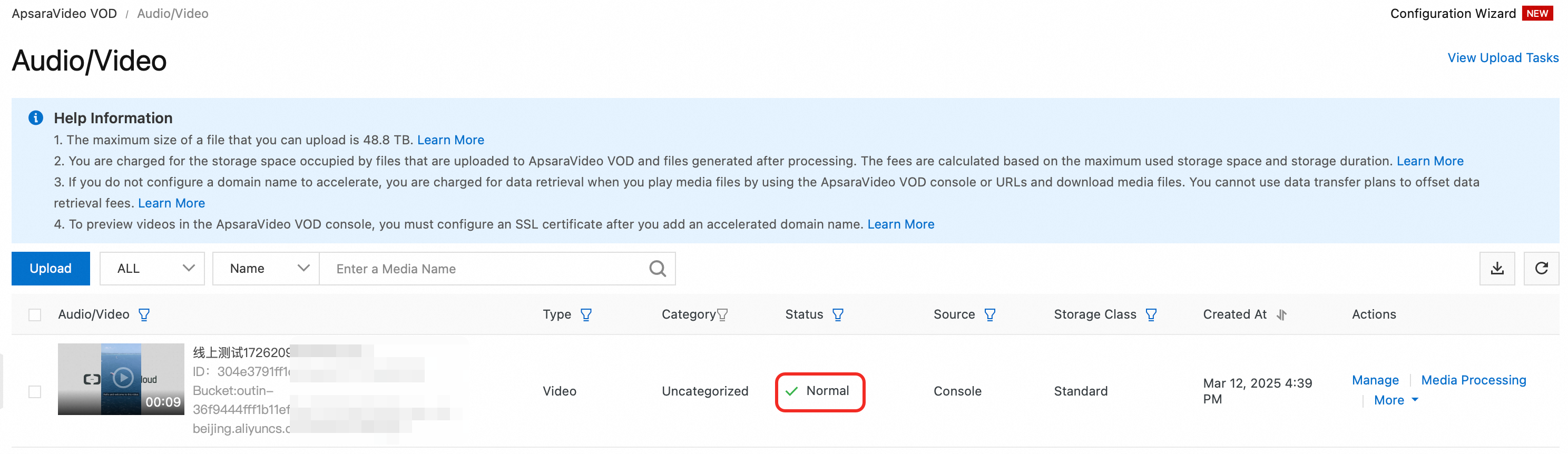
After the video is uploaded, you can view the video ID and status of the pirated video on the Audio/Video page. If the status is Normal, the video is uploaded and ready to use. If the status is different, see Status: Audio and video statuses for troubleshooting.
-
-
Extract the tracing watermark information from the pirated video.
ImportantDigital watermark extraction tasks are billed based on the duration of the extracted video. Do not repeatedly submit tasks for the same video to avoid extra costs.
Extract from the console
-
Log on to the ApsaraVideo VOD console.
-
In the navigation pane on the left, choose Tools > Digital Watermark Extraction Tool to go to the Digital Watermark page.
-
Submit a tracing watermark extraction task.
-
In the Digital Watermark Extraction Tool section, configure the parameters for the extraction task.
-
Task Type: Select Submit Watermark Extraction Task.
-
Watermark Type: Select Tracing Watermark.
-
Video ID: Enter the video ID of the pirated video that you uploaded in the previous step.
-
-
Click Submit.
After you submit the task, click Query Result in the dialog box that appears to view the task status. Wait for the task to succeed before you query the extracted tracing watermark information in the next step.
-
-
Query the extracted tracing watermark information.
NoteThe ApsaraVideo VOD console shows only the result of the latest digital watermark extraction task for a video. To query the results of all historical extraction tasks for the video, call the QueryAiExtractJob operation.
-
In the Digital Watermark Extraction Tool section, configure the parameters to query the extraction result.
-
Task Type: Select Query Watermark Extraction Result.
-
Watermark Type: Select Tracing Watermark.
-
Video ID: Enter the video ID of the pirated video that you uploaded in the previous step.
-
-
Click Submit.
-
After submission, the system displays the Digital Watermark Extraction Result Query dialog box showing extraction task details. Confirm that the Status is "Success" and the Watermark Information displays the specific watermark content (for example, "Tracing Watermark - User B"), indicating successful digital watermark extraction.
-
If the tracing watermark fails to be extracted, see the FAQ Why did the system fail to extract the digital watermark from the pirated video? for troubleshooting.
-
-
Extract by using OpenAPI
-
Submit a tracing watermark extraction task.
Call the SubmitAiExtractJob operation and set the following required parameters to initiate a tracing watermark extraction task.
-
Set the
MediaIdparameter to the video ID of the pirated video. -
Set the
ExtractTypeparameter toTraceMark.
-
-
Query the extracted tracing watermark information.
NoteAfter you submit a tracing watermark extraction task, wait for about 10 minutes before you query the extracted tracing watermark information.
Call the QueryAiExtractJob operation and set the following required parameters to query the extracted tracing watermark information.
-
Set the
MediaIdparameter to the video ID of the pirated video. -
Set the
ExtractTypeparameter toTraceMark.
If the tracing watermark is extracted, the following response is returned:
{
  "RequestId": "6D402250-3A4D-590D-A58A-8DD2711E099C",
  "AiExtractResultList": [
    {
      "Status": "Success",
      "ModifyTime": "2024-06-12T10:50:37Z",
      "WaterMarkText": "Tracing watermark-User B",
      "CreateTime": "2024-06-12T10:49:58Z",
      "JobId": "f1e12c4dec6a45e57ae52141****"
    }
  ]
}
If the tracing watermark fails to be extracted, see the FAQ Why did the system fail to extract the digital watermark from the pirated video? for troubleshooting.
-
-
Step 4: Compare watermark information
Compare the tracing watermark text extracted in the previous step with the watermark information provided in the Trace field when calling the GetPlayInfo API in Step 1: Generate a video with a tracing watermark - Substep 3 to identify the user who leaked the video.
Frequently asked questions
Why does digital watermark extraction from a pirated video fail?
If digital watermark extraction fails, check the following:
-
Verify that the video for distribution has been transcoded with a digital watermark.
On the audio/video details page of the VOD console, click the Video URL tab to view the video URL list. If the format column of the transcoded version contains Tracing Watermark or Copyright Watermark tags (such as
m3u8(Tracing Watermark)ormp4(Copyright Watermark)), the digital watermark transcoding has been completed successfully. -
Verify that the video URL for distribution is the copyright watermark stream URL or the tracing watermark stream URL. Do not use the source file URL or a URL generated by another transcoding process.
-
Verify that the pirated video is at least 6 minutes long and its bitrate meets the requirements. For more information, see Usage limits.
-
Verify that the watermark type set for extraction is correct.