Video watermark
A video watermark adds identifying information, such as a company logo, TV station icon, user nickname, or user ID, to a video to promote your brand, protect copyrights, and improve brand recognition. ApsaraVideo VOD supports three types of watermarks: static image, animated image, and text. You can choose the type that best suits your needs.
How it works
The video watermark feature in ApsaraVideo VOD works through transcoding. During this process, images or text are burned into the video stream to create a new, watermarked video file.
Use cases
Short videos
Short videos that are downloaded or shared typically include an image watermark (product logo) and a text watermark (user ID) for copyright protection.
Audio and video websites
Audio and video websites often add brand logos to videos to claim copyright ownership. In variety shows, stickers are also used to add fun or increase ad exposure.
Watermark types
Type | Supported formats | Description |
Image |
|
|
Text | - | You can configure text properties such as font, font size, color, transparency, and stroke effects. |
Billing
Video watermarking uses transcoding, which incurs transcoding fees. For more information, see Media transcoding billing.
How to use
Step 1: Create a watermark template
To simplify watermarking, ApsaraVideo VOD provides watermark templates. A watermark template lets you configure parameters such as watermark position, size, and text font and color. Each watermark template is identified by a unique ID.
Position and size
Image watermarks
You can use the
ReferPos,Dx,Dy,Width, andHeightparameters to control the image's position and size on the output video.API parameter
Console parameter
Description
ReferPos
Position
The reference point of the watermark relative to the output video.
Top-left corner: TopLeft
Bottom-left corner: BottomLeft
Top-right corner: TopRight
Bottom-right corner: BottomRight
Dx
Horizontal Shift
The horizontal offset of the watermark on the output video. Valid values:
A positive integer in pixels. Valid values: [8, 4096].
A decimal that represents a percentage of the video width. Valid values: (0, 1).
Dy
Vertical Shift
The vertical offset of the watermark on the output video. Valid values:
A positive integer in pixels. Valid values: [8, 4096].
A decimal that represents a percentage of the video height. Valid values: (0, 1).
Width
Size (Width)
The width of the watermark on the output video. Valid values:
A positive integer in pixels. Valid values: [8, 4096].
A decimal that represents a percentage of the video width. Valid values: (0, 1).
Height
Size (Height)
The height of the watermark on the output video. Valid values:
A positive integer in pixels. Valid values: [8, 4096].
A decimal that represents a percentage of the video height. Valid values: (0, 1).
Timeline
Timeline
The timeline settings control the start time and duration of the image watermark. You can use multiple watermark configurations to create dynamic effects. For more information, see Watermark timeline.
ImportantThis parameter is not supported for text watermarks.
Diagram
To center a watermark, you can set the
DxandDyparameters to 0.5. This sets the offset to 50% of the output video's width and height.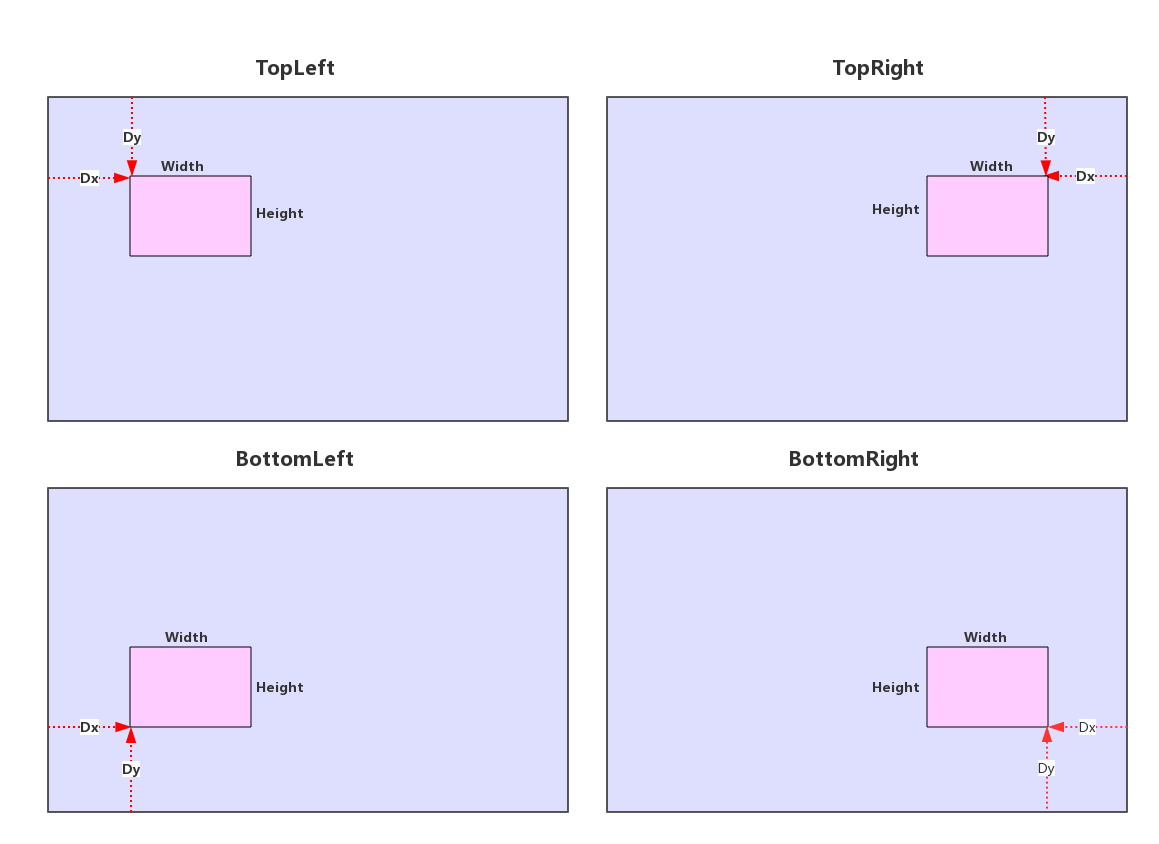
Text watermarks
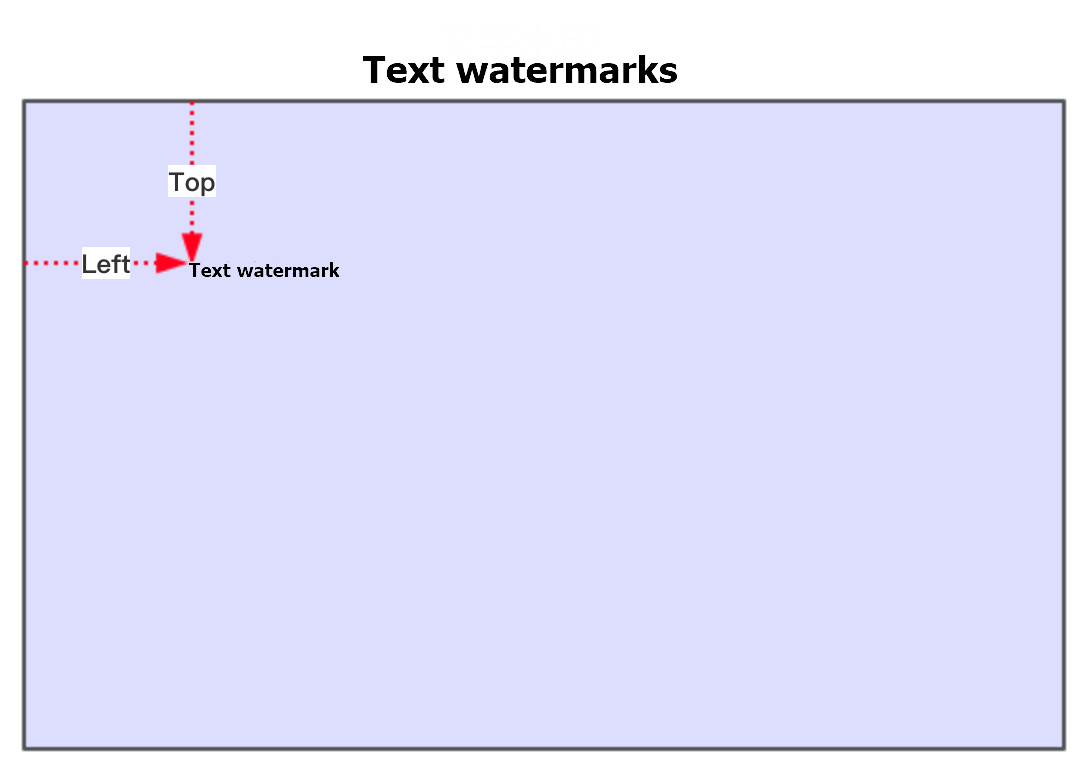
A text watermark's position is relative to the top-left corner of the output video. The offset is defined by the
TopandLeftparameters. These parameters only accept pixel values and do not support percentage-based values.API parameter
Console parameter
Description
Top
Vertical Shift
The distance from the top edge of the output video to the text watermark. Unit: pixels. Valid values: [8, 4096].
Left
Horizontal Shift
The distance from the left edge of the output video to the text watermark. Unit: pixels. Valid values: [8, 4096].
Diagram
Calculation methods
For image watermarks, the
Dx,Dy,Width, andHeightparameters can be specified as positive integers (pixels) or decimals (percentages). For text watermarks, theTopandLeftparameters only accept positive integers.Positive integers: Values are in pixels. Valid values: [8, 4096].
ImportantIf the specified parameter values exceed the dimensions of the output video, the watermark may be partially or completely hidden.
For example, if the output video resolution is 640×360, the reference position is
TopLeft,Dxis 4000, andDyis 4000, the watermark is not visible on the output video. This also applies to text watermarks.Percentage: A value relative to the width or height of the output video resolution. The value must be a decimal in the range of (0, 1) with up to four decimal places.
ImportantIf the aspect ratio of the output video is variable or unpredictable, we recommend that you set the watermark position and size parameters by using percentages.
Example: 0.9999. Calculation example:
Width / Video Width= 0.1,Height / Video Height= 0.06,Dx / Video Width= 0.02, andDy / Video Height= 0.03.
Default values
If you omit the width and height, the watermark width defaults to 12% of the output video's width, and the height is scaled proportionally based on the aspect ratio of the original watermark image.
If you specify only the width or height: The specified dimension is used, and the other dimension is scaled proportionally based on the aspect ratio of the original watermark image. For example, if you set
Widthto 44 and the original aspect ratio is 2:1,Heightwill be 22.If you specify both the width and height: The watermark dimensions are set to the specified values.
If you do not specify
DxandDy, the default value is 0.
Step 2: Create and associate a transcoding template group
Video watermarking is implemented through transcoding. Transcoding tasks are initiated based on transcoding template groups. You can associate multiple watermark templates with a single transcoding template.
Step 3 (Optional): Create and associate a workflow
You can arrange various media processing tasks, such as transcoding, content review, and snapshotting, into a workflow. When you trigger the workflow during media upload or processing, the media files are automatically processed according to the defined tasks. You can create workflows only in the console. For more information, see Workflows.
Step 4 (Optional): Configure event notifications
We recommend configuring event notifications for ApsaraVideo VOD before you start a transcoding task. This allows you to receive callback messages with the task's status and results. For information about how to configure event notifications, see Event notifications.
The following are the event notification types related to transcoding:
Step 5: Start a watermarking task
You can trigger transcoding in ApsaraVideo VOD during media upload or processing. You can start transcoding by using a transcoding template group or a workflow that contains a media transcoding node.
Step 6: View the results
Receive asynchronous notifications
If you have configured event notifications, you can obtain information about the watermarking and transcoding task by receiving callback messages for StreamTranscodeComplete or TranscodeComplete.
Perform synchronous queries
Usage examples
This section describes how to configure watermarks for common use cases by using the capabilities of ApsaraVideo VOD to set multiple watermarks and dynamically replace watermark content by using the API.
Dynamic text watermarks
Scenario
In short video applications, when users download or share another user's video, it usually includes the logo of the short video platform and the ID or nickname of the original creator.
Expected result
An image watermark and a text watermark are added. The content of the text watermark is different for each user.
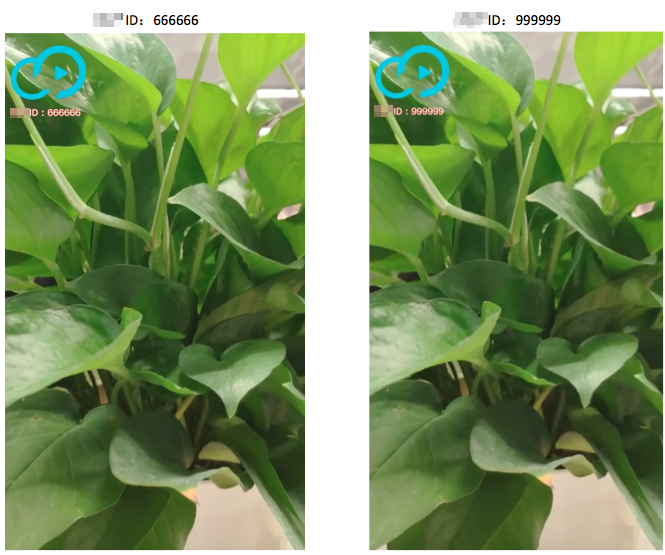
Procedure
Create two watermark templates: one image watermark template with the short video platform's logo as the watermark image, and one text watermark template with the original creator's ID or nickname as the watermark text. For more information, see Step 1: Create a watermark template.
Create a transcoding template group and associate the two watermark templates created in the previous step. For more information, see Step 2: Create and associate a transcoding template group.
You can override the text content of a specified watermark template by calling the Submit Media Transcoding Job API and passing the
WatermarkIdandContentin theOverrideParamsparameter.Example of passing parameters for
OverrideParams:{"Watermarks":[{"WatermarkId":"The template ID of the image watermark"},{"WatermarkId":"The template ID of the text watermark","Content":"The text content of the watermark"}]}You need to design the trigger logic for transcoding tasks based on your business requirements. For example, you can trigger transcoding when a user uploads a video and automatically replace the text watermark content with the original creator's ID or nickname.
Dynamic image watermarks
Scenario
A video website obtains the master copyright for a movie or TV show and then sub-licenses it to other video websites. In this scenario, videos distributed on each website must display that website's brand logo.
Expected result
An image watermark is used, and it is different for each video website.

Procedure
Call the CreateUploadAttachedMedia operation to upload the watermark images (the brand logos of each video website) to ApsaraVideo VOD. For more information about how to upload files, see Upload media files by using the ApsaraVideo VOD API.
Create an image watermark template and set the brand logo of the video website as the watermark image. For more information, see Step 1: Create a watermark template.
Create a transcoding template group and associate the image watermark template created in the previous step. For more information, see Step 2: Create and associate a transcoding template group.
By calling the Submit Media Transcoding Jobs API and passing the
WatermarkIdandFileUrlin theOverrideParamsparameter, you can override the watermark image of a specified watermark template.OverrideParamsparameter example:{"Watermarks":{"WatermarkId":"Replace with the ID of the image watermark template","FileUrl":"Replace with the URL of the replacement watermark image"}}You need to design the trigger logic for transcoding tasks based on your business requirements. For example, you can trigger transcoding when a video is uploaded.
SDK examples
For SDK examples related to watermark templates, see Manage video watermarks.
For SDK examples related to transcoding templates, see Manage transcoding templates.
For SDK examples related to transcoding tasks, see Manage transcoding tasks.
For SDK examples related to workflows, see Workflow jobs.
FAQ
"Invalid image URL" error when adding watermarks
If you have configured an accelerated domain name in ApsaraVideo VOD, you must configure an SSL certificate for the domain name. For more information, see Enable HTTPS secure acceleration.
Related documents
ApsaraVideo VOD also supports digital watermarks, which are invisible identifiers embedded into video content. Because they are imperceptible to the human eye and specially encoded to resist tampering, digital watermarks are a secure and reliable tool for copyright protection and piracy tracking. For more information, see Digital watermark.
To display a user's nickname or ID in real time during playback as a deterrent to infringement, use the marquee feature of the ApsaraVideo Player SDK. For more information, see Official components.