[Announcement] The impact of VIP isolation and custom ports on WAF CNAME configurations
This announcement covers two Web Application Firewall (WAF) 3.0 features — VIP isolation and custom listening ports — that may affect your CNAME onboarding setup. Review the affected scenarios below and verify your configuration to prevent service interruptions.
Impact summary
| Feature | Release date | Default behavior / affected configuration | Action required |
|---|---|---|---|
| VIP isolation | June 13, 2025 | Enabled by default for all new CNAME onboarding. DNS A record or Layer 7 proxy origin pointing to a WAF virtual IP address (VIP) may cause service interruptions. Existing configurations that do not use a CNAME record may be at risk. | Switch to CNAME record |
| Custom listening ports | May 16, 2024 | Mismatched listening port or origin port | Verify port configuration |
Key configuration checks
DNS resolution settings
When you use CNAME onboarding, WAF assigns a unique CNAME record to each protected domain. Point to this CNAME record — not the WAF VIP — in your DNS or Layer 7 proxy configuration. The VIP is not static: it can change when you enable or disable the exclusive IP address or intelligent load balancing features, or during a rare WAF service failure. Using a CNAME record ensures traffic is always routed to the correct backend, even if the VIP changes.
The following scenarios apply based on whether a Layer 7 proxy (such as CDN or Anti-DDoS Proxy) is deployed in front of WAF.
Without a Layer 7 proxy
| Scenario | Affected configuration | Impact |
|---|---|---|
| 1 | DNS A record points directly to the WAF VIP | Service interruption when the VIP changes |
| 2 | DNS record points to the CNAME of a different domain | DNS resolution fails, causing service disruption |
Fix: get the correct CNAME and update your DNS record
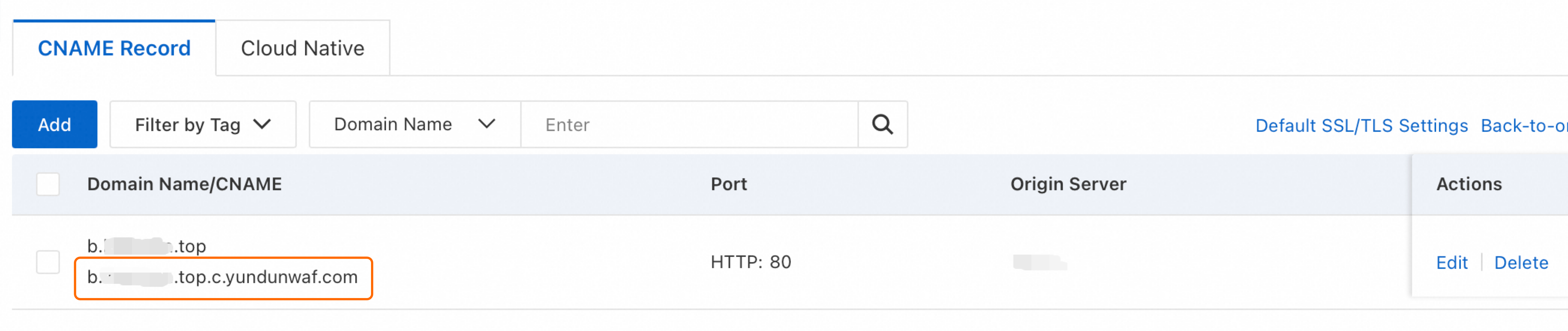
Log on to the WAF 3.0 console. In the top menu bar, select a resource group and a region (Chinese Mainland or Outside Chinese Mainland). In the left navigation pane, click Onboarding, then click the CNAME Record tab.
Find the target domain name and copy its CNAME record.
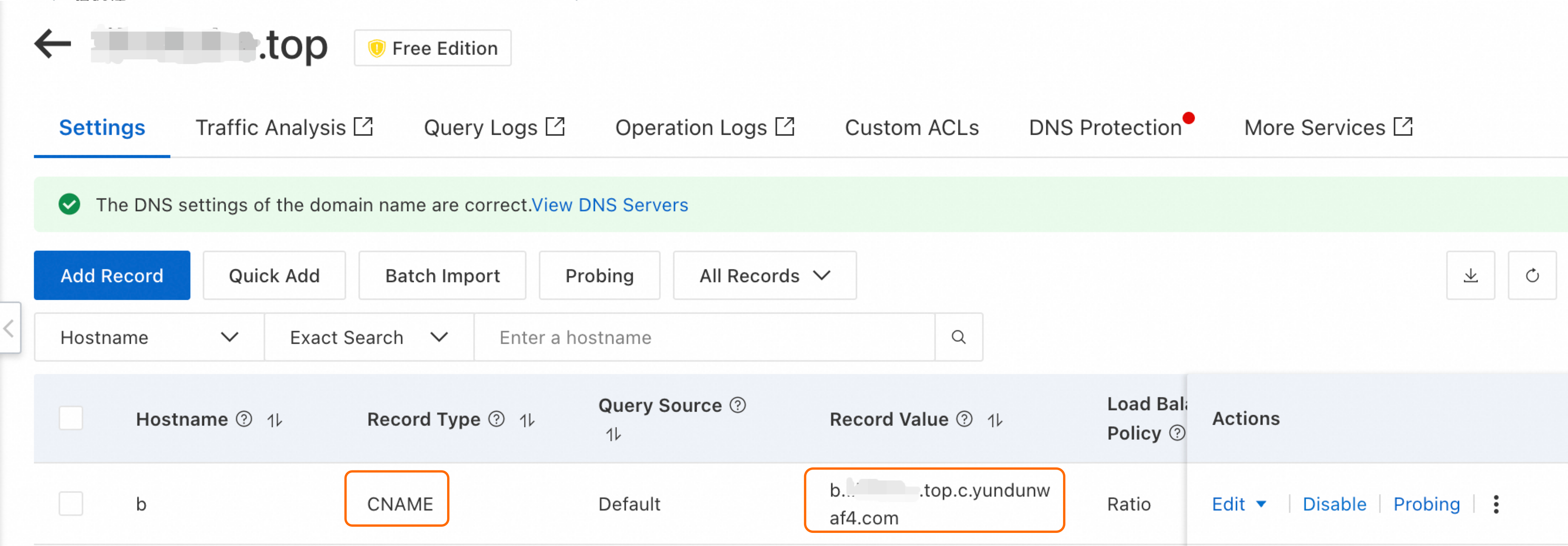
Log on to the Alibaba Cloud DNS console. On the Public Zone page, find the primary domain name, then locate the entry for the target hostname.
Note If the domain added to WAF iswww.aliyundoc.com, find the primary domainaliyundoc.comand check the entry where the hostname iswww.Verify that the record type is CNAME and the record value matches the CNAME you copied. If not, click Edit in the Actions column to correct it.
If you use a DNS provider other than Alibaba Cloud DNS, perform equivalent steps in that provider's console.
With a Layer 7 proxy
| Scenario | Affected configuration | Impact |
|---|---|---|
| 1 | Origin server address in the Layer 7 proxy is set to the WAF VIP | Service interruption when the VIP changes |
| 2 | Origin server address is set to the CNAME of a different domain | DNS resolution fails, causing service disruption |
Fix: get the correct CNAME and update your Layer 7 proxy
Log on to the WAF 3.0 console. In the top menu bar, select the resource group and region (Chinese Mainland or Outside Chinese Mainland). In the left navigation pane, click Onboarding, then click the CNAME Record tab.
Find the target domain name and copy its CNAME record.
Update the origin configuration in your Layer 7 proxy service. Follow the steps for your service below.
If you use a Layer 7 proxy from another provider, perform equivalent steps in their console.
Alibaba Cloud CDN
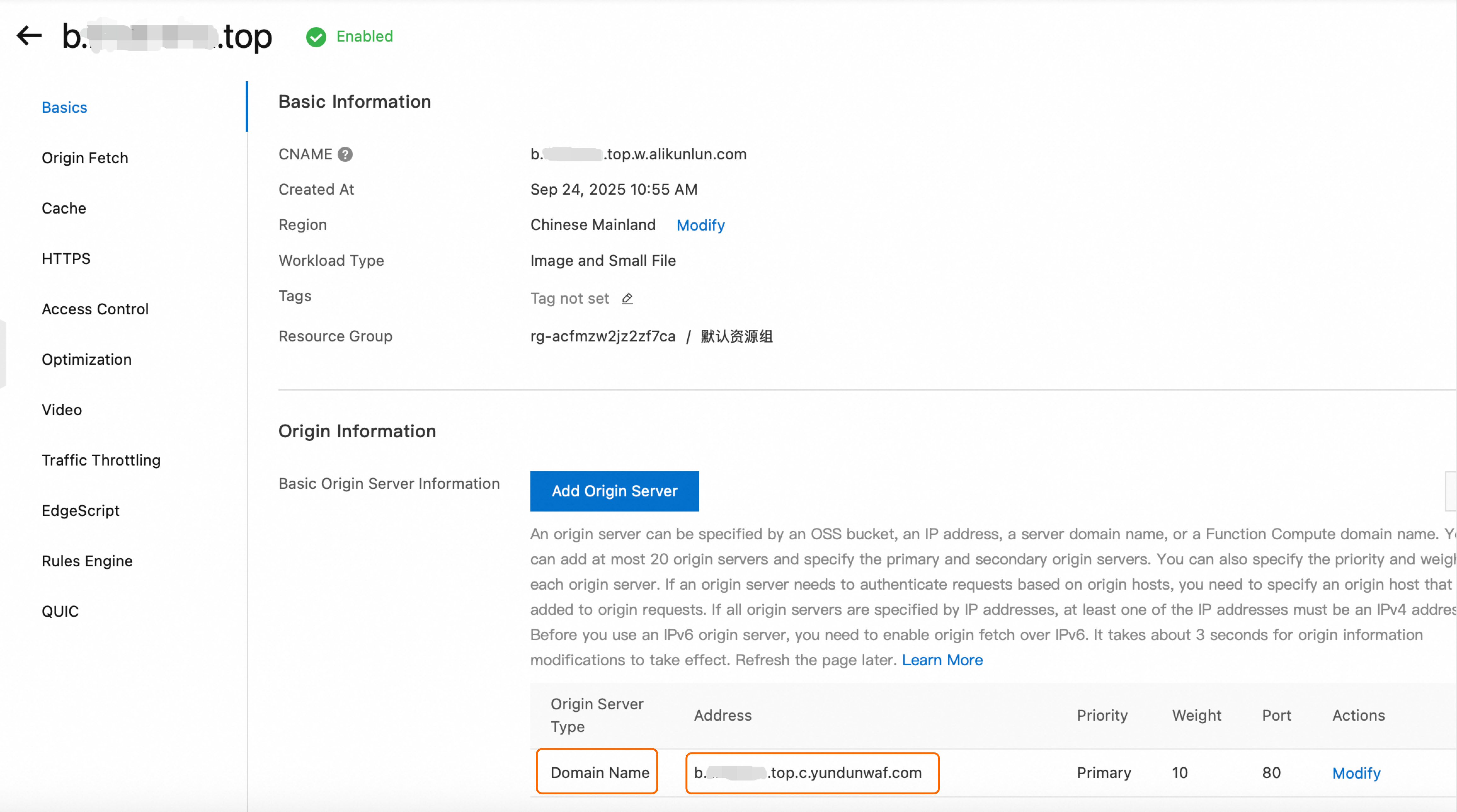
Log on to the CDN console. In the left navigation pane, click Domain Names. Find the domain name and click Manage in the Actions column.
In the Origin Information area, verify that Origin Type is Domain Name and Address matches the CNAME you copied. If not, click Modify in the Actions column to correct it.
Anti-DDoS Proxy
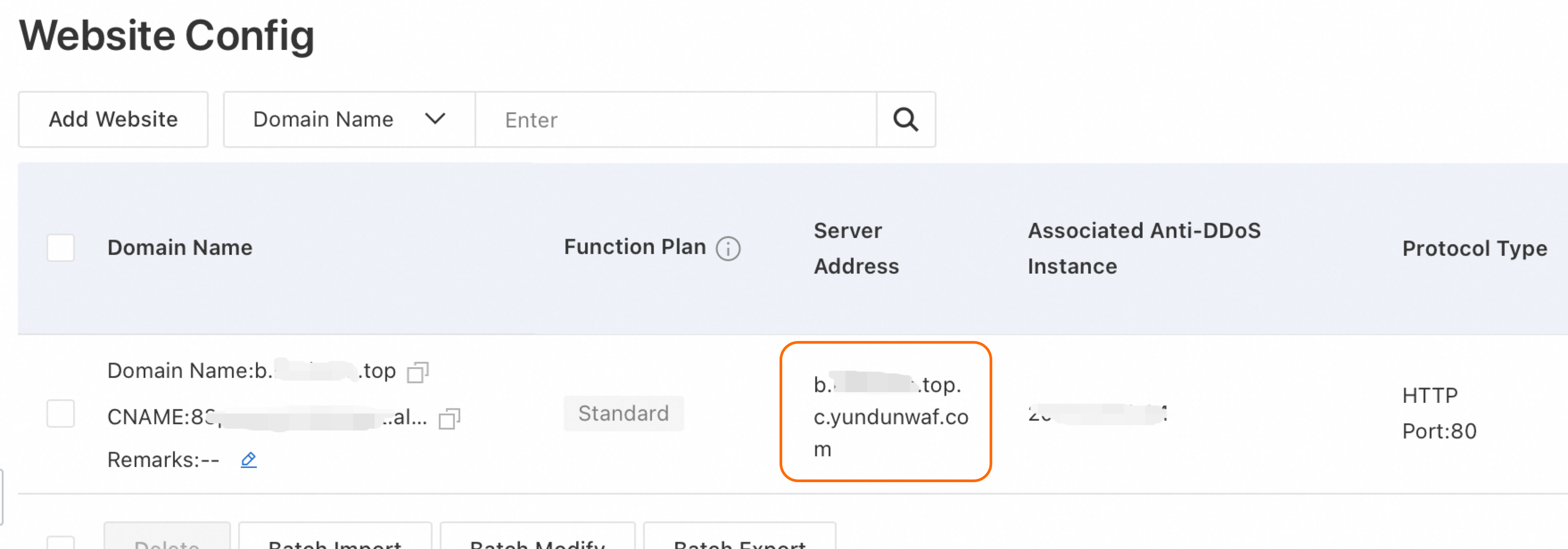
Log on to the Website Config page of the Anti-DDoS Proxy console.
In the upper-left corner, select the region that matches your Anti-DDoS Proxy product:
Anti-DDoS Proxy (Chinese Mainland): Select Chinese Mainland.
Anti-DDoS Proxy (Outside Chinese Mainland): Select Outside Chinese Mainland.
On the Website Config page, find the target domain name and verify that Server Address matches the CNAME you copied. If not, click Edit in the Actions column to correct it.
Listening port and origin port configuration
When using CNAME onboarding, the listening port and origin port serve distinct roles. An incorrect port configuration causes access failures.

| Port | Role | Must match |
|---|---|---|
| WAF listening port | The port WAF exposes to clients. For example, if set to 8080, clients access the service at http://example.com:8080. | Client-facing port requirement |
| WAF origin port | The port WAF uses to forward traffic to your origin server. | The origin server's actual service port |
| Origin service port | The port your origin server (ECS or Server Load Balancer (SLB)) is actually listening on. | WAF origin port |
The WAF listening port can differ from the WAF origin port. However, the WAF origin port must match the origin server's service port — otherwise traffic forwarding fails.
Check your origin port configuration:
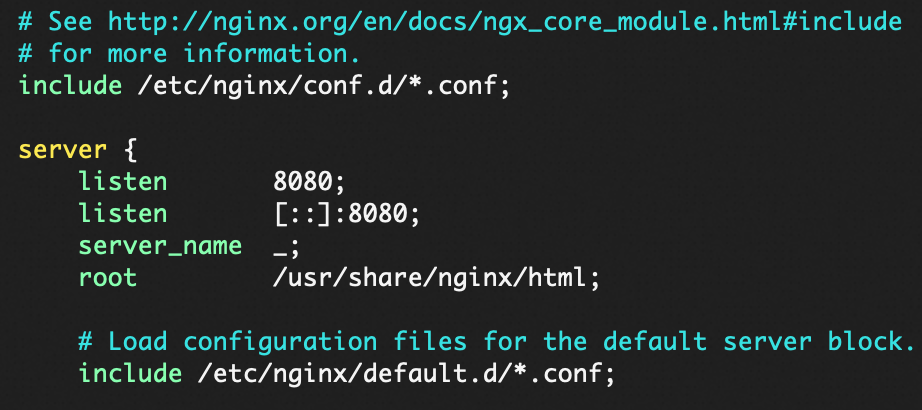
ECS origin: Verify that the listening port in your application config (for example, the
listendirective innginx.conf) matches the WAF origin port.
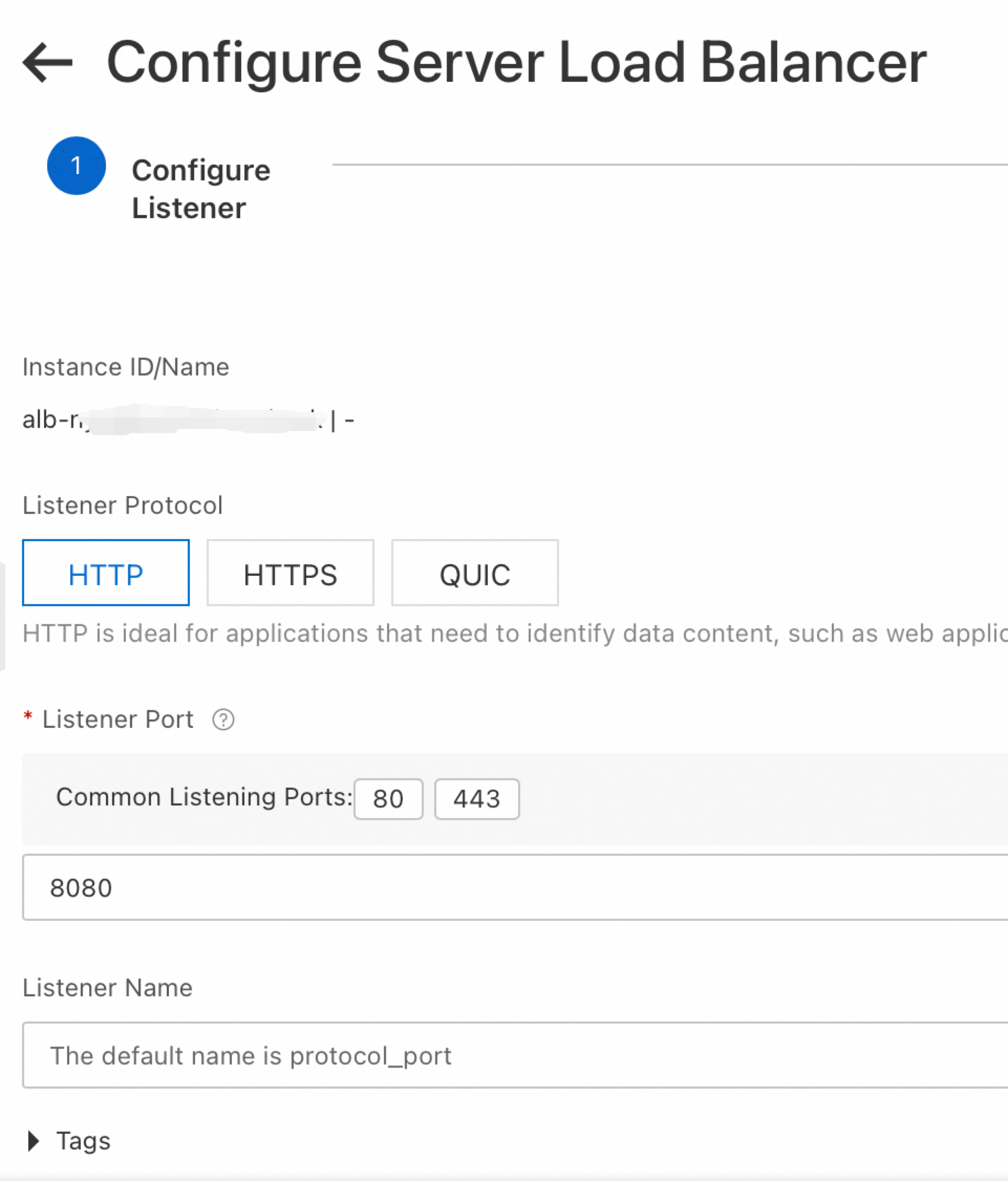
SLB origin: Verify that the SLB listener port matches the WAF origin port.
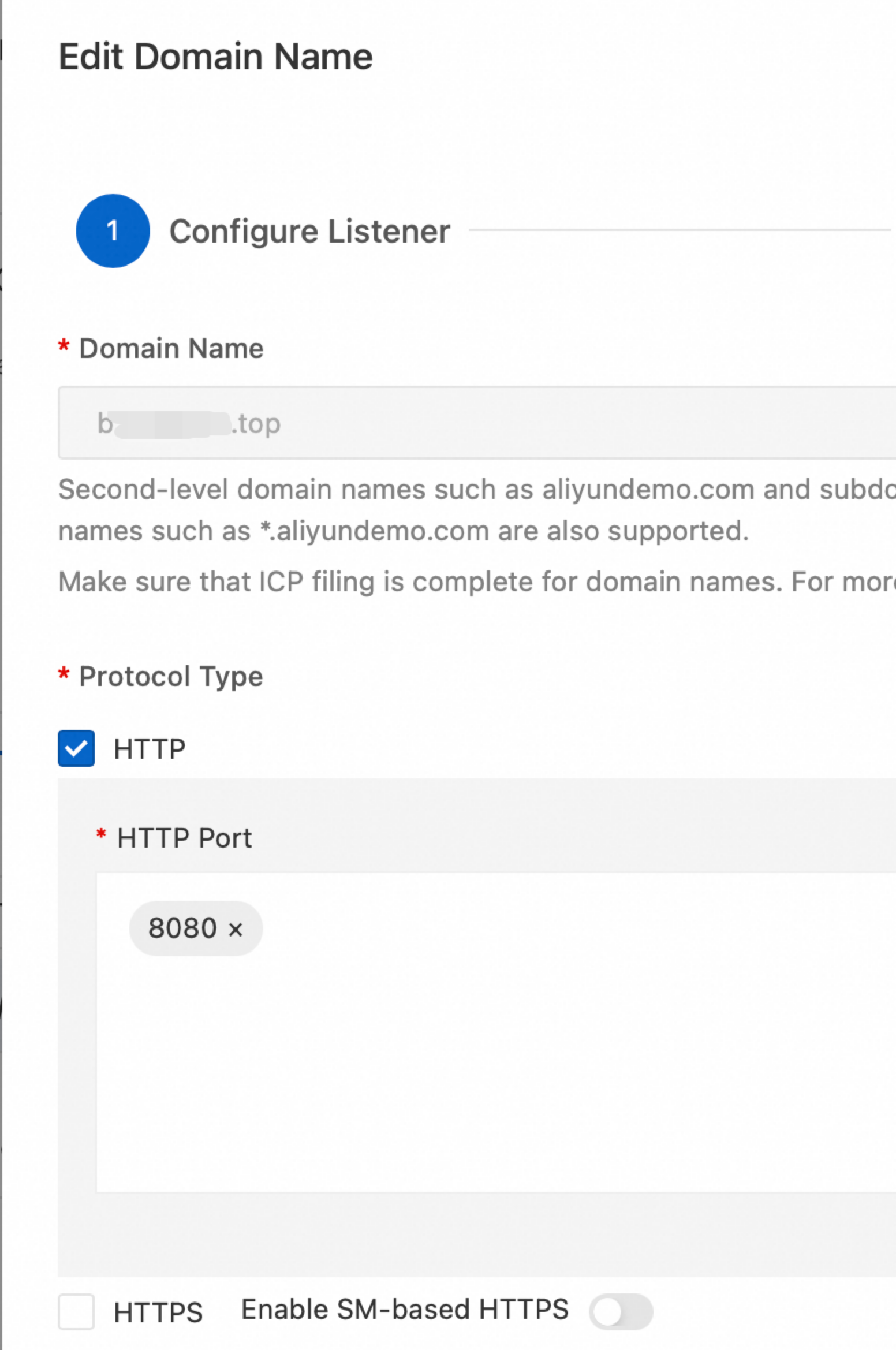
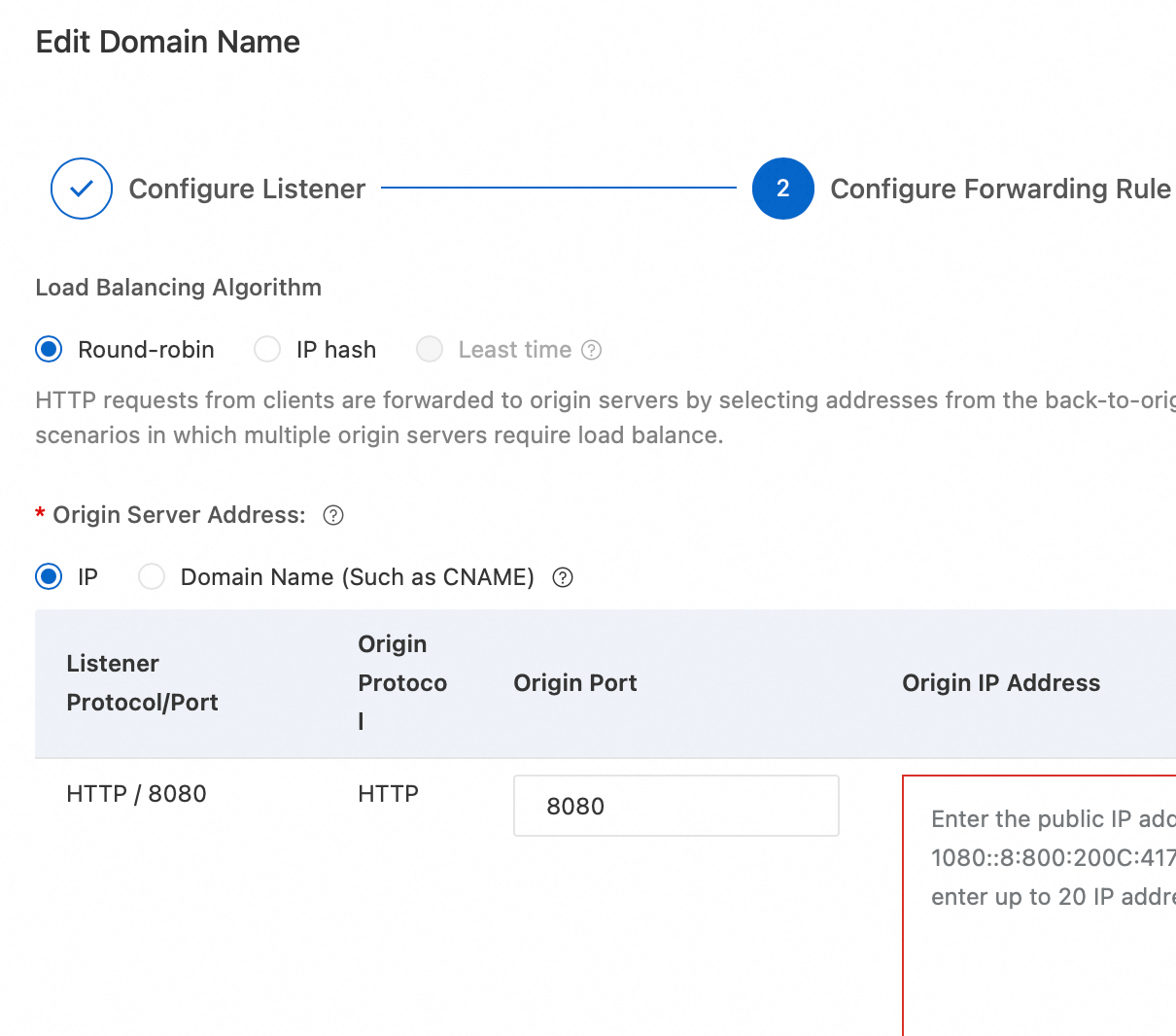
For the WAF listening port and WAF origin port settings in the console:
WAF listening port:
WAF origin port:
FAQ
What is a WAF VIP?
When you onboard a domain to WAF, the system assigns a dedicated VIP to handle incoming traffic for that domain. This VIP is not shared with other tenants. Because WAF provides high availability protection, the VIP is not tied to a specific physical device — it is part of the WAF cluster resources.
Within the same WAF instance, VIP assignment depends on which features are enabled:
No exclusive IP address or intelligent load balancing: all domain names share a single VIP.
Exclusive IP address enabled: each domain name gets an independent VIP.
Intelligent load balancing configured: all domain names share multiple VIPs.
Is the WAF VIP static?
No. The VIP can change when you enable or disable the exclusive IP address or intelligent load balancing features, or in the event of a rare WAF service failure.
Can I point my DNS A record to the WAF VIP?
No. When using CNAME onboarding, point your DNS record to the CNAME record provided by WAF — not to the VIP. The CNAME record automatically resolves to the correct backend IP, so your service stays online even if the VIP changes.