Query blocked requests
After your web services are connected to Web Application Firewall (WAF), you can use the Blocked Request Query page to look up block details by request ID. If you confirm that a blocked request is a legitimate business request, you can add a whitelist rule to allow the request, or adjust the related protection rules to optimize your policies.
Prerequisites
Your web services are connected to WAF: If you have not connected your services to WAF, see Overview.
You have obtained the request ID: When a request is blocked, the following default block page is displayed. Copy the request ID from this page to perform the query operation described in this topic.
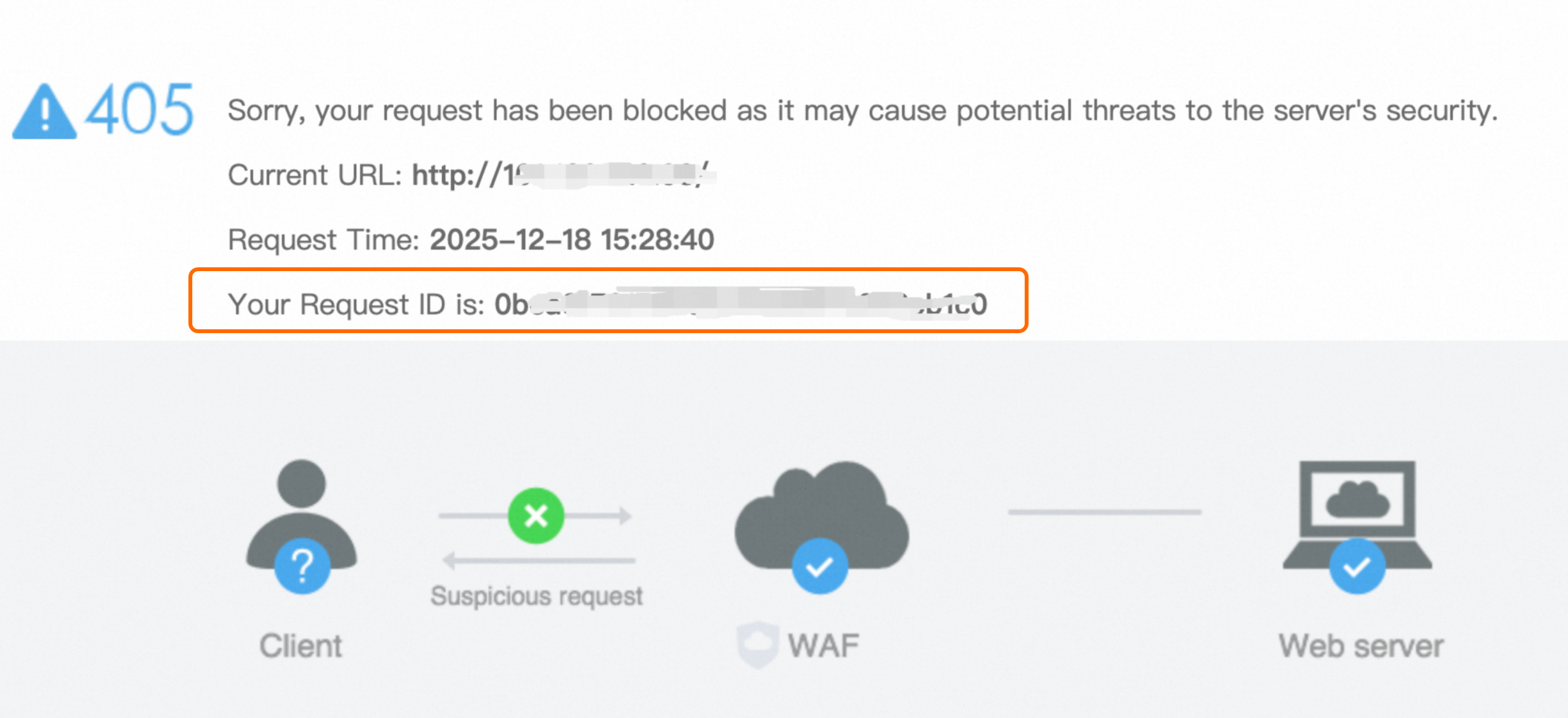
Query a blocked request
-
Log on to the Web Application Firewall 3.0 console. From the top menu bar, select the resource group and region (Chinese Mainland or Outside Chinese Mainland) for the WAF instance.
In the navigation pane on the left, choose
In the Blocked Request Query field, enter the request ID of the blocked request, and then click Query Now.
View the query results: The query results contain the following fields: Request ID, Access Time, Domain Name, Access URL, Protected Objects, Protection Module, Rule ID, Actions, Status Code, and Attacker IP Address.
Analyze the cause: If you determine that a legitimate business request was blocked by mistake, we recommend that you take the following actions based on your needs.
Configure a whitelist rule: Add a whitelist rule to allow the request to bypass all or specific Protection Module checks. For more information, see Whitelist.
Adjust protection rules: Identify the Protection Module and the specific rule that triggered the block, evaluate the appropriateness of the rule, and adjust it accordingly.
NoteIf the block was triggered by Core Protection Rule (system default rules), you can only enable or disable them. Custom modifications are not supported.
Follow the principle of least privilege for whitelisting. We recommend that you first configure a precise whitelist rule to skip only the specific rule, or switch the corresponding rule to observation mode for verification. Avoid disabling rules globally to maintain overall security protection.
In addition to the method described in this topic, you can also use Security reports to search for blocked requests by time period and configure whitelist rules with one click.