Application publish
The application publish feature deploys the website that you created with Wanxiaozhi to the cloud and makes it accessible over the Internet.
Usage notes
Edition purchase — You must purchase an edition before you publish for the first time.
Custom domain names — The Lite edition and higher editions support public network access through custom domain names. The Mini edition supports public network access only through a provided third-level domain name.
ICP filing — If your website is deployed in the Chinese mainland, the custom domain name that you bind must have completed ICP filing. Otherwise, the website cannot be accessed. The filing process usually takes 5 to 20 business days.
Initial publish
Before you publish a website for the first time, purchase an edition. After you complete the purchase, the website is automatically deployed and brought online.
Step 1: Initiate publishing
On the application preview page, make sure that you have saved the website content. Publishing is based on the content that you saved most recently.
Click Buy and Publish at the top of the page. The edition selection panel appears.
Step 2: Select an edition and configure the purchase
In the edition selection dialog box, compare the feature specifications of the editions and select the edition that suits your needs. The following table describes the applicable scenarios for each edition.
Edition
Scenarios
Mini edition
Showcase websites, such as OPC websites, personal blogs, and portfolio websites.
Lite edition
Official showcase websites, personal blogs, portfolio websites, and brand landing pages that require a formal launch.
Pro edition
Corporate websites and marketing pages that require independent back-office management.
Max edition
Websites for export-oriented or e-commerce businesses that require complete e-commerce payments.
You can click Edition Details to expand the complete feature list for each edition. For detailed specifications and pricing for each edition, see Billing.
Click Buy Now below the selected edition, and configure the purchase in the panel that appears at the bottom of the page.
Parameter
Description
Deployment location
Select the region where the website server is located based on your business needs:
The Chinese mainland: provides faster access, and is suitable when most visitors are in the Chinese mainland. The domain name that you bind must have completed ICP filing.
China (Hong Kong): does not require ICP filing, and is suitable for overseas visitors or domain names without ICP filing. Users in the Chinese mainland might experience higher latency.
NoteAfter purchase, you can upgrade from a Chinese mainland deployment location to a China (Hong Kong) deployment location. You cannot switch from China (Hong Kong) back to the Chinese mainland.
Subscription duration
You can select 1, 2, 3, or 5 years.
Quantity
The number of independent website instances that you want to purchase. In most cases, one instance is sufficient for one website.
After you confirm the configuration, the system displays the final price based on your selections.
Step 3: Confirm the order and pay
After you confirm the configuration, click Buy Now in the purchase panel.
The order confirmation page appears. Verify the product name, edition, deployment location, subscription duration, and fees.
Read and accept the Alibaba Cloud Intelligent Website Building Terms of Service.
Click Proceed to Payment to complete the payment.
Step 4: Complete publishing
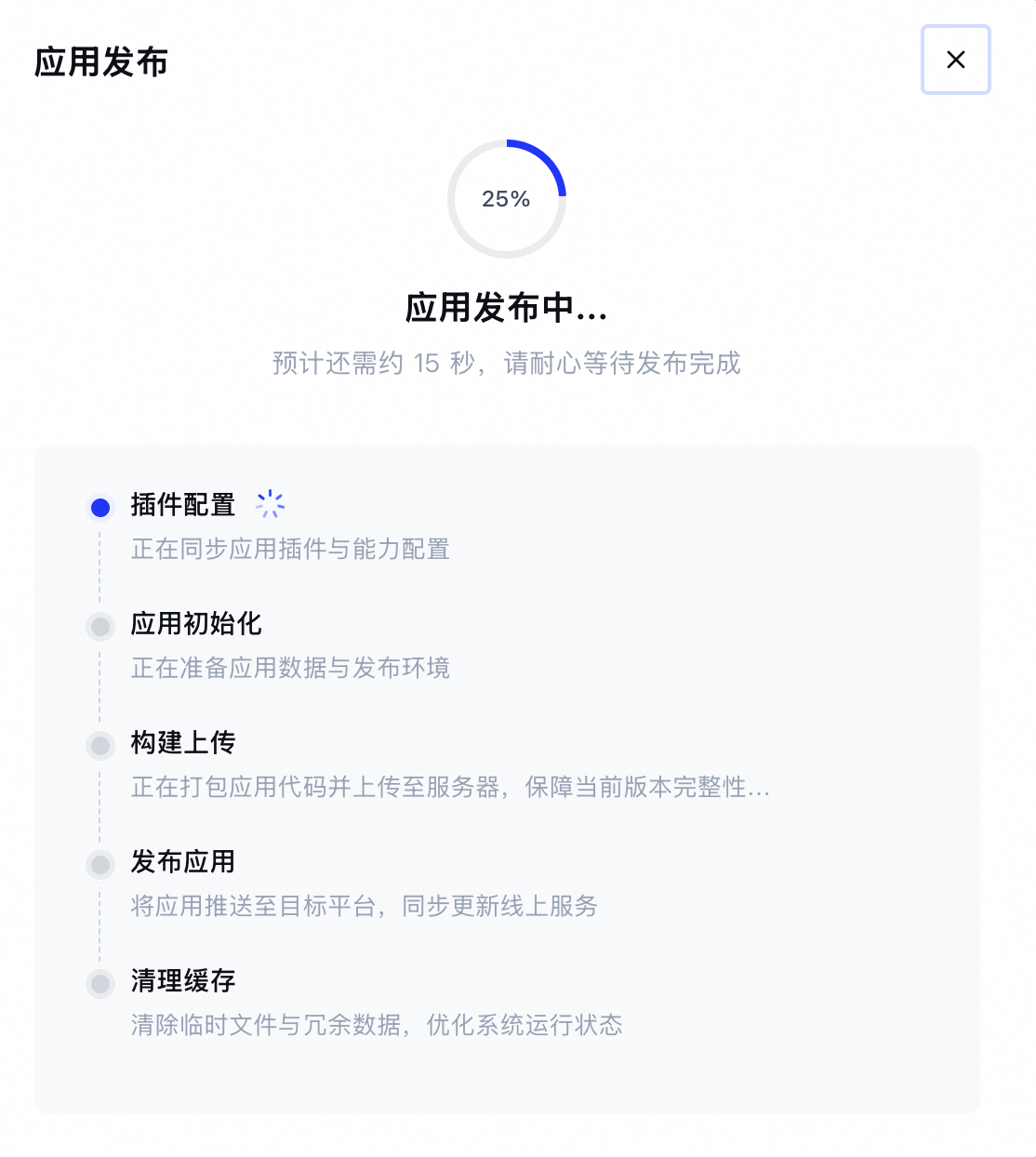
After the payment succeeds, the system automatically starts deploying your website.
Publishing process — Publishing usually takes 1 to 5 minutes. The page displays the publishing status. You can close the page, and the system sends a notification after publishing is complete.
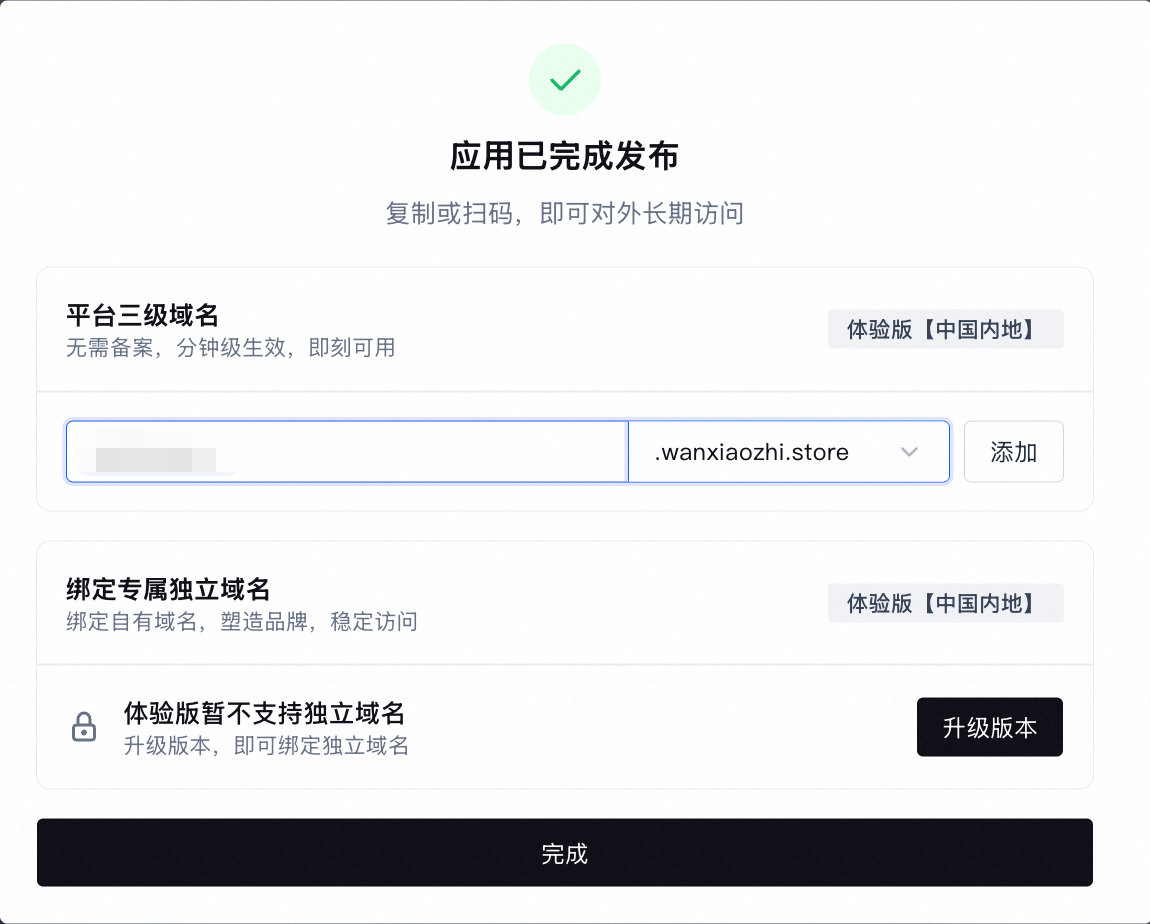
Publish successful:
Domain name — The Mini edition supports public network access only through a provided third-level domain name. To access the website over the public network through a custom domain name, upgrade to the Lite edition or a higher edition, then bind a custom domain name.
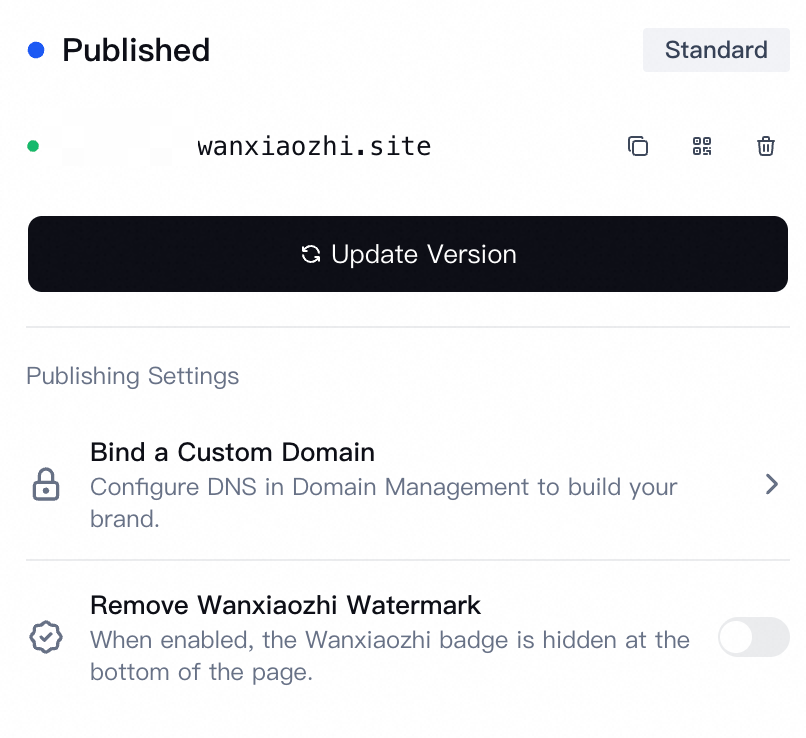
Watermark — The Mini edition displays the Wanxiaozhi logo in the lower-right corner of the webpage by default. You can remove it after upgrading.
Republish
After you purchase an edition, you can republish the website to save your changes whenever you modify its content.
On the application preview page, make sure that the edited content is correct.
Click Publish Application at the top of the page.
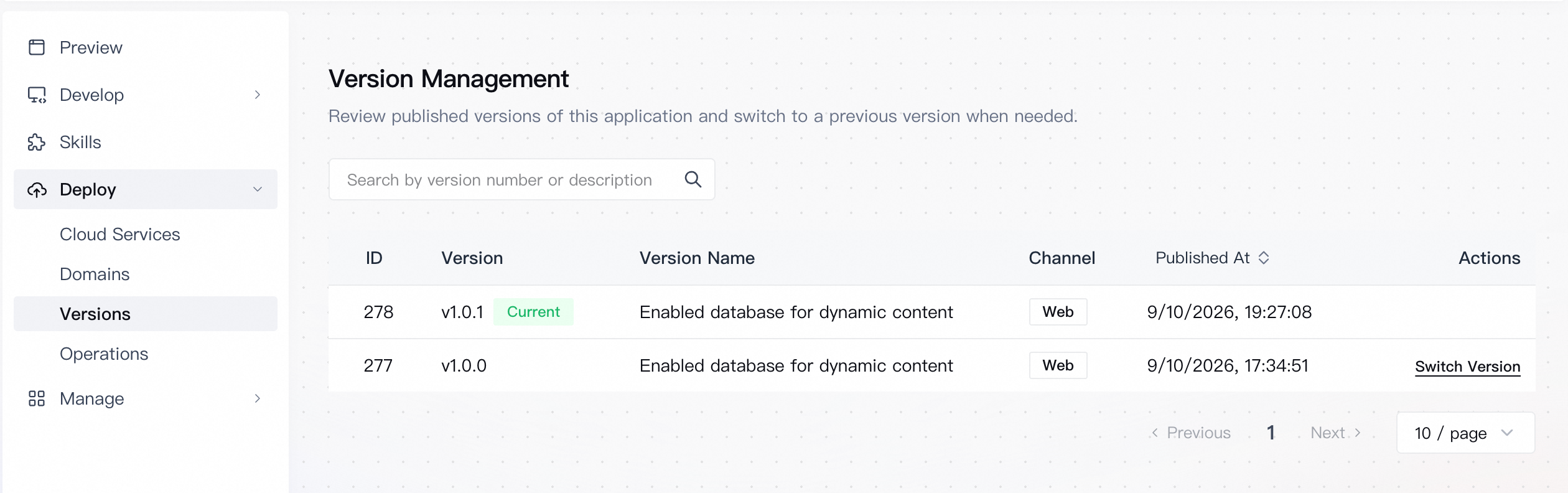
Each publish automatically generates a version record that you can view and manage in the publishing history.
Post-publish management
View publishing history and switch versions
In the left-side navigation pane, choose Deploy > Versions.
View the version list, which includes the version number, version name, and publishing time.
Click Switch Version on the right of the version that you want to restore.
Bind a custom domain name
After publishing, the website is not bound to a domain name and cannot be accessed over the Internet. Bind a custom domain name to make the website publicly accessible.
In the left-side navigation pane, choose Deploy > Domains.
Click Bind Domain, and enter your domain name.
Follow the on-screen instructions to add CNAME records with your domain name provider.
For detailed domain management instructions, see Domain management.
Websites that use a Chinese mainland deployment location must complete ICP filing before the domain name can be used for normal access.
Only the Lite edition and higher editions support public network access through custom domain names.