Identify and restrict external access using access analytics
Solution overview

Enterprises often grant external access to maintain business flexibility. For example, one Alibaba Cloud account might grant other accounts access to some of its cloud resources. Tracking these permissions promptly can be difficult for Operations and Maintenance (O&M) teams, which creates security risks. This solution uses the Access Analyzer service to help you identify resources with cross-account access permissions. You can then assess if the access is legitimate and restrict unnecessary external permissions. This improves security without affecting business collaboration.
Solution advantages
Continuously analyze and identify unintended resource sharing
Access Analyzer continuously monitors resource policies in your resource directory or current account. It generates findings for resources shared with external identities. This helps you identify unintended resource sharing and reduces security risks for your enterprise. Each finding includes information about the external identity and the permissions granted.
Unified analysis across multiple accounts
Access Analyzer supports unified access analysis in a multi-account environment that is built on a resource directory. All identities within the resource directory are considered trusted. This simplifies unified auditing and governance for your enterprise.
Support for automated workflows
You can use EventBridge to listen for and consume findings from Access Analyzer. When unintended resource sharing is found, you can automatically trigger your automation workflow to send alerts or perform remediation.
Customer scenarios
Unified monitoring and restriction of account access risks
Scenario description
Enterprises often need to grant access permissions to external accounts for business purposes. For example, a supplier may need to access cloud resources in an enterprise account. O&M teams want to continuously monitor and analyze external access permissions across all business accounts. Based on the findings, they can work with business teams to determine if the permissions are necessary. They can then restrict unneeded external access to reduce security risks.
Applicable customers
Enterprise customers who want to monitor external access risks in real time to promptly restrict and govern access permissions.
Identify and automatically remediate public access to OSS buckets
Scenario description
During daily cloud use, some OSS buckets might have unintended public access enabled due to a lack of control measures. This creates a risk of sensitive data leakage. Enterprises want to centrally monitor and identify these cases. They also want to automatically remediate them by disabling public access to the OSS buckets.
Applicable customers
Enterprise customers who use OSS and want to monitor and automatically remediate unintended public access to ensure data security.
Solution architecture
This solution uses access analytics to analyze and continuously monitor resource policies in your resource directory or current account. It generates findings for resources shared with external identities to help you identify unintended resource sharing. You can create an external access analyzer and set the analysis scope to your resource directory. All identities within the resource directory are considered trusted. Identities in accounts outside the resource directory are considered untrusted. The external access analyzer analyzes the Resource Access Management (RAM) roles and OSS buckets in all your accounts in real time. It determines if they are exposed to untrusted accounts outside your enterprise (Step 1 in the diagram). You can use EventBridge to listen for and consume the findings from access analytics (Steps 2 and 3). Based on the findings, you can promptly restrict unintended external access to reduce security risks (Step 4).

For the scenario of unintended public access to OSS buckets, you can use access analytics with Function Compute to automatically remediate buckets with public access. This prevents data breaches. When access analytics detects that an OSS bucket has public access enabled (Step 1), it automatically triggers a function in Function Compute through EventBridge (Steps 2 and 3). The function then automatically remediates the OSS bucket based on the finding and blocks public access (Step 4).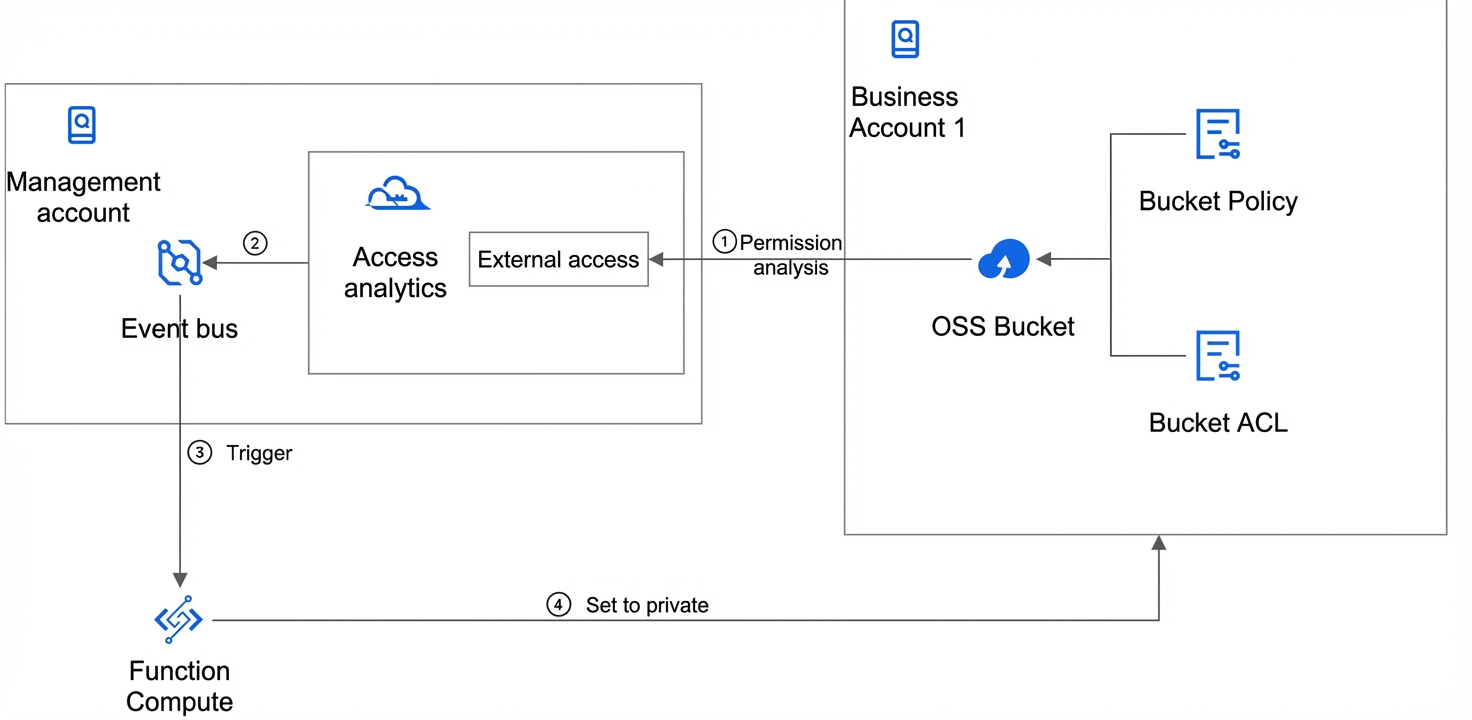
Product billing and terms
Product billing
Product Name |
Description |
Product pricing |
Resource Directory (RD) |
Resource Directory (RD) is a service that allows enterprise customers to manage multi-level account and resource relationships. |
Free |
EventBridge |
EventBridge is a serverless event bus service provided by Alibaba Cloud. It routes events between applications using the standardized CloudEvents 1.0 protocol. This helps you easily build loosely coupled, distributed, event-driven architectures. |
Free during public preview. For more information, see Product Billing. |
Resource Access Management (RAM) |
Resource Access Management (RAM) is an Alibaba Cloud service for managing user identities and resource access permissions. |
Free |
Function Compute (FC) |
Function Compute (FC) is a fully managed, event-driven computing service. |
Paid service. For more information, see Product Billing. |
Glossary
Name |
Description |
Management account |
In an enterprise with multiple Alibaba Cloud accounts, this is the administrator account with permissions to manage other accounts. It is used to manage multiple accounts, configure identity permissions, view bills, and apply audit rules to member accounts. |
Access policy |
A mechanism used to define and control the operations that a RAM role can perform and the resources it can access. Access policies can be system policies or custom policies. |
Bucket ACL |
OSS provides bucket-level access control. A bucket can have one of three access permissions: public-read-write, public-read, or private. Access to private resources requires authorization. For more information, see Access control. Only the bucket owner can change a bucket's permissions using the Put Bucket ACL operation. |
Bucket Policy |
OSS provides bucket policies for authorization. You can use a bucket policy to grant sub-accounts and other accounts access to specified OSS resources. |
Access analytics |
Analyzes policy documents (RAM role permissions, Bucket ACLs, and bucket policies) to determine if the account or resource directory has external access permissions. |
External access |
For a single Alibaba Cloud account, an OSS bucket or RAM role is considered to have external access if its authorization scope includes other accounts. For a resource directory, it is considered to have external access if its authorization scope includes accounts outside the resource directory. |
Public access to an OSS bucket |
An OSS bucket is considered to have public access if either of the following conditions is met:
|
Security
Use RAM for access control
If you use Function Compute with Access Analyzer to automate the handling of external access findings, you should use fine-grained access control for Function Compute. For more information, see Use RAM for access control.
Notes
Supported resource types for external access analyzers
OSS Bucket: For OSS buckets, the external access analyzer analyzes the bucket's Access Control List (ACL) and bucket policy. It combines this with the Block Public Access configuration to generate a final finding. If a bucket within the analysis scope (the trust zone) allows access from an entity outside the trust zone, including anonymous users, the analyzer generates an active finding for the bucket.
RAM Role: For RAM roles, the external access analyzer analyzes the role's trust policy. A trust policy is a resource-based policy specified when you create a RAM role. In the trust policy, you can specify the trusted entities that are allowed to assume the RAM role. If a RAM role within the trust zone allows access from an entity outside the trust zone, the analyzer generates an active finding for the role.
Region limitations for external access analyzers
An external access analyzer only analyzes resources in the region where the analyzer is located. To analyze resources in other regions, you must create an analyzer in each of those regions. Centrally deployed resources, such as RAM roles, can be monitored and analyzed by an analyzer in any region.
Automation template
Template introduction
Access Analyzer integrates with EventBridge. This lets you use EventBridge to receive findings from Access Analyzer and run your own automation programs to automatically remediate and process the findings. For the common scenario of unintended public access to OSS buckets, this solution uses Access Analyzer, EventBridge, and Function Compute to automatically block public access to OSS buckets. This prevents unintended public access, avoids enterprise data breaches, and promptly ensures data security. This solution provides a Terraform-based automation template to create RAM roles in batches for destination accounts in a resource directory and provides sample code for Function Compute.
Template address
For more information about the template, see the code repository.
Implementation steps
Preparations
If you perform multi-account access analysis based on a resource directory, you must enable Resource Directory and set up a multi-account architecture in advance. For more information, see Enable a resource directory.
To use EventBridge to notify your O&M team of access analysis findings or send them to your automated processing workflow, you must enable EventBridge in advance. For more information, see Activate EventBridge and grant permissions.
Implementation duration
After you complete the preparations, the estimated implementation time for this solution is 60 minutes.
Procedure
Create an external access analyzer
First, create an external access analyzer in the region where your resources are located. An external access analyzer only analyzes resources in the region where it is created. To analyze resources in other regions, create an analyzer in each of those regions. Centrally deployed resources, such as RAM roles, can be monitored and analyzed by an analyzer in any region.
Log on to the management account and use a RAM administrator to navigate to the RAM console. In the navigation pane on the left, choose Access Analytics > Analyzers.
In the top menu bar, select a region.
Click Create Analyzer. Enter a name for the analyzer. Set Analysis Type to External Access. Set the analysis scope. To analyze access for your entire organization, set Analysis Scope to Resource Directory. You can also select Current Account to analyze access only for the current account. The analysis scope is the analyzer's trust zone. The analyzer monitors supported resources within the trust zone and considers access from identities within the trust zone to be trusted. If the trust zone is Current Account, identities within this account are considered trusted, and identities in other accounts are considered untrusted. If the trust zone is Resource Directory, all identities in all accounts within this resource directory are considered trusted, and identities in accounts outside the resource directory are considered untrusted. Finally, click Create Analyzer.After the analyzer is created, it starts to detect external access to your resources. It may take some time for the findings to appear.
Configure EventBridge notifications (Optional)
You can send findings from Access Analyzer to your O&M team through channels such as email using EventBridge. This lets you discover unintended external access immediately and reduce security risks.
Log on to the management account and navigate to the EventBridge console. In the navigation pane on the left, choose Event Buses.
In the top menu bar, select a region. This region must be the same as the region where you created the external access analyzer in the previous step.
In the Cloud Service Event Buses section, click Create Rule.
Enter a rule name and configure the basic information. Then, click Next to configure the event pattern.
Set Event Source Type to Alibaba Cloud service event source.
Set Event Source to acs.accessanalyzer.
Set Event Type to accessanalyzer:ExternalAccess:Finding.
In the Pattern Content section, you can further filter events. The following example filters for active access analysis findings (findings that are not archived or deleted).
{
  "source": [
    "acs.accessanalyzer"
  ],
  "type": [
    "accessanalyzer:ExternalAccess:Finding"
  ],
  "data": {
    "status": [
      "Active"
    ],
    "isDeleted": [
      false
    ]
  }
}
Then, click Next to configure the event target. You can use channels such as email or DingTalk to receive external access risk events promptly.
View and handle external access
Log on to the management account and navigate to the RAM console. In the navigation pane on the left, choose Access Analytics > Analyzers. Select the external access analyzer that you created in the previous steps to open the analyzer details page.
Select the Findings tab to view the external access findings. In this example, a RAM role that can be assumed by an external account and an OSS bucket that allows read and write access from an external account were created.
The RAM role can be assumed by an external account through its trust policy.
The OSS bucket allows read and write access from an external account through its bucket policy.
The external access analysis generates the following findings.
You can also navigate to the Findings page to view the findings from all analyzers.
Click a finding ID to open the details page for that specific finding. You can view details such as whether it is public, the external identity, the access operations, and the access conditions.
For each finding, you can perform the following actions:
For resource sharing that is intended, click Archive Finding to archive it.
For resource sharing that is unintended, click Go to Remediate (for resources in the current account) or Copy Resource URL (for resources not in the current account) to navigate to the corresponding page for remediation.
For a RAM role, navigate to the details page of the role and switch to the Trust Policy tab. Modify the trust policy to remove the authorization for the unintended external account.
For an OSS bucket, navigate to the access control page for that bucket. If you used a bucket ACL to set the OSS bucket to public-read or public-write, or if the policy contains semantics that imply public access, you can navigate to the Block Public Access tab and enable Block Public Access with one click. If you used a bucket policy to grant access to certain external users, modify the bucket policy to remove the authorization for the unintended external accounts.
Automatically block public access to OSS buckets using Function Compute (Optional)
Access Analyzer integrates with EventBridge. This lets you use EventBridge to receive findings from Access Analyzer and run your own automation programs to automatically remediate and process the findings. For the common scenario of unintended public access to OSS buckets, this solution uses Access Analyzer, EventBridge, and Function Compute to automatically block public access to OSS buckets. This prevents unintended public access, avoids enterprise data breaches, and promptly ensures data security.
First, log on to the management account and create an external access analyzer as described in the "Create an external access analyzer" section. This example uses multi-account access analysis with the analysis scope set to a resource directory. For multi-account access analysis with the analysis scope set to a resource directory, you need to perform cross-account resource operations for automatic remediation. Here, we use cross-account role assumption to perform the cross-account remediation.
Create a RAM role for the function
You need to create a RAM role to attach to the Function Compute instance in the following steps. This role is referred to as the function RAM role. This avoids exposing plaintext access keys in the function code and reduces the risk of access key leakage. If you have already created this role, you can skip this step.
Log on to the RAM console using the management account.
In the navigation pane on the left, choose Identity Management > Roles.
On the Roles page, click Create Role.
On the Create Role page, set Trusted Entity Type to Alibaba Cloud Service, and then click Next.
Set Role Type to Service Role. Enter a Role Name and Note. This example uses the role name
AccessAnalyzerFcRole. Set Trusted Service to Function Compute. Click Done.
After you create the function RAM role, it has no permissions. You must grant permissions to this RAM role. The function RAM role needs to assume a remediation RAM role in other business accounts. Therefore, it must have at least the AliyunSTSAssumeRoleAccess permission. We recommend that you also attach the AliyunLogFullAccess permission for logging and tracking. For more information, see Grant permissions to a RAM role.
Use ROS to create remediation RAM roles in batches across accounts
You can use an ROS template and a stack group to create RAM roles in batches for destination accounts in your resource directory. This RAM role (referred to as the remediation RAM role) is assumed by the function RAM role created in the previous step. It is used to remediate OSS buckets that have public access enabled in its own account.
Create a delegated administrator account
Using a delegated administrator account separates organization management tasks from business management tasks. The management account performs organization management tasks for the resource directory, while the delegated administrator account performs business management tasks for ROS. This aligns with security best practices. Next, set the shared service account or operations account of the resource directory as the delegated administrator account. This account will act as the ROS administrator to deploy stacks to member accounts.
Log on to the Resource Management console using the management account.
In the navigation pane on the left, choose Resource Directory > Trusted Services.
On the Trusted Services page, find the Resource Orchestration Service (ROS) service and click Manage in the Actions column.
In the Delegated Administrator Account section, click Add.
In the Add Delegated Administrator Account panel, select a member (the shared service account).
Click OK. After the account is added, use this delegated administrator account to access the multi-account management module of the corresponding trusted service. You can then perform management operations within the scope of the resource directory.
Enable trusted access
After you enable Resource Directory, you must enable trusted access to grant service-managed permissions when you use the management account or a delegated administrator account of the resource directory to create a stack group in service-managed permissions mode. Both the management account and the delegated administrator account must have trusted access enabled.
Log on to the Resource Orchestration Service console using the management account and the shared service account (delegated administrator) separately.
In the navigation pane on the left, click Stack Groups.
On the Stack Groups page, click Enable Trusted Access in the upper-right corner.
Create required roles in batches
Log on to the Resource Orchestration Service console using the shared service account.
In the navigation pane on the left, click Stack Groups.
In the region drop-down list in the top menu bar, select the region where the stack group is located.
On the Stack Groups page, click Create Stack Group.
In the Select Template section, select Select an Existing Template.
Set Template Import Method to Enter a Template and set Template Content to Terraform.
In the upper-right corner of the content text box, select the option to open an on-premises folder.
Select the deployment code that you downloaded to your computer, and then click Next.
Enter a Stack Group Name and Stack Group Description. On the Configure Template Parameters page, fill in the required parameters, and then click Next.
Parameter
Description
Name of the role
The name of the roles to be created in batches. This example uses the name
AccessAnalyzerAssumeRole.Name of the policy
The name of the access policy to attach to the role.
Policy document
The content of the access policy to attach to the role.
Trusted account for the role
The account that is allowed to assume this role. If you leave this blank, it defaults to the current account.
Roles that the trusted account can assume
The name of the role in the trusted account that is allowed to assume this role. This is the name of the function RAM role created in the "Create a RAM role for the function" section. Make sure this role already exists in the trusted account. Otherwise, the creation will fail.
For the policy document in this scenario, you can enter the following policy content. This ensures that the role has the permission to block public access to OSS buckets.
{
  "Version": "1",
  "Statement": [
    {
      "Effect": "Allow",
      "Action": [
        "oss:PutBucketPublicAccessBlock"
      ],
      "Resource": [
        "*"
      ]
    }
  ]
}
On the Configure Stack Group page, select Service-managed permissions, and then click Next.
On the Set Deployment Options page, set Deployment Targets to the folder of the destination accounts in the resource directory. Also, enable Automatic Deployment.
Fill in information such as Region, Resource Group, Tags, and Deployment Options as needed. For more information, see Parameter description. Then, click Next.
On the Review and Confirm page, review the stack group information. If everything is correct, click Create Stack Group.
After the creation is complete, navigate to the details page of the stack group and select the Instances tab. You can view the status of the instances. A status of Latest indicates that the roles have been created in the business accounts.
Deploy the function in Function Compute
You can use EventBridge to automatically trigger the execution of a function in Function Compute. In the management account, you can use Function Compute to centrally remediate all OSS buckets that have public access enabled in all business accounts. The following steps use Function Compute 2.0. If you are using Function Compute 3.0, make adjustments as described in Feature updates in Function Compute 3.0 and compatibility with Function Compute 2.0.
Log on to the management account and navigate to the Function Compute console. In the navigation pane on the left, choose Services and Functions.
In the top menu bar, select a region. This region must be the same as the region where you created the external access analyzer in the previous steps.
Create a function service. The service role must be the function RAM role that you created in the "Create a RAM role for the function" section.
In the function service, create a function. Select Create with Built-in Runtime.
Set Handler Type to Process Event Request.
Set Function Runtime to Java 8.
Set Code Upload Method to upload code using a JAR package. You can download the sample code from the code repository, package it into a JAR file using the
mvn -U clean packagecommand, and upload it to the function code package section.In the Advanced Configuration section, change Handler to
org.example.Main::handleRequest.In the Environment Variables section, add the following two environment variables:
REGION: Enter the ID of the region where the current function is located.
ASSUME_ROLE_NAME: The name of the RAM role to be assumed across accounts. This is the name of the remediation RAM role created in the "Use ROS to create remediation RAM roles in batches across accounts" section. This example uses
AccessAnalyzerAssumeRole.In the Trigger Configuration section, make the following configurations:
Set Trigger Type to
acs.accessanalyzer.Set Event Type to Custom Event Type to filter event types. Select
accessanalyzer:ExternalAccess:Finding.For Event Pattern Content, enter the following content to filter for events related to unprocessed OSS bucket resources that have public access enabled.
{
    "source": [
        "acs.accessanalyzer"
    ],
    "type": [
        "accessanalyzer:ExternalAccess:Finding"
    ],
    "data": {
        "resourceType": [
            "ACS::OSS::Bucket"
        ],
        "isPublic": [
            true
        ],
        "status": [
            "Active"
        ],
        "isDeleted": [
            false
        ]
    }
}
Click Create to create the function. Now, when an OSS bucket with public access is created in your account, the external access analyzer will trigger the execution of the function in Function Compute through EventBridge. The function will then remediate the OSS bucket based on the pushed event information and block its public access.
Troubleshooting
Why can't I use the service-managed permissions mode in ROS?
If you use a member account of a resource directory to perform business management tasks for ROS, you must set the member account as a delegated administrator account. This account will act as the ROS administrator to deploy stacks to other member accounts. For more information about ROS delegated administrators, see Set a delegated administrator account.
After you enable Resource Directory, you must enable trusted access to grant service-managed permissions when you use the management account or a delegated administrator account of the resource directory to create a stack group in service-managed permissions mode. For more information about trusted access, see Enable trusted access.
Why does the function execution fail?
If the runtime is Java and you receive the error Cannot find the class example.App in your zip file and please make sure it is in the right path 'example/App', confirm that the format of Configuration > Runtime > Handler is [package].[class]::[method]. For example, if the current value is org.example.Main::handleRequest, the handleRequest function in the Main class of the org.example package will be executed when the function is triggered.
For more information about common issues with FC, see FC Service Support.