Advanced learning materials
This topic describes how to use advanced Git commands and techniques.
Create custom shortcut commands
Git provides an alias feature to simplify command input. You can use the git config command to set an alias for any command. The following examples show how to create aliases:
# Set co as an alias for checkout.
git config --global alias.co checkout
git config --global alias.br branch
git config --global alias.ci "commit -s"
git config --global alias.st status
For example, you can enter git ci instead of the longer git commit -s. As you use Git more, you will find other commands that you use often. You can create aliases for them. For example, to unstage a file, you can add an unstage alias:
git config --global alias.unstage 'reset HEAD --'The following two methods remove a file from the staging area:
# Method 1: Works for single or multiple files.
git reset HEAD -- fileA
# Method 2: Git does not have a direct unstage command, but you can simplify the operation with an alias.
git unstage fileA
You can use git last instead of git log -1 HEAD to view the most recent commit.
git config --global alias.last 'log -1 HEAD'This lets you easily see the last commit information:
# This command configures a global alias named last for Git. Each time you enter git last, it displays the most recent commit information.
git last
commit 66938dae3329c7aebe598c2246a8e6af90d04646 Author: Josh Goebel  <dreamer3@example.com> Date:   Tue Aug 26 19:48:51 2008 +0800      test for current head      Signed-off-by: Scott Chacon <schacon@example.com>
Merge and rebase code
In Git, there are two main ways to integrate changes from different branches: merge and rebase.
Merge
Consider two branches, as shown in the following figure:
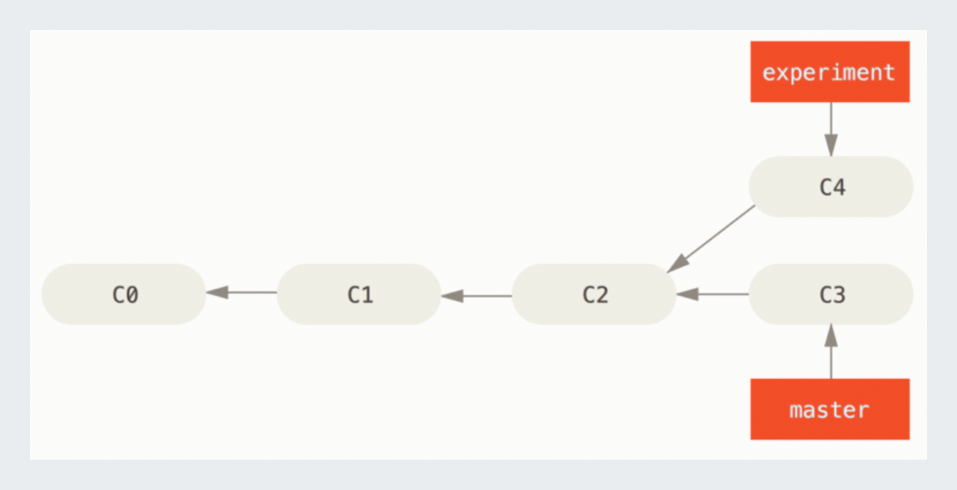
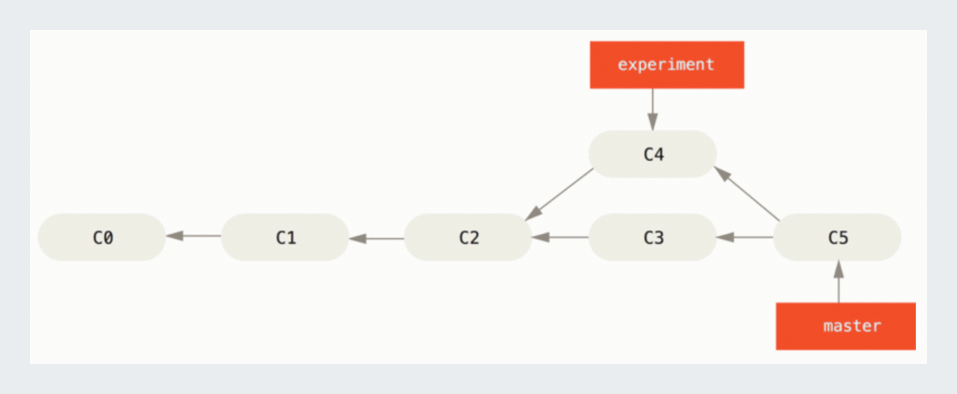
The merge command performs a three-way merge between the latest snapshots of the two branches (C3 and C4) and their common ancestor (C2). This creates a new snapshot and a new commit.
Rebase
Rebasing takes the patches and changes introduced in C4 and applies them on top of C3. In Git, this operation is called a rebase. You can use the rebase command to move all commits from one branch onto another.
In the preceding example, run the following command:
git checkout experiment
git rebase master
First, rewinding head to replay your work on top of it...
Applying: added staged command
The rebase process finds the nearest common ancestor of the two branches, `experiment` and `master`, which is C2. It saves the changes from each commit on the current branch as temporary files. Then, it resets the current branch to the target base C3 and applies the saved changes.
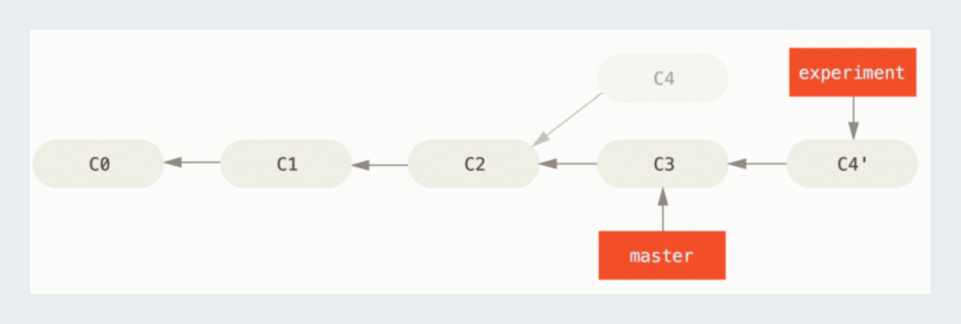
Now, you can switch back to the master branch and perform a fast-forward merge.
# Switch to the master branch of the Git repository.
git checkout master

# Merge the current branch into the checked-out branch. Before you run git merge, make sure you have switched to the target branch for the merge.
git merge experiment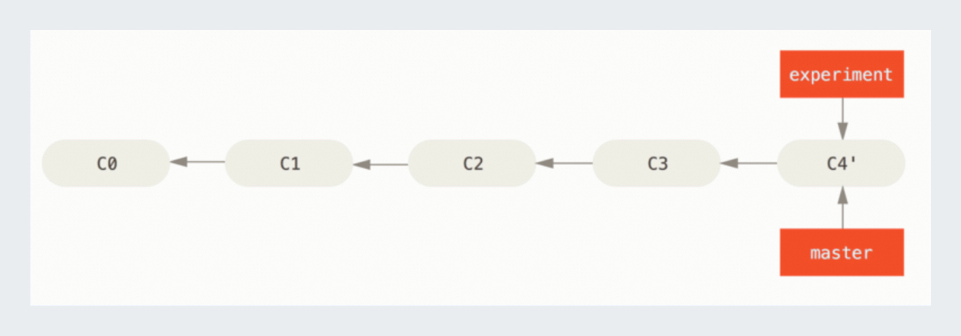
Merge branch code and commit cleanly
Compared to merging, rebasing creates a cleaner, linear commit history, which makes it a popular choice. Rebasing not only merges code cleanly but also lets you modify the commit history. With rebase, you can combine multiple local development commits before you integrate them into the target branch. This makes the history clearer.
Stash code
When you are working on a project, you might need to switch branches but do not want to commit your unfinished work. In this case, you can use the git stash command.
Save changes
The git stash command saves your unfinished changes to a stack. You can reapply them later. For example, you can go to the project to view previously changed files.
git status
Changes to be committed:
(use "git reset HEAD <file>..." to unstage)
modified:   index.html
Changes not staged for commit:
(use "git add <file>..." to update what will be committed)
(use "git checkout -- <file>..." to discard changes in working directory)
modified:   lib/simplegit.rb
Now, you want to switch branches but do not want to commit. You can run git stash or git stash save.
git stash
Saved working directory and index state \
"WIP on master: 049d078 added the index file"
HEAD is now at 049d078 added the index file
(To restore them type "git stash apply")
The working directory is now clean, and the changes that you just made are gone:
git status
# On branch master nothing to commit, working directory clean
View the stash list
To see what you have stashed, you can use the git stash list command.
git stash list
stash@{0}: WIP on master: 049d078 added the index file
stash@{1}: WIP on master: c264051 Revert "added file_size"
stash@{2}: WIP on master: 21d80a5 added number to log
Application staging
In this example, there are two previous stashes, so you have three different stashed changes. You can reapply the changes that you just stashed using the command suggested in the original `stash` command's help message: git stash apply.
If you want to apply an older stash, you must specify it by name, such as git stash apply stash@{2}. If you do not specify a stash, Git assumes that you mean the most recent one.
git stash apply
# On branch master
# Changed but not updated:
#   (use "git add <file>..." to update what will be committed)
#
#      modified:   index.html
#      modified:   lib/simplegit.rb #
You can see that Git has reapplied the files that were reverted when you stashed them. You can also run git stash pop to apply the stash and then remove it from the stack.
Drop a stash
You can run git stash drop followed by the name of the stash that you want to remove.
git stash list
stash@{0}: WIP on master: 049d078 added the index file
stash@{1}: WIP on master: c264051 Revert "added file_size"
stash@{2}: WIP on master: 21d80a5 added number to log
git stash drop stash@{0}
Dropped stash@{0} (364e91f3f268f0900bc3ee613f9f733e82aaed43)
Create a branch from a stash
If you stash some work, you might have conflicts when you reapply it later. You can run git stash branch to create a new branch. This command checks out the commit where you stashed your work, reapplies your work, and then drops the stash if the stash is applied successfully.
git stash branch testchanges
Switched to a new branch "testchanges"
# On branch testchanges
# Changes to be committed:
#   (use "git reset HEAD <file>..." to unstage)
#      modified:   index.html

# Changed but not updated:
#   (use "git add <file>..." to update what will be committed)
#      modified:   lib/simplegit.rb # Dropped refs/stash@{0} (f0dfc4d5dc332d1cee34a634182e168c4efc3359)
This is a great way to easily restore stashed work on a new branch and continue working.
Modify code history
When you use Git, you can modify your commit history. This includes changing the order of commits, their messages, and their files. You can also squash, split, or remove commits.
Modify the last commit
The most common operation is modifying the last commit. You might want to change the commit message or update files. If you only want to change the last commit message, the process is simple.
git commit --amendTo refine a commit message or modify a committed snapshot, you can enter the text editor to change the last commit message, and then save and close the editor. If you have already committed but forgot to add a file, you can use git add or git rm to modify the files, and then run git commit --amend to update the snapshot. Note that amending changes the commit's SHA-1 checksum. This is similar to a small rebase. Do not amend commits after you have pushed them.
Modify multiple commit messages
To modify older commits, you need to use more advanced tools. Git does not have a tool to directly modify history, but you can use an interactive rebase instead. With the git rebase -i command, you can stop after any commit to modify its message, add files, or make other changes. To modify the last three commits, pass HEAD~3 as an argument to the git rebase -i command. Note that this argument refers to the fourth most recent commit, and the rebase applies to the three commits that came after it.
git rebase -i HEAD~3Note that these commits are shown in reverse order from the standard `log` command. For comparison, the output of a `log` command is similar to the following.
git log --pretty=format:"%h %s" HEAD~3..HEAD
a5f4a0d added cat-file
310154e updated README formatting and added blame
f7f3f6d changed my name a bit
The rebase script replays each commit from a specified starting point, such as `HEAD~3`. To stop at a specific commit and modify it, edit the script and change the command for that commit from pick to edit.
For example, to adjust only the third commit:
edit f7f3f6d changed my name a bit
pick 310154e updated README formatting and added blame
pick a5f4a0d added cat-file
When you save and exit the editor, Git returns you to the command line and displays the following message.
git rebase -i HEAD~3
Stopped at f7f3f6d... changed my name a bit
You can amend the commit now, with
         git commit --amend
Once you’re satisfied with your changes, run
         git rebase --continue
These instructions provide the required steps.
git commit --amendChange the commit message and exit the editor. Then, run the following command:
git rebase --continueThis command automatically applies the other two commits, completing the process. If you change `pick` to `edit` for more than one commit, you need to repeat these steps for each commit. Each time, Git will pause, allow you to amend the commit, and then continue until the process is complete.
To reshape your commit history, use the rebase command. Note that this operation completely rewrites the commits in the HEAD~3..HEAD range. The key points are as follows:
Rewriting commits: Rebasing not only modifies content but also rewrites commit information.
Avoiding conflicts: Do not modify commits that have already been pushed. This can cause conflicts in the version history.
Editor operation: After you run the command, a text editor opens and displays the list of commits to be rewritten.
pick f7f3f6d changed my name a bit  # Use this commit.
pick 310154e updated README formatting and added blame
pick a5f4a0d added cat-file
# Rebase 710f0f8..a5f4a0d onto 710f0f8
#
# Commands:
#  p, pick = use commit
#  r, reword = use commit, but edit the commit message
#  e, edit = use commit, but stop for amending
#  s, squash = use commit, but meld into previous commit
#  f, fixup = like "squash", but discard this commit's log message
#  x, exec = run command (the rest of the line) using shell
#
# These lines can be re-ordered; they are executed from top to bottom.
#
# If you remove a line here THAT COMMIT WILL BE LOST.
#
# However, if you remove everything, the rebase will be aborted.
#
# Note that empty commits are commented out
Reorder commits
You can also use an interactive rebase to reorder or completely remove commits. If you want to remove the "added cat-file" commit and change the order of the other two commits, you can change the rebase script from this:
pick f7f3f6d changed my name a bit
pick 310154e updated README formatting and added blame pick
a5f4a0d added cat-file
to this:
pick 310154e updated README formatting and added blame
pick f7f3f6d changed my name a bit
When you save and exit the editor, Git takes your branch back to the parent of these commits, applies `310154e`, and then applies `f7f3f6d`. You have effectively changed the order of those commits and completely removed the added cat-file commit.
Squash commits
With the interactive rebase tool, you can also squash a series of commits into a single commit. The script in the rebase information provides helpful instructions.
# Commands:
#  p, pick = use commit
#  r, reword = use commit, but edit the commit message
#  e, edit = use commit, but stop for amending
#  s, squash = use commit, but meld into previous commit
#  f, fixup = like "squash", but discard this commit's log message
#  x, exec = run command (the rest of the line) using shell
#
# These lines can be re-ordered; they are executed from top to bottom.
#
# If you remove a line here THAT COMMIT WILL BE LOST.
#
# However, if you remove everything, the rebase will be aborted.
#
# Note that empty commits are commented out
If you specify squash instead of pick or edit, Git applies the changes from both commits and merges their commit messages. So, if you want to make these three commits into one, you can change the script as follows.
pick f7f3f6d changed my name a bit squash
310154e updated README formatting and added blame squash
a5f4a0d added cat-file
When you save and exit the editor, Git applies all three changes and then opens an editor for you to merge the three commit messages.
# This is a combination of 3 commits.
# The first commit's message is: changed my name a bit
# This is the 2nd commit message:  updated README formatting and added blame
# This is the 3rd commit message:  added cat-file
After you save the message, you will have a single commit that contains all the changes from the previous three commits.
Split a commit
Splitting a commit undoes the commit. Then, you can partially stage and commit the changes multiple times until you have the desired number of commits. For example, suppose you want to split the middle of three commits. You want to split it into two commits: the first is updated README formatting and the second is added blame, instead of the original updated README formatting and added blame. You can do this by changing the rebase -i script. Change the instruction for the commit that you want to split to edit.
pick f7f3f6d changed my name a bit edit
310154e updated README formatting and added blame pick
a5f4a0d added cat-file
Then, when the script brings you to the command line, you can reset that commit, take the reset changes, and create several commits from them. When you save and exit the editor, Git takes you to the parent of the first commit in the list, applies the first commit (f7f3f6d), applies the second commit (310154e), and then brings you to the command line. There, you can perform a mixed reset for that commit with git reset HEAD^. This undoes that commit and leaves the modified files unstaged. Now, you can stage and commit the files until you have several commits. When you are done, run git rebase --continue:
git reset HEAD^
git add README
git commit -m 'updated README formatting'
git add lib/simplegit.rb
git commit -m 'added blame'
git rebase --continue
Git applies the last commit (a5f4a0d) in the script, and your history looks like the following:
git log -4 --pretty=format:"%h %s"
1c002dd added cat-file
9b29157 added blame 35cfb2b updated README formatting
f3cc40e changed my name a bit
As a reminder, if you are about to push commits to a shared repository, pause. The SHA-1 checksums of all commits in the list have changed. To ensure data integrity and avoid conflicts, you must confirm that these commits have not already been pushed to the shared repository.