AppStack application delivery vs. Flow pipeline
This document focuses on application deployment scenarios for small teams and larger organizations.
Background
Traditional DevOps platforms provide a comprehensive toolchain, but their high degree of flexibility can make it difficult for medium-to-large development teams to enforce standards. The AppStack Application Delivery platform addresses this challenge. AppStack provides the following capabilities:
-
Enterprises host their engineering assets in code repositories and artifact repositories, using branch protection and artifact promotion to enforce code and artifact standards.
-
They use pipeline tools to create separate pipelines for different development stages, such as development, testing, and production. Each pipeline defines specific steps like unit testing, code scanning, and automated scans.
-
Finally, enterprises define these code repositories, artifact repositories, and pipelines as templates. New teams can then create resources from these templates, thereby establishing development standards.
While existing collaboration tools often meet the needs of small teams, they can be too flexible to support standardized development practices in larger organizations. The AppStack Application Delivery platform is built on the Flow pipeline tool. AppStack extends Flow with additional capabilities designed to help large teams establish and maintain development standards.
Application as the main entry point
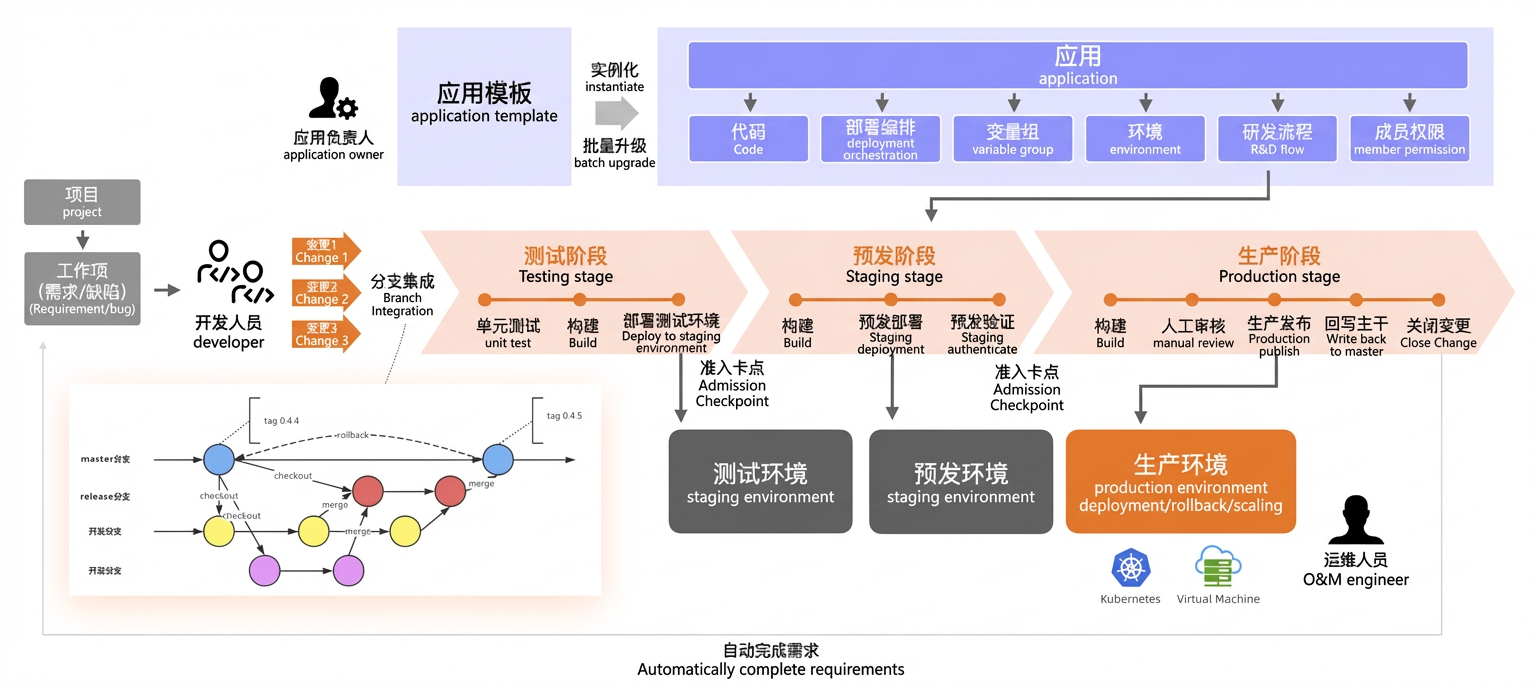
An application is an independently deployable unit that provides a service. In the development phase, it typically corresponds to one or more functional modules and is associated with a code repository. At runtime, it often corresponds to a microservice. AppStack organizes all related assets around an application, including code, configurations, teams, environments, the deployment process from development to production, and additional governance policies. Each application is assigned to a team that manages its entire lifecycle, including development, testing, deployment, and operations.
Pipeline orchestration by application and environment
Pipelines are commonly organized in two ways:
-
Some tools, like Jenkins and Alibaba Cloud DevOps Flow, treat each pipeline as an independent entity that users must manually organize into groups and label.
-
Other tools, such as GitLab and Travis CI, associate pipelines with a specific code repository, allowing each repository to define its own pipeline.
As a team scales, both approaches present challenges. First, a large number of pipelines becomes difficult to manage. Second, it is hard to maintain a one-to-one mapping between pipelines and code repositories, especially when a large repository (a monorepo) contains code for multiple applications, or when the path from commit to deployment involves multiple stages with different cadences. This often forces teams to make compromises.
AppStack introduces a different approach: organizing pipelines by application. This is more than just grouping multiple pipelines under an application; it makes the pipeline an integral part of the application itself. Because the pipeline's code repository is unique to the application, it prevents the pipeline from affecting other applications. At the same time, AppStack unifies application deployment and allows for global control through templates. This enables administrators to embed release gates and quality checks directly into the pipeline, which they then manage to ensure safe and controlled releases.
On the AppStack development process page, pipelines are organized by environment into three tabs: Testing phase, Pre-production phase, and Production phase. Within each tab, the pipeline is displayed in columns showing steps such as Pipeline source, Test, Build, and Deploy. The left-side navigation bar centralizes management by grouping Pipeline, Environment, and Deployment order under the same application.
Multi-environment management, deployment observability, and version control
Deploying a service to production requires validation across multiple environments. In cloud-native infrastructure, resources within an environment change frequently. For example, auto-scaling can add or remove instances at any moment. The deployment process must abstract away these environmental differences and the frequently changing infrastructure. When executing a deployment, the operator only needs to specify the target environment by its unique name, without needing to know details about its internal state. The platform automatically dispatches the deployment request to the appropriate K8s cluster or instances within that environment and executes it.
AppStack provides a unified, application-centric view for managing multiple environments. It associates environments with resources like K8s clusters, instances, or other cloud resources. A standardized AppStack Deploy component in the pipeline abstracts environmental differences and automates the application CI/CD process.
The application environment management page displays environments as cards: Testing environment, Pre-production environment (status: Not Deployed), Production environment, Canary environment (status: Running), and Daily development environment (status: Abnormal, highlighted in red). Each environment card shows the creator, environment tags, deployment status, and current version number, and includes a Deploy now button. In the upper-right corner, click the New environment button to create an environment.
AppStack supports rolling updates and phased releases, provides real-time deployment status, and maintains a unified deployment version history to enable quick rollbacks.
On the deployment order details page, a progress area shows the completion status of each batch, such as the readiness percentage for Batch 1 and Batch 2. A hierarchical diagram of Deployment → ReplicaSet → Pod visualizes the readiness status and creation time of each pod. The page provides Rollback, Pause, Resume, and Terminate buttons in the upper-right corner. The status legend includes four indicators: Ready (green), Deploying (blue), Abnormal (red), and Pending/Destroyed (gray).
In the Deployment version list, each entry includes the deployment version number, artifact, orchestration version, environment, deployment order, and creation details. The success or failure status of each deployment order is also shown. Clicking Rollback allows a user to select a specific deployment version and use its artifact and orchestration to roll back the corresponding environment.
Application management at scale with templates
With the rise of microservices and cloud-native technologies, a single business system is often composed of multiple microservice applications. Across multiple business lines, this can amount to dozens or hundreds of applications and thousands of pipelines. Typically, only one or two operations engineers or architects are responsible for managing these application configurations, which creates a significant management and maintenance burden.
AppStack provides application templates, allowing enterprises to define standard technology stacks and deployment architectures. When a new application is needed, a user can simply select a template to create and initialize its configuration with a single click.
On the New application page, enter the Application name (a unique identifier that cannot be changed after creation). Select Create from template, and then choose the target template from the list (for example, Basic Service Go Template). After setting the Owner and Description, click Create application to finish.
Additionally, you can apply updates from an application template to all associated applications in bulk. Common scenarios include:
-
An application stability project requires all services to integrate with monitoring and logging. This involves adding a SkyWalking Sidecar container to the application deployment for log collection and reporting. Administrators can modify the deployment YAML in the application template and then sync the changes to all associated applications.
On the Orchestration configuration page, enable the sync switch in the upper-right corner to apply the updated deployment YAML to all associated applications in bulk. The text next to the switch, such as Sync 0/4, indicates that 0 out of 4 associated applications are currently synced.
-
Your enterprise introduces a new security scanning capability, and the security team requires using the scan results as a release gate: applications that fail the scan cannot be released. Administrators can enforce this policy by modifying the development process in the application template and syncing the changes to all associated applications.
On the Development process configuration page, enable the Sync switch in the upper-right corner (for example, showing Sync 0/3) to apply the modified process configuration to the associated applications.