Build clusters
Pipelines rely on a build cluster for tasks like code compilation and packaging. Flow provides managed public build clusters to help you quickly start your CI/CD process. You can also connect your own server resources to create self-hosted build clusters, which provide the flexibility to meet custom requirements for different business scenarios.
Build cluster comparison
|
Public build cluster |
Managed VPC build cluster |
Self-hosted build cluster |
|
|
Instance source |
Provided by Alibaba Cloud DevOps |
Provided by Alibaba Cloud DevOps |
Provided by the user |
|
Region coverage |
China (Beijing), China (Hangzhou), China (Hong Kong) |
China (Shanghai), China (Beijing), China (Shenzhen), China (Hangzhou) |
Depends on the user's hosts |
|
Operating system |
Linux |
Linux |
Linux/Windows/macOS |
|
Network connection |
Must connect over the public network to access resources such as code repositories, image repositories, artifact repositories, cloud hosts, and Kubernetes clusters. |
Supports both public network and private VPC connections, depending on the user's VPC settings. |
Depends on the user's host network settings. |
|
Elasticity |
Supports auto scaling. When multiple pipeline tasks run in parallel, each task has an independent container environment. |
Supports auto scaling. When multiple pipeline tasks run in parallel, each task has an independent container environment. |
No elasticity. Concurrent tasks may fail due to limited host resources. |
|
Specifications |
Multiple specifications are available: 1-core, 2-core, 4-core, 8-core, and 16-core. |
Multiple specifications are available: 1-core, 2-core, 4-core, 8-core, and 16-core. |
Not configurable. Depends on the user's host specifications. |
|
Billing method |
Billed based on pipeline core-minutes with a calculation factor of 1. For example, a 1-core instance running for 1 minute consumes 1 core-minute. |
Billed based on pipeline core-minutes with a calculation factor of 0.8. For example, a 1-core instance running for 1 minute consumes 0.8 core-minutes. |
Does not consume pipeline core-minutes. Self-hosted instances are not available on the Basic plan. |
Migration scenarios
During the migration from the central site to a region site, choose a build cluster based on your migration progress. The billing methods in the preceding table apply to each option.
-
Stay on the central site: If you rely on the default public build clusters in China (Beijing), China (Hangzhou), and China (Hong Kong), keep your pipelines on the central site. These clusters are pre-configured by Alibaba Cloud DevOps, require no VPC setup, and provide the same Linux build environments that you already use.
-
Already migrated to a region site: Region sites do not provide public build clusters. You must create a managed VPC build cluster or connect your own machines as a self-hosted build cluster. A managed VPC build cluster requires your VPC to have public network access (bind an Internet NAT gateway and configure an EIP and an SNAT entry) so that Flow can pull build tasks and scheduling commands. Create the VPC and its vSwitch in the target region and verify the public network access before you create the cluster. Managed VPC build clusters are available only in specific regions and support auto scaling in the same way as public build clusters.
-
Self-hosted build clusters: Connect your own Linux hosts that can access the public network and have stable network connectivity. Build duration and concurrent tasks on a self-hosted build cluster do not consume your enterprise's build quota. Self-hosted instances are not available on the Basic plan.
Public build clusters
Public build clusters are pre-configured by Alibaba Cloud DevOps and can only connect to your code repositories, artifact repositories, image repositories, and other cloud resources over the public network.
Go to the Flow homepage and choose . On the Build Cluster Management page, you can see the public build clusters provided by Flow: the Alibaba Cloud DevOps Beijing build cluster, the Alibaba Cloud DevOps Hangzhou build cluster, and the Alibaba Cloud DevOps China (Hong Kong) build cluster.
-
Each build task gets a new container environment, which is released when the task completes.
-
Public build clusters support a "Default Environment" and a "Specified Container Environment". The "Default Environment" supports only the Linux/amd64 architecture. Alibaba Cloud DevOps uses different container images by default based on the task type, with corresponding SDKs and environments pre-installed. You can also install other SDKs or environments yourself. The "Specified Container Environment" supports Linux/amd64 and Linux/arm64 architectures. Alibaba Cloud DevOps provides a list of official common images for you to choose from, or you can specify your own image as the runtime environment. The image configured here is the pipeline build runtime environment image, not the business application image. Configure the pull address of the business application image through variables in the YAML of the Kubernetes deployment step. For more information, see Kubernetes Kubectl Release. If a build fails when using your own image, run the following command to troubleshoot:
curl -s https://agent-install-cn-beijing.oss-cn-beijing.aliyuncs.com/specified_container_checker/container_checker.sh | sh -s -- <image_url>-
The default build environment specification is 1C1G. For Node.js-related tasks, it is 4C8G, and for other tasks, it is 3C6G. Additionally, the "Specified Container Environment" lets you choose from the following specifications for large projects: SMALL_1C2G (30 GB disk space), MEDIUM_2C4G (30 GB disk space), LARGE_4C8G (50 GB disk space), XLARGE_8C16G (50 GB disk space), and XXLARGE_16C32G (50 GB disk space).
To increase the memory or CPU available to a build (for example, if a build task runs out of memory), go to the pipeline editor, click the target build task (for example, a Java or Node.js build task) to open its task settings panel, and set Build Environment specifications to a higher tier such as MEDIUM_2C4G or LARGE_4C8G.
If your dependent services use a whitelist, add the following IP addresses for Flow build instances:
|
Flow server public IP addresses |
112.126.70.240, 123.56.255.38, 47.94.150.88 |
|
Alibaba Cloud DevOps Beijing build cluster public IP addresses |
47.93.89.246, 47.94.150.17 |
|
Alibaba Cloud DevOps Beijing build cluster internal IP addresses |
10.0.0.0/8, 192.168.0.0/16 |
|
Alibaba Cloud DevOps Hangzhou build cluster public IP addresses |
47.96.173.226, 116.62.173.28 |
|
Alibaba Cloud DevOps Hangzhou build cluster internal IP addresses |
100.0.0.0/8 |
|
Alibaba Cloud DevOps China (Hong Kong) build cluster public IP addresses |
47.57.70.87, 47.242.65.197, 47.90.29.115, 47.57.136.136 |
If you push images to an Alibaba Cloud Container Registry Enterprise Edition instance, its public network whitelist works as an allow list: any IP address that is not explicitly added is blocked. When you add the IP addresses above to the ACR Enterprise Edition public network whitelist, note the following:
-
Each IP address must be entered in CIDR format with a
/32suffix. For example, enter112.126.70.240as112.126.70.240/32(the ACR Enterprise Edition whitelist dialog box prompts for a format such as192.168.1.1/32or192.168.1.0/24). -
You must add both the Flow server public IP addresses (used for API calls) and the public IP addresses of the build cluster in the corresponding region (used for
docker push). Adding only one type of IP address causesdocker loginordocker pushto fail.
For example, if you use the Alibaba Cloud DevOps Beijing build cluster, add both the Flow server public IP addresses (112.126.70.240/32, 123.56.255.38/32, 47.94.150.88/32) and the Beijing build cluster public IP addresses (47.93.89.246/32, 47.94.150.17/32) to the whitelist.
To add these addresses, go to the Container Registry Enterprise Edition console, choose Access Control > Public Network, and click Add Public Network Whitelist. If you are not sure which region's build cluster will be used, add the Flow server public IP addresses and the build cluster public IP addresses for all regions.
For image repositories in mainland China regions (for example, China (Beijing) or China (Hangzhou)), use the Beijing build cluster or the Hangzhou build cluster. For image repositories in regions outside mainland China (for example, China (Hong Kong)), use the China (Hong Kong) build cluster. If the build cluster region does not match the image repository region (for example, using the China (Hong Kong) build cluster to push to a mainland China image repository), cross-border network latency can cause slow or failed image pushes. In the Build Cluster option of the pipeline build task, select a cluster that matches the region of your image repository.
Managed VPC build clusters
A managed VPC build cluster lets you run build tasks within your Virtual Private Cloud (VPC). This enables secure access to code repositories, artifact repositories, image repositories, and other private cloud resources. The entire process, from fetching code to deployment, can be completed within your VPC, ensuring data security and network isolation.
-
Managed VPC build clusters have no pre-provisioned resources and must be created before use.
-
This feature is currently available in the following regions: China (Shanghai), China (Beijing), China (Shenzhen), and China (Hangzhou).
Security benefits
For users with high network security requirements, a managed VPC build cluster provides the following benefits:
-
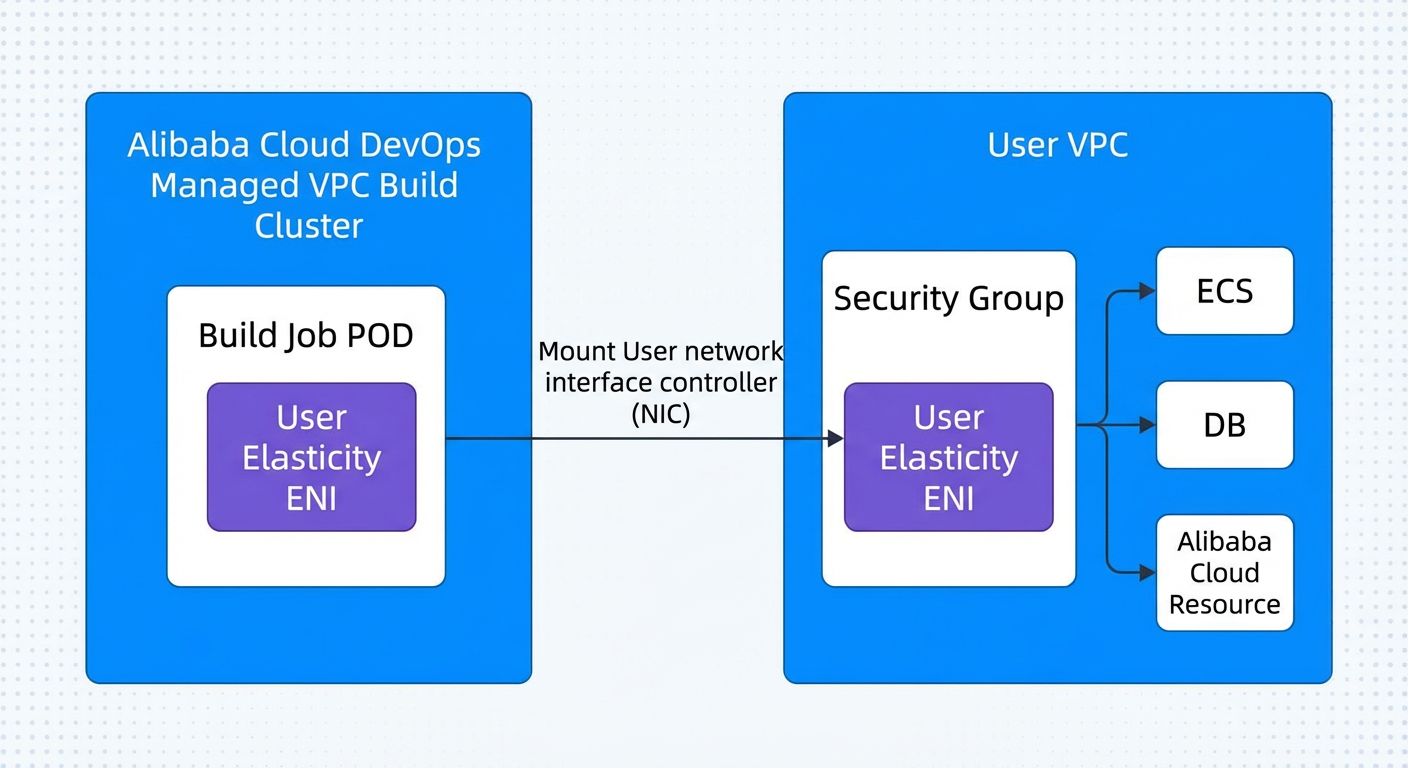
Attaches an elastic network interface (ENI) from your VPC to the build task at runtime.
-
Uses your VPC's network stack, enabling private network access.
-
Allows direct access to internal VPC resources, such as RDS, ECS, and self-managed middleware.
-
Prevents sensitive information from being exposed over the public network, enhancing overall security.
How it works
By creating a build cluster associated with your VPC, Flow can attach an elastic network interface (ENI) from your VPC when a pipeline build task runs. This connects the build environment to your private network. The task uses the VPC network stack, allowing it to access internal VPC resources such as databases, ECS instances, and self-hosted services. This meets requirements for high security and private network connectivity.
Create managed VPC build cluster
Prerequisites
Before you create a managed VPC build cluster, prepare the following resources:
-
An Alibaba Cloud VPC and a corresponding vSwitch.
-
Configured security group rules.
-
Your VPC must have public network access (bind an Internet NAT gateway and configure an EIP and an SNAT entry) so Flow can pull build tasks and scheduling commands.
Procedure
-
Create a VPC service connection.
-
Go to the Flow homepage and click .
-
On the Service Connection Management page, click New Service Connection.
-
In the dialog box that appears, select Virtual Private Cloud (VPC) as the service connection type and click Next.
-
Configure the following parameters:
-
Enter a custom Service Connection Name.
-
Configure Service Authorization/Certificate.
-
Set the Scope for the service connection.
-
-
After configuration is complete, click Create.
-
-
Create the managed VPC build cluster.
-
After creating the service connection, click Build Cluster Management in the left-side navigation pane.
-
Switch to the Managed VPC Build Cluster tab and click New Build Cluster.
-
Fill in the basic information:
-
Build Cluster Name: A custom name.
-
Tags: Used for classification and identification.
-
Visibility: Set whether the cluster is public to project members.
-
Members: Specify the members or roles that can use this build cluster.
-
-
Click Next. On the VPC Association page, configure the following parameters:
-
Select a Region. This feature is available in China (Shanghai), China (Beijing), China (Shenzhen), and China (Hangzhou).
-
Select a VPC.
-
Configure a vSwitch and a security group.
Ensure that the selected VPC can access the Alibaba Cloud DevOps website, code repositories, artifact repositories, image repositories, and other cloud resources.
-
-
-
After the configuration is complete, click Save.
-
Use and verify the cluster.
After creating the cluster, select it as the execution environment for build tasks in your pipeline. If environment allocation gets stuck, check the following:
-
Whether the VPC has public network access. If the VPC lacks outbound public network access, Flow cannot deliver scheduling commands to the build environment. This typically shows up as being unable to add nodes to the cluster, or the task staying stuck in "Requesting environment" for a long time. To resolve this, bind an Internet NAT gateway to the VPC and configure the corresponding route so that the VPC has outbound public network access. For more information, see[public network](t120742.xdita#).
-
Whether the security group allows necessary outbound traffic.
-
Whether the service connection and RAM authorization are correct and valid. The account authorized in the service connection determines which VPCs are visible, so you can see only the VPCs and Enterprise instances that belong to that account. If the VPC list is empty or does not contain the VPC that you want, check whether the authorized account owns that VPC.
-
Use the build cluster
Go to the pipeline editor and, in the task settings, change the "Build Cluster" option to the VPC build cluster you just created. Save and run the pipeline. Flow automatically assigns a new build environment for the task and connects it to the associated VPC to complete the build and deployment.
Managed VPC build clusters use compute resources from Alibaba Cloud DevOps, so their usage is billed based on core-minutes.
Self-hosted build clusters
If you have special requirements for your build environment, Flow allows you to connect your own machines as a self-hosted build cluster. You can use Alibaba Cloud ECS instances or other hosts. Flow uses containerized builds, scheduling pipeline tasks randomly to an instance in the self-hosted build cluster for execution in a suitable container environment.
Prerequisites
Ensure that your host meets the following requirements:
-
The host can access the public network.
This is required for Runner installation callbacks, downloading build task dependencies, and other callback operations.
-
The host's operating system and architecture meet the following requirements:
Linux
-
Supported Linux distributions: CentOS 6+, Ubuntu 16.04+, and Alibaba Cloud Linux 2/3.
-
Architecture: Supports Linux/amd64 and Linux/arm64 architectures.
-
Build environment: Supports Default VM environment and Default environment (requires a host with the Docker daemon installed and running: Install Docker Engine. To verify, run
sudo docker ps; echo $?on the host. An output of0indicates that the Docker daemon is running properly). -
Recommended configuration: 4-core 8 GB or higher.
Windows
-
Supported Windows versions: Windows 2012, Windows 2016, Windows 2019, and Windows 2022.
-
Architecture: Supports Windows/amd64 architecture.
-
Build environment: Supports the Default VM Environment.
macOS
-
Supported macOS versions: macOS Sonoma (14.0), macOS Ventura (13.0), and macOS Monterey (12.0).
-
Architecture: Supports macOS/amd64 and macOS/arm64 architectures.
-
Build environment: Supports the Default VM Environment.
-
Although you can technically connect an ECS instance that already runs production services (for example, MySQL or containerized applications) to a self-hosted build cluster without disrupting the existing services, Alibaba Cloud DevOps does not recommend reusing a production host as a build node. Build tasks can consume large amounts of CPU, memory, and I/O for short periods, which may cause performance fluctuations or unavailability of the existing services. Evaluate the resource isolation risk before reusing a production host this way.
Create self-hosted build cluster
-
Go to the Flow homepage.
-
Choose to go to the Self-hosted build cluster tab.
-
Click New Build Cluster. Enter a Build Cluster Name and Tags, and then configure the Visibility and the Members who have permission to use this cluster.
-
When you are finished, click OK to create the build cluster.
Connect a new node
-
Go to the Flow homepage.
-
Choose to go to the Self-hosted build cluster tab.
-
Find the target build cluster and open its details page. Then click Add New Node.
Linux instance
You can connect a Linux instance by using one of the following methods: Install Runner Manually or Alibaba Cloud ECS.
-
Install Runner Manually: Copy the Runner installation command and run it on the target machine. After a successful installation, the machine is automatically added to the cluster. Refresh the host list to see it.
In the Add New Node dialog box, select the operating system type (for example, Linux). Check the prerequisites as prompted, and then copy the installation command and run it on the host. Note that the installation command has a validity period (approximately 15-minute countdown). If it expires, obtain a new command.
After running the installation command, the terminal outputs the full installation log. When the log shows
service startedandservice status running, the Runner has been installed and started successfully. Example output:[INFO] arch=x86_64 [INFO] version=v0.0.6 [INFO] pkg_endpoint=http://agent-install-cn-beijing.oss-cn-beijing.aliyuncs.com [INFO] tenant=be-yxctbiii2ml4aydisrlfozvk [INFO] register_token=VoiMCHPXXrdfSsxmxmUu [INFO] wonder_endpoint=https://gray-devops-build.aliyuncs.com [INFO] scan_interval=5 [INFO] concurrency=50 [INFO] runner_group_uuid=HY8UhW1PmS2hpw27 [INFO] install yunxiao-runner v0.0.6 [INFO] download yunxiao-runner from http://agent-install-cn-beijing.oss-cn-beijing.aliyuncs.com/runner-v0.0.6-linux-amd64.tar.gz [INFO] wget -t 3 -O /tmp/aliyun/yunxiao/runner/runner-v0.0.6-linux-amd64.tar.gz http://agent-install-cn-beijing.oss-cn-beijing.aliyuncs.com/runner-v0.0.6-linux-amd64.tar.gz --2023-03-13 13:08:26-- http://agent-install-cn-beijing.oss-cn-beijing.aliyuncs.com/runner-v0.0.6-linux-amd64.tar.gz Resolving agent-install-cn-beijing.oss-cn-beijing.aliyuncs.com (agent-install-cn-beijing.oss-cn-beijing.aliyuncs.com)... 59.110.185.37 Connecting to agent-install-cn-beijing.oss-cn-beijing.aliyuncs.com (agent-install-cn-beijing.oss-cn-beijing.aliyuncs.com)|59.110.185.37|:80... connected. HTTP request sent, awaiting response... 200 OK Length: 13453535 (13M) [application/x-gzip] Saving to: '/tmp/aliyun/yunxiao/runner/runner-v0.0.6-linux-amd64.tar.gz' /tmp/aliyun/yunxiao/runner/runner-v0.0.6-linux-amd64. 100%[====>] 12.83M --.-KB/s in 0.1s 2023-03-13 13:08:27 (91.7 MB/s) - '/tmp/aliyun/yunxiao/runner/runner-v0.0.6-linux-amd64.tar.gz' saved [13453535/13453535] [INFO] unpack downloaded package [INFO] tar -xvzf /tmp/aliyun/yunxiao/runner/runner-v0.0.6-linux-amd64.tar.gz -C /usr/local/share/yunxiao-runner ./ ./v0.0.6/ ./v0.0.6/runner [INFO] register tenant runner [INFO] /usr/local/share/yunxiao/v0.0.6/runner register --url https://gray-devops-build.aliyuncs.com --token VoiMCHPXXrdfSsxmxmUu --tenant=be-yxctbiii2ml4aydisrlfozvk --workspace /root/yunxiao/be-yxctbiii2ml4aydisrlfozvk/runner --scanInterval 5 --concurrency 50 --configPath /root/yunxiao/be-yxctbiii2ml4aydisrlfozvk/runner/config --runnerGroupUUID=HY8UhW1PmS2hpw27 --autoUpgrade=true INFO[2023-03-13T13:08:27+08:00] [Register] options: {"URL":"https://gray-devops-build.aliyuncs.com","Token":"VoiMCHPXXrdfSsxmxmUu","Tenant":"be-yxctbiii2ml4aydisrlfozvk","Workspace":"/root/yunxiao/be-yxctbiii2ml4aydisrlfozvk/runner","ScanInterval":5,"Concurrency":50,"RunnerGroupUUID":"HY8UhW1PmS2hpw27","ConfigPath":"/root/yunxiao/be-yxctbiii2ml4aydisrlfozvk/runner/config","InstanceId":"","InstanceName":"","AutoUpgrade":true,"UpgradeInterval":1200} INFO[2023-03-13T13:08:27+08:00] Runner config file not exists, generating... INFO[2023-03-13T13:08:27+08:00] bind to HY8UhW1PmS2hpw27 INFO[2023-03-13T13:08:27+08:00] POST /api/v2/runner/register, time spent 0.19 s INFO[2023-03-13T13:08:27+08:00] register runner=a64e87f067fd496b9c946db45f2a144f INFO[2023-03-13T13:08:27+08:00] Runner register success. [INFO] install runner system service [INFO] /usr/local/share/yunxiao/v0.0.6/runner install --tenant=be-yxctbiii2ml4aydisrlfozvk INFO[2023-03-13T13:08:27+08:00] service type linux-systemd INFO[2023-03-13T13:08:27+08:00] Aliyun yunxiao runner-v0.0.6-be-yxctbiii2ml4aydisrlfozvk service,linux-systemd installed [INFO] start runner service [INFO] /usr/local/share/yunxiao/v0.0.6/runner start --tenant=be-yxctbiii2ml4aydisrlfozvk INFO[2023-03-13T13:08:27+08:00] service type linux-systemd INFO[2023-03-13T13:08:00] Aliyun yunxiao runner-v0.0.6-be-yxctbiii2ml4aydisrlfozvk service started INFO[2023-03-13T13:08:00] Aliyun yunxiao runner-v0.0.6-be-yxctbiii2ml4aydisrlfozvk service status running [root@iZ2zecoxyny4bhymwfvdjmZ ~]# -
Alibaba Cloud ECS: If your host is an Alibaba Cloud ECS instance, you can also add it directly by selecting the Alibaba Cloud ECS connection method. Flow automatically installs the Runner for you.
-
Select a service connection.
-
Select the region where the host to be added is located.
-
In the Available Host List, select the host to add.
-
Click OK to automatically add the host to the build cluster.
-
Windows instance
You can connect a Windows instance by using one of the following methods: Install Runner Manually or Alibaba Cloud ECS.
-
Install Runner Manually: On the Windows host, open PowerShell as an administrator and run the Runner installation command. After a successful installation, the machine is automatically added to the cluster. Refresh the host list to see it.
-
Alibaba Cloud ECS: If your host is an Alibaba Cloud ECS instance, you can also add it directly by selecting the Alibaba Cloud ECS connection method. Flow automatically installs the Runner for you.
-
Select a service connection.
-
Select the region where the host to be added is located.
-
In the Available Host List, select the host to add.
-
Click OK to automatically add the host to the build cluster.
-
macOS instance
You can connect a macOS instance by using the Install Runner Manually method. On the macOS host, copy the Runner installation command and run it. After the Runner is installed successfully, the new machine is automatically added to the current cluster. Refresh the host list to view it.
Before running the installation command, verify that the node configuration meets the prerequisites. The installation command has a validity period. If it expires, obtain a new command.
Build cluster management
Go to the , find the target build cluster, and open its details page.
-
View the host list for the build cluster. The list displays information such as instance ID, IP address, hostname, OS/architecture, usage, Runner status, and installation progress.
-
Reinstall Runner: You can reinstall the Runner if its status is abnormal.
-
Remove Node: This only unbinds the node from the current build cluster. It does not delete the physical machine or uninstall the Runner.
-
Cluster Settings: Modify the build cluster's name, tags, and other settings.
-
Delete Cluster: This unbinds the nodes and deletes the cluster data. It does not delete the physical machines or uninstall the Runners.
Use self-hosted build cluster
Go to the pipeline editor and select the self-hosted build cluster created by your enterprise. When the pipeline runs, tasks are randomly scheduled to a build instance, and the corresponding container environment is started for execution. Build duration and concurrent tasks on a self-hosted build cluster do not consume your enterprise's build quota.
When you use a self-hosted build cluster, the build environment is allocated to you for the duration of the task. You have full control over the environment and can customize its execution scripts.
Find which pipelines use a self-hosted build cluster
The Flow console does not support looking up which pipelines use a specific self-hosted build cluster, nor does it provide an API to query pipelines by cluster ID.
To manually check, open each pipeline in edit mode and inspect the runsOn field in its YAML. The format for a self-hosted build cluster is runsOn: group: private/<cluster ID>. You can find the cluster ID on the Self-hosted build cluster tab under Global Settings > Build Cluster Management. A pipeline that does not specify runsOn uses the public build cluster by default.
FAQ
Docker builds fail with a CoreCLR error or run out of memory in a public build cluster. What can I do?
Public build clusters do not support setting a separate memory limit for the Docker daemon. The only way to control the overall resources available to the build is to change the Build Environment specifications.
If your Docker build fails with a CoreCLR creation error, out-of-memory (OOM) error, or a similar memory-related error, first switch to a public build cluster with a higher Build Environment specifications tier. If the highest available tier still cannot meet your needs, use a self-hosted build cluster and connect your own Linux host, so that you can customize the host resources and the memory available to Docker.
My pipeline fails to request a build environment, or the specified image fails to pull. How do I troubleshoot this?
If you use Specify the container environment with a custom image and the pipeline fails to request a build environment (for example, the task is marked as failed or canceled shortly after being scheduled), the image most likely failed to pull. To troubleshoot:
-
Run
docker pull <image-address>:<tag>in a local Docker environment to confirm whether the image can be pulled successfully. -
If the pull fails, confirm that the image tag exists and is spelled correctly.
-
Try switching to a known-good image version (for example, change
dotnetcore:10.0to9.0) and rerun the pipeline. -
If the pipeline still fails after switching image versions, check your pipeline YAML configuration and your network whitelist settings.
If you use an official image, note that Alibaba Cloud DevOps replaces the build-steps-public-registry image repository address by region. If pulling an official image is slow or fails, check that the image address matches the region of the build cluster you selected.
Connecting to GitHub, GitLab, or other overseas code repositories fails or times out. Which build cluster should I use?
Due to cross-border network fluctuations, using the Alibaba Cloud DevOps Beijing build cluster or the Alibaba Cloud DevOps Hangzhou build cluster to connect to GitHub or other overseas code repositories may result in pull failures or timeouts. Switch your pipeline's build cluster to the Alibaba Cloud DevOps China (Hong Kong) build cluster, which takes advantage of Hong Kong's network connectivity to overseas services and improves the connection success rate and stability.
Does the managed VPC build cluster support the China (Hong Kong) region? How do I access China (Hong Kong) ACK/ACR over the internal network?
[TODO: need to confirm — the current list of regions supported by managed VPC build clusters; this document has inconsistent region lists in different sections, and the actual list is returned by a backend API rather than hardcoded on the frontend]
If you need to access an ACK cluster or an ACR instance in the China (Hong Kong) region and internal network access is required, consider one of the following:
-
Use a public build cluster, which can access China (Hong Kong) resources over the public network directly.
-
Set up a VPC peering connection or a Cloud Enterprise Network (CEN) instance between a region supported by managed VPC build clusters and your China (Hong Kong) VPC.
-
Use a self-hosted build cluster deployed inside your China (Hong Kong) VPC to achieve internal network connectivity directly.
Is the self-hosted build cluster restricted to specific regions? How do I use it in an unsupported region?
A self-hosted build cluster communicates with Alibaba Cloud DevOps over the public network and is not subject to the region restrictions that apply to managed VPC build clusters. As long as your host can access the public network, you can use a self-hosted build cluster in any region, including regions outside mainland China and regions where managed VPC build clusters are not available. No additional VPC peering configuration is required — you only need to ensure that the public network connection between your host and Alibaba Cloud DevOps is unobstructed.
What is the difference between the Default Environment and the Specified Container Environment?
In Default Environment mode, you cannot customize the build instance image. Each Flow pipeline step provides a complete, isolated environment, and you can assemble steps into a task.
In Specified Container Environment mode, you can use an image provided by Alibaba Cloud DevOps or a custom image to start the build environment. Flow pipeline steps do not include their own environments, which makes them simpler to assemble and custom steps easier to develop.
Default Environment is a legacy mode. Newly created Alibaba Cloud DevOps organizations provide only Specified Container Environment mode. Use Specified Container Environment mode.