Import test cases from a mind map
This article explains how to import test cases from a mind map.
Mind maps are widely used by testing teams to create test cases. Compared to traditional spreadsheets, they make it easier to organize test paths, quickly identify test points, and find omissions. Mind maps are also easier to maintain and review. You can import test cases from a mind map file into your test plan or test case library. The following fields are supported:
-
case title
-
case group
-
case priority
-
case type
-
precondition
-
step description
-
expected result
Procedure
-
In your test case library or in a test plan from an agile development template, select Batch Import.
-
In the Import Case dialog box, switch to the Mind Map tab. Follow the on-screen instructions to upload a formatted Xmind file. The system automatically parses it. After parsing, click Import Now.
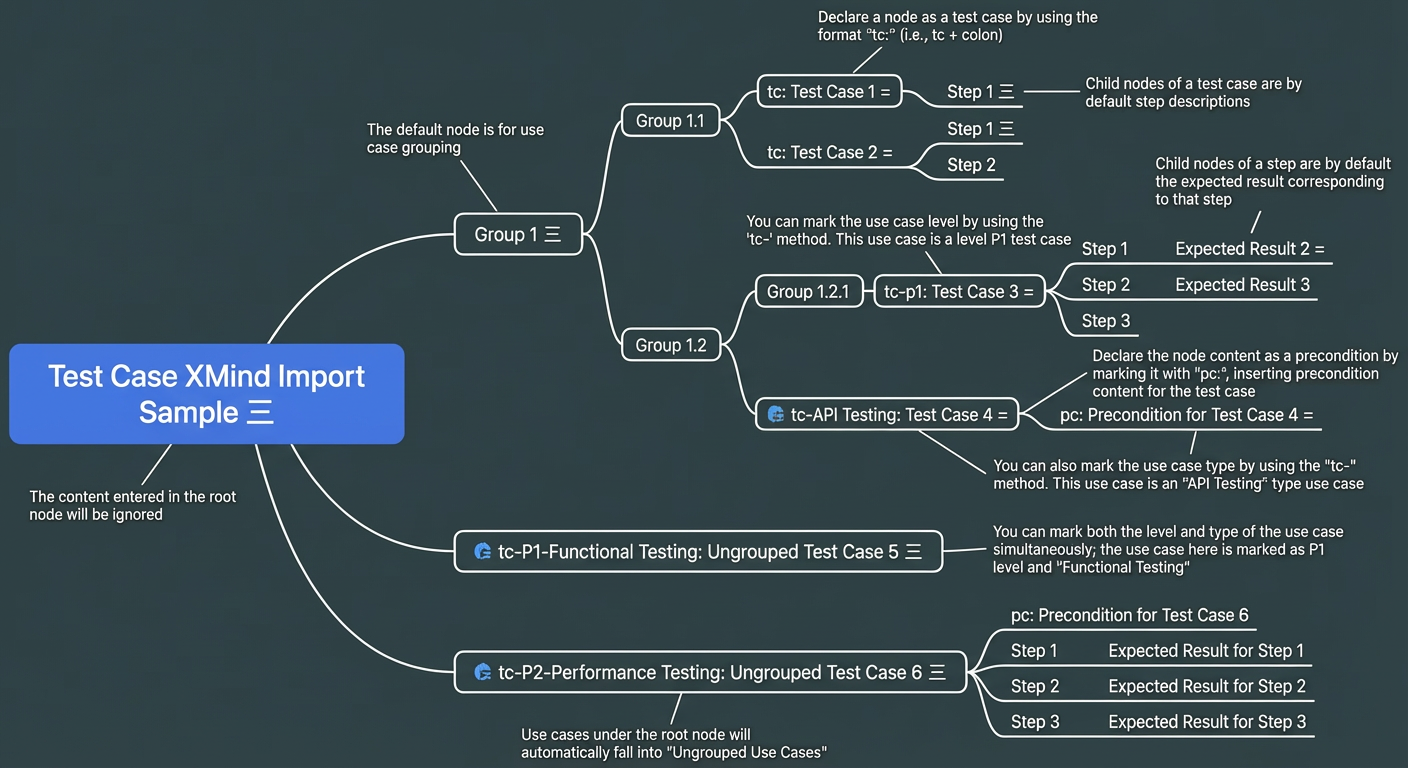
The import instructions explain the format requirements for the Xmind file. The root node is not imported, and a maximum of eight levels of groups are supported. Test case nodes are identified by prefixes in their titles. For example, tc: identifies a test case, tc-p1: identifies a test case with P1 priority, tc-p2-functional test: identifies a P2 functional test, and pc: identifies a precondition. Steps and their expected results are added as child nodes of the test case. Only .xmind files are supported, and you can import a maximum of 500 test cases at a time.
If parsing errors occur, the system highlights the problematic nodes. You can either fix the issues in your local file and re-upload it, or let the system handle the errors automatically.
Mind map format
-
Root node
The system ignores the information in the root node.
-
Case group
Nodes are case groups by default. Up to eight levels of groups are supported. Test cases placed directly under the root node (level 0) are assigned to Ungrouped Cases.
-
Test case
To declare a node as a test case, add the prefix
tc:to its title. Both standard and full-width colons are supported. Use a hyphen (-) to specify the case priority and case type. For example:-
tc-P1: Defines a test case with P1 priority. -
tc-functional test: Defines a functional test case. -
tc-P2-performance test: Defines a performance test case with P2 priority.
-
-
Step description and expected result
Child nodes of a test case define its steps. A maximum of 20 steps are supported, and any additional steps are ignored. Child nodes of a step define its expected results. The system merges the content of multiple expected result nodes into one entry.
-
Precondition
A precondition node must be a direct child of a test case node and use the
pc:prefix. For example:pc: Precondition content. -
Tips
-
Parsing multiple sheets or multiple topics on a single sheet is not supported.
-
Importing a file does not overwrite existing test cases with the same name. Be cautious when you import the same file multiple times.
-
You cannot create empty case groups. Each imported group must contain at least one test case.
-
A test case can have a maximum of 20 steps.
-
The merged content from multiple expected result nodes cannot exceed 200 characters.
-
Only files in the
.xmindformat are supported. -
Use the latest versions of Xmind Zen and Xmind to create test cases to avoid potential compatibility issues with older versions.
-