
烧录固件
更新时间:
复制 MD 格式
-
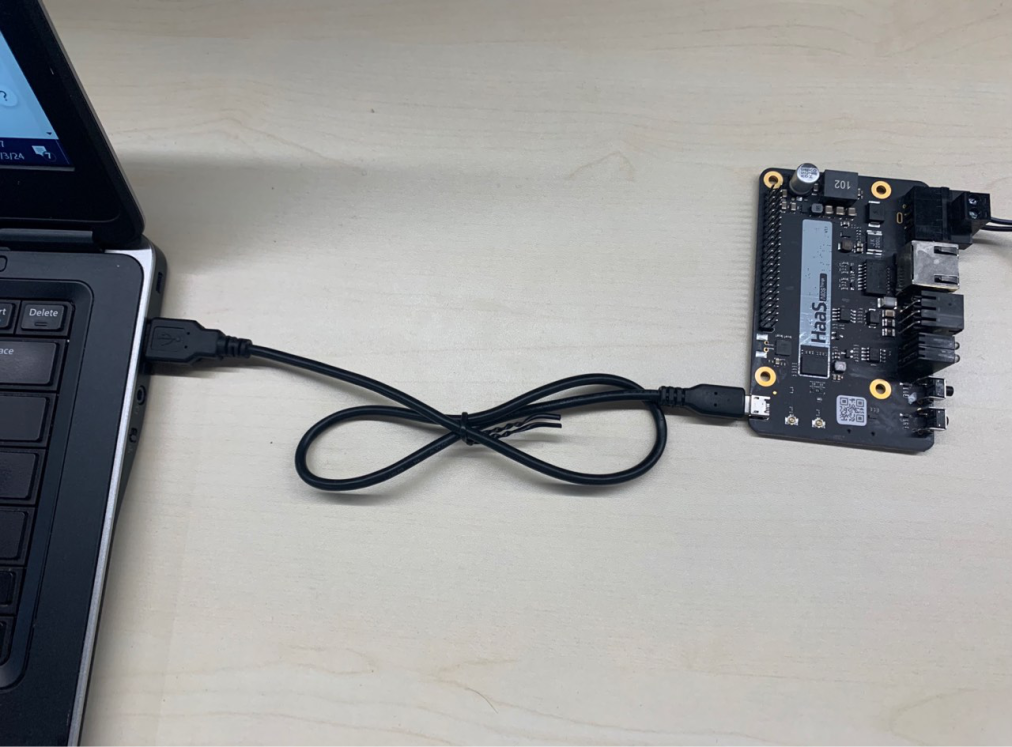
如下图,用数据线把HaaS开发板和电脑连起来,同时断开HaaS开发板的电源。
-
启动烧录
-
点击VS Code下方状态栏中的烧录图标,随后VS Code会显示电脑已识别到的串口的列表(Avaliable ports)
-
根据HaaS100开发板的端口号,输入相对应的串口序号
> Executing task: aos burn <

change dir to C:\Users\Public\test-dir\aos-works\solutions\test_helloworld_demo.
binary file is ['C:\\Users\\Public\\test-dir\\aos-works\\solutions\\test_helloworld_demo\\binary\\helloworld_demo@haas100.bin']

--- Available ports:
---  1: COM3        'Silicon Labs CP210x USB to UART Bridge (COM3)'
--- Enter port index or full name: 1
serial port is COM3
the settings were restored in the file C:\Users\Public\test-dir\aos-works\solutions\test_helloworld_demo\.config_burn
bin_files is [('C:\\Users\\Public\\test-dir\\aos-works\\solutions\\test_helloworld_demo\\binary\\helloworld_demo@haas100.bin', '0')]-
接上HaaS开发板的电源,稍等两分钟就可以看到VS Code提示“成功烧录”
  679 |  secureERR_reboot_count:0x0
  679 |  reboot_count_max:0x
Press key 'w' to 2ndboot cli menu in 300ms.

Burn "[('C:\\Users\\Public\\test-dir\\aos-works\\solutions\\test_helloworld_demo\\binary\\helloworld_demo@haas100.bin', '0')]" success.

Terminal will be reused by tasks, press any key to close it.
该文章对您有帮助吗?