Troubleshoot NGINX Ingress issues
This topic covers the diagnostic workflow, troubleshooting methods, common checks, and solutions for Nginx Ingress issues.
Table of contents
|
Category |
Content |
|
Diagnostic process |
|
|
Troubleshooting approaches |
|
|
Common troubleshooting methods |
|
|
Common issues and solutions |
|
Background information
The Kubernetes community maintains the official Ingress NGINX Controller. The Nginx Ingress Controller in ACK uses the community version and supports all community annotations.
Deploy an Nginx Ingress Controller in the cluster to parse Ingress forwarding rules. The controller receives requests, matches them against the rules, and forwards them to backend Service pods. The relationship among a Service, an Nginx Ingress, and the Nginx Ingress Controller:
-
A Service abstracts one or more identical backend services.
-
An Nginx Ingress defines reverse proxy rules that route HTTP/HTTPS requests to Service pods based on host and URL path.
-
The Nginx Ingress Controller parses Nginx Ingress rules. When an Ingress changes, the controller updates its forwarding rules and routes incoming requests to the appropriate Service pod.
The Nginx Ingress Controller retrieves Ingress changes from the API Server, generates load balancer configuration files (such as nginx.conf), and reloads the load balancer (for example, nginx -s reload) to apply new routing rules.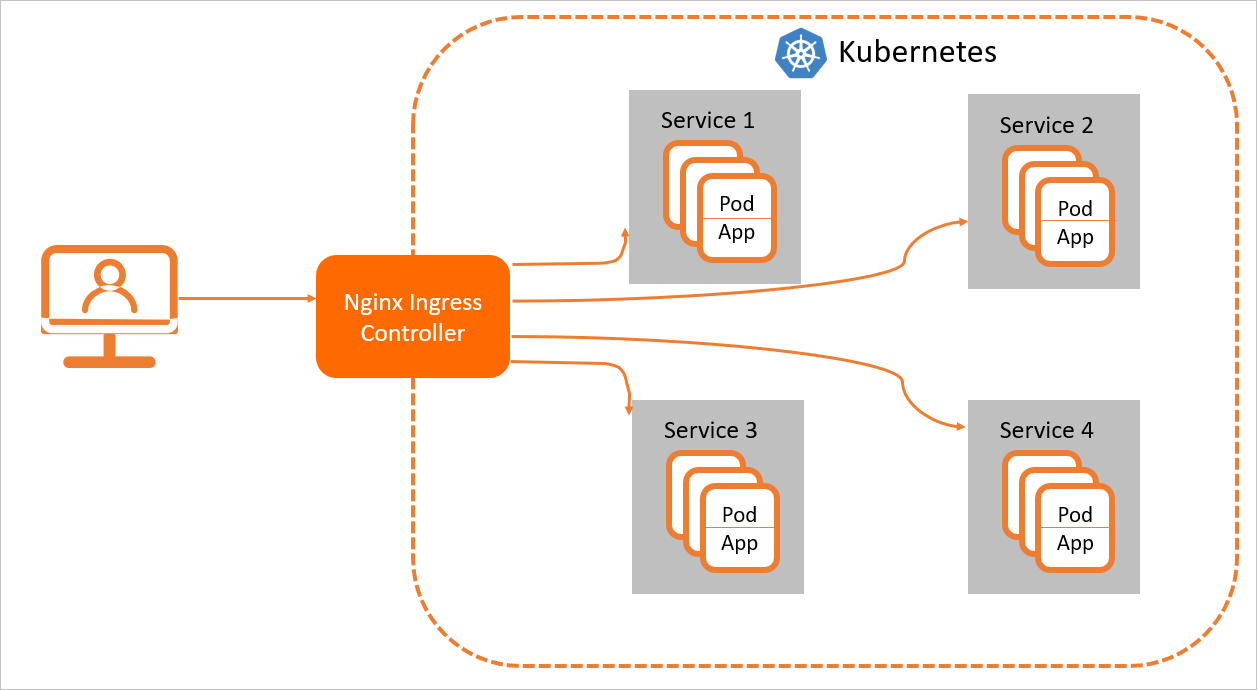
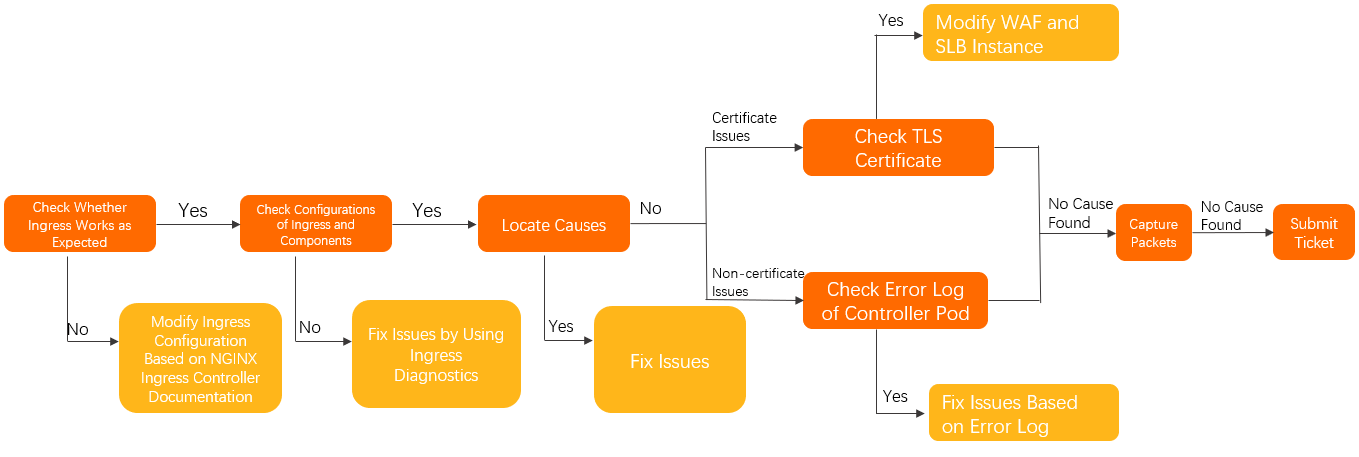
Troubleshooting flow
-
Follow these steps to isolate the issue to the Ingress and verify your ingress controller configuration.
-
In the controller Pod, confirm that access works as expected. For more information, see Manually access the Ingress and backend Pods in the controller Pod.
-
Verify that you are using the NGINX Ingress Controller correctly. For more information, see the NGINX Ingress Controller community documentation.
-
-
Use the Ingress diagnostic feature to check the Ingress and component configurations, and then apply the recommended changes. For detailed instructions, see Use the Ingress diagnostic feature.
-
Follow the troubleshooting guide to diagnose and resolve the issue.
-
If the previous steps do not resolve the issue, perform the following checks:
-
For TLS certificate issues:
-
Check if WAF or transparent WAF integration is enabled for the domain name.
-
If so, ensure no TLS certificate is configured for WAF or transparent WAF integration.
-
If not, proceed to the next step.
-
-
Check if the SLB uses a layer-7 listener.
-
If it does, ensure no TLS certificate is configured for the layer-7 listener.
-
If it does not, proceed to the next step.
-
-
-
For issues not related to TLS certificates, check the error log in the controller Pod. For more information, see Check the error log in the controller Pod.
-
-
If the issue persists, perform a packet capture on the controller Pod and the corresponding application Pods to identify the root cause. For more information, see Packet capture.
Troubleshooting
|
Problem area |
Symptom |
Solution |
|
Access failure |
A Pod inside the cluster cannot access an Ingress. |
Cannot access the external address of a cluster LoadBalancer from within the cluster |
|
An Ingress cannot access itself. |
||
|
Cannot access TCP or UDP services. |
||
|
HTTPS access issues |
The Ingress serves an outdated or default certificate. |
|
|
An |
An "SSL_ERROR_RX_RECORD_TOO_LONG" error occurs during HTTPS access |
|
|
Issues when creating an Ingress resource |
The "failed calling webhook..." error occurs. |
A "failed calling webhook" error occurs when you create an Ingress resource |
|
An Ingress is created but does not take effect. |
||
|
Unexpected access behavior |
Cannot obtain the client source IP. |
|
|
The IP allowlist does not take effect or work as expected. |
||
|
Cannot connect to a gRPC service exposed by an Ingress. |
||
|
The canary release has no effect. |
||
|
Incorrect canary rules misroute traffic. |
||
|
The |
||
|
Errors such as 502, 503, 413, or 499 occur. |
||
|
Some resources fail to load on a page. |
A 404 error occurs when accessing resources with the |
Some resources fail to load or a blank screen appears after a rewrite to the root directory |
|
Resource requests return |
Common troubleshooting methods
Use Ingress diagnostics
-
Log on to the ACK console. In the left navigation pane, click Clusters.
-
On the Clusters page, click the name of your cluster. In the left navigation pane, click .
-
On the Diagnostics page, click Ingress diagnostics.
-
In the Ingress diagnostics panel, click Diagnose, enter the URL where the issue occurs, such as https://www.example.com. Select I have read and agree, and then click Start Diagnosis.
After the diagnosis is complete, resolve the issue based on the results.
View controller pod logs in Log Service
The access log format for the Ingress controller is defined in a ConfigMap. By default, this is the nginx-configuration ConfigMap in the kube-system namespace.
By default, the ACK Ingress controller uses the following log format:
$remote_addr - [$remote_addr] - $remote_user [$time_local]
    "$request" $status $body_bytes_sent "$http_referer" "$http_user_agent" $request_length
    $request_time [$proxy_upstream_name] $upstream_addr $upstream_response_length
$upstream_response_time $upstream_status $req_id $host [$proxy_alternative_upstream_name]If you modify the log format, you must also update the log collection rules in Log Service. Otherwise, the logs cannot be displayed correctly in the Log Service console. Exercise caution when you modify the log format.
Ingress controller logs are available in the Log Service console. For details, see Collect container logs from an ACK cluster.
On the Raw Logs tab of the Log Service console, each Ingress controller log entry is displayed as a key-value pair. In addition to HTTP access fields, each log entry includes Kubernetes metadata fields such as _container_name_, _namespace_, and _pod_name_.
Some field names in the Log Service console differ from those in the actual logs. The following table lists the fields and their descriptions.
|
Field |
Description |
|
|
The real IP address of the client. |
|
|
The request information, including the request method, URL, and HTTP version. |
|
|
The total request time, measured from receiving the first byte from the client to sending the last byte of the response. This value can be affected by factors such as the client's network conditions and may not represent the actual processing speed of the request. |
|
|
The address of the backend upstream. This field is empty if the request fails to reach a backend. If the request is retried across multiple upstreams, their addresses are listed, separated by commas. |
|
|
The HTTP status code returned by the backend upstream. A standard HTTP status code indicates the response originated from the backend upstream. If no backend is available, the value is 502. If the request is retried across multiple upstreams, their status codes are listed, separated by commas (,). |
|
|
The response time of the backend upstream, in seconds. |
|
|
The name of the backend upstream. The naming format is |
|
|
The name of the alternative upstream. This field is not empty if the request is routed to an alternative upstream, such as a canary service. |
By default, you can also view recent access logs directly in the container by running the following command:
kubectl logs <controller-pod-name> -n <namespace> | lessExample output:
42.11.**.** - [42.11.**.**]--[25/Nov/2021:11:40:30 +0800]"GET / HTTP/1.1" 200 615 "_" "curl/7.64.1" 76 0.001 [default-nginx-svc-80] 172.16.254.208:80 615 0.000 200 46b79dkahflhakjhdhfkah**** 47.11.**.**[]
42.11.**.** - [42.11.**.**]--[25/Nov/2021:11:40:31 +0800]"GET / HTTP/1.1" 200 615 "_" "curl/7.64.1" 76 0.001 [default-nginx-svc-80] 172.16.254.208:80 615 0.000 200 fadgrerthflhakjhdhfkah**** 47.11.**.**[]
Check error logs in the controller pod
Examine the logs in the Ingress controller pod to narrow down an issue. Error logs in a controller pod are divided into two types:
-
Controller error logs: These logs are typically generated when there is an error in the Ingress configuration. Run the following command to filter for controller error logs:
kubectl logs <controller-pod-name> -n <namespace> | grep -E ^[WE]NoteWhen the Ingress controller starts, it may generate several warning (W) log entries. This is normal. For example, warnings about a missing kubeConfig or an unspecified Ingress class do not affect the normal operation of the Ingress controller and can be ignored.
-
Nginx error logs: These logs are generated when an error occurs during request processing. Run the following command to filter for Nginx error logs:
kubectl logs <controller-pod-name> -n <namespace> | grep error
Access Ingress and backend pods
-
Run the following command to get a shell in the controller pod:
kubectl exec <controller-pod-name> -n <namespace> -it -- bash -
Tools such as curl and OpenSSL are pre-installed in the pod. You can use these tools to test connectivity and verify certificate configurations.
-
Run the following commands to test access to the backend through the Ingress:
# Replace your.domain.com with the domain name that you want to test. curl -H "Host: your.domain.com" http://127.0.0.1/ # for http curl --resolve your.domain.com:443:127.0.0.1 https://127.0.0.1/ # for https -
Run the following command to verify the certificate information:
openssl s_client -servername your.domain.com -connect 127.0.0.1:443 -
Access the backend pod to verify its behavior.
NoteThe Ingress controller does not access backend pods using the Service cluster IP. Instead, it accesses the pod IPs directly.
-
Run the following command to obtain the backend pod IP address:
kubectl get pod -n <namespace> <pod-name> -o wideExample output:
NAME                      READY    STATUS    RESTARTS   AGE    IP            NODE                        NOMINATED NODE    READINESS GATES
nginx-dp-7f5fcc7f-****    1/1      Running   0          23h    10.71.0.146   cn-beijing.192.168.**.**    <none>            <none>
The output indicates that the backend pod IP address is 10.71.0.146.
-
Run the following command in the controller pod to access the backend pod and confirm that the connection is working:
curl http://<your-pod-ip>:<port>/path
-
-
Nginx Ingress troubleshooting commands
-
kubectl-plugin
The official Kubernetes Ingress controller was originally based on Nginx but switched to OpenResty in version 0.25.0. The controller watches for changes to Ingress resources on the API server, automatically generates the corresponding Nginx configuration, and then reloads Nginx to apply the changes. For more information, see the official documentation.
As Ingress resources grow, all configurations are consolidated into a single, lengthy nginx.conf file that becomes difficult to debug. Since version 0.14.0, the upstream section is dynamically generated using lua-resty-balancer, further increasing debugging complexity. To address this, the community contributed a kubectl plugin, ingress-nginx, to simplify the process of debugging ingress-nginx configurations. For more information, see kubectl-plugin.
Run the following command to retrieve information about the backend services currently known to the ingress-nginx controller:
kubectl ingress-nginx backends -n ingress-nginx -
dbg command
In addition to the kubectl plugin, you can use the
dbgcommand to view information and perform diagnostics.-
Run the following command to get a shell in the Nginx Ingress container:
kubectl exec -it -n kube-system <nginx-ingress-pod-name> -- bash -
Run
/dbgto view output similar to the following:nginx-ingress-controller-69f46d8b7-qmt25:/$ /dbg dbg is a tool for quickly inspecting the state of the nginx instance Usage: dbg [command] Available Commands: backends Inspect the dynamically-loaded backends information certs Inspect dynamic SSL certificates completion Generate the autocompletion script for the specified shell conf Dump the contents of /etc/nginx/nginx.conf general Output the general dynamic lua state help Help about any command Flags: -h, --help help for dbg --status-port int Port to use for the lua HTTP endpoint configuration. (default 10246) Use "dbg [command] --help" for more information about a command.
Check whether a certificate for a specific domain name exists.
/dbg certs get <hostname>List all backend service information.
/dbg backends all -
Nginx Ingress status
Nginx provides a built-in status endpoint that outputs runtime statistics. In the Nginx Ingress container, use curl to access the nginx_status endpoint on port 10246 to view request and connection statistics.
-
Run the following command to get a shell in the Nginx Ingress container:
kubectl exec -itn kube-system <nginx-ingress-pod-name> bash -
Run the following command to view current request and connection statistics for Nginx:
nginx-ingress-controller-79c5b4d87f-xxx:/etc/nginx$ curl localhost:10246/nginx_status
Active connections: 12818
server accepts handled requests
 22717127 22717127 823821421
Reading: 0 Writing: 382 Waiting: 12483
Since starting, Nginx has handled 22,717,127 connections and processed 823,821,421 requests, averaging about 36.2 requests per connection.
-
Active connections: The total number of active connections. In this example, the value is 12,818.
-
Reading: The number of connections where Nginx is currently reading request headers. In this example, the value is 0.
-
Writing: The number of connections where Nginx is currently sending responses. In this example, the value is 382.
-
Waiting: The number of keep-alive connections. In this example, the value is 12,483.
-
Packet capture
If you cannot determine the cause of an issue, perform a packet capture.
-
Based on your initial findings, determine whether the network issue is on the Ingress pod or the application pod. If you do not have enough information, you can capture packets on both pods.
-
Log on to the node that hosts the affected application pod or Ingress pod.
-
On the ECS instance (not inside a container), run the following command to capture traffic related to a specific pod and save it to a file:
tcpdump -i any host <Ingress-pod-IP-or-application-pod-IP> -C 20 -W 200 -w /tmp/ingress.pcap -
Monitor the logs. When the expected error occurs, stop the packet capture.
-
Correlate the captured packet information with application error logs to pinpoint the issue.
Note-
Under normal circumstances, packet capture does not affect your services. It adds only minor CPU load and disk I/O.
-
The preceding command rotates the capture files. It can generate a maximum of 200 .pcap files, each 20 MB in size.
-
Intra-cluster access to external load balancer address fails
Symptom
In a cluster, pods on some nodes cannot access backend pods through the external address of the Nginx Ingress Controller (the IP address of the load balancer instance), while pods on other nodes can.
Cause
This issue is caused by the externalTrafficPolicy setting of the controller's service, which determines how external traffic is handled. When set to Local, only backend pods on the same node as a controller pod can receive requests. When set to Cluster, all backend pods can be accessed normally. When resources within the cluster use the external address of a load balancer service, the requests are also treated as external traffic.
Solution
-
(Recommended) Access the service from within the Kubernetes cluster by using its ClusterIP or service name. The service name for the ingress is
nginx-ingress-lb.kube-system. -
Run the
kubectl edit svc nginx-ingress-lb -n kube-systemcommand to edit the ingress service. Change theexternalTrafficPolicyof the load balancer service toCluster. If the cluster's container network plugin is Flannel, the client source IP is lost. If you use Terway, the client source IP is preserved.
-
Example:
apiVersion: v1
kind: Service
metadata:
  annotations:
    service.beta.kubernetes.io/backend-type: eni   # Direct to ENI.
  labels:
    app: nginx-ingress-lb
  name: nginx-ingress-lb
  namespace: kube-system
spec:
  externalTrafficPolicy: Cluster
For more information about service annotations, see Configure Classic Load Balancer (CLB) by using annotations.
Cannot access the Ingress controller
Symptom
In a Flannel cluster, when you access the Ingress from an Ingress pod via its domain name, SLB IP, or ClusterIP, some or all requests fail.
Cause
The default Flannel configuration disables hairpinning.
Solution
-
(Recommended) Recreate the cluster with the Terway network plugin and migrate your workloads to the new cluster.
-
If you cannot recreate the cluster, modify the Flannel configuration to enable
hairpinMode. After you modify the configuration, recreate the Flannel pods to apply the changes.-
Run the following command to edit the Flannel configuration:
kubectl edit cm kube-flannel-cfg -n kube-system -
In the cni-conf.json section of the output, add
"hairpinMode": trueto thedelegateobject.Example:
cni-conf.json: | { "name": "cb0", "cniVersion":"0.3.1", "type": "flannel", "delegate": { "isDefaultGateway": true, "hairpinMode": true } } -
Run the following command to delete the Flannel pods. The system automatically recreates them with the new configuration.
kubectl delete pod -n kube-system -l app=flannel
-
Default or old TLS certificate is still served
Symptom
After you add or modify a Secret in the cluster and specify the secretName in an Ingress, requests are still served with the default certificate (Kubernetes Ingress Controller Fake Certificate) or an old certificate.
Cause
-
The certificate is not returned by the ingress controller in the cluster.
-
The controller did not load the certificate correctly because it is invalid.
-
The ingress controller uses Server Name Indication (SNI) to serve the correct certificate, but the TLS handshake may not include the SNI extension.
Solution
-
Verify that the TLS handshake includes the SNI extension by using one of the following methods:
-
Use a modern browser that supports SNI.
-
When testing the certificate with the
openssl s_clientcommand, include the-servernameparameter. -
When using
curl, map the domain name with the--resolveparameter or by editing your hosts file, rather than sending a request to an IP address with aHostheader.
-
-
Confirm that no TLS certificate is configured on WAF, WAF transparent access, or an SLB layer-7 listener. The TLS certificate should be returned by the ingress controller in the cluster.
-
Run Ingress diagnostics in the Intelligent Operations console to check for configuration issues and error logs. For more information, see Use Ingress diagnostics.
-
Run the following command to manually check the Ingress Pod error logs and make changes based on the suggestions in the logs.
kubectl logs <ingress pod name> -n <pod namespace> | grep -E ^[EW]
Cannot connect to gRPC via Ingress
Symptom
You cannot access a gRPC service through an Ingress.
Cause
-
The Ingress resource is missing the Annotation for the backend protocol.
-
gRPC services require a TLS connection when exposed through an Ingress.
Solution
-
Add the following Annotation to the Ingress resource:
nginx.ingress.kubernetes.io/backend-protocol: "GRPC". -
Ensure the client sends encrypted traffic over the TLS port.
Cannot connect to backend HTTPS service
Symptoms
-
Unable to access the HTTPS service behind the Ingress.
-
Requests may return a 400 status code with the message
The plain HTTP request was sent to HTTPS port.
Cause
The Ingress controller sends HTTP requests to the backend Pod by default.
Solution
Set the following annotation in your Ingress resource: nginx.ingress.kubernetes.io/backend-protocol:"HTTPS".
Cannot preserve source IP in Ingress pods
Symptom
The client's source IP address is not preserved in the Ingress Pod. Instead, the application receives an internal IP address, such as the node IP or an address from the 100.XX.XX.XX range.
Cause
-
The
externalTrafficPolicyof the Service that exposes the Ingress is set toCluster. -
The Server Load Balancer (SLB) instance is configured as a layer-7 proxy.
-
A Web Application Firewall (WAF) or a transparent WAF service is used.
Solution
-
If your Service has
externalTrafficPolicyset toClusterand is exposed by a layer-4 SLB instance:Change
externalTrafficPolicytoLocal. This change might prevent pods inside the cluster from accessing the Ingress through the SLB IP address. For a solution, see Cannot access the external address of a cluster LoadBalancer from within the cluster. -
If you use a layer-7 proxy, such as a layer-7 SLB instance, WAF, or transparent WAF, follow these steps:
-
Ensure that your layer-7 proxy is configured to add the X-Forwarded-For request header.
-
In the Ingress Controller ConfigMap (nginx-configuration in the kube-system namespace by default), add
enable-real-ip: "true". -
Check the logs to verify that the source IP is preserved.
-
-
If your traffic path involves multiple forwarding steps, such as an additional reverse proxy service in front of the Ingress Controller, enable
enable-real-ipand check the value of theremote_addrfield in the logs. This helps you determine if the Ingress container receives the client's source IP address in the X-Forwarded-For request header. If not, ensure that the source IP address is added to the request, for example in the X-Forwarded-For header, before the request reaches the Ingress Controller.
Canary rule fails to take effect
Symptoms
You have configured a canary release in your cluster, but the canary rule does not take effect.
Cause
-
When using
canary-*annotations, thenginx.ingress.kubernetes.io/canary: "true"annotation is not set. -
For versions of Nginx Ingress Controller earlier than 0.47.0, the
Hostfield in your Ingress rule must contain your service domain name and cannot be empty.
Solution
-
Set the
nginx.ingress.kubernetes.io/canary: "true"annotation, or set the Host field in your Ingress rule to your service domain name. For more information, see Routing rules. -
If these scenarios do not apply, see Traffic is not distributed as configured in the canary release rule or traffic is routed to the canary service.
Unexpected traffic is routed to the canary service
Symptom
You have configured a canary rule, but traffic is not distributed as specified. You may also find that traffic from other standard ingresses is routed to the canary service.
Cause
The Nginx Ingress Controller applies a canary rule not to a single ingress, but to all ingresses that share the same service.
For more information about this behavior, see An ingress with a canary rule affects all ingresses that share the same service.
Solution
To enable a canary release for an ingress (including those that use service-match and related canary-* annotations), create dedicated services (one stable service and one canary service) that point to the existing pods. Then, enable the canary rule on that specific ingress. For more information, see Implement canary releases and blue-green deployments by using Nginx Ingress.
Error when creating an Ingress: "failed calling webhook"
Symptoms
When you create an Ingress resource, you receive an "Internal error occurred: failed calling webhook..." error.
The full error code is APISERVER_500. The detailed message is Internal error occurred: failed calling webhook "validate.nginx.ingress.kubernetes.io": Post https://ingress-nginx-controller-admission.kube-system.svc:443/networking/v1beta1/ingresses?timeout=10s: context deadline exceeded. The phrase 'context deadline exceeded' indicates the root cause: a webhook call timeout.
Cause
When you create an Ingress resource, a Service—by default, ingress-nginx-controller-admission—must validate its configuration. If a component in the call chain is unavailable (for example, if the Service or the Ingress Controller is deleted), the validation fails and the API server rejects the Ingress resource.
Solution
-
Check the webhook call chain to ensure all required resources are running correctly. The chain is: ValidatingWebhookConfiguration → Service → Pod.
-
Verify that the Ingress Controller Pod has the admission feature enabled and is externally accessible.
-
If the Ingress Controller is deleted or you do not need the webhook functionality, delete the ValidatingWebhookConfiguration resource.
SSL_ERROR_RX_RECORD_TOO_LONG error during HTTPS access
Symptom
You receive an error when you access HTTPS: SSL_ERROR_RX_RECORD_TOO_LONG or routines:CONNECT_CR_SRVR_HELLO:wrong version number.
Cause
The HTTPS request is sent to a non-HTTPS port, such as an HTTP port.
Common causes include:
-
Port 443 on the SLB is mapped to port 80 on the Ingress Pod.
-
Port 443 in the Ingress controller Service is mapped to port 80 on the Ingress Pod.
Solution
Modify the SLB or Service settings to route HTTPS traffic to the correct port.
Common HTTP error codes
Symptom
Requests return non-2xx or non-3xx errors, such as 502, 503, 413, or 499.
Causes and solutions
Check the access log to determine whether the error is returned by the Ingress Controller. For more information, see Use Log Service to view the access logs of an NGINX Ingress controller. If so, see the following solutions:
-
413 error
-
Cause: The Nginx Ingress Controller works correctly, but the request data size exceeds the allowed limit.
-
Solution: Run
kubectl edit cm -n kube-system nginx-configurationto modify the controller configuration. Adjust the values ofnginx.ingress.kubernetes.io/client-max-body-sizeandnginx.ingress.kubernetes.io/proxy-body-sizeas needed (default:20m).
-
-
499 error
-
Cause: The client disconnected prematurely. This does not necessarily indicate a problem with the component or the backend service.
-
Solution:
-
A small number of 499 errors can be normal and ignored, depending on your application.
-
If a large number of 499 errors occur, check whether the processing time of your backend service and the client-side request timeout are configured as expected.
-
-
-
502 error
-
Cause: The Nginx Ingress Controller works correctly, but the Controller pod cannot connect to the target backend pod.
-
Solution:
-
If the error always occurs:
-
Incorrect configurations for the backend Service or pods may cause this error. Check the port configuration of the backend Service and the application code in the container.
-
-
If the error occurs intermittently:
-
A high load on the Nginx Ingress Controller pod may cause this error. You can assess the load by checking the number of requests and connections on the load balancer instance associated with the controller. See Configure an NGINX Ingress controller for high-load scenarios to allocate more resources to the controller.
-
This error can occur if the backend pod actively closes the session. The Nginx Ingress Controller enables persistent connections by default. Ensure that the backend's idle timeout period for persistent connections is longer than the controller's idle timeout period (default: 900 seconds).
-
-
If you cannot identify the issue using the preceding methods, perform a packet capture for analysis.
-
-
-
503 error
-
Cause: The Ingress Controller cannot find any backend pods, or all backend pods are unreachable.
-
Solution:
-
If the error occurs intermittently:
-
See the solutions for the 502 error.
-
Check the readiness state of the backend service and configure appropriate health checks.
-
-
If the error always occurs:
Check whether the backend Service is configured correctly and has an endpoint.
-
-
The net::ERR_HTTP2_SERVER_REFUSED_STREAM error
Symptoms
Some resources fail to load, and the browser's developer console displays the net::ERR_HTTP2_SERVER_REFUSED_STREAM or net::ERR_FAILED error.
Cause
The number of concurrent resource requests exceeds the maximum stream limit for an HTTP/2 connection.
Solution
-
(Recommended) In the ConfigMap, increase
http2-max-concurrent-streams(default: 128) to a value appropriate for your workload. For details, see http2-max-concurrent-streams. -
Alternatively, disable HTTP/2 support in the ConfigMap by setting
use-http2tofalse. For details, see use-http2.
Error: "The param of ServerGroupName is illegal"
Cause
ServerGroupName uses the format namespace+svcName+port. A server group name must be 2 to 128 characters long, start with a letter or a Chinese character, and can contain digits, periods (.), underscores (_), and hyphens (-).
Solution
Modify the server group name to comply with the naming requirements.
Ingress creation error: "certificate signed by unknown authority"
When you create an Ingress, the cluster returns an error with the code APISERVER_500 and the following message: Internal error occurred: failed calling webhook "validate.nginx.ingress.kubernetes.io": Post https://ingress-nginx-controller-admission.kube-system.svc:443/networking/v1beta1/ingresses?timeout=10s: x509: certificate signed by unknown authority.
Cause
This error occurs if multiple Ingress deployments in your cluster share resources like Secrets, services, or Webhook configurations. This resource overlap causes an SSL certificate mismatch when the admission Webhook communicates with its backend service, leading to a validation failure.
Solution
Redeploy your Ingresses and ensure that each deployment uses a unique set of resources. For more information about the resources in an Ingress deployment, see What updates are performed when you upgrade Nginx Ingress Controller in ACK component management?.
Ingress Pod restarts due to failed health checks
Symptom
Failed health checks cause the controller Pod to restart.
Cause
-
Health checks can fail if the Ingress Pod or its node is under high load.
-
Health checks can fail if the
tcp_tw_reuseortcp_timestampskernel parameter is set on the cluster nodes.
Solution
-
Scale out the Ingress Pods and verify that the issue is resolved. For details, see Deploying the Nginx Ingress Controller for high availability.
-
Disable the
tcp_tw_reusekernel parameter or set it to 2, and disable thetcp_timestampskernel parameter. Then, verify that the issue is resolved.
Add TCP and UDP services
-
Add an entry to the
tcp-servicesorudp-servicesConfigMap. By default, these ConfigMaps are in theingress-nginxnamespace.For example, to map external port 9000 to port 8080 of the
example-goservice in thedefaultnamespace:apiVersion: v1 kind: ConfigMap metadata: name: tcp-services namespace: ingress-nginx data: 9000: "default/example-go:8080" # Maps port 9000 to port 8080 of the service. -
Add the mapped port to the container definition in the Ingress Deployment. By default, this is the
nginx-ingress-controllerDeployment in theingress-nginxnamespace. -
Add the mapped port to the Service that exposes the Ingress controller.
For more information, see Exposing TCP and UDP services.
Ingress rules do not take effect
Symptom
You add or modify an Ingress rule, but it does not take effect.
Possible causes
-
An error in the Ingress configuration prevents the new Ingress rule from loading correctly.
-
The Ingress resource is misconfigured.
-
The Ingress controller lacks the required permissions to watch for changes to Ingress resources.
-
An existing Ingress uses
server-aliasfor a domain name, which conflicts with the new Ingress and causes the rule to be ignored.
Solutions
-
Use the Ingress diagnostic tool in the Intelligent O&M console to diagnose the issue and follow the on-screen guidance. For more information, see Use the Ingress diagnostic feature.
-
Check existing Ingress resources for configuration errors or conflicts:
-
If you use a regular expression in a path that does not have the
rewrite-targetannotation, ensure that thenginx.ingress.kubernetes.io/use-regex: "true"annotation is configured. -
Verify that the PathType is set as expected. By default,
ImplementationSpecificfunctions identically toPrefix.
-
-
Ensure that the ClusterRole, ClusterRoleBinding, Role, RoleBinding, and ServiceAccount associated with the Ingress controller exist. By default, they are all named ingress-nginx.
-
Enter the controller pod container and inspect the added rules in the nginx.conf file.
-
Run the following command to manually check the container logs and identify the issue.
kubectl logs <ingress pod name> -n <pod namespace> | grep -E ^[EW]
Path rewrite causes loading failure or white screen
Symptom
After you use the Ingress rewrite-target annotation to rewrite an access path, some resources fail to load or a white screen appears.
Cause
-
The
rewrite-targetannotation is not configured with a regular expression. -
The application uses hardcoded absolute paths to request resources.
Solution
-
Configure the
rewrite-targetannotation with a regular expression and a capture group. For more information, see Rewrite. -
Verify that frontend requests use the correct path.
Fix SLS log parsing after an upgrade
Symptom
The ingress-nginx-controller component has two main versions: 0.20 and 0.30. After you upgrade the component from version 0.20 to 0.30 by using Add-ons in the console, the Ingress Dashboard incorrectly displays traffic information for the backend service when you use canary release or blue-green deployment.
Cause
Versions 0.20 and 0.30 use different default log formats. As a result, the Ingress Dashboard incorrectly parses logs when you use canary release or blue-green deployment.
Solution
To fix this issue, update the nginx-configuration configmap and the k8s-nginx-ingress configuration.
-
Update the
nginx-configuration configmap.-
If you have not modified the
nginx-configuration configmap, save the following content asnginx-configuration.yamland runkubectl apply -f nginx-configuration.yaml.apiVersion: v1 kind: ConfigMap data: allow-backend-server-header: "true" enable-underscores-in-headers: "true" generate-request-id: "true" ignore-invalid-headers: "true" log-format-upstream: $remote_addr - [$remote_addr] - $remote_user [$time_local] "$request" $status $body_bytes_sent "$http_referer" "$http_user_agent" $request_length $request_time [$proxy_upstream_name] $upstream_addr $upstream_response_length $upstream_response_time $upstream_status $req_id $host [$proxy_alternative_upstream_name] max-worker-connections: "65536" proxy-body-size: 20m proxy-connect-timeout: "10" reuse-port: "true" server-tokens: "false" ssl-redirect: "false" upstream-keepalive-timeout: "900" worker-cpu-affinity: auto metadata: labels: app: ingress-nginx name: nginx-configuration namespace: kube-system -
If you have modified the
nginx-configuration configmap, run the following command to fix the issue without overwriting your configuration:kubectl edit configmap nginx-configuration -n kube-system
At the end of the
log-format-upstreamfield, add[$proxy_alternative_upstream_name], and then save and exit. -
-
Update the
k8s-nginx-ingressconfiguration.Save the following content as
k8s-nginx-ingress.yaml, and then run thekubectl apply -f k8s-nginx-ingress.yamlcommand to apply the configuration.
Error: "cannot list/get/update resource"
Symptom
When checking for errors in a controller Pod as described in Check for error logs in a controller Pod, you may find an error log similar to this:
User "system:serviceaccount:kube-system:ingress-nginx" cannot list/get/update resource "xxx" in API group "xxx" at the cluster scope/ in the namespace "kube-system"Cause
The Nginx Ingress Controller lacks the necessary permissions to update the relevant resources.
Solution
-
Check the log to determine if a ClusterRole or a Role is causing the issue.
-
If the log contains
at the cluster scope, the problem is caused by the ClusterRole (ingress-nginx). -
The log contains
in the namespace "kube-system", indicating that the issue is caused by the Role (kube-system/ingress-nginx).
-
-
Verify that the required permissions and bindings exist.
-
For a ClusterRole:
-
Ensure that the ClusterRole
ingress-nginxand the ClusterRoleBindingingress-nginxexist. If they do not exist, create them, restore them from a backup, or uninstall and reinstall the component. -
Ensure that the ClusterRole
ingress-nginxcontains the permission indicated in the log (in the example below, the permission tolisttheingressesresource in thenetworking.k8s.ioAPI group). If the permission is missing, manually add it to the ClusterRole.E0629 17:26:22.916137 8 reflector.go:138] k8s.io/client-go@v0.23.6/tools/cache/reflector.go:167: Failed to watch *v1.Ingress: failed to list *v1.Ingress: ingresses.networking.k8s.io is forbidden: User "system:serviceaccount:kube-system:ingress-nginx" cannot list resource "ingresses" in API group "networking.k8s.io" at the cluster scope
-
-
For a Role:
-
Ensure that the Role
kube-system/ingress-nginxand the RoleBindingkube-system/ingress-nginxexist. If they do not exist, create them, restore them from a backup, or uninstall and reinstall the component. -
Ensure that the Role
ingress-nginxcontains the permission indicated in the log (in the example below, theupdatepermission for the ConfigMapingress-controller-leader-nginx). If the permission is missing, manually add it to the Role.E0629 17:07:09.111640 9 leaderelection.go:367] Failed to update lock: configmaps "ingress-controller-leader-nginx" is forbidden: User "system:serviceaccount:kube-system:ingress-nginx" cannot update resource "configmaps" in API group "" in the namespace "kube-system"
-
-
Configuration file test failed
Symptom
When you check the controller logs in the pod as described in Check error logs in the controller pod, you might find an error log like the following:
requeuing……nginx: configuration file xxx test failed (multiple lines)Cause
A configuration error prevents Nginx from reloading its configuration. The cause is typically a syntax error in an ingress rule or a snippet injected into the ConfigMap.
Solution
-
Check the error messages in the logs to identify the problem. You can ignore messages with a
warnlevel. If an error message is unclear, use the file and line number from the log to inspect the file in the pod. For example, the following log shows an error in the file/tmp/nginx/nginx-cfg2825306115on line 449.E0629 19:54:09.340338 8 queue.go:130] "requeuing" err=< ----------------------------------------------------------------------- Error: exit status 1 2022/06/29 19:54:09 [warn] 179#179: the "http2_max_field_size" directive is obsolete, use the "large_client_header_buffers" directive instead in /tmp/nginx/nginx-cfg2825306115:146 nginx: [warn] the "http2_max_field_size" directive is obsolete, use the "large_client_header_buffers" directive instead in /tmp/nginx/nginx-cfg2825306115:146 2022/06/29 19:54:09 [warn] 179#179: the "http2_max_header_size" directive is obsolete, use the "large_client_header_buffers" directive instead in /tmp/nginx/nginx-cfg2825306115:147 nginx: [warn] the "http2_max_header_size" directive is obsolete, use the "large_client_header_buffers" directive instead in /tmp/nginx/nginx-cfg2825306115:147 2022/06/29 19:54:09 [warn] 179#179: the "http2_max_requests" directive is obsolete, use the "keepalive_requests" directive instead in /tmp/nginx/nginx-cfg2825306115:148 nginx: [warn] the "http2_max_requests" directive is obsolete, use the "keepalive_requests" directive instead in /tmp/nginx/nginx-cfg2825306115:148 2022/06/29 19:54:09 [emerg] 179#179: unexpected "}" in /tmp/nginx/nginx-cfg2825306115:449 nginx: [emerg] unexpected "}" in /tmp/nginx/nginx-cfg2825306115:449 nginx: configuration file /tmp/nginx/nginx-cfg2825306115 test failedRun the following commands to check the configuration around the specified line for errors.
# Log in to the pod. kubectl exec -n <namespace> <controller pod name> -it -- bash # View the file with line numbers to inspect the configuration around the error. cat -n /tmp/nginx/nginx-cfg2825306115 -
Use the error message and the configuration file to identify and fix the misconfiguration.
Error: "Unexpected error validating SSL certificate"
Symptom
When you check the logs of the Controller pod as described in Check error logs in the controller pod, you may find controller error logs similar to the following:
Unexpected error validating SSL certificate "xxx" for server "xxx"W0629 20:39:10.993206 7 controller.go:1364] Unexpected error validating SSL certificate "default/tls-secret" for server "test.example.com": x509: certificate is not valid for any names, but wanted to match test.example.com
W0629 20:39:10.993238 7 controller.go:1365] Validating certificate against DNS names. This will be deprecated in a future version
W0629 20:39:10.993252 7 controller.go:1370] SSL certificate "default/tls-secret" does not contain a Common Name or Subject Alternative Name for server "test.example.com": x509: certificate is not valid for any names, but wanted to match test.example.comCause
This error is caused by a certificate misconfiguration. A common cause is a mismatch between the domain names configured in the ingress resource and the domain names included in the certificate. Some warning-level logs, such as a missing subject alternative name, may not affect the certificate's functionality. Determine if this is an actual issue for your use case.
Solution
Use the error message to check for the following issues with the certificate in your cluster.
-
Verify that the format and content of the
certificatefile (.crt) and private key file (.key) are correct. -
Ensure that the
domain names in thecertificate, such as thecommon nameor asubject alternative name, match thedomain nameconfigured in theingressresource. -
Check if the
certificatehas expired.
Lingering configuration files in controller
Symptom
Versions of the Nginx Ingress Controller earlier than 1.10 have a known bug. Normally, the controller promptly cleans up generated nginx-cfg files. However, if an error in an Ingress configuration invalidates the rendered nginx.conf, the controller fails to remove these faulty configuration files. This gradual accumulation of nginx-cfgxxx files consumes significant disk space.
1.6M	nginx-cfg1093913015
1.6M	nginx-cfg1093943092
1.6M	nginx-cfg1093985057
1.6M	nginx-cfg1093989258
1.6M	nginx-cfg1094101515
1.6M	nginx-cfg1094200269
1.6M	nginx-cfg1094291268
1.6M	nginx-cfg1094298834
1.6M	nginx-cfg1094398542
0	nginx-cfg1094455202
1.6M	nginx-cfg1094500903
1.6M	nginx-cfg1094513787
1.6M	nginx-cfg1094539327
1.6M	nginx-cfg1094651267
0	nginx-cfg1094749495
0	nginx-cfg1094766605
1.6M	nginx-cfg1094774347
1.6M	nginx-cfg1094799028
1.6M	nginx-cfg109483858
1.6M	nginx-cfg1094903817
1.6M	...
Cause
A flaw in the cleanup logic causes this issue. The cleanup mechanism removes correctly generated configuration files but fails to remove invalid ones, leaving them on the system. For more details, see the community's GitHub Issue #11568.
Solution
To resolve this issue, use one of the following solutions.
-
Upgrade the Nginx Ingress Controller to version 1.10 or later. For details, see Upgrade Nginx Ingress Controller components.
-
Periodically delete the lingering
nginx-cfgxxxfiles. You can write a script to automate this process and reduce manual effort. -
Validate new Ingress configurations before applying them to prevent generating invalid configuration files.
Pods stuck in Pending after controller upgrade
Symptom
When you upgrade the Nginx Ingress Controller, pods may fail to be scheduled and remain in the Pending state for a long time.
Cause
During an Nginx Ingress Controller upgrade, the default node affinity and pod anti-affinity rules may prevent new pods from being scheduled. You must ensure that the cluster has sufficient available resources.
Run the following commands to investigate the root cause:
kubectl -n kube-system describe pod <pending-pod-name>kubectl -n kube-system get eventsSolution
Try one of the following solutions.
-
Scale out cluster resources: Add new nodes to meet the affinity requirements. For more information, see Manually scale a node pool.
-
Adjust affinity: If resources are limited, relax the pod anti-affinity requirement by running the
kubectl edit deploy nginx-ingress-controller -n kube-systemcommand. This allows pods to be scheduled on the same node, but this approach may reduce its high availability.
TCP stream mix-up with multiple CLBs for Nginx Ingress
Symptoms
In a Container Service for Kubernetes (ACK) cluster that uses Flannel CNI and the IPVS network mode, a TCP stream mix-up can occur under high concurrency if the Nginx Ingress Controller is bound to multiple Classic Load Balancers (CLBs). Packet captures may reveal the following anomalies.
-
Packet retransmission
-
TCP connection reset
In packet captures from the ingress pod, filtering by TCP stream in Wireshark reveals packet retransmissions and reset signals. The following is an example of the protocol analysis output:
Filter: tcp.stream eq 7517
Frame 197967: 2582 bytes on wire (20656 bits), 2582 bytes captured (20656 bits)
Ethernet II, Src: 66:4b:c1:20:9a:0a (66:4b:c1:20:9a:0a), Dst: d6:79:26:1b:14:4d (d6:79:26:1b:14:4d)
Internet Protocol Version 4, Src: 172.30.3.183, Dst: xxx
Transmission Control Protocol, Src Port: 80, Dst Port: 1458, Seq: 1284522488, Ack: 173965101, Len: 2516
Selected packet (Frame 197967):
Src: 172.30.3.183 -> Dst: xxx
TCP Seq: 2516
Sequence number: 1284522488
Acknowledgement: 173965101
Timestamp value: 1789595929
Hex dump (partial):
0000  d6 79 26 1b 14 4d 66 4b  c1 20 9a 0a 08 45 b0
0010  ...
Info column shows multiple entries including:
[ACK] Seq=xxx Ack=xxx
[TCP Window Full]
[TCP Retransmission]
[RST]
Cause
In an ACK cluster configured with the Flannel network plugin, CLBs forward traffic to the NodePort on the node where the Nginx Ingress Controller is running. However, when multiple Services use different NodePorts, session conflicts can occur in IPVS under high concurrency.
Solution
-
Use a single load balancer: Create only one
LoadBalancer Servicefor the Nginx Ingress Controller. Manually bind other CLBs to the node'sNodePortto reduce the likelihood of conflicts. -
Avoid multiple active NodePorts: On a single
node, avoid having multiple activeNodePortsto reduce the risk of IPVS session conflicts.