When you deploy enterprise applications, you must manage sensitive information such as database passwords and API keys. Hardcoding this information into your application code poses a severe security risk and can lead to data leaks. Secrets provide a mechanism to separate sensitive data from your application code, which helps prevent security incidents caused by code exposure.
Choose a method
|
Method |
Features |
Use cases |
|
Mount as a volume (Recommended) |
Isolates data by using file permissions to prevent exposure between processes. Changes to the Secret are automatically synced to the mounted files. |
Ideal for production environments, especially for highly sensitive information such as database passwords and API keys requiring fine-grained file permission control. |
|
Inject as an environment variable |
Environment variables are easily accessible by all processes in a container, which increases the risk of accidental exposure in logs. Pods must be restarted for updates to take effect. |
Suitable for simple configuration injection, such as log levels or service endpoints, and for legacy applications designed to consume environment variables. |
Create a Secret
Console
Log on to the ACK console. In the left navigation pane, click Clusters.
On the Clusters page, click the name of your cluster. In the left navigation pane, click .
-
On the Secrets page, select the
defaultNamespace and click Create in the upper-right corner. In the panel that appears, configure the new Secret.-
Name: nginx-secret
-
Type: Opaque
-
Opaque: A Base64-encoded Secret used to store sensitive information such as passwords and certificates.
-
Private repository credential: Stores authentication credentials for a private image repository.
-
TLS Certificate: Stores a Transport Layer Security (TLS)/Secure Sockets Layer (SSL) certificate and its private key.
-
-
Add the following key-value pairs:
-
username: admin
-
password: 'MySecurePassword!'
-
api-key: 'ak-1234567890abcdef'
If you enter plaintext data for the Secret, select Encode Data Values Using Base64.
-
-
Kubectl
-
Create the Secret.
kubectl create secret generic nginx-secret \ --from-literal=username=admin \ --from-literal=password='MySecurePassword!' \ --from-literal=api-key='ak-1234567890abcdef' \ -n default -
Verify the details of the Secret.
kubectl get secret nginx-secretExpected output:
NAME TYPE DATA AGE nginx-secret Opaque 3 23h
Use a Secret
The Deployment and the Secret it uses must be in the same namespace.
Method 1: Mount as a volume
This method securely exposes Secret data, such as certificates, private keys, and configuration files, as files inside your container, allowing the application to read them like local files.
Console
-
Create a Deployment.
If you have an existing Deployment, choose , edit the application, and modify the volume in the Container configuration.
On the Clusters page, click the name of your cluster. In the left navigation pane, click .
-
Create a Deployment.
-
On the Deployments page, click Create from Image.
-
On the Basic Information wizard page, configure the basic information for the application. Then, click Next to go to the Container wizard page.
-
Application Name: nginx-volume-demo
-
Namespace: default
-
Replicas: 2
-
Type: Deployment
-
-
Configure the container.
-
On the Container tab, configure the Image Name and Port.
-
Image Name:
anolis-registry.cn-zhangjiakou.cr.aliyuncs.com/openanolis/nginx:1.14.1-8.6 -
Container Port: 80, Protocol: TCP.
ImportantYour cluster must have public network access to pull this image. If you selected Configure SNAT for VPC when you created the cluster (enabled by default), no extra configuration is needed. Otherwise, see Enable public network access for a cluster for instructions.
-
-
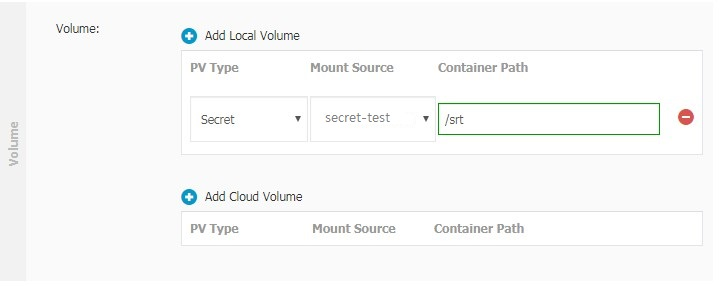
On the Container tab, in the Volumes section, click Add Local Storage.
-
PV Type: Secret
-
Name: secret-volume
-
Mount source: A created Secret, such as nginx-secret.
-
Container Path: Specify the mount path inside the container, such as /etc/nginx/secrets.
After you configure the parameters, click Next.
-
-
-
In the Advanced Settings step, configure scaling, scheduling, labels, and annotations as needed, and then click Launch at the bottom of the page.
-
On the Complete page, check the application status.
In the Creation Task Submitted panel, click View Details and verify that the container status is
Running.
-
-
Verify that the Secret files are mounted.
Select the Pod you want to access (for example, nginx-volume-demo-7xxxxxx****). In the Actions column, click Terminal and choose the nginx container to open a terminal session.
-
Verify that the Secret files are mounted.
ls -la /etc/nginx/secretsExpected output:
total 4 drwxrwxrwt 3 root root 140 Sep 15 02:31 . drwxr-xr-x 1 root root 4096 Sep 15 02:31 .. drwxr-xr-x 2 root root 100 Sep 15 02:31 ..2025_09_15_02_31_13.2599431463 lrwxrwxrwx 1 root root 32 Sep 15 02:31 ..data -> ..2025_09_15_02_31_13.2599431463 lrwxrwxrwx 1 root root 14 Sep 15 02:31 api-key -> ..data/api-key lrwxrwxrwx 1 root root 15 Sep 15 02:31 password -> ..data/password lrwxrwxrwx 1 root root 15 Sep 15 02:31 username -> ..data/username -
Verify that the file content is correct.
cat /etc/nginx/secrets/username cat /etc/nginx/secrets/api-keyExpected output:
admin ak-1234567890abcdef
The output confirms that the application can access the Secret data from the mounted volume.
-
Kubectl
-
Create a file named nginx-volume-demo.yaml.
apiVersion: apps/v1 kind: Deployment metadata: name: nginx-volume-demo namespace: default labels: app: nginx-volume spec: replicas: 2 selector: matchLabels: app: nginx-volume template: metadata: labels: app: nginx-volume spec: containers: - name: nginx image: anolis-registry.cn-zhangjiakou.cr.aliyuncs.com/openanolis/nginx:1.14.1-8.6 ports: - containerPort: 80 protocol: TCP # Mount the Secret volume volumeMounts: - name: secret-volume mountPath: /etc/nginx/secrets readOnly: true volumes: - name: secret-volume secret: secretName: nginx-secret # Set file permissions defaultMode: 0644 # Optional: Customize file name mapping items: - key: username path: db-username.txt - key: password path: db-password.txt - key: api-key path: api-key.txt -
Create a Deployment that uses the Secret.
kubectl apply -f nginx-volume-demo.yaml -
Check the Pod status.
kubectl get pods -l app=nginx-volume -n defaultExpected output:
NAME READY STATUS RESTARTS AGE nginx-volume-demo-7db46895bc-c98b5 1/1 Running 0 4h20m nginx-volume-demo-7db46895bc-pc6qg 1/1 Running 0 4h20m -
Verify that the Secret files are mounted.
kubectl exec deployment/nginx-volume-demo -n default -- ls -la /etc/nginx/secretsExpected output:
total 4 drwxrwxrwt 3 root root 140 Sep 15 02:31 . drwxr-xr-x 1 root root 4096 Sep 15 02:31 .. drwxr-xr-x 2 root root 100 Sep 15 02:31 ..2025_09_15_02_31_13.2599431463 lrwxrwxrwx 1 root root 32 Sep 15 02:31 ..data -> ..2025_09_15_02_31_13.2599431463 lrwxrwxrwx 1 root root 18 Sep 15 02:31 api-key.txt -> ..data/api-key.txt lrwxrwxrwx 1 root root 22 Sep 15 02:31 db-password.txt -> ..data/db-password.txt lrwxrwxrwx 1 root root 22 Sep 15 02:31 db-username.txt -> ..data/db-username.txt -
Verify that the file content is correct.
kubectl exec deployment/nginx-volume-demo -n default -- cat /etc/nginx/secrets/db-username.txt kubectl exec deployment/nginx-volume-demo -n default -- cat /etc/nginx/secrets/api-key.txtExpected output:
admin ak-1234567890abcdefThe output matches the Secret configuration, which confirms that the application can access the Secret data through the volume mount.
Method 2: Inject as an environment variable
This method injects Secret data as environment variables. This approach is useful for applications designed to read configuration from environment variables.
Console
-
Create a Deployment.
If you have an existing Deployment, choose , edit the application, and modify the environment variables in the Container configuration.
On the Clusters page, click the name of your cluster. In the left navigation pane, click .
-
Create a Deployment.
-
On the Deployments page, click Create from Image.
-
On the Basic Information page, configure the basic information for the application. Then, click Next to go to the Container page.
-
Application Name: nginx-env-demo
-
Namespace: default
-
Replicas: 2
-
Type: Deployment
-
-
Configure the container.
-
On the Container tab, configure the Image Name and Port.
-
Image Name:
anolis-registry.cn-zhangjiakou.cr.aliyuncs.com/openanolis/nginx:1.14.1-8.6 -
Container Port: 80, Protocol: TCP
ImportantYour cluster must have public network access to pull this image. If you selected Configure SNAT for VPC when you created the cluster (enabled by default), no extra configuration is needed. Otherwise, see Enable public network access for a cluster for instructions.
-
-
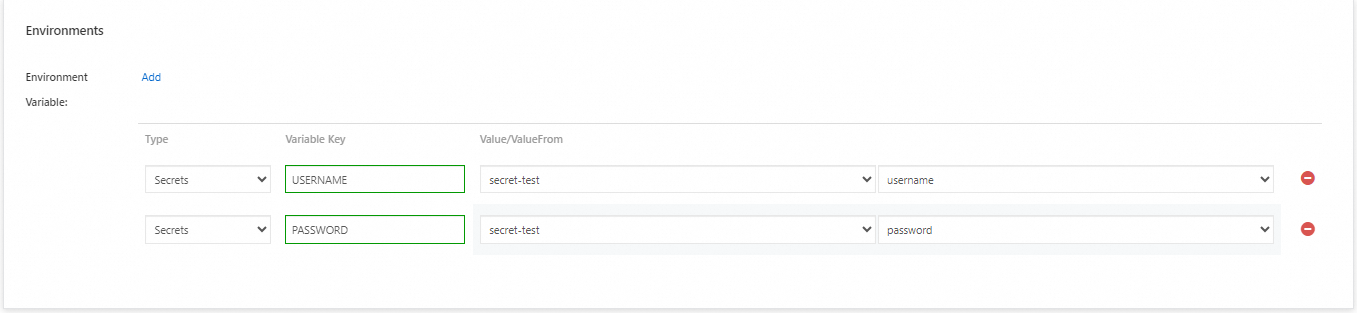
On the Container tab, in the Environment Variable section, click Add.
-
Type: Secrets
-
Name:
USERNAME -
Value/Reference: Select the source from the previously created Secret, such as nginx-secret. Then, specify a corresponding environment variable name for each key.
After you configure the parameters, click Next.
-
-
-
In the Advanced Settings step, configure scaling, scheduling, labels, and annotations as needed, and then click Launch at the bottom of the page.
-
On the Complete page, check the application status.
In the Creation Task Submitted panel, click View Details and verify that the container status is
Running.
-
-
Verify that the environment variables are injected.
Select the Pod you want to access (for example, nginx-env-demo-7xxxxxx****). In the Actions column, click Terminal and choose the nginx container to open a terminal session.
env | grep -E 'DB_|API_|NGINX_'Expected output:
API_KEY=ak-1234567890abcdef NGINX_api-key=ak-1234567890abcdef NGINX_password=MySecurePassword! NGINX_username=admin DB_USERNAME=admin DB_PASSWORD=MySecurePassword!The output confirms that the application can access the Secret data as environment variables.
Kubectl
-
Create a file named nginx-env-demo.yaml.
apiVersion: apps/v1 kind: Deployment metadata: name: nginx-env-demo namespace: default labels: app: nginx-env spec: replicas: 2 selector: matchLabels: app: nginx-env template: metadata: labels: app: nginx-env spec: containers: - name: nginx image: anolis-registry.cn-zhangjiakou.cr.aliyuncs.com/openanolis/nginx:1.14.1-8.6 ports: - containerPort: 80 protocol: TCP # Inject individual key-value pairs from the Secret. env: - name: DB_USERNAME valueFrom: secretKeyRef: name: nginx-secret key: username - name: DB_PASSWORD valueFrom: secretKeyRef: name: nginx-secret key: password - name: API_KEY valueFrom: secretKeyRef: name: nginx-secret key: api-key # Optional: Inject all key-value pairs from the Secret with a prefix. envFrom: - prefix: NGINX_ secretRef: name: nginx-secret -
Create a Deployment that uses the Secret.
kubectl apply -f nginx-env-demo.yaml -
Check the Pod status.
kubectl get pods -l app=nginx-env -n defaultExpected output:
NAME READY STATUS RESTARTS AGE nginx-env-demo-6dc7556d9-6pjhj 1/1 Running 0 3h33m nginx-env-demo-6dc7556d9-rcqsh 1/1 Running 0 3h33m -
Verify that the environment variables are injected.
kubectl exec deployment/nginx-env-demo -n default -- env | grep -E 'DB_|API_|NGINX_'Expected output:
API_KEY=ak-1234567890abcdef NGINX_api-key=ak-1234567890abcdef NGINX_password=MySecurePassword! NGINX_username=admin DB_USERNAME=admin DB_PASSWORD=MySecurePassword!The output matches the Secret configuration, which confirms that the application can access the Secret data through environment variables.
Manage a Secret
After you create a Secret, you can perform the following actions on the Secrets page:
|
Actions |
Description |
|
View a Secret |
Click the name of a Secret to view its basic information and details. |
|
Edit a Secret |
In the Actions column, click Edit to modify the Secret. Important
Modifying a Secret that is in use may cause service interruptions. Proceed with caution. |
|
Delete a Secret |
In the Actions column, click Delete to remove a Secret that you no longer need. Important
Do not delete the Secrets that are automatically generated in the |
Related documents
-
Troubleshoot abnormal Pods: Learn about the diagnostic process, troubleshooting methods, common issues, and solutions for abnormal Pods.
-
Create a Deployment: Learn how to create a stateless application in an ACK cluster by using the console and kubectl.
-
For more information about Secrets, see Secrets in the official Kubernetes documentation.