Service FAQ
Resolve CLB configuration, instance reuse, NodePort access, and CCM upgrade issues in ACK clusters.
Index
CLB configuration
| Question | Summary |
|---|---|
| What CLB instances does an ACK cluster create by default? | Two CLB instances: API server and Nginx Ingress Controller |
| How do I choose between the Local and Cluster external traffic policies? | Comparison of traffic policy behaviors |
| Why was my CLB configuration modified? | CCM overwrites manual CLB console changes |
| How are node weights calculated in Local mode? | Weight formulas by CCM version |
| How do I enable connection draining for a LoadBalancer Service? | Annotations for connection draining |
| How do I list all CLB instances in a cluster? | kubectl + jq command to list all LoadBalancer Services |
| How do I enable CLB renaming for older CCM versions? | Manually tagging CLB instances created by CCM v1.9.3.10 or earlier |
CLB access and lifecycle
| Question | Summary |
|---|---|
| Why is a CLB IP address inaccessible from within the cluster? | Layer 4 limitations and Local mode behavior |
| When are CLB instances deleted? | Deletion policies for CCM-created vs. reused CLB instances |
| What do I do if I accidentally delete a CLB instance? | Recovery steps for API server, Ingress, and application CLB instances |
Reusing an existing CLB instance
| Question | Summary |
|---|---|
| Why does reusing an existing CLB instance fail? | CCM version, instance origin, and VPC requirements |
| Why are listeners not created when I reuse an existing CLB instance? | Force-override annotation required |
CLB troubleshooting
| Question | Summary |
|---|---|
| What do I do if a CLB instance stays in the Pending state? | Check events and resolve errors |
| What do I do if a vServer group is not updated? | Check events and resolve errors |
| What do I do if a Service annotation does not take effect? | CCM version, annotation presence, and syntax |
| Why are no events displayed for Service and LoadBalancer synchronization? | CCM version earlier than v1.9.3.276-g372aa98-aliyun |
Service error messages
| Question | Summary |
|---|---|
| Quota and resource errors | Backend server quota, vSwitch IP exhaustion, node availability |
| Configuration errors | ENI mode, target port, resource group, address type, billing method |
| Network errors | VPC mismatch, API throttling, vServer group conflicts |
| CLB reuse errors | Reusing CCM-created CLB, CLB not found, CLB reattachment |
| Billing errors | Overdue payment, insufficient balance, shared instance discontinued |
NodePort and CCM
| Question | Summary |
|---|---|
| How do I access a NodePort Service? | Access methods by network scope |
| How do I configure a listener for a NodePort Service? | Change to LoadBalancer type |
| How do I configure the NodePort range? | ServiceNodePortRange and port conflict avoidance |
| What do I do if a CCM upgrade fails? | Troubleshooting link |
| How do I add permissions required for a CCM upgrade in an ACK dedicated cluster? | RAM permissions for v2.11.2 and later |
| How do I enable session persistence for a Kubernetes Service? | External link |
CLB configuration
What CLB instances does an ACK cluster create by default?
If the Nginx Ingress Controller add-on is installed during cluster creation, the cluster creates two CLB instances:
-
API server CLB: The API server endpoint. All cluster requests pass through this instance on TCP port 6443. Backends are API server pods or master ECS instances.
-
Nginx Ingress Controller CLB: Associated with the
nginx-ingress-controllerService in kube-system. Dynamically binds to Ingress Controller pods for load balancing external requests. Listens on TCP ports 80 and 443.
See The specific purposes of SLB instances in an ACK cluster.
How do I choose between the Local and Cluster external traffic policies?
Local and Cluster external traffic policies differ by network plugin. See External traffic policies: Local and Cluster.
Why was my CLB configuration modified?
CCM uses a declarative API and automatically updates CLB configuration based on the Service definition. Direct CLB console changes may be overwritten.
Do not modify Kubernetes-managed CLB instances in the CLB console. Changes may be lost and make the Service inaccessible. Use Service annotations instead. See Use annotations to configure a Classic Load Balancer (CLB) instance.
How are node weights calculated in Local mode?
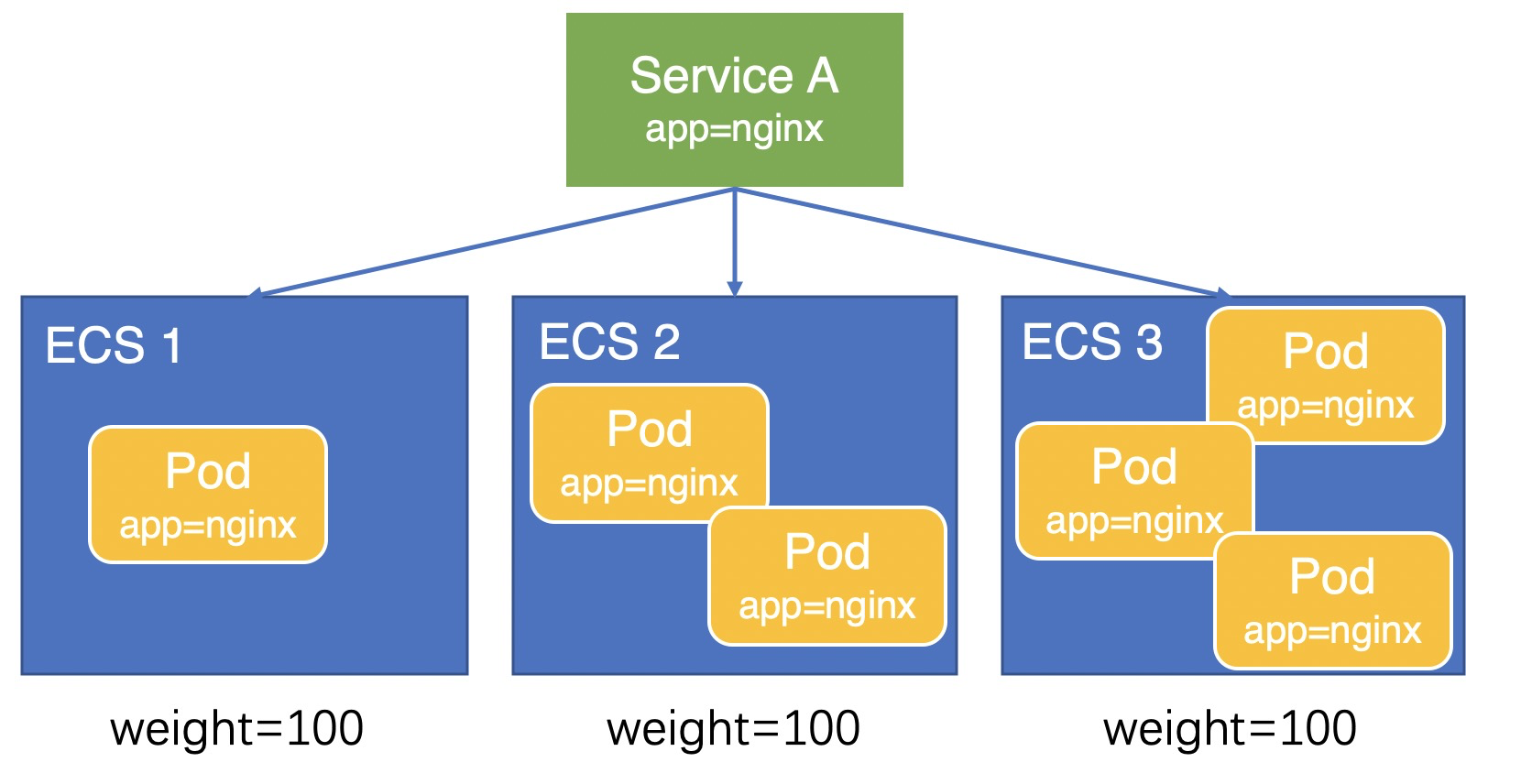
The following example uses an application pod (app=nginx) deployed on three ECS instances and exposed through a Service.
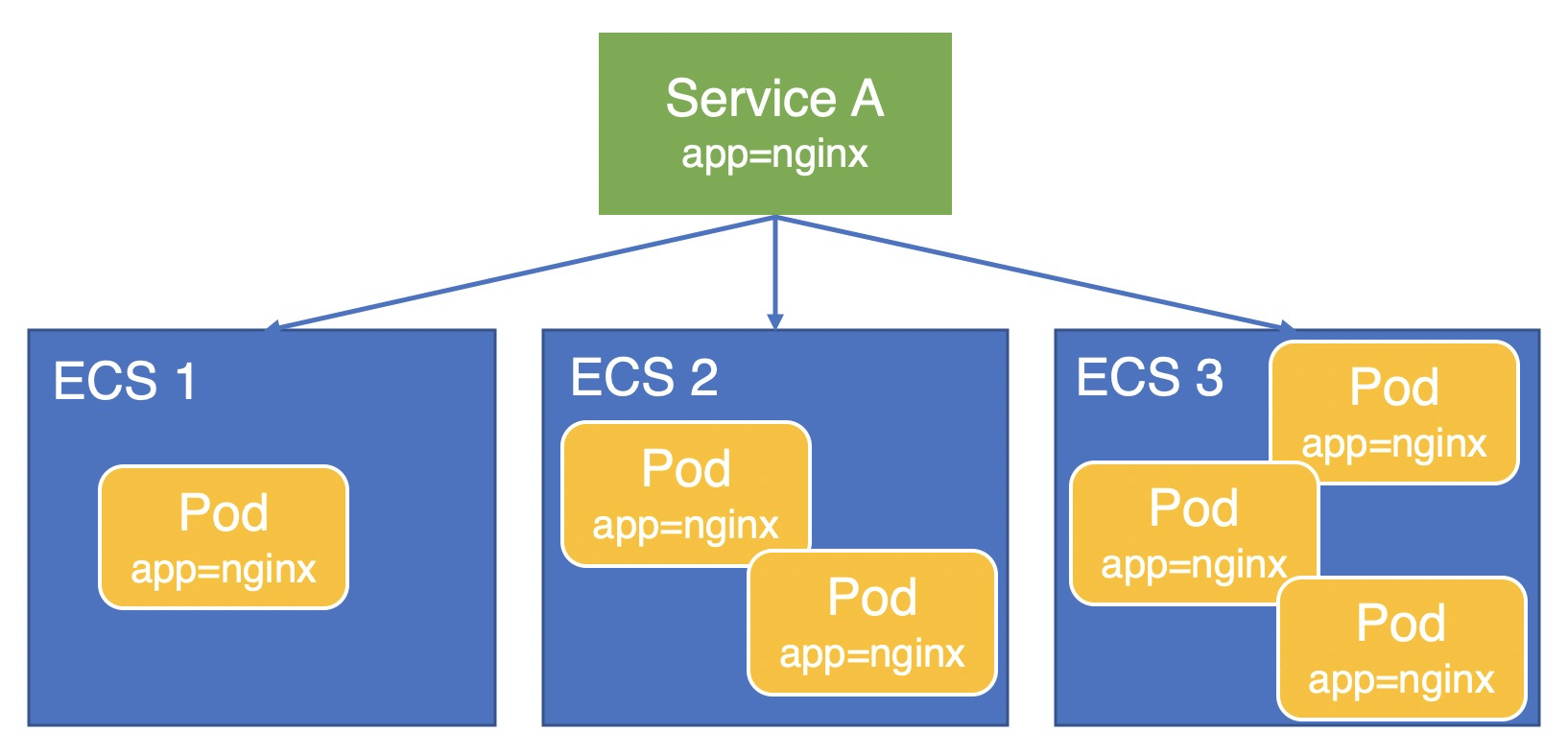
v1.9.3.276-g372aa98-aliyun and later
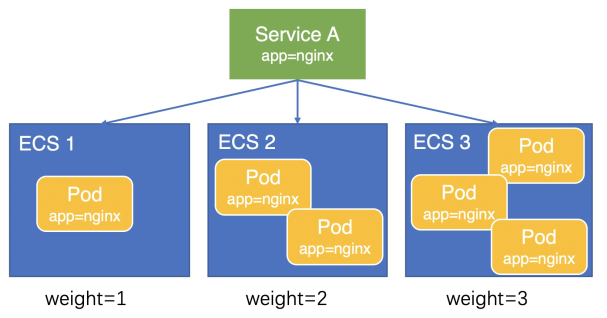
CCM sets the node weight equal to the number of pods on that node. For example, if three ECS instances host 1, 2, and 3 pods respectively, their weights are 1, 2, and 3. Traffic is distributed at a 1:2:3 ratio, resulting in balanced load across pods.
Formula:

Between v1.9.3.164-g2105d2e-aliyun and v1.9.3.276-g372aa98-aliyun
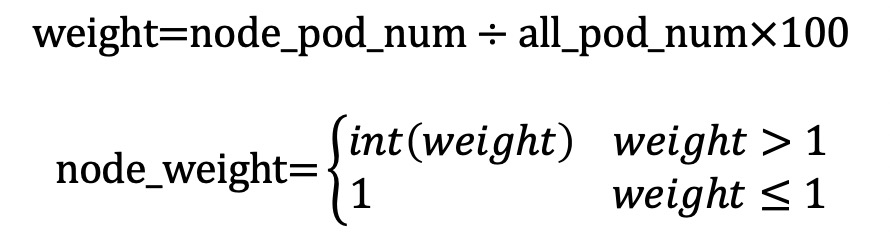
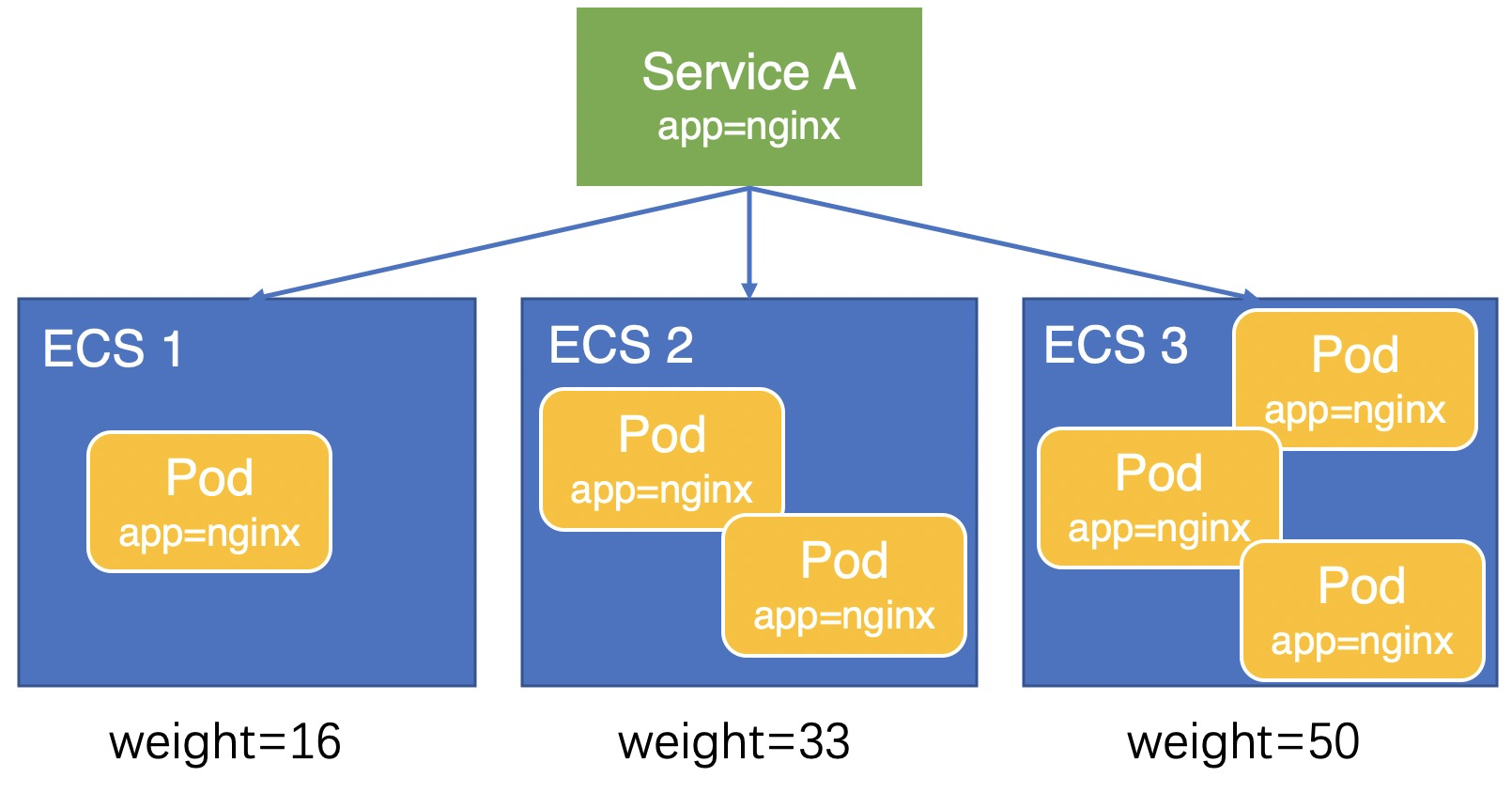
CCM calculates weights based on pod count. For the same three ECS instances, the calculated weights are 16, 33, and 50, giving an approximate 1:2:3 traffic ratio.
Formula:
Earlier than v1.9.3.164-g2105d2e-aliyun
All backend servers have a weight of 100, which distributes traffic evenly across ECS instances regardless of pod count. This causes unbalanced load across pods -- nodes with fewer pods receive disproportionately more traffic per pod.
How do I enable connection draining for a LoadBalancer Service?
Add the following annotations to the Service. After a backend server is removed, the CLB instance continues processing existing connections for the duration of the drain timeout.
-
service.beta.kubernetes.io/alibaba-cloud-loadbalancer-connection-drain -
service.beta.kubernetes.io/alibaba-cloud-loadbalancer-connection-drain-timeout
How do I list all CLB instances in a cluster?
-
Retrieve the name, namespace, IP address, and address type of every LoadBalancer Service. Example output:
kubectl get services -A -ojson | jq '.items[] | select(.spec.type == "LoadBalancer") | {name: .metadata.name, namespace: .metadata.namespace, ip: .status.loadBalancer.ingress[0].ip, lb_type: .metadata.annotations."service.beta.kubernetes.io/alibaba-cloud-loadbalancer-address-type"}'{ "name": "test", "namespace": "default", "ip": "192.168.*.*", "lb_type": "intranet" } { "name": "nginx-ingress-lb", "namespace": "kube-system", "ip": "47.97.*.*", "lb_type": "null" }
How do I enable CLB renaming for older CCM versions?
CCM v1.9.3.10 and later automatically tag CLB instances to support renaming. For CLB instances created by earlier CCM versions, add the tag manually.
This procedure applies only to CLB instances created by CCM v1.9.3.10 or earlier. The Service type must be LoadBalancer.
-
Connect to the cluster master node. See Connect to an ACK cluster using kubectl.
-
View the Service type and IP address. Replace
${namespace}and${service}with the actual namespace and Service name.kubectl get svc -n ${namespace} ${service}# kubectl get svc -n ${namespace} ${service} nginx-local LoadBalancer 172.19.xxx.xxx 47.111.xxx.xxx 8900:31598/TCP 33d -
Generate the tag for the CLB instance:
kubectl get svc -n ${namespace} ${service} -o jsonpath="{.metadata.uid}"|awk -F "-" '{print "kubernetes.do.not.delete: "substr("a"$1$2$3$4$5,1,32)}'# kubectl get svc -n ${namespace} ${service} -o jsonpath="{.metadata.uid}"|awk -F "-" '{print "ku kubernetes.do.not.delete: xxx -
Log on to the CLB console. Using the IP address from step 2, search for the CLB instance in the corresponding region.
-
Add a tag to the CLB instance using the key and value from step 3 (items 1 and 2 in the preceding figure). See Create and manage a CLB instance.
CLB access and lifecycle
Why is a CLB IP address inaccessible from within the cluster?
Two scenarios can cause this.
Scenario 1: Private CLB not created by a Service
When a pod accesses a private CLB instance not created by a Service, access fails if the pod and a backend server are on the same node. This is a Layer 4 limitation: an ECS instance cannot be both a backend server and a client for the same CLB instance.
To resolve this:
-
Change the CLB IP address to a public IP address.
-
Create the CLB instance through a Service and set the external traffic policy to Cluster. Kube-proxy then intercepts CLB-bound traffic from within the cluster, bypassing the limitation.
Scenario 2: externalTrafficPolicy: Local blocks internal access
When a Service uses externalTrafficPolicy: Local, internal access to the CLB IP fails from nodes without a backend pod. The CLB address is for external use. Internal traffic is intercepted by kube-proxy and routed locally (iptables or IPVS). If the node has no local backend pod, the connection fails.
See kube-proxy adds external-lb address to local node iptables rules.
Solutions (listed by recommendation):
-
Access Services internally by ClusterIP or Service name. For example, the Ingress Service name is
nginx-ingress-lb.kube-system. This is the recommended approach. -
Change
externalTrafficPolicyto Cluster. This forwards traffic to all nodes but enables SNAT, so the backend cannot retrieve the real client IP.kubectl edit svc nginx-ingress-lb -n kube-system -
Use elastic network interface (ENI) passthrough on Terway clusters. Set
externalTrafficPolicyto Cluster and add theservice.beta.kubernetes.io/backend-type: "eni"annotation. This preserves the source IP while allowing internal access. See Use annotations to configure a Classic Load Balancer (CLB) instance.apiVersion: v1 kind: Service metadata: annotations: service.beta.kubernetes.io/backend-type: eni labels: app: nginx-ingress-lb name: nginx-ingress-lb namespace: kube-system spec: externalTrafficPolicy: Cluster
When are CLB instances deleted?
Deletion behavior depends on whether CCM created the CLB instance and how it was associated with the Service.
| Service operation | CCM-created CLB | Reused CLB |
|---|---|---|
| Delete the Service | CLB is deleted | CLB is retained |
| Change the Service type from LoadBalancer to another type | CLB is deleted | CLB is retained |
If the Service reuses an existing CLB instance (annotated with service.beta.kubernetes.io/alibaba-cloud-loadbalancer-id: {your-slb-id}), deleting the Service does not delete the CLB instance. Otherwise, deleting the Service also deletes the CLB instance.
Do not edit a Service to change a CCM-created CLB instance to a reused one. This disassociates the Service from the auto-created CLB, preventing automatic deletion when the Service is removed.
What do I do if I accidentally delete a CLB instance?
If the API server CLB instance is deleted, it cannot be recovered. You must recreate the cluster. For instructions, see Create an ACK Pro cluster.
Scenario 1: Ingress CLB deleted
The following steps use Nginx Ingress as an example.
-
Log on to the ACK console. In the left navigation pane, click Clusters.
-
On the Clusters page, find the target cluster and click its name. In the left navigation pane, choose Network > Services.
-
Select kube-system from the Namespace drop-down list.
-
If nginx-ingress-lb appears in the list, click Edit YAML in the Actions column. Remove the
status.loadBalancerfield and its content, then click OK. CCM rebuilds the CLB instance. -
If nginx-ingress-lb does not appear, click Create from YAML and use the following template: ``
yaml apiVersion: v1 kind: Service metadata: labels: app: nginx-ingress-lb name: nginx-ingress-lb namespace: kube-system spec: externalTrafficPolicy: Local ports: selector: app: ingress-nginx type: LoadBalancer``-
name: http port: 80 protocol: TCP targetPort: 80
-
name: https port: 443 protocol: TCP targetPort: 443
-
-
Scenario 2: Application-specific CLB deleted
-
If the Service is no longer needed, delete it.
-
If the Service is still in use:
-
Log on to the ACK console. In the left navigation pane, click Clusters.
-
On the Clusters page, find the target cluster and click its name. In the left navigation pane, choose Network > Services.
-
From the Namespace drop-down list, click All Namespaces, then find the target Service.
-
In the Actions column, click Edit YAML. Delete the
status.loadBalancercontent and click OK. CCM rebuilds the CLB instance.
-
Reusing an existing CLB instance
Why does reusing an existing CLB instance fail?
Check the following in order:
-
CCM version: Versions earlier than v1.9.3.105-gfd4e547-aliyun do not support reusing CLB instances. For upgrade instructions, see Upgrade the CCM component.
-
Instance origin: CLB instances created by the cluster cannot be reused.
-
API server CLB: The API server CLB instance cannot be reused.
-
VPC mismatch: A private-facing CLB instance must be in the same virtual private cloud (VPC) as the cluster. Cross-VPC reuse is not supported.
Why are listeners not created when I reuse an existing CLB instance?
Verify that the service.beta.kubernetes.io/alibaba-cloud-loadbalancer-force-override-listeners annotation is "true". Without it, listeners are not created.
CCM does not overwrite listeners on existing CLB instances by default:
Overwriting active listeners can cause service interruptions.
CCM supports limited backend configurations. For complex setups, create listeners in the CLB console. Only force-override listeners when their ports are no longer in use.
CLB troubleshooting
What do I do if a CLB instance stays in the Pending state?
-
Run
kubectl -n {your-namespace} describe svc {your-svc-name}to check event messages. -
Resolve the errors reported in the events. See Service error messages and solutions for guidance.
If no events appear, see Why are no events displayed for Service and LoadBalancer synchronization?
What do I do if a vServer group is not updated?
-
Run
kubectl -n {your-namespace} describe svc {your-svc-name}to check event messages. -
Resolve the errors reported in the events. See Service error messages and solutions for guidance.
If no events appear, see Why are no events displayed for Service and LoadBalancer synchronization?
What do I do if a Service annotation does not take effect?
-
Run
kubectl -n {your-namespace} describe svc {your-svc-name}to check for error events. If errors exist, see Service error messages and solutions. -
If no errors appear, check the following:
-
CCM version: Verify the CCM version supports the annotation. See Use annotations to configure a Classic Load Balancer (CLB) instance.
-
Annotation presence: Log on to the ACK console. On the Services page, click the Service name and confirm that the annotation exists. If missing, add it. See Use annotations to configure a Classic Load Balancer (CLB) instance.
-
Annotation syntax: Verify the annotation key and value are correct.
-
To view the Service list, see Manage services.
Why are no events displayed for Service and LoadBalancer synchronization?
If kubectl -n {your-namespace} describe svc {your-svc-name} shows no events, check the CCM version:
-
Earlier than v1.9.3.276-g372aa98-aliyun: Events are not supported. Upgrade CCM. For upgrade instructions, see Upgrade the CCM component.
-
v1.9.3.276-g372aa98-aliyun and later: Submit a ticket for further investigation.
Service error messages and solutions
Common Service error messages organized by category.
Quota and resource errors
| Error message | Description and solution |
|---|---|
The backend server number has reached to the quota limit of this load balancers |
The CLB instance has reached its backend server quota. By default, a CLB instance supports up to 200 backend servers. To resolve this: - Request a quota increase on the SLB Quota Management page. - Set externalTrafficPolicy: Local. Cluster mode consumes quota quickly. If using Cluster mode, add the service.beta.kubernetes.io/alibaba-cloud-loadbalancer-backend-label annotation to limit backend nodes. See Use annotations to configure a CLB instance. - When multiple Services reuse a CLB instance, backend server counts are cumulative. Create a separate CLB instance for the new Service. |
There are no available nodes for LoadBalancer |
The CLB instance has no backend servers. Check whether the Service is associated with a running pod. - If no pod is associated, associate the Service with an application pod. - If the pod is unhealthy, troubleshoot it. - If the pod runs on a master node, evict it to a worker node. |
Status Code: 400 Code: VSwitchAvailableIpNotExist Message: The specified VSwitch has no available ip. |
The vSwitch has no available IP addresses. Use service.beta.kubernetes.io/alibaba-cloud-loadbalancer-vswitch-id: "${YOUR_VSWITCH_ID}" to specify a different vSwitch in the same VPC. |
Configuration errors
| Error message | Description and solution |
|---|---|
The loadbalancer does not support backend servers of eni type |
Shared CLB instances do not support ENI backends. Add the service.beta.kubernetes.io/alibaba-cloud-loadbalancer-spec: "slb.s1.small" annotation to use a high-performance CLB instance. Verify CCM version compatibility. See Use annotations to configure a CLB instance. |
The specified Port must be between 1 and 65535. |
ENI mode does not support a string value for targetPort. Change the targetPort value in the Service YAML to an integer, or upgrade CCM. For upgrade instructions, see Upgrade the CCM component. |
can not change ResourceGroupId once created |
The resource group of a CLB instance cannot be changed after creation. Remove the service.beta.kubernetes.io/alibaba-cloud-loadbalancer-resource-group-id:"rg-xxxx" annotation from the Service. |
can not find eniid for ip x.x.x.x in vpc vpc-xxxx |
The ENI IP address cannot be found in the VPC. Check whether the Service has the service.beta.kubernetes.io/backend-type: eni annotation. If the cluster uses the Flannel network plugin, the ENI mode is not supported. Remove the annotation. |
The operation is not allowed because the instanceChargeType of loadbalancer is PayByCLCU. or User does not have permission modify InstanceChargeType to spec. |
The billing method of the CLB instance cannot be changed from pay-as-you-go to pay-by-specification. - Remove the service.beta.kubernetes.io/alibaba-cloud-loadbalancer-spec annotation. - If the Service has the service.beta.kubernetes.io/alibaba-cloud-loadbalancer-instance-charge-type annotation, set its value to PayByCLCU. |
alicloud: can not change LoadBalancer AddressType once created. delete and retry |
The CLB address type cannot be changed after creation. Delete and recreate the Service. |
Network errors
| Error message | Description and solution |
|---|---|
Status Code: 400 Code: NetworkConflict |
The reused internal-facing CLB instance is not in the same VPC as the cluster. Make sure the CLB instance and the cluster are in the same VPC. |
Status Code: 400 Code: Throttlingxxx |
The CLB API is being throttled. 1. Log on to the SLB Quota Management page and verify that your CLB quota is sufficient. 2. Run kubectl -n {your-namespace} describe svc {your-svc-name} to check for Service errors. Resolve any errors according to this table. |
Status Code: 400 Code: RspoolVipExist Message: there are vips associating with this vServer group. |
A listener associated with the vServer group cannot be deleted. 1. Check whether the Service annotation contains service.beta.kubernetes.io/alibaba-cloud-loadbalancer-id: {your-clb-id}. If so, the CLB instance is reused. 2. Delete the listener that corresponds to the Service port in the CLB console. |
CLB reuse errors
| Error message | Description and solution |
|---|---|
alicloud: not able to find loadbalancer named [%s] in openapi, but it's defined in service.loaderbalancer.ingress. this may happen when you removed loadbalancerid annotation or alicloud: can not find loadbalancer, but it's defined in service |
The CLB instance cannot be located based on the Service. Log on to the CLB console and search for the CLB instance by the EXTERNAL-IP of the Service in the same region. 1. If the CLB instance is not found and the Service is no longer needed, delete the Service. 2. If the CLB instance exists: - If it was manually created, add the service.beta.kubernetes.io/alibaba-cloud-loadbalancer-id annotation. See Use annotations to configure a CLB instance. - If it was auto-created by CCM, check whether the CLB instance has the kubernetes.do.not.delete tag. If not, add it. See How do I enable CLB renaming for older CCM versions? |
SyncLoadBalancerFailed the loadbalancer xxx can not be reused, can not reuse loadbalancer created by kubernetes. |
A CLB instance created by CCM cannot be reused. Check the CLB ID in the service.beta.kubernetes.io/alibaba-cloud-loadbalancer-id annotation and resolve based on the Service status: - Pending state: Replace the CLB ID with the ID of a manually created CLB instance from the CLB console. - Not pending: If the CLB IP matches the Service external IP, remove the service.beta.kubernetes.io/alibaba-cloud-loadbalancer-id annotation. If the IPs differ, find the correct CLB instance in the CLB console by the Service external IP and update the annotation, or replace the CLB ID with a manually created CLB instance and recreate the Service. |
the loadbalancer lb-xxxxx can not be reused, service has been associated with ip [xxx.xxx.xxx.xxx], cannot be bound to ip [xxx.xxx.xxx.xxx] |
The Service is already attached to a CLB instance and cannot be attached to another one. To change the CLB instance, delete and recreate the Service. Changing the CLB ID in the service.beta.kubernetes.io/alibaba-cloud-loadbalancer-id annotation alone does not work. |
Billing errors
| Error message | Description and solution |
|---|---|
ORDER.ARREARAGE Message: The account is arrearage. |
Your account has an overdue payment. |
PAY.INSUFFICIENT_BALANCE Message: Your account does not have enough balance. |
|
Status Code: 400 Code: ShareSlbHaltSales Message: The share instance has been discontinued. |
Earlier CCM versions create shared CLB instances by default, but shared instances are discontinued. Upgrade the CCM component. |
NodePort and CCM
How do I access a NodePort Service?
-
From within the cluster (on a cluster node): Use ClusterIP + port, or node IP + Service NodePort. The default NodePort is greater than 30000.
-
From outside the cluster (within the same VPC): Use the node IP address and the Service NodePort.
-
From outside the VPC (from another VPC or the internet): Expose the Service as a LoadBalancer type and access it through its external endpoint.
If the external traffic policy is Local, verify the node you access hosts a backend pod of the Service. See External traffic policies: Local and Cluster.
How do I configure a listener for a NodePort Service?
CCM supports listener configuration only for LoadBalancer Services. Change the Service type from NodePort to LoadBalancer.
How do I configure the NodePort range?
The API server --service-node-port-range parameter (ServiceNodePortRange) controls the port range for NodePort and LoadBalancer Services. The default range is 30000 to 32767. In ACK Pro clusters, customize control plane parameters to adjust this range. See Customize the parameters of the control plane for an ACK Pro cluster.
Keep the following in mind:
-
Avoid port range conflicts. The NodePort range must not overlap with the
net.ipv4.ip_local_port_rangekernel parameter, which controls local port numbers available to applications on the node. The defaultip_local_port_rangeis 32768 to 60999. -
Default ranges are safe. With default ACK settings, ServiceNodePortRange (30000-32767) and
ip_local_port_range(32768-60999) do not overlap. If either range has been extended and they now overlap, sporadic network exceptions may occur. In severe cases, health checks fail and nodes go offline. Restore the default values or adjust both ranges to eliminate overlap. -
Reconfigure existing Services after changes. After adjusting the port range, some NodePort or LoadBalancer Services may still use ports within the
ip_local_port_rangerange. Runkubectl edit <service-name>and change thespec.ports.nodePortfield to an unused NodePort.
What do I do if a CCM upgrade fails?
How do I add permissions required for a CCM upgrade in an ACK dedicated cluster?
Later CCM versions introduce Alibaba Cloud APIs that require additional Resource Access Management (RAM) permissions. For example, v2.11.2 adds route management for Flannel networks, and v2.12.1 adds batch management for Network Load Balancer (NLB).
Before upgrading to v2.11.2 or later in an ACK dedicated cluster, grant the required permissions to the cluster RAM role:
-
Log on to the ACK console. In the left navigation pane, click Clusters.
-
On the Clusters page, find the target cluster and click its name. In the left navigation pane, click Cluster Information.
-
Click the Basic Information tab, then click the role name for Master RAM Role.
-
In the RAM console, click Permissions > Policies in the left navigation pane. Find the custom policy that starts with
k8sMasterRolePolicy-Ccm-and click the policy name.For older clusters, this policy may not exist. Select a custom policy whose name starts with
k8sMasterRolePolicy-instead. -
Click Edit Policy Document and add the
nlb:ListAsynJobspermission to the NLB permissions. For Flannel clusters, also add thevpc:CreateRouteEntriesandvpc:DeleteRouteEntriespermissions to the VPC permissions."nlb:ListServerGroupServers", "nlb:GetJobStatus", "nlb:LoadBalancerLeaveSecurityGroup", "nlb:LoadBalancerJoinSecurityGroup", "nlb:ListAsynJobs" ], "Resource": "*", "Effect": "Allow" },}, { "Action": [ "vpc:Describe*", "vpc:DeleteRouteEntry", "vpc:CreateRouteEntry", "vpc:CreateRouteEntries", "vpc:DeleteRouteEntries" ], "Resource": "*", "Effect": "Allow" } ] } -
Submit the changes and proceed with the CCM upgrade.