How to use the cost insights feature of a registered cluster
Learn how to enable and use the cost insights feature for registered clusters. This feature helps you analyze cost breakdowns, monitor resource utilization, and optimize your cluster's spending.
Prerequisites
The Kubernetes version of your cluster is 1.18.8 or later. If your cluster runs an earlier version, upgrade the cluster. For more information, see Manually upgrade a cluster.
Managed Service for Prometheus is enabled. For more information, see Enable Managed Service for Prometheus.
Enable cost insights
Single account
Configure RAM permissions and enable cost insights for a registered cluster in a single Alibaba Cloud account.
Step 1: Configure RAM permissions
onectl
-
Install and configure onectl on your local machine. For more information, see Manage registered clusters using onectl.
Grant RAM permissions to the ack-cost-exporter add-on:
onectl ram-user grant --addon ack-cost-exporterExpected output:
Ram policy ack-one-registered-cluster-policy-ack-cost-exporter granted to ram user ack-one-user-ce313528c3 successfully.
Console
Create a custom policy. The ack-cost-exporter add-on requires the permissions defined in the following policy:
-
Create an AccessKey for the RAM user.
WarningFor enhanced security, configure a network access control policy for the AccessKey to restrict access to trusted network environments and improve security. For more information, see AccessKey-based network access restriction policies.
Use the AccessKey pair to create a Secret named alibaba-addon-secret for the ack-cost-exporter add-on in the registered cluster.
kubectl -n kube-system create secret generic alibaba-addon-secret --from-literal='access-key-id=<your AccessKey ID>' --from-literal='access-key-secret=<your AccessKey Secret>'
Step 2: Install ack-cost-exporter
onectl
Install the ack-cost-exporter add-on:
onectl addon install ack-cost-exporterExpected output:
Addon ack-cost-exporter, version **** installed.Console
-
Log on to the ACK console. In the left navigation pane, click Clusters.
On the Clusters page, click the name of the target cluster, and then in the left navigation bar, select .
If a release of ack-cost-exporter already exists on the Helm page, delete the release and reinstall it by following the subsequent steps.
In the left navigation bar of the cluster management page, select .
On the Add-ons page, click the Observability tab, find the ack-cost-exporter add-on, and click Install in the lower-right corner. Then, click OK.
Cross-account
To manage an ACK cluster in Account B from a registered cluster in Account A, you must grant permissions in Account B to allow the cost insights feature to access the billing data of Account B.
Step 1: Configure RAM permissions for Account B
-
Log on to the ACK console. In the left navigation pane, click Clusters.
-
On the Clusters page, click the name of your cluster. In the left navigation pane, click .
Grant permissions to access the billing data of the ACK cluster.
-
ACK managed clusters
The system automatically creates the AliyunCSManagedCostRole RAM role. Prometheus assumes this role to access your billing data.
Or authorize from the RAM Quick Authorization page.
-
ACK dedicated clusters
Add billing permissions to the worker role policy:
NoteThe ACK cluster in Account B does not require Managed Service for Prometheus. If this service is already enabled on the cluster, first uninstall the ack-arms-prometheus add-on. For more information, see Manage add-ons.
-
Step 2: Install the add-on in Account A
In Account A where the registered cluster resides, install Managed Service for Prometheus. For more information, see Connect a registered cluster to Managed Service for Prometheus.
In Account A where the registered cluster resides, configure the
AckRegisteredClusterIdparameter for the ack-cost-exporter add-on. Set the parameter to theclusterIdof the ACK cluster in Account B.-
Log on to the ACK console. In the left navigation pane, click Clusters.
On the Clusters page, click the name of the target cluster, and then in the left navigation bar, select .
If a release of ack-cost-exporter already exists on the Helm page, delete the release and reinstall it by following the subsequent steps.
In the left navigation bar of the cluster management page, select .
On the Add-ons page, click the Observability tab, find the ack-cost-exporter add-on, and click Install in the lower-right corner.
On the Install Component page, set
registeredAckClusterIdto the clusterId of the cluster in Account B, and then click OK.
-
Usage notes
After you enable the Cost Insights feature, bill data is automatically displayed at 08:00 the next day. Select the drop-down list in the upper-right corner to view cluster cost data for different time ranges.
Cost analysis by cluster
Filter criteria

|
Feature |
Number |
Description |
|
Cost statistics options for clusters |
① |
Options for cluster cost statistics.
For more information, see Bill details. Note
Cost statistics for the application portion of the cluster, including cost statistics for application dimensions such as namespace and Pod, are calculated only by Original Billing cost without discount. |
|
Cost allocation model options |
② |
Cost allocation model options include the single-resource model and the weighted hybrid-resource model. For more information, see Cost estimation policies.
|
|
Time range |
③ |
The time range of the dashboard. The default is the last 7 days. You can set this option to view cost and resource trends for different time ranges. |
Cluster cost overview
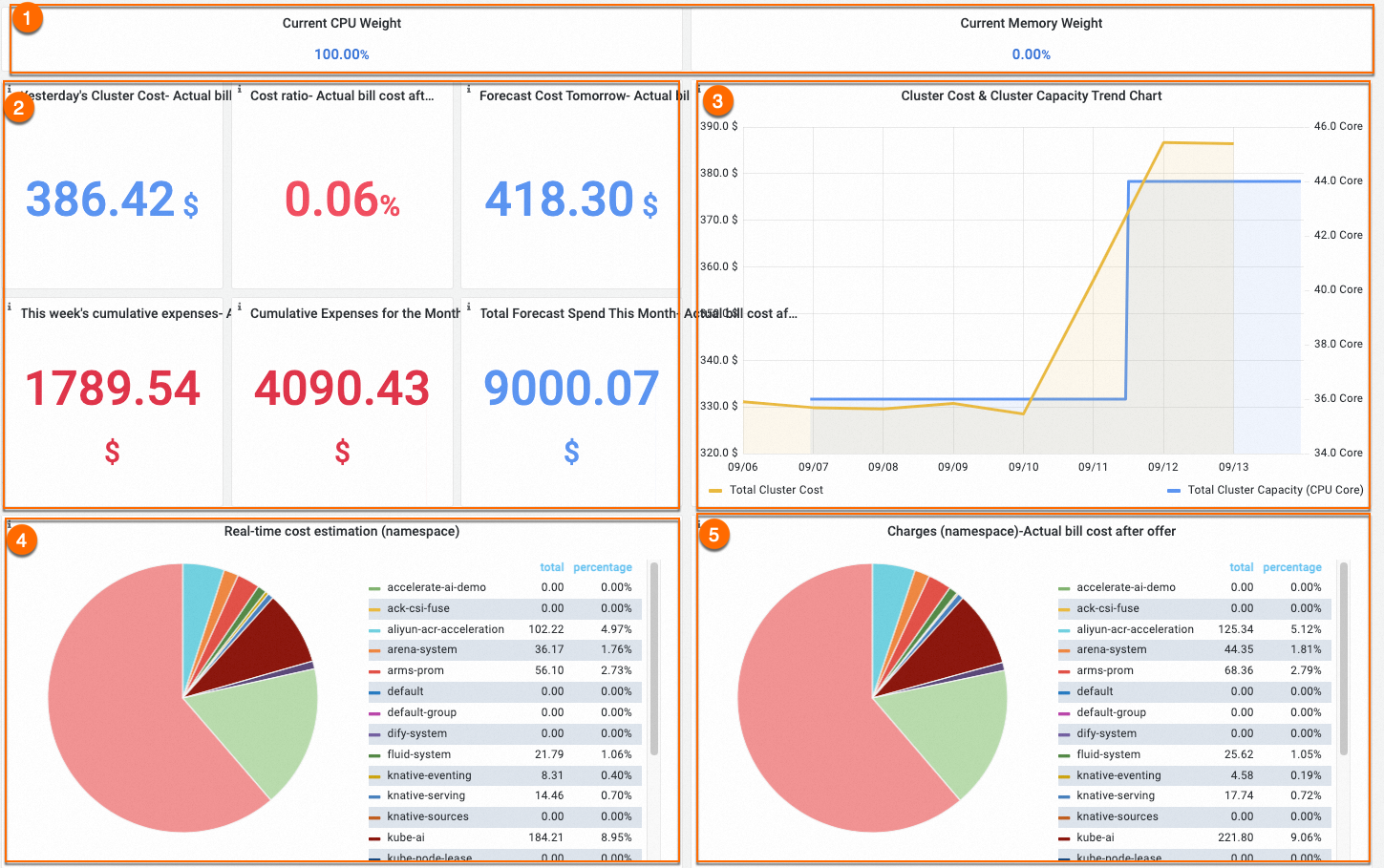
|
Feature |
Number |
Description |
|
View the cost allocation model |
① |
This result depends on the cost allocation model option that you select. By default, the dashboard uses the CPU model option, which uses CPU resource requests to estimate Pod costs. |
|
Analyze the cluster cost summary through yesterday, this week, and this month |
② |
Cost statistics. Yesterday's cluster spending, the day-on-day cost ratio, cumulative spending this week, and cumulative spending this month are bill cost statistics for the cloud resources in this cluster. Cumulative spending this week and cumulative spending this month are bill spending statistics for the calendar week and the calendar month, respectively. Because the billing cycle has a T+1 delay, cumulative spending this week is not displayed on Mondays, and cumulative spending this month is not displayed on the first day of each month. The day-on-day cost ratio compares yesterday's cluster cost with the cost of the previous day. Green indicates a decrease, and red indicates an increase. |
|
Use cost trends to assess cluster cost and resource waste |
③ |
A trend chart of cluster spending and cluster capacity. The yellow curve indicates cost consumption, and the blue curve indicates the actual cluster capacity. In most cases, the two curves are correlated to some extent. Compare the correlation between the two curves. If the two trends are inconsistent, the cost per core in the cluster is abnormal. Check whether any resource is incurring excessive costs. |
|
View real-time cost estimation and cost allocation by namespace |
④⑤ |
④ is the real-time estimated cost of each namespace in the cluster. The cost of a namespace is the sum of the estimated costs of all Pods in the namespace. ⑤ is the cost allocation value of each namespace, which is the share of the actual cluster cost allocated to the namespace based on the estimated proportion. Note
Nodes in a cluster may have different instance types and billing methods. When you allocate costs by namespace, you cannot rely only on the resource requests of each namespace. You must also consider the nodes on which the Pods in the namespace run. Cost Insights converts the real-time cost of each node. When calculating costs by namespace, the cost is converted to User discounts, voucher deductions, Subscription billing, and other delayed billing methods can cause the cost of a namespace to differ from the actual bill cost of the cluster. You can allocate costs by multiplying the cost proportion of the namespace by the total cost of the cluster. |
Stability & efficiency analysis
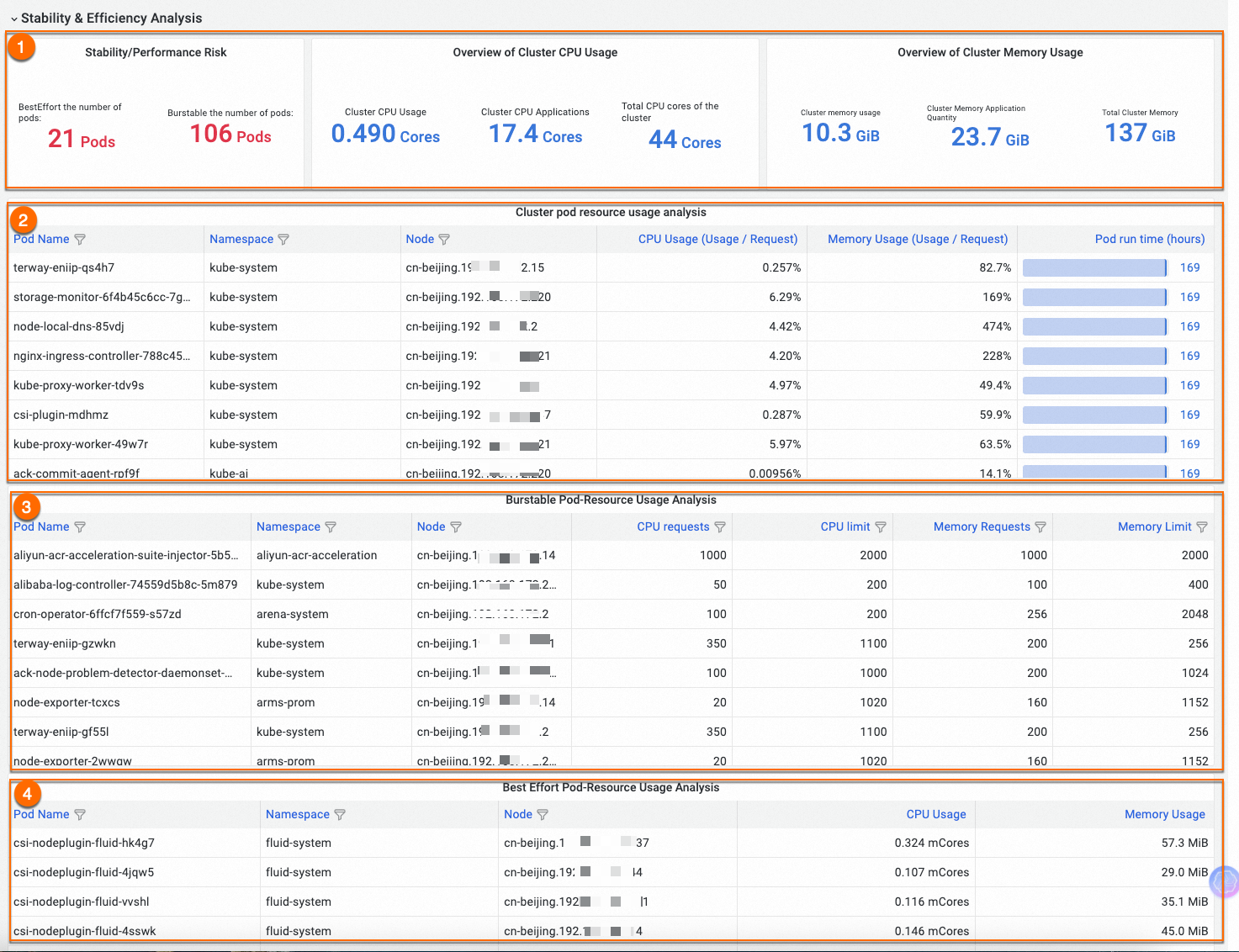
|
Feature |
Number |
Description |
|
View total cluster resource usage |
① |
The number of Pods in each Quality of Service (QoS) Class in the cluster and the total resource usage. |
|
View cluster Pod resource utilization |
② |
The basic information and resource utilization (Usage/Request) of all Pods in the cluster. You can filter and sort the list. Use this feature to view, in bulk, the workloads with the highest or lowest resource watermark in the cluster. |
|
View the resource configurations of Burstable Pods in the cluster |
③ |
The resource configurations of Pods whose QoS Class is Burstable. You can filter and sort the list. Use this feature to view the requests (Request) and limits (Limit) of resources such as CPU and memory for each Burstable Pod. This helps you understand the cluster resources that each Pod consumes and identify potential resource bottlenecks. |
|
View the resource usage of BestEffort Pods in the cluster |
④ |
The resource configurations of Pods whose QoS Class is BestEffort. These Pods generally carry a higher stability risk. You can filter and sort the list to check for unexpected BestEffort Pods and avoid the risk. |
For more information about the Stability & efficiency analysis feature, see Use cost insights to identify risks for cluster workloads.
Cluster cost analysis
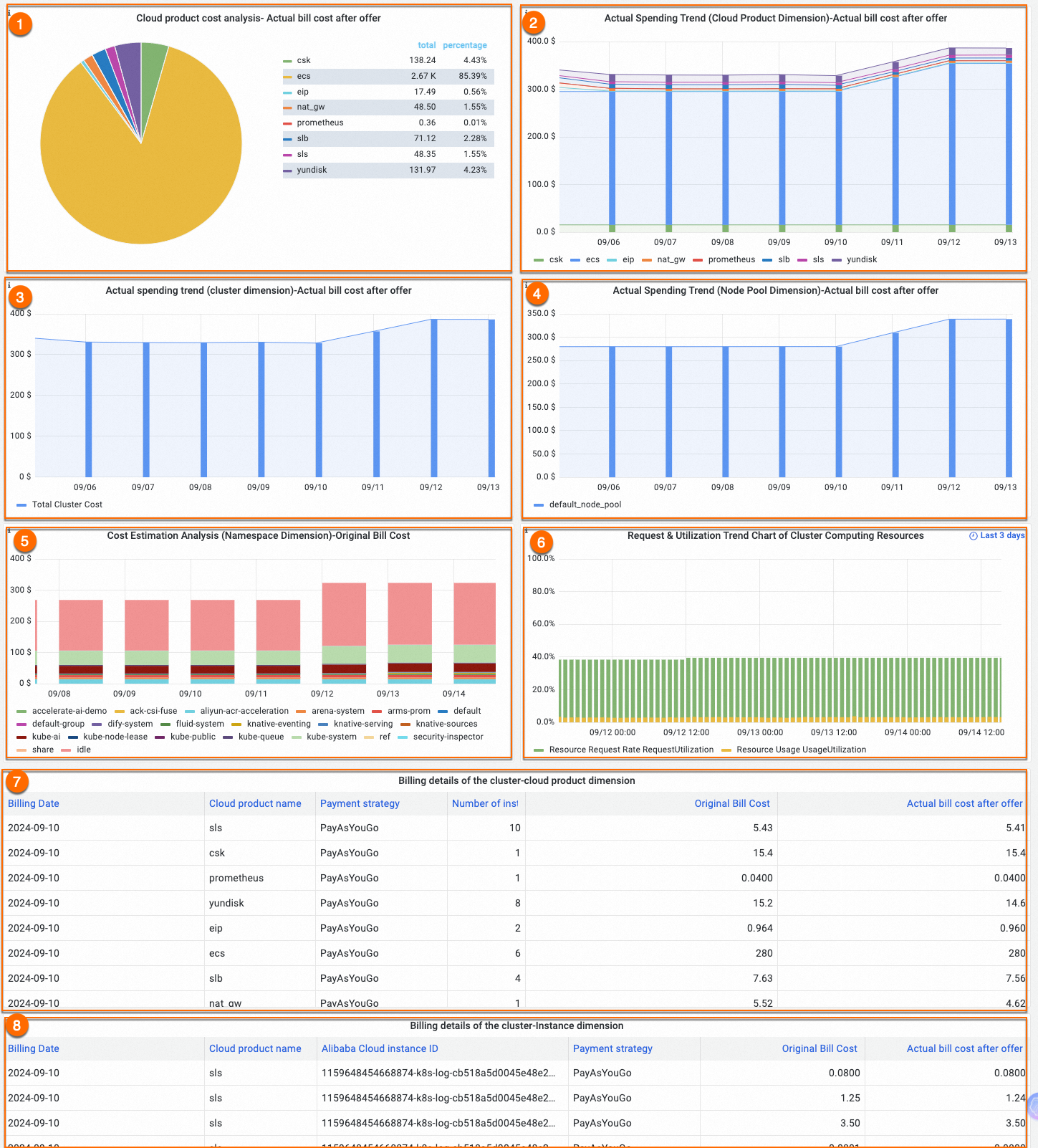
|
Feature |
Number |
Description |
|
Analyze cloud product costs through cloud product cost trends and ratios |
①② |
③ shows the proportion of cost spending for each cloud product in the cluster, and ④ shows the cost spending trend of each cloud product in the cluster. A cluster can contain multiple cloud products. Different cloud products are used and billed differently, so the costs that they incur vary. You can view the spending on different cloud products by cost trend and composition to make cost decisions. |
|
Analyze cluster costs through total cluster cost trends |
③ |
The daily trend of the total cost of the cluster. |
|
Analyze cluster costs through node pool cost trends |
④ |
An analysis of the bill cost of the nodes in each node pool or virtual node in the cluster. |
|
View real-time cost estimation trends by namespace |
⑤ |
Nodes in a cluster may have different instance types and billing methods. When you allocate costs by namespace, you cannot rely only on the resource requests of each namespace. You must also consider the nodes on which the Pods in the namespace run. Cost Insights converts the real-time cost of each node. When calculating costs by namespace, the cost is converted to User discounts, voucher deductions, Subscription billing, and other delayed billing methods can cause the cost of a namespace to differ from the actual bill cost of the cluster. You can allocate costs by multiplying the cost proportion of the namespace by the total cost of the cluster. |
|
Cluster compute resource request and utilization trends |
⑥ |
Use cases:
Trend chart details:
Analysis process:
|
|
Cluster billing details |
⑦⑧ |
The daily bill list of the cluster, by cloud product and by cloud product instance. |
Cost analysis for on-premises data center nodes
The cost insights feature can analyze costs for on-premises data center nodes in a registered cluster and for applications deployed on these nodes. By default, cost insights calculates these costs at a unit price of 0.2CNY/Core*Hour. Configure a custom unit price for your on-premises data center nodes in one of the following ways:
Configure a uniform price for all on-premises data center nodes
In the kube-system
namespace, add theDefaultIDCPricePerCPUCoreHourenvironment variable to the ack-cost-exporter Deployment.The price is in CNY/Core*Hour.
env:
# Set the price per core hour for each on-premises data center node to CNY 0.3.
- name: DefaultIDCPricePerCPUCoreHour
  value: "0.3"
Configure a separate price for a specific node
Add the
"node.kubernetes.io/price-per-day"label to a specific node.The price is the total price per day for this node.
Set the total daily price for a specific node to 100 CNY:
kubectl label nodes <node-name> node.kubernetes.io/price-per-day="100"
FAQ
Why is no data displayed after I enable cost visualization?
-
Check whether the RAM role authorization is complete. For details about how to enable the cost analysis feature, see step 3. Cost analysis requires the monitoring data and cost data of the cluster. Monitoring data collection starts within 3 minutes after the feature is enabled. Cost data is displayed at 08:00 on the day after you enable cost analysis for the cluster.
-
Check whether a NAT gateway is configured for the cluster. Some regions do not support querying bills through an internal endpoint. Make sure that your cluster can access the Internet.
-
day-on-day cost ratio and next-day estimated cost are displayed only after cost data has been collected for two consecutive days.
Why does the total of the namespace costs not match the actual bill?
The cost of a namespace is derived from cost estimation rather than from direct bill analysis. Cost estimation is calculated based on list prices. Therefore, data deviations may occur when the cost of the cluster includes deduction policies such as vouchers, discounts, and savings plans. You can allocate the bill by multiplying the proportion of each namespace by the total cost of the cluster.
Why is cost data unavailable for the Pods on some nodes?
Verify that the RAM role authorization is complete and that the authorization policy includes the "ecs:DescribeDisks" permission. For details about how to enable the cost analysis feature, see step 3.
Why do the cloud products displayed in the bill not include all the cloud products that the cluster uses?
Cost analysis counts only the cloud products that are exclusively used by this cluster. Cloud products that are shared by multiple clusters are not included in the bill statistics of cost analysis.
The Cost Insights feature depends on the cost allocation tag feature of the Expenses and Costs console. That is, it depends on a specific identifier in cloud product tags (key: value=ack.aliyun.com:{{ClusterId}}) to track cluster costs and generate cost statistics. If you disable this tag on the Cost Allocation Tag page, cluster-level cost statistics are revoked. To resolve this issue, go to the cost allocation tag management page and re-enable the ack.aliyun.com and ack.alibabacloud.com/nodepool-id tags.
Why is cumulative spending for this month or this week lower than the actual amount?
The cluster starts to count incurred costs only after the Cost Insights add-on is successfully enabled. Data generated before the add-on is enabled is not counted.