AccessKey network ACL policy
A network ACL policy restricts the source IP addresses of API requests that use a permanent AccessKey, keeping AccessKey usage within trusted network environments.
Policy types
RAM provides two types of AccessKey network ACL policies:
-
Account-level network ACL policy
This policy applies to all AccessKeys in an Alibaba Cloud account, including Alibaba Cloud account AccessKeys and RAM user AccessKeys. Configure this policy to apply uniform network restrictions to all AccessKeys in your account.
-
AccessKey-level network ACL policy
This policy applies to a single AccessKey that belongs to an Alibaba Cloud account or a RAM user. Configure this policy to set restrictions for an individual AccessKey or to override the account-level policy.
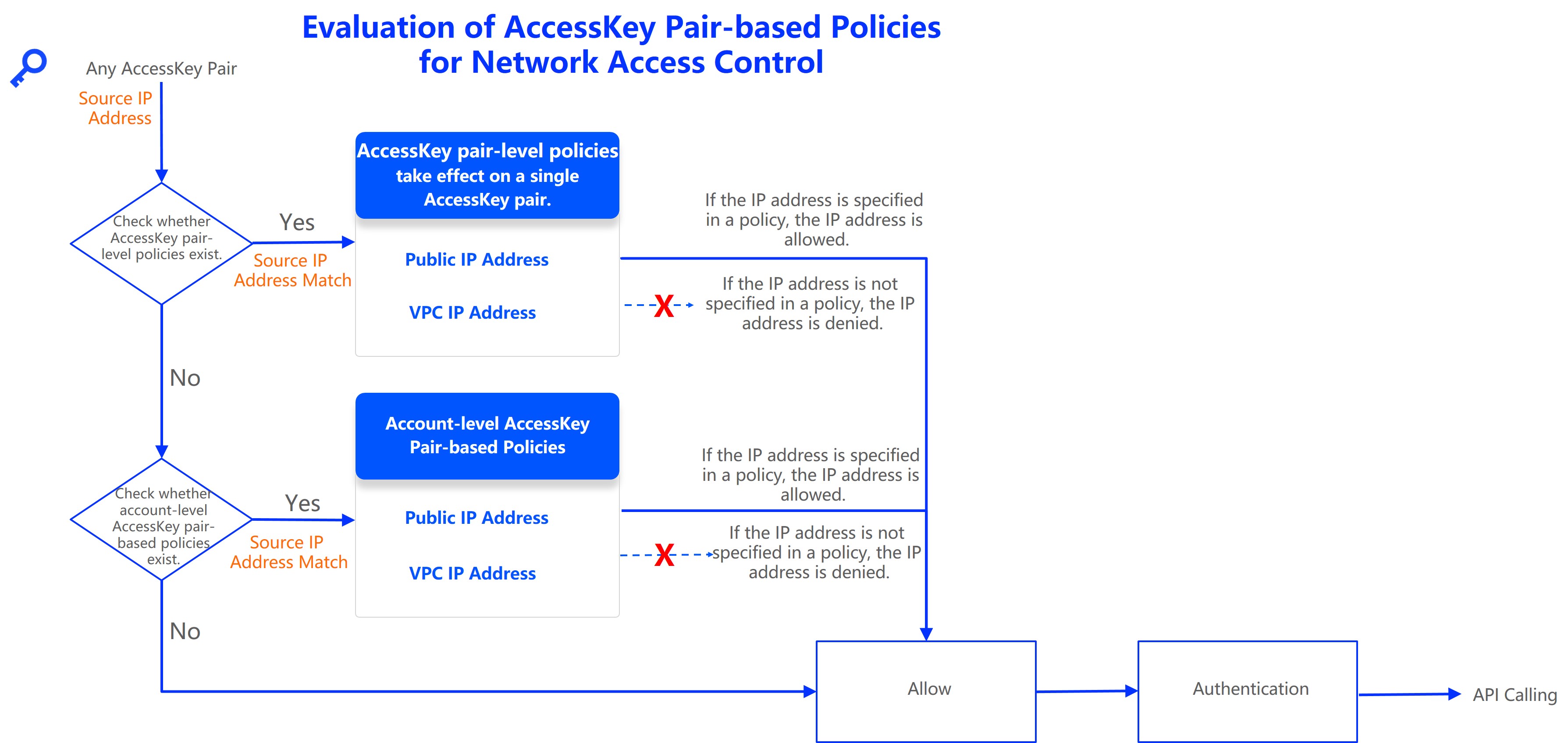
AccessKey-level policies take precedence over account-level policies. If an AccessKey has a specific AccessKey-level policy, the account-level policy does not apply to it.
The following flowchart shows how the two policy types are evaluated.
Usage notes
-
A network ACL policy restricts only API calls made using permanent AccessKeys. It does not apply to temporary credentials, such as an STS token.
-
To restrict network access for console logon, use a logon mask. For more information, see Network access control settings.
-
First, test your policy on a test or newly created AccessKey. After you confirm the results, apply the policy to your production AccessKey to avoid service disruptions from incomplete IP address settings.
-
If an application deployed on Alibaba Cloud calls other cloud services over the public network, configure a public network policy. If the application calls other cloud services over a private network, configure a VPC policy.
Limitations
-
Network ACL policies for AccessKeys apply to all cloud services except for ApsaraMQ for RocketMQ, ApsaraMQ for RabbitMQ, ApsaraMQ for MQTT, EventBridge, Simple Message Queue (formerly MNS), CMS (for reporting event monitoring data over HTTP), and Hologres. The respective services will announce when support is added.
-
You can add up to eight network ACL policies to an Alibaba Cloud account or a single AccessKey. Only one of these can be a public network policy.
-
Each policy can contain a maximum of 50 IP addresses or CIDR blocks.
Configure policies
Before you configure a policy, review AccessKey audit records from ActionTrail and your enterprise network configuration to compile a complete list of trusted network addresses.
Account-level policy
-
Log on to the RAM console as a RAM administrator.
-
On the Settings page, in the Network Access Control section, click Modify next to Allowed source network address while calling APIs by AccessKey.
-
In the Account-level Network Access Control panel, configure a public network policy and a VPC policy, enable the policy, and then click Submit.
Network access policies do not apply to the following services: ApsaraMQ for RocketMQ, ApsaraMQ for RabbitMQ, ApsaraMQ for MQTT, EventBridge, Simple Message Queue (formerly MNS), CMS (for reporting event monitoring data over HTTP), and Hologres. Before you create a policy, we recommend that you check historical source IP addresses by reviewing AccessKey operation logs.
-
Policy Status: Select Enable to activate the policy.
-
Public Network ACL: Click Add Public Network Statement and enter the public IP addresses or CIDR blocks. IPv4 and IPv6 formats are supported.
If you do not add a public network policy, access from all public IP addresses is denied. To allow access from all public IP addresses, click Allow All Public Network Access. This action adds a public network policy that contains
0.0.0.0/0or::/0. -
VPC Network ACL: Click Add VPC (Virtual Private Cloud) Statement, and enter a VPC ID and the IP addresses or CIDR blocks within the VPC. IPv4 and IPv6 formats are supported.
If you do not add a VPC policy, access from all IP addresses in VPCs is denied. To allow access from all IP addresses in any VPC across all accounts, click Allow All VPC Network Access. This action adds a VPC policy with the VPC ID set to
AllowAllVPCand the IP address set to0.0.0.0/0or::/0.
NoteYou can enter multiple IP addresses or CIDR blocks in a policy. Separate entries with spaces, commas (,), or semicolons (;).
-
-
In the Confirm Submission dialog box, enter the account ID, and then click OK.
ImportantThe policy takes a few minutes to take effect after submission. An account-level network ACL policy does not apply to an AccessKey that has an AccessKey-level policy.
AccessKey-level policy for a RAM user
-
Log on to the RAM console as a RAM administrator.
-
In the left-side navigation pane, choose .
-
On the Users page, click the name of the target RAM user.
-
On the Authentication tab, in the AccessKey section, find the target AccessKey and click Network Access Control in the Actions column.
If the target AccessKey was created a long time ago (for example, five months), a Rotation Recommended label appears, prompting you to rotate the AccessKey in a timely manner.
-
In the AccessKey-level Network Access Control panel, configure a public network policy and a VPC policy, enable the policy, and then click Submit.
This policy does not apply to the following services: ApsaraMQ for RocketMQ, ApsaraMQ for RabbitMQ, ApsaraMQ for MQTT, EventBridge, Simple Message Queue (formerly MNS), CMS (for reporting event monitoring data over HTTP), and Hologres. We recommend that you review the AccessKey operation logs before you create a policy.
-
Policy Status: Select Enable to activate the policy.
-
Public Network ACL: Click Add Public Network Statement and enter the public IP addresses or CIDR blocks. IPv4 and IPv6 formats are supported.
If you do not add a public network policy, access from all public IP addresses is denied. To allow access from all public IP addresses, click Allow All Public Network Access. This action adds a public network policy that contains
0.0.0.0/0or::/0. -
VPC Network ACL: Click Add VPC (Virtual Private Cloud) Statement, and enter a VPC ID and the IP addresses or CIDR blocks within the VPC. IPv4 and IPv6 formats are supported.
If you do not add a VPC policy, access from all IP addresses in VPCs is denied. To allow access from all IP addresses in any VPC across all accounts, click Allow All VPC Network Access. This action adds a VPC policy with the VPC ID set to
AllowAllVPCand the IP address set to0.0.0.0/0or::/0.
NoteYou can enter multiple IP addresses or CIDR blocks in a policy. Separate entries with spaces, commas (,), or semicolons (;).
-
-
In the Confirm Submission dialog box, enter the AccessKey ID, and then click OK.
ImportantThe policy takes a few minutes to take effect after submission. An account-level network ACL policy does not apply to an AccessKey that has an AccessKey-level policy.
AccessKey-level policy for an Alibaba Cloud account
-
Log on to the Alibaba Cloud Management Console with your Alibaba Cloud account.
-
Point to the profile icon in the upper-right corner and click AccessKey.
-
In the Main Account AccessKey is not recommended dialog box, select I am aware of the security risks of using a main account AccessKey and then click use Main Account AccessKey.
-
Find the target AccessKey and click Network Access Control in the Actions column.
-
In the AccessKey-level Network Access Control panel, configure a public network policy and a VPC policy, enable the policy, and then click Submit.
-
Policy Status: Select Enable to activate the policy.
-
Public Network ACL: Click Add Public Network Statement and enter the public IP addresses or CIDR blocks. IPv4 and IPv6 formats are supported.
If you do not add a public network policy, access from all public IP addresses is denied. To allow access from all public IP addresses, click Allow All Public Network Access. This action adds a public network policy that contains
0.0.0.0/0or::/0. -
VPC Network ACL: Click Add VPC (Virtual Private Cloud) Statement, and enter a VPC ID and the IP addresses or CIDR blocks within the VPC. IPv4 and IPv6 formats are supported.
If you do not add a VPC policy, access from all IP addresses in VPCs is denied. To allow access from all IP addresses in any VPC across all accounts, click Allow All VPC Network Access. This action adds a VPC policy with the VPC ID set to
AllowAllVPCand the IP address set to0.0.0.0/0or::/0.
NoteYou can enter multiple IP addresses or CIDR blocks in a policy. Separate entries with spaces, commas (,), or semicolons (;).
-
-
In the Confirm Submission dialog box, enter the AccessKey ID, and then click OK.
ImportantThe policy takes a few minutes to take effect after submission. An account-level network ACL policy does not apply to an AccessKey that has an AccessKey-level policy.
Configuration examples
|
Scenario |
Policy configuration |
|
Do not restrict network access for any AccessKey. |
Set the status of both account-level and AccessKey-level network ACL policies to Disable, regardless of the policy content. |
|
Allow calls from all public IP addresses. |
In an account-level or AccessKey-level network ACL policy, add a public network policy with the IP address |
|
Allow calls from IP addresses in all VPCs, regardless of the account. |
In an account-level or AccessKey-level network ACL policy, add a VPC policy with the VPC ID |
|
Deny all calls from public IP addresses. |
In an account-level or AccessKey-level network ACL policy, set the policy status to Enable, but do not add any public network policies. |
|
Deny all calls from IP addresses in VPCs. |
In an account-level or AccessKey-level network ACL policy, set the policy status to Enable, but do not add any VPC policies. |
|
An account-level network access restriction is configured, and you need to allow a specific AccessKey to accept calls from any public and VPC IP address. |
Enable an AccessKey-level network ACL policy for the specific AccessKey with the following content:
|
|
Allow all AccessKeys in an Alibaba Cloud account to call Alibaba Cloud APIs from a public IP address (for example, |
Enable an account-level network ACL policy with the following content:
For more information, see Configure an account-level policy. |
|
Allow a specific AccessKey to call Alibaba Cloud APIs from a public IP address (for example, |
Enable an AccessKey-level network ACL policy for the specific AccessKey with the following content:
After the AccessKey-level network ACL policy is enabled, the account-level policy no longer applies to this AccessKey. For more information, see Configure an AccessKey-level policy for a RAM user and Configure an AccessKey-level policy for an Alibaba Cloud account. |
|
Allow API calls over a VPC peering connection from a peer VPC (for example, |
In an account-level or AccessKey-level network ACL policy, add a VPC policy. For the VPC ID, enter the peer VPC ID (for example, If you add only a VPC policy and no public network policy, all public API calls are denied. Evaluate the impact on your workloads before applying this policy. For more information, see Configure an account-level policy. |
FAQ
How do I identify trusted IP addresses?
Review historical API call data in ActionTrail
Use ActionTrail audit logs to query the source IP addresses of past successful API calls. Choose one of the following methods:
-
If you configured trail delivery to Log Service (SLS): In the ActionTrail console, on the Trails page, open the trail details and click the SLS Logstore name to go to the Log Service console. You can then run a search query to aggregate historical source IP addresses (
event.sourceIpAddress) and VPC IDs (event.vpcId) for a specified AccessKey (fieldevent.userIdentity.accessKeyId). For more information, see Query events in the Log Service or OSS console.The following is a sample query.
* | SELECT "event.userIdentity.accessKeyId" AS access_key_id, "event.sourceIpAddress" AS source_ip_address, "event.vpcId" AS vpc_id FROM log WHERE "event.userIdentity.accessKeyId" = 'LTAI****************' -
If you have not configured trail delivery: In the ActionTrail console, on the AccessKey Audit page, enter the AccessKey ID and then view the source IP address for each cloud service in the call records. For more information, see Query AccessKey logs.
ActionTrail covers only supported cloud service audit events. For unsupported data events, use the native audit features of the corresponding cloud services.
Query network configurations
Applications deployed on Alibaba Cloud
For applications deployed on Alibaba Cloud services such as ECS or ACK, find the public IP addresses, VPC IDs, and private CIDR blocks of your resources in the Alibaba Cloud console.
If your application calls a cloud service by using a public endpoint, the source IP address is the public egress IP address of the resource or its NAT gateway. If your application calls a cloud service by using a VPC endpoint, the source IP address is a private IP address from the VPC.
Calls between cloud services
Calls between Alibaba Cloud services may originate from internal IP addresses. In ActionTrail records, the event source may appear as a service address or as "internal". We recommend using a RAM role or another credential method that does not require an AccessKey.
The following are reference configurations for specific inter-service calls:
-
DataWorks: For the IP ranges used when DataWorks calls MaxCompute for data analysis, see Data Analysis IP whitelist. For the IP ranges that might be used for metadata collection, see Configure IP address whitelists for metadata collection.
-
Log Service (SLS): When transferring logs with data processing, we recommend that you use a RAM role to transfer data within the same account instead of using an AccessKey.
-
Application Real-Time Monitoring Service (ARMS): For cross-account access, we recommend using a RAM role.
Dynamic IP addresses
-
Cloud resource IP addresses may change during elastic scaling or automatic reconfiguration. Promptly add new IP addresses to the network ACL policy.
-
Function Compute: By default, Function Compute uses dynamic public IP addresses. You can configure static public IP addresses.
-
Optical character recognition (OCR) and other Platform as a Service (PaaS) services: The caller IP address may change dynamically and cannot be fixed. If your security requirements do not allow you to disable the policy, use a Security Token Service token to call APIs. AccessKey network ACL policies do not apply to Security Token Service tokens.
Applications deployed outside Alibaba Cloud
Manually confirm the egress IP addresses of your application deployment environment.
Office network IP addresses
If you use an AccessKey for local development and debugging, contact your enterprise network administrator to obtain the egress IP address of your office network.
Troubleshooting unexpected denials
Symptoms
After a network ACL policy takes effect, calls from a source IP address outside the allowed range are denied. Common error messages include:
Message: The specified parameter "AccessKeyId.AccessPolicyDenied" is not valid.Message: code: 400, Specified access key denied due to access policy. Solution
If an API call is unexpectedly denied by a network ACL policy, follow these troubleshooting steps:
-
Check if the affected AccessKey has an AccessKey-level network ACL policy.
-
If yes, modify the AccessKey-level network ACL policy to include the source IP address.
-
If no, proceed to the next step.
-
-
As a RAM administrator, check and modify the account-level network ACL policy to include the source IP address.
-
If the issue persists, the source IP address in the policy may be inaccurate. Verify and obtain the correct IP address.
You can use ActionTrail to find the historical source IP addresses for AccessKey calls. For more information, see Review historical API call data in ActionTrail.
-
If the source IP address changes dynamically and cannot be exhaustively listed, such as in a Platform as a Service (PaaS) service invocation scenario, use a Security Token Service token to call APIs. This approach applies when your security requirements do not allow you to disable the policy. AccessKey network ACL policies do not apply to Security Token Service tokens.