Application management
This topic describes how to use a GitOps system to create, deploy, update, and roll back applications.
Prerequisites
You have logged on to the GitOps system.
You have added a Git repository.
The Fleet instance has added two associated clusters (service provider cluster, service consumer cluster).
Create and deploy an application
This section explains how to create the echo-server-demo sample application and deploy it to an ACK cluster whose API server address ishttps://47.97.XX.XX:6443.
If you cannot access GitHub due to network issues, you can replacehttps://github.com/AliyunContainerService/gitops-demo.git withhttps://code.aliyun.com/shuwei.hsw/gitops-demo.git.
Argo CD console
Log on to the Argo CD UI. For more information, see Use the Argo CD UI to log on to Argo CD.
In the left-side navigation pane, click Applications, then click + NEW APP.
In the panel that appears, configure the following parameters and click CREATE.
Section
Parameter
Value
GENERAL
Application Name
echo-server-demoProject Name
defaultSYNC POLICY
Select Automatic from the drop-down list. With Automatic, Argo CD scans the Git repository every 3 minutes and syncs changes to the cluster. With Manual, you trigger syncs manually by clicking SYNC.
SYNC OPTIONS
Select AUTO-CREATE NAMESPACE
SOURCE
Repository URL
Select
https://github.com/AliyunContainerService/gitops-demo.gitfrom the drop-down listRevision
HEADPath
manifests/helm/echo-serverDESTINATION
Cluster URL/Cluster Name
Select your target cluster from the drop-down list
Namespace
echo-server-demoHELM
VALUES FILES
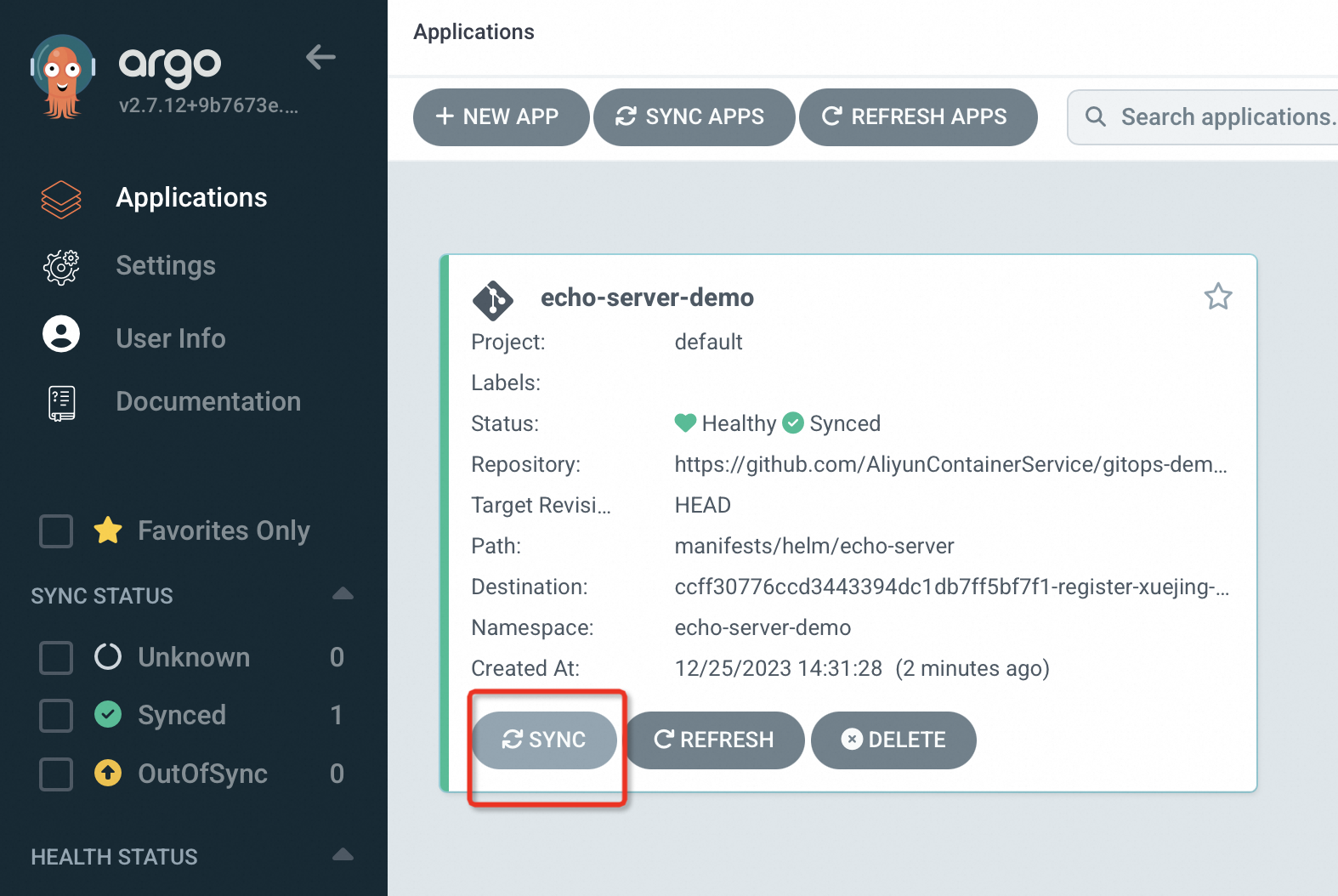
values.yamlAfter the application is created, view its status on the Applications page. If SYNC POLICY is set to Manual, click SYNC to deploy the application. The application is successfully deployed when its status shows both Healthy and Synced.
Argo CD CLI
Run the following command to create the
echo-server-demoapplication.argocd app create echo-server-demo --repo https://github.com/AliyunContainerService/gitops-demo.git --path manifests/directory/production --dest-namespace echo-server-demo --dest-server https://47.97.XX.XX:6443 --sync-policy noneExpected output:
application 'echo-server-demo' createdThe following table describes the command parameters.
Parameter
Description
repo
The URL of the Git repository for the application.
path
The path to the application manifests in the repository.
dest-server
The API server address of the target cluster.
dest-namespace
The namespace in the target cluster.
sync-policy
The application's sync policy. The default value is
none. Valid values areautoandnone.auto: Argo CD periodically checks the Git repository for changes and automatically deploys them to the target cluster.none: You must manually trigger a sync to deploy the application to the target cluster.
Run the following command to sync and deploy the
echo-server-demoapplication to the target cluster.argocd app sync echo-server-demoExpected output:
TIMESTAMP                  GROUP        KIND         NAMESPACE                 NAME         STATUS      HEALTH        HOOK  MESSAGE
2022-10-17T16:43:20+08:00  apps         Deployment   echo-server-demo          echo-server  OutOfSync   Missing
2022-10-17T16:43:20+08:00               Service      echo-server-demo          echo-server  OutOfSync   Missing
2022-10-17T16:43:20+08:00               Service      echo-server-demo          echo-server  Synced      Progressing
2022-10-17T16:43:20+08:00               Service      echo-server-demo          echo-server  Synced      Progressing         service/echo-server-demo created
2022-10-17T16:43:20+08:00  apps         Deployment   echo-server-demo          echo-server  OutOfSync   Missing             deployment.apps/echo-server-demo created
2022-10-17T16:43:20+08:00  apps         Deployment   echo-server-demo          echo-server  Synced      Progressing         deployment.apps/echo-server-demo created
Name:               echo-server-demo
Project:            default
Server:             https://47.97.XX.XX:6443
Namespace:          echo-server-demo
URL:                https://127.0.0.1:65384/applications/echo-server-demo
Repo:               https://github.com/AliyunContainerService/gitops-demo.git
Target:
Path:               manifests/directory/production
SyncWindow:         Sync Allowed
Sync Policy:        <none>
Sync Status:        Synced to  (02af62b)
Health Status:      Progressing
Operation:          Sync
Sync Revision:      02af62bf21e76f53ebfcc282c45865d2308c****
Phase:              Succeeded
Start:              2022-10-17 16:43:19 +0800 CST
Finished:           2022-10-17 16:43:20 +0800 CST
Duration:           1s
Message:            successfully synced (all tasks run)
GROUP  KIND        NAMESPACE         NAME              STATUS  HEALTH       HOOK  MESSAGE
       Service     echo-server-demo  echo-server-demo  Synced  Progressing        service/echo-server-demo created
apps   Deployment  echo-server-demo  echo-server-demo  Synced  Progressing        deployment.apps/echo-server-demo created
Application list
Argo CD console
In the left-side navigation pane, select Applications to view the application list.
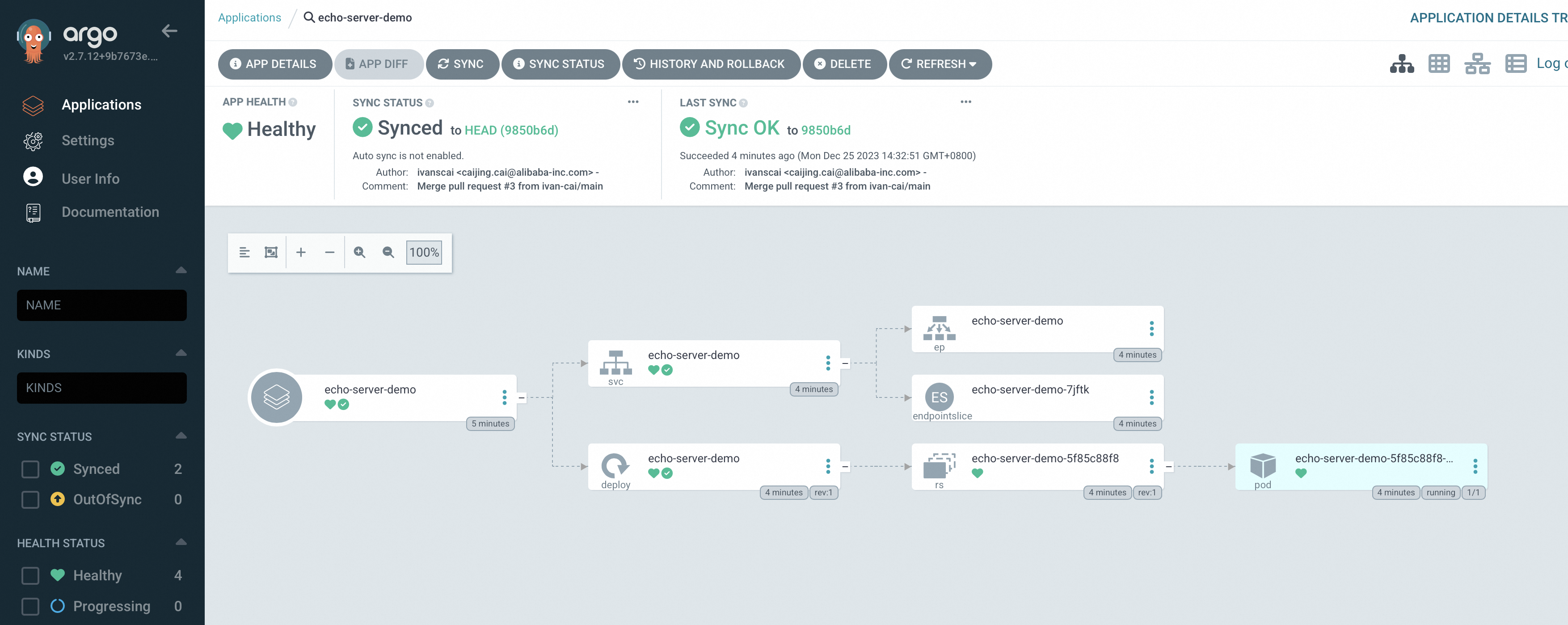
Click an application name to open its details page, which shows the resource topology and the status of each Kubernetes resource.
Argo CD CLI
Run the following command to view the application list.
argocd app listExpected output:
NAME         CLUSTER                     NAMESPACE         PROJECT  STATUS  HEALTH   SYNCPOLICY  CONDITIONS  REPO                                                       PATH                            TARGET
echo-server  https://47.97.XX.XX:6443    echo-server-demo  default  Synced  Healthy  <none>      <none>      https://github.com/AliyunContainerService/gitops-demo.git  manifests/directory/production
Update an application
In the GitOps model, the Git repository is the single source of truth. You must commit all changes to an application to the Git repository and then synchronize them to the target cluster.
Commit the changes to the Git repository.
Run the following command to sync and deploy the latest version of the application to the target cluster.
argocd app sync echo-server-demoRun the following command to access the application.
curl XX.XX.XX.XX:8080/version # Replace XX.XX.XX.XX with the application's IP address.Expected output:
"Hello Echo Server v2.0"
Roll back an application
Argo CD console
In the left-side navigation pane, select Applications. Find the
echo-server-demoapplication and click its name.On the application details page, click HISTORY AND ROLLBACK. On the HISTORY AND ROLLBACK panel, select the version to which you want to roll back, and then click Rollback in the upper-right corner.
After the rollback completes, return to the application details page and verify the application version.
Argo CD CLI
Run the following command to view the available historical versions.
argocd app history echo-server-demoExpected output:
ID  DATE                           REVISION
0   2022-10-17 16:43:20 +0800 CST   (02af62b)
1   2022-10-17 16:52:49 +0800 CST   (56ae547)
The current
REVISIONis56ae547, and the serial number is 1.Run the following command to roll back the application to the historical version where
REVISIONis02af62b.argocd app rollback echo-server-demo 0After the rollback completes, verify that you can still access the application.
Run the following command to access the application.
curl XX.XX.XX.XX:8080/version # Replace XX.XX.XX.XX with the application's IP address.Expected output:
"Hello Echo Server v1.0"