Manage MCS in the console
Manage MCS in the ACK One console to enable cross-cluster access for Kubernetes services.
Overview
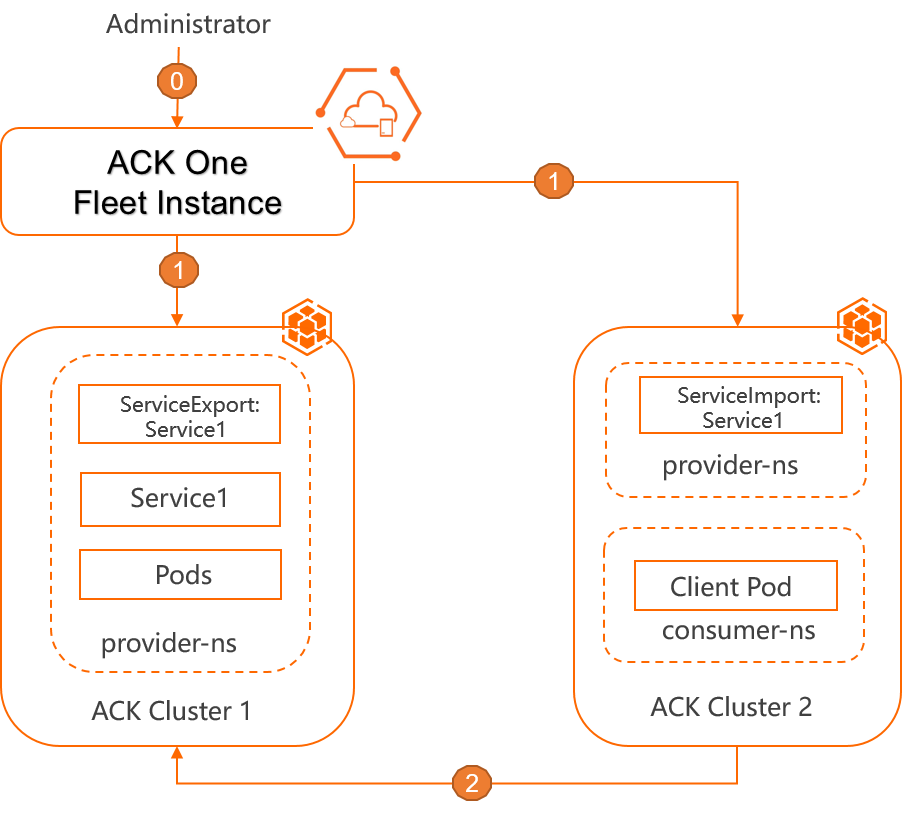
MCS enables cross-cluster access for Kubernetes services, enabling Kubernetes services to communicate across cluster boundaries. The following figure shows an example of how MCS works.
-
An administrator creates application-related resources, including a namespace, deployment, and service, in both the service provider cluster (ACK Cluster 1) and the service consumer cluster (ACK Cluster 2). They also create MCS resources, including a ServiceExport and a ServiceImport.
-
The Fleet listens for ServiceExport and ServiceImport resources in the associated clusters and synchronizes the endpoints for the corresponding MCS.
-
In the service consumer cluster (ACK Cluster 2), a client pod can access Service1 in the service provider cluster (ACK Cluster 1).
Prerequisites
You have enabled the fleet management feature.
The Fleet instance has added two associated clusters (service provider cluster, service consumer cluster).
-
The associated clusters are running Kubernetes version 1.21 or later.
Create an MCS
Log on to the ACK One console. In the navigation pane on the left, choose .
-
On the Namespace page, click Create Namespace. Enter a name for the namespace and click OK.
-
In the left navigation pane, choose . On the MCS page, click Create Multi-cluster Service.
-
In the Create Multi-cluster Service panel, select the Service Provider Cluster and Namespace. From the service list, select one to use as the MCS. Then, select the Service Consumer Cluster and click OK.
MCS supports only ClusterIP services. After you select a service, the panel displays the cross-cluster access methods at the bottom. These methods include the domain names
amcs-service1.provider-ns.svc.clusterset.localandservice1.provider-ns.svc.clusterset.local. The latter requires the CoreDNS version in the service consumer cluster to be later than 1.9.3.On the MCS page, you can view the details of your MCS.
Delete an MCS
On the MCS page, find your MCS and click Delete in the Actions column.