Connect to an instance by using Session Manager in the console
Use Session Manager in the console to connect to your Elastic Compute Service (ECS) instances with a single click. Session Manager allows password-free logon to instances, including those without a public IP address, and provides a secure and convenient alternative to traditional SSH or Remote Desktop Protocol (RDP) connections. This topic describes how to connect to an instance by using Session Manager in the Alibaba Cloud console.
Session Manager provides only command-line access to both Windows and Linux instances.
To connect to a Windows instance with a graphical user interface (GUI), use the port forwarding feature to map the instance's remote access port to your local machine and connect by using an RDP tool. For more information, see Use port forwarding in the Session Manager CLI to access an instance without a public IP address.
Prerequisites
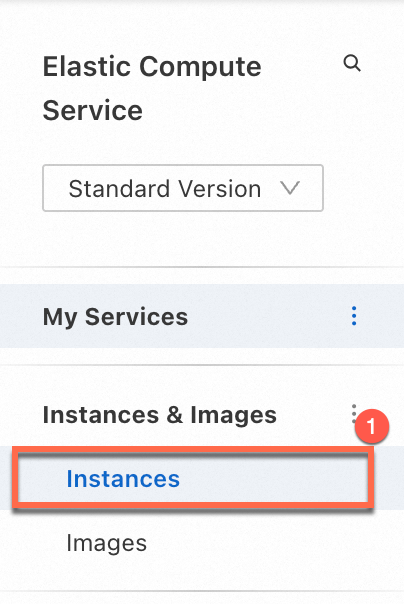
You can check the instance status on the Instances page of the ECS console. An instance in the Running state is shown in the following figure:
For instructions on how to check the status of an instance, see View instance information.
|
|
|
|||

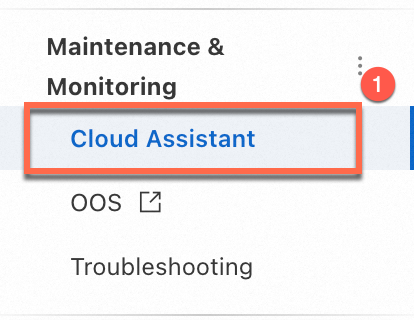
Session Manager relies on Cloud Assistant, which requires the Cloud Assistant Agent to be installed on your instance. You can check the agent's status in the Cloud Assistant section of the ECS console. An instance with the Cloud Assistant Agent installed is shown in the following figure:
ECS instances created from public images after December 1, 2017, have the Cloud Assistant Agent pre-installed by default. If your instance was created before this date or uses a custom image, you must manually install the Cloud Assistant Agent. For more information, see Install the Cloud Assistant Agent.
|
|
|
|||
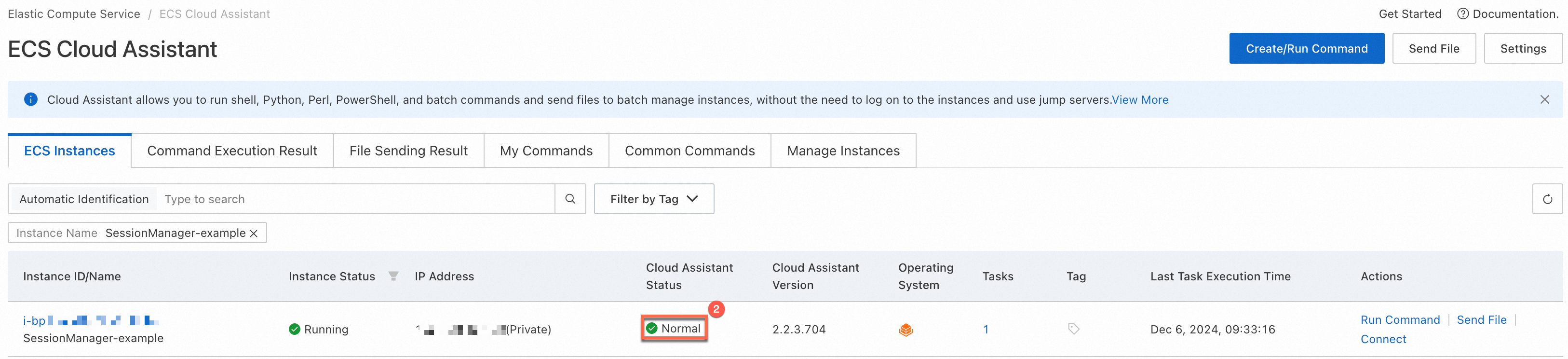
For information about how to check the status of the Cloud Assistant Agent and handle anomalies, see Check status and handle anomalies.
Procedure
-
In the top navigation bar, select the region and resource group for your instance.
-
Click the ID of the target instance to go to its details page. Then, click Connect.
-
Click Show Other Logon Methods. In the Session Manager section, ensure that Session management turned on (full region) is displayed. If you see Session Management closed, turn on the switch to enable the feature.
ImportantBefore you enable Session Manager, make sure the RAM user has the
ecs:DescribeUserBusinessBehaviorpermission to view the Session Manager configuration and theecs:ModifyCloudAssistantSettingspermission to enable or disable it. For a sample permission policy, see Prerequisites.

-
Click Secret-free login.
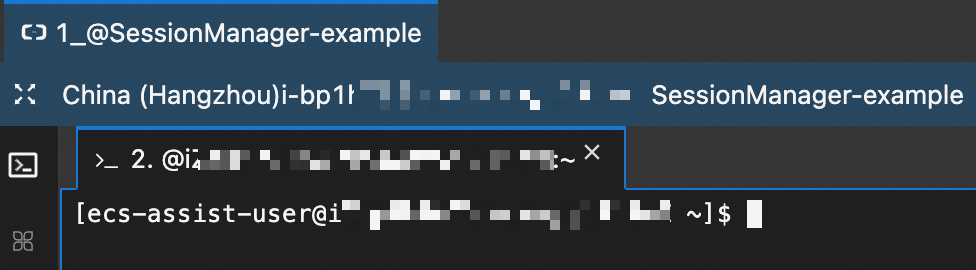
After a successful connection, you are logged on as
ecs-assist-userfor Linux instances or assystemfor Windows instances. The following figure shows a successful connection to a Linux instance.

Related reading
You can also connect to instances by using the Session Manager command-line interface (CLI) from your local computer. For instructions, see Connect to an instance by using the Session Manager CLI (ali-instance-cli).