Connect using a Java agent
If your application uses third-party components and frameworks supported by AHAS, you can use agent-based installation to connect to AHAS application protection with zero code changes. This topic describes how to connect an application by using a Java agent.
Prerequisites
Ensure that the third-party components and frameworks your application uses are supported. For more information, see Supported components.
Starting from version 1.9.1, the Java agent is compatible with JDK 6 to 11. If your application uses the Spring Cloud Alibaba Sentinel open-source integration, you can connect directly using the Java agent without removing the corresponding dependencies.
Procedure
Log in to the AHAS console.
In the upper-left corner of the AHAS console, select the region where you want to connect your application.
In the left-side navigation pane, choose .
On the Application Protection page, click Add Application.
On the Java tab, click Agent Access.
Install and start the Java agent.
Manual installation connects a single application to AHAS application protection. You must install the Java agent in the application's Java Virtual Machine (JVM) environment.
Download the ahas-java-agent.jar package to a directory, for example, /opt/aliyunahas/agent. To download it, click ahas-java-agent.jar.
Add JVM startup parameters.
Category
Parameters
private network
-Dproject.name=<AppName> -Dahas.namespace=default -Dahas.regionId=<RegionId> -javaagent:/opt/aliyunahas/agent/ahas-java-agent.jarNoteReplace <AppName> with your application name and /opt/aliyunahas/agent/ahas-java-agent.jar with the actual path of the ahas-java-agent.jar package.
Replace <RegionId> with the ID of the region where your application is deployed. For a list of regions and their corresponding Region IDs, see the Regions and Region IDs table.
public network
-Dproject.name=<AppName> -Dahas.namespace=default -Dahas.regionId=cn-public -Dahas.license=<license> -javaagent:/opt/aliyunahas/agent/ahas-java-agent.jarNoteReplace <AppName> with your application name, <license> with your license, and /opt/aliyunahas/agent/ahas-java-agent.jar with the actual path of the ahas-java-agent.jar package.
Replace <RegionId> with the ID of the region where your application is deployed. For a list of regions and their corresponding Region IDs, see the Regions and Region IDs table.
Start the JVM.
URL normalization for agent-based installation: Use the
-Dcsp.sentinel.url.clean.config.pathstartup parameter to specify the configuration file path. The default path is the ahas-sentinel-url-clean.properties file in the same directory as the JAR package. The classpath format is also supported, for example,-Dcsp.sentinel.url.clean.config.path=classpath:ahas-sentinel-url-clean.properties.The format of the Properties file is:
matching_prefix=normalized_resource_name.Currently, only the prefix matching mode is supported. For example, the configuration
/payment/=/payment/*normalizes all URLs that start with /payment/ to /payment/*.
Verify the result
Log in to the AHAS console. In the left-side navigation pane, choose . The connection is successful if a resource card for your application appears on the Application Protection page and reports data.
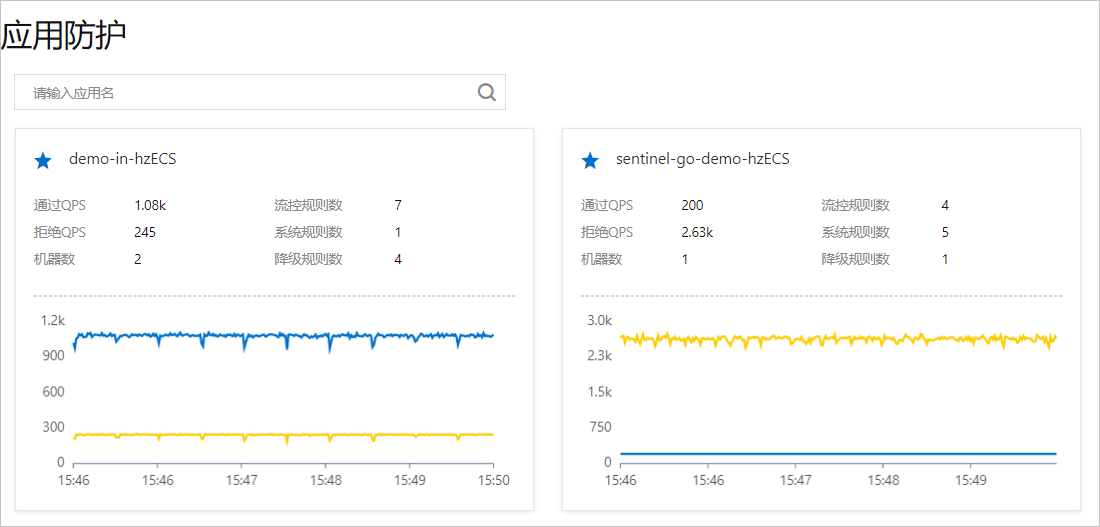
Regions and Region IDs
Region | Region ID |
public network | cn-public |
China (Hangzhou) | cn-hangzhou |
China (Shanghai) | cn-shanghai |
China (Beijing) | cn-beijing |
China (Zhangjiakou) | cn-zhangjiakou |
China (Shenzhen) | cn-shenzhen |
Singapore | ap-southeast-1 |
Germany (Frankfurt) | eu-central-1 |
FAQ
If your application does not appear on the Application Protection page after you connect it, see Application Protection FAQ.