Web scenario protection
The web scenario protection feature in AHAS provides fine-grained flow control for applications that offer web services by inspecting specific request parameters. For applications built on mainstream web frameworks such as Servlet containers, Spring Web, and Spring Boot, AHAS can parse request parameters at the API level. By configuring web flow control rules, you can apply flow control to resource calls based on dimensions such as client IP, host, header, and URL parameters to ensure the stability of your services and system. This topic describes how to configure web scenario protection for an application.
Prerequisites
Connect your application to AHAS application protection. For more information, see Connect an application.
Web scenario protection requires AHAS Sentinel Java SDK v1.10.1 or later, or Java Agent v1.10.4 or later.
NoteWeb scenario protection is not yet supported for applications using SDKs for other languages.
Background information
In web service scenarios, in addition to API-level rate limiting and degradation protection, applying flow control based on attributes such as source IP addresses or specific request parameters is crucial for maintaining application stability. In high-traffic web scenarios, you may need to apply limits not just to the API being called, but also to the most frequent source IPs or most requested item IDs. For example:
Limit requests for a popular item ID to prevent cache penetration, which can overload your database.
Limit requests from a source IP sending a high volume of traffic over a short period to prevent malicious activities, such as fraudulent order submissions.
Procedure
Log in to the AHAS console and select a region in the upper-left corner.
- In the left-side navigation pane, choose .
- On the Application Protection page, click the card of the target application.
In the left-side navigation pane, choose .
Go to the web protection settings page in either of the following ways:
On the API Overview tab, click the + icon.
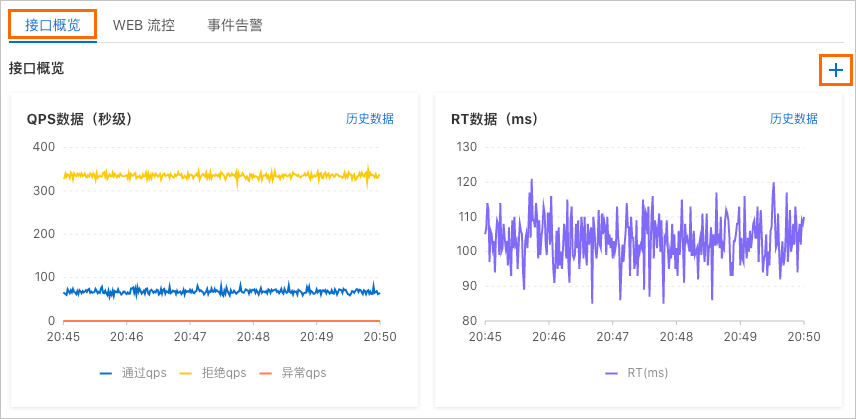
Click the Web Flow Control tab, and then click New Web Protection Rule.
In the New Web Protection Rule dialog box, configure the rule parameters.
Parameter
Description
Select protection scenario
API
Select the API for which you want to configure a rule.
Protection type
The default value is Web Protection.
Configure protection rule
Parameter attribute
Apply flow control based on a parameter attribute of the selected API.
Client IP: The IP address of the client that initiated the request.
NoteIf a request passes through a proxy, AHAS first attempts to obtain the IP address from the
X-Forwarded-Forrequest header. If this header contains an IP address, it is used as the client IP.Remote host: The
Hostheader of the request.Header: Limits requests based on hotspot values for a specified HTTP header key. After you select Header, you can optionally configure a matching policy for request attribute values. Only attribute values that match the pattern are included in statistics and flow control.
URL Parameter: Limits requests based on the value of a specified URL parameter. After you select URL Parameter, you can optionally configure a matching policy for request attribute values. Only attribute values that match the pattern are included in statistics and flow control.
Body parameter: Limits requests based on the value of a specified body parameter.
Path parameter: Limits requests based on the value of a specified path parameter.
(Optional) Match mode and match string
If you set Parameter attribute to Header or URL Parameter, you can enable Match by Attribute Value and configure Match mode and Match string.
Match mode:
Exact: The attribute value must exactly match the specified string.
Substring: The attribute value must contain the specified substring. For example, if the substring is ab, the values aba and cabc match, but cba does not.
Regular Expression: The attribute value must match the specified regular expression.
Threshold type
The default value is Request Count.
Threshold
The QPS threshold that triggers flow control for a specific parameter value. When you set the threshold, you must also select a statistical period. The supported periods are Second, Minute, Hour, and Day.
For example, if you set the threshold to 10 and the statistical period to Minute, it means that no more than 10 requests are allowed per minute.
Advanced options
Flow control method
Fail-fast: When the threshold type is QPS, requests are blocked immediately when the threshold is reached.
NoteRejected requests receive the custom response configured in behavior management. If no custom behavior is configured, the default behavior is used, which returns a 429 status code with a default text message.
Uniform rate limiting: When the threshold type is QPS, requests are processed at a steady rate, and excess requests are queued to wait. You must set a timeout. Requests that cannot be processed within the timeout period are rejected immediately instead of being queued. For example, if you set the QPS to 10, requests are processed at a rate of one every 100 ms. Excess requests are queued. The timeout specifies the maximum queuing duration. Requests that exceed this duration are rejected immediately.
NoteWhen you use uniform rate limiting, do not set the QPS to a value greater than 1,000, which corresponds to a request interval of 1 ms.
Burst size
When you set Flow control method to Fail-fast, you can set a burst size to accommodate a specific number of extra requests during a traffic spike.
Timeout
When you set Flow control method to Uniform rate limiting, you must set a timeout in milliseconds (ms). For example, if you set the QPS to 5, requests are processed at a rate of one every 200 ms, and excess requests are queued. The timeout specifies the maximum queuing duration. Requests that exceed this duration are rejected immediately.
Enabled
Enable: The rule takes effect immediately upon creation.
Disable: The rule is created but remains inactive.
Configure flow control behavior
Interface type
The default value is Web.
Associated behavior
Default Behavior: This is the default option.
NoteSelect this option if you do not need to customize the behavior for blocked requests.
Default Behavior corresponds to the global behavior configured under . For more information, see Application basic settings.
The default behavior is to return a 429 status code with a default text message.
New Behavior: Create a custom post-flow-control behavior. After creation, you can select it from the Associated Behavior drop-down list. For more information, see Configure a Web behavior.
Parameter Description Example value Behavior name The name of the behavior. The name can be up to 128 characters in length and must be unique within the application. Test Behavior Resource type The resource type. Valid values are Web and RPC. In this case, select Web. Web Web flow control policy - Custom response: When a web API request triggers the rule, the system returns custom information. You must set the HTTP status code, response content-type, and HTTP response body.
- Redirect to a specific page: When a web API request triggers the rule, the system redirects the request to a specified URL. You must set the redirect URL.
- HTTP status code The default is 429. This parameter is required when Web flow control policy is set to Custom response. 429 Response content-type Specifies the format of the response body as plain text ( TEXT) orJSON. This parameter is required when Web flow control policy is set to Custom response.JSON string HTTP response body The content to return when a web API request triggers the rule. This parameter is required when Web flow control policy is set to Custom response. {"message": "blocked oops"} Redirect URL The URL to which the system redirects requests when a web API call triggers the rule. This parameter is required when Web flow control policy is set to Redirect to a specific page.
Note: This method works for server-side rendered pages but is not effective for client-side applications that rely on AJAX requests to fetch data and render content.http://ahas.console.aliyun.com Cancel Behavior: Remove the association between the API and the behavior.
After you complete the configuration, click Add.
You can view the protection rule on the Web Flow Control tab.
On the Web Flow Control tab, select the target web protection rule and click Bulk Enable.
After the rule is enabled, traffic to the protected resource is controlled according to the configured web flow control rule.
Web protection use cases
Scenario 1: Hotspot item flash sale
In scenarios like flash sales, high traffic can cause slow system responses or even crashes. To ensure system stability, you can configure a hotspot rule to reject traffic for popular items when a certain threshold is exceeded.
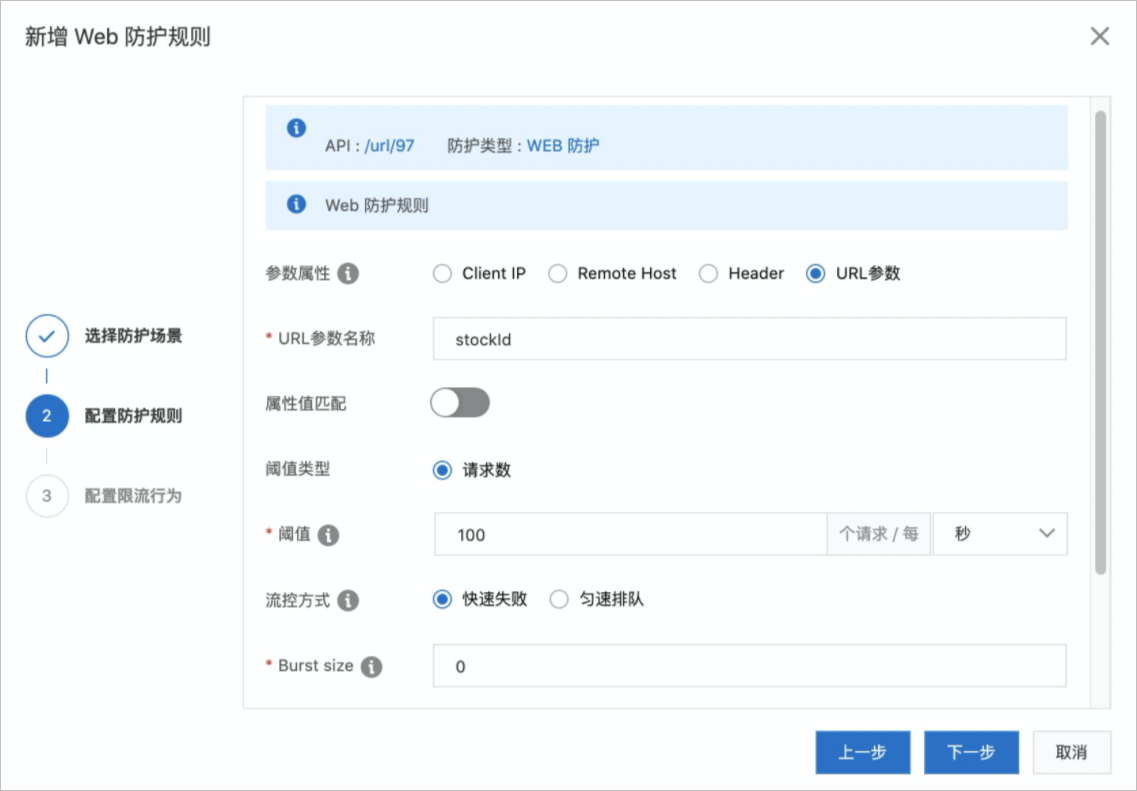
For example, to prevent more than 100 purchase requests for the same item within one second, you can configure the following rule in the New Web Protection Rule dialog box. This rule allows a maximum of 100 requests per second for each unique item ID. Excess requests for that item are rejected and receive a custom response.
Set Parameter attribute to URL Parameter.
NoteFor the parameter attribute, select the parameter that corresponds to the hotspot item ID. For example, if a
stockIdfield in the URL parameter corresponds to the item ID, you can select URL Parameter for the attribute and enter the corresponding field name.For URL Parameter Name, enter stockId.
Set Threshold to 100 requests per Second.
Set Flow control method to Fail-fast.
Scenario 2: Prevent order spamming
During promotional events, a high volume of malicious order requests can consume inventory and server resources. In this case, you can queue requests based on their source IP address. This ensures that requests are processed at a uniform rate, preventing excessive traffic from affecting service stability. In the New Web Protection Rule dialog box, configure the following rule. It ensures that requests from each unique source IP address are processed at a rate of one every 10 ms (1s/100 = 10 ms). Excess requests are queued. If a queued request waits for more than 30 ms, it is immediately rejected.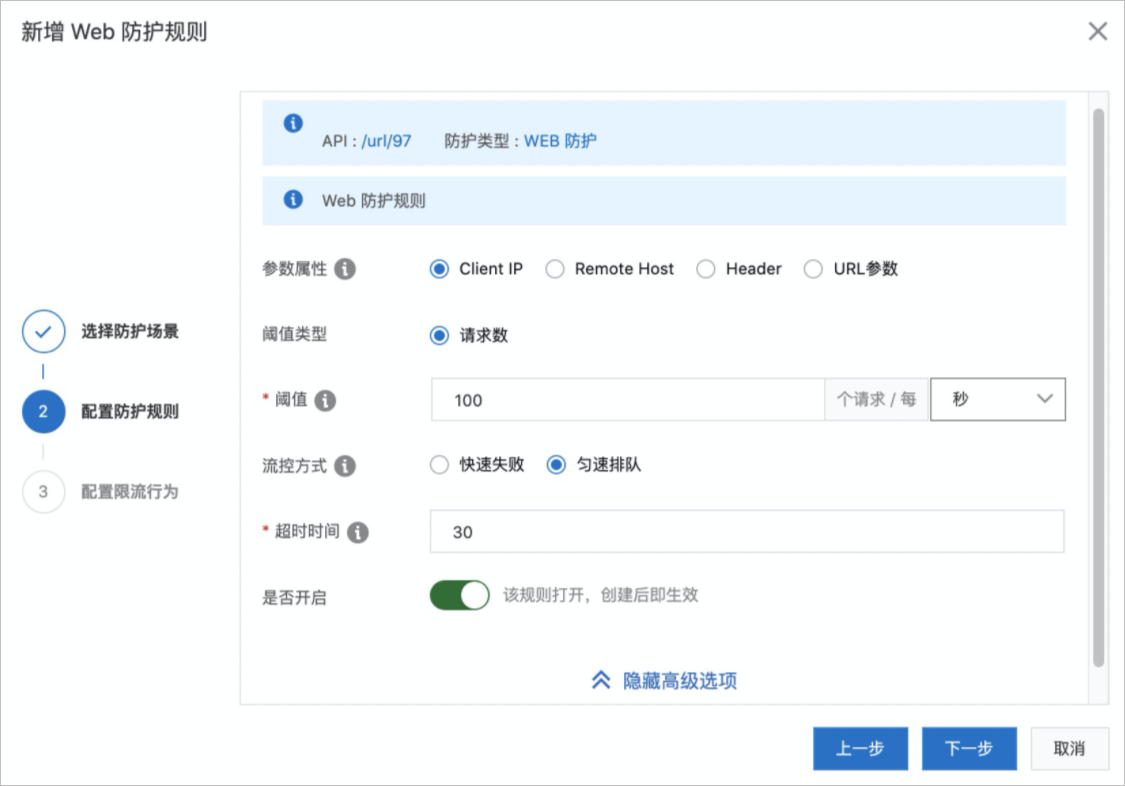
Parameter | Description |
Parameter attribute | Select Client IP. |
Threshold type | Use the default value: Request Count. |
Threshold | Enter 100 requests per Second. |
Flow control method | Select Uniform rate limiting. |
Timeout | Enter 30. |
Enabled | Select Enable. |