Process hotspot tracking
Process hotspot tracking analyzes hotspots on a single node over a specific period. It generates a call graph for a process to help you quickly identify performance bottlenecks in your application. This topic explains how to use this feature.
Use cases
Applications with fluctuating performance.
Process contention and system resource preemption.
System-level causes:
The hook mechanism for intercepting or monitoring highly active (hotspot) functions sometimes fails to work as expected.
When system memory is low, the operating system performs frequent paging.
Accessing resource-intensive system interfaces such as
sysandproc.
Limitations
Region limitations
This feature is supported only in the Chinese mainland and the China (Hong Kong) region.
Operating system limitations
Architecture
Operating system
x86 architecture
-
Rocky Linux 9.5
-
Rocky Linux 9.1
-
Ubuntu 20.04
-
Alibaba Cloud Linux 3 Container Optimized Edition
-
Rocky Linux 8.8
-
Ubuntu 22.04
-
Alibaba Cloud Linux 3 Pro
-
Alibaba Cloud Linux 2/3
-
CentOS 7.6 or later, or CentOS 8
-
Anolis OS 7/8
-
Ubuntu 24.04
-
Prerequisites
-
If you use a RAM user, make sure that the Alibaba Cloud account (primary account) has granted the RAM user the
AliyunECSReadOnlyAccessandAliyunSysomFullAccesssystem policies. -
The console permissions are activated.
The first time you log on to the Operating System Console, click Activate Service to activate the console service.
The SysOM component is installed. For installation instructions, see Component Management.
Procedure
-
Go to Operating System Console.
-
Install SysOM on the target ECS instance.
In the left-side navigation pane, choose .
You can track process hotspots in one of two ways.
Method 1: If you do not need to collect Java call stack information, select the required conditions and click Execute Hotspot Tracking.
Method 2: To track hotspots of a Java process and collect Java call stack information, use Configure Java Hotspot Tracking.
WarningConfigure Java Hotspot Tracking may cause your application to crash in rare cases.
The Configure Java Hotspot Tracking button is disabled by default. It is enabled after you select an instance ID and a Java process for PID. Click Configure Java Hotspot Tracking.
Select Enable Java Memory/Lock Hotspot Tracking, configure the parameters, and then click Execute.
Java configuration parameters:
Parameter
Description
Memory/Lock Hotspot Tracking
Specifies whether to enable Java memory/lock hotspot tracking.
Set Storage Path
Stores the ATP agent and the hotspot information it collects. Ensure the user process has access to this path. The directory requires 50 MB of storage space.
Running Duration
The duration of Java memory/lock hotspot tracking. The maximum duration is 7 days.
When you select Instance and the PID is Java, two new tracing methods are added to the Hotspot Type options: Memory and Lock.
NoteIf you select an instance ID and set PID to a Java process, but the selected time range is outside the running period of the Memory/Lock Hotspot Tracking, ONCPU is the only available option for Hotspot Type.
After you enable Java Memory/Lock Hotspot Tracking, the Memory and Lock options may not appear under Hotspot Type if insufficient memory allocation or lock events occur.
Select a Hotspot Type and time range, and then click Execute Hotspot Tracking.
Result analysis
Analysis result
The analysis result is generated by a large model. It analyzes the call stack hotspots of the process, identifies potential causes, and provides optimization suggestions.
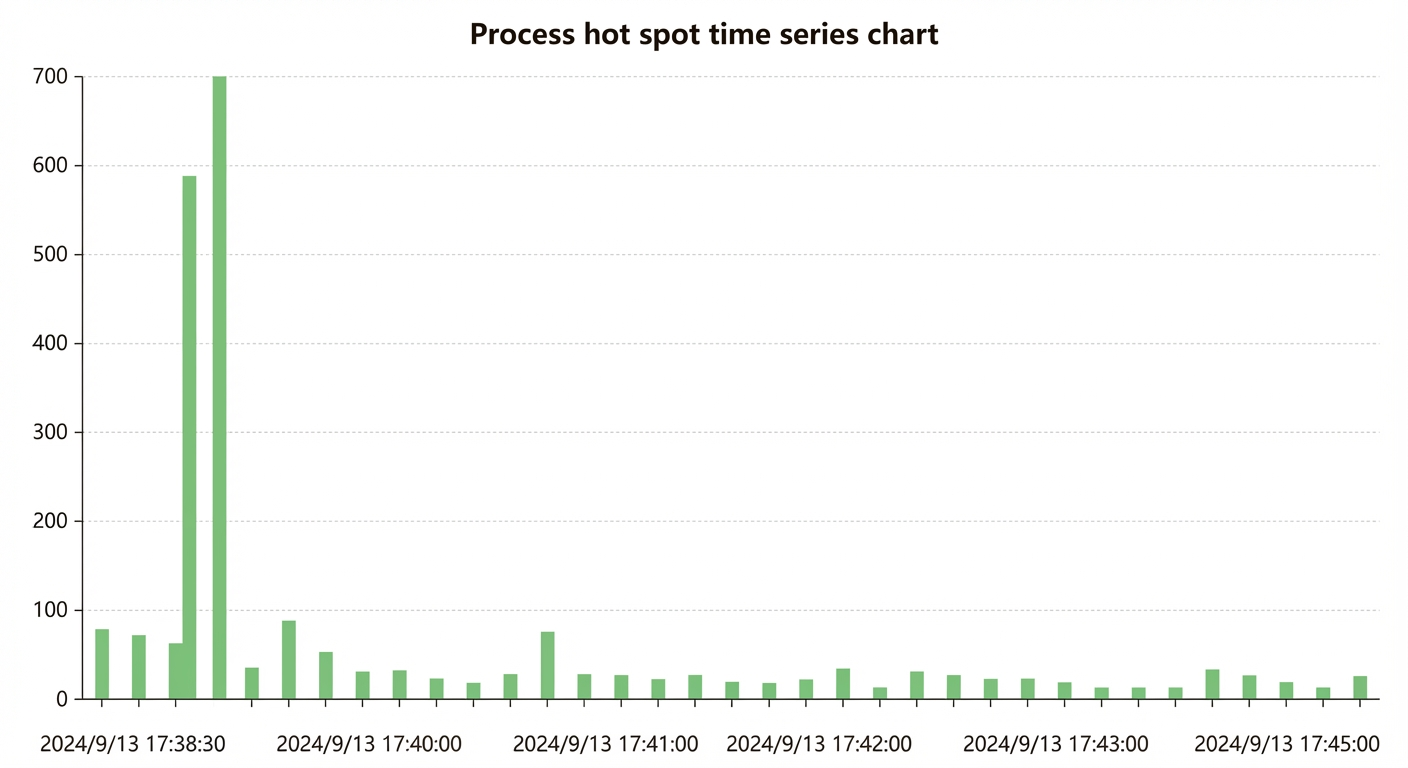
Process hotspot timeline
This timeline shows the ONCPU sample values for the process on the selected instance over time. This helps you quickly identify critical hotspot moments.
Process function call hotspot graph
Displays the function call relationships and hotspot distribution for the selected instance process. This panel provides five modes: Flame Graph, Function Table, Combined Chart and Table, Call Chart, and Call Graph. It also supports full-screen view for in-depth analysis of function call relationships and hotspots for a single process.
Flame graph mode
The flame graph shows the hierarchy of function calls and their time distribution. You can interactively click the graph to focus on specific call stacks. This helps you quickly identify performance bottlenecks in your application.
Function table mode
The function table displays information such as the function name, self overhead, and total overhead. You can sort the table by self overhead or total overhead.
Combined chart and table mode
This is the default mode of the panel. It displays the function table on the left and the flame graph on the right.
Call graph mode
NoteThe call graph supports dragging and zooming, allowing you to adjust the view as needed.
Displays the call relationships between functions as a tree-like structure. Each node represents a function.
Self: The self overhead of the function.
Callee: The sum of the overhead of all functions it calls.
Total: The sum of the function's self overhead and the total overhead of its callees.
Edge: Represents a call relationship. The percentage on an edge indicates the callee's total overhead as a proportion of the caller's total overhead.