Enterprise Edition, Basic Edition, and Data Lakehouse Edition
AnalyticDB for MySQL is a managed service that provides a petabyte-scale, highly concurrent, real-time data warehouse for OLAP workloads. This topic walks you through using an AnalyticDB for MySQL cluster, from creation to job development.
Data Lakehouse Edition is no longer available for purchase. If you already own a Data Lakehouse Edition cluster, this guide explains how to continue using it.
Prerequisites
-
You need an Alibaba Cloud account.
If you do not have an Alibaba Cloud account, go to the Alibaba Cloud official website to create one. If multiple users need to access resources, you can create RAM users for your Alibaba Cloud account (the root account) and grant them permissions. This allows different RAM users to have different permissions.
-
If you are new to AnalyticDB for MySQL enterprise edition, basic edition, or data lakehouse edition, we recommend reading the Product overview to learn about the concepts, benefits, and use cases of AnalyticDB for MySQL.
Billing
When you create a cluster, you incur charges for compute and storage. For more information, see enterprise edition and basic edition pricing and lakehouse edition pricing.
Procedure
Step 1: Create a cluster
-
Log on to the AnalyticDB for MySQL console. In the upper-right corner of the page, click Create Cluster.
-
On the purchase page, configure the following key parameters. You can keep the default values for the other parameters. For more information about the parameters, see Create a cluster.
Parameter
Description
Product Type
-
Pay-as-you-go: A postpaid billing method where you are charged by the hour. This method is suitable for short-term workloads. You can release the cluster at any time to save costs.
-
Subscription: A prepaid billing method where you pay when you create a cluster. This method is suitable for long-term workloads and is more cost-effective than pay-as-you-go. Longer subscription periods provide larger discounts.
Edition
-
Enterprise Edition: A multi-replica architecture that uses multi-replica storage, provides distributed capabilities, and delivers high availability.
-
Basic Edition: A single-replica architecture that does not provide high availability.
For more information about Enterprise Edition and Basic Edition, see Editions.
Deployment Mode
-
Enterprise Edition: Supports vSwitch in Primary Zone or vSwitch in Secondary Zone.
ImportantMulti-AZ deployment is supported only in the China (Hangzhou), China (Shanghai), China (Beijing), China (Zhangjiakou), China (Shenzhen), China (Hong Kong), and Singapore regions.
-
Basic Edition: Only supports Multi-zone Deployment.
Region
The geographic location of the cluster. You cannot change the region after purchase. Select the region closest to your business to reduce access latency.
Primary Zone
The primary availability zone (AZ) for the cluster.
Secondary Zone
The secondary AZ for the cluster. If the primary AZ fails, services automatically fail over to the secondary AZ. During this failover, the cluster might be temporarily unavailable or experience read/write timeouts.
ImportantThis parameter is required only when Deployment Mode is set to Single-zone Deployment.
Virtual Private Cloud (VPC)
vSwitch in Primary Zone
vSwitch in Secondary Zone
-
If you have a VPC that meets your network requirements, select that VPC. For example, if you have an ECS instance and its VPC meets your requirements, select that VPC.
-
If you do not have a VPC that meets your network requirements, you can use the default VPC and vSwitch.
-
If the default VPC and vSwitch do not meet your requirements, you can create a VPC and a vSwitch.
Important-
If you use other Alibaba Cloud services, such as ECS and RDS, ensure your AnalyticDB for MySQL cluster is in the same VPC as the other services. This allows them to communicate over the internal network for optimal performance.
-
The vSwitch in Secondary Zone parameter is required only when Deployment Mode is set to Multi-zone Deployment.
Single-node Specifications of Reserved Resources
The specifications of reserved resources for a single node. The default value is 8 ACUs. These resources can be used for:
-
Data computing. You can add reserved resources to improve query performance.
-
Hot data storage. A group of reserved resources can support 8 TB of hot data storage. You are charged for hot data storage based on your actual usage.
NoteIf you previously purchased a Data Warehouse Edition or Data Lakehouse Edition cluster, see Mapping between the specifications of Enterprise Edition and Data Lakehouse or Data Warehouse editions when selecting Enterprise Edition specifications.
Reserved Resource Nodes
-
For an Enterprise Edition cluster, the default value is 3 and the step size is 3.
NoteFor an Enterprise Edition cluster, you can set the number of reserved resource nodes to 0. In this case, the purchase price for the reserved resource nodes is no longer displayed in the lower-right corner of the page. Note the following:
-
If the number of reserved resource nodes is 0, you can use only external tables. To create an AnalyticDB for MySQL internal table, the number of reserved resource nodes must be greater than 0.
-
If you create a cluster with 0 reserved resource nodes, you can scale it out later to add reserved resources. For more information, see Scale Enterprise Edition and Basic Edition clusters.
-
-
For a Basic Edition cluster, the default value is 1 and the step size is 1.
-
-
Follow the on-screen instructions to complete the purchase.
After the payment is successful, wait for about 10 to 15 minutes. On the Clusters page, the cluster is ready when its status changes to Running.
Step 2: Create a database account
AnalyticDB for MySQL supports the following types of database accounts:
-
Privileged account: Can manage all standard accounts and databases, similar to the root account in MySQL.
-
Standard account: You must manually grant permissions to a standard account. For information about the differences between privileged and standard accounts and how to create them, see Privileged accounts and standard accounts.
The following steps use a privileged account as an example.
-
On the cluster list page, click the ID of the target cluster to go to the cluster details page.
-
In the left-side navigation pane, click Accounts.
-
On the Database Accounts tab, click Create Account.
-
In the Create Account panel, set the following parameters.
Parameter
Description
Database Account
The name of the privileged account. Enter a name that meets the requirements shown in the console.
Account Type
Select Privileged Account.
New Password
The password for the privileged account. Enter a password that meets the requirements shown in the console.
Confirm Password
Enter the password for the privileged account again.
Description
An optional description to help with account management.
-
Click OK to create the account.
NoteAfter you create a standard account, you can click Permissions in the Actions column for the target account to configure its permissions.
Step 3: Create a resource group
AnalyticDB for MySQL provides full compute resource isolation between different resource groups, ensuring that complex computations or unexpected issues do not affect your core business.
For job development and testing, this section uses a Job-based resource group as an example. You can also create a resource group with a specific engine based on the type of job you want to test. The supported resource group types are shown in the following table. For more information about resource groups and compute engines, see Create and manage resource groups and Features.
|
Type |
Tasks |
Scenarios |
|
Interactive resource group |
You must specify an engine when you create the resource group. The supported engines perform the following tasks:
|
Online or interactive analysis scenarios that require high queries per second (QPS) and low response time (RT). |
|
Job-based resource group |
You do not need to specify an engine when you create the resource group. The following tasks are supported:
|
High-throughput offline scenarios. |
|
AI resource group |
MLSQL model execution and Ray-hosted computing. |
Heterogeneous computing scenarios. |
-
In the left-side navigation pane of the cluster details page, choose Cluster Management > Resource Management.
-
Click the Resource Groups tab. In the upper-left corner of the resource group list, click Create Resource Group.
-
Enter a Resource Group Name and select Job for Job Type.
NoteIn this tutorial, Minimum Computing Resources is set to 0 ACUs and Maximum Computing Resources is set to 8 ACUs for quick start testing purposes only.
-
Click OK.
Step 4 (optional): Run a test script
To quickly evaluate the cluster, follow these steps to load and analyze a sample dataset.
-
In the left-side navigation pane of the cluster details page, click .
-
On the Databases and Tables tab, click Load Built-in Dataset.
-
On the Scripts tab, double-click a script and run the SQL statements in the SQL Console to test the cluster.
NoteFor details about the tables in the sample dataset, see Sample dataset table details.
Step 5: Develop jobs
|
Type |
Prerequisites |
|
|
External table |
Spark SQL job development |
A Job-based resource group or an Interactive resource group with the Spark engine is created. |
|
XIHE BSP SQL job development |
||
|
Internal table |
Spark SQL job development |
A Job-based resource group or an Interactive resource group with the Spark engine is created.
|
|
XIHE BSP SQL job development |
A Job-based resource group is created.
|
|
Job development (external tables)
Spark SQL

-
Create an OSS bucket and directory in the same region as the AnalyticDB for MySQL cluster. For more information, see Activate OSS, Create a bucket, and Manage directories.
-
Create an OSS Hudi external table.
-
In the left-side navigation pane of the cluster details page, click .
-
In the SQL Console window, select the Spark engine and a Job-based or Interactive resource group.
-
Run the following statement to create an external database named
spark_external_dbto store Hudi data. This example uses theoss://testBucketName/adb-test-1/path. To run the statement, click Execute SQL (F8).CREATE DATABASE spark_external_db LOCATION 'oss://testBucketName/adb-test-1/'; -
In the
spark_external_dbdatabase, create an external table namedspark_hudi_tableto store Hudi data. This example uses theoss://testBucketName/adb-test-1/spark_external_db/path.CREATE TABLE spark_external_db.spark_hudi_table (id int, name string, score int, city string ) using hudi partitioned by (id) tblproperties (primaryKey = 'id', preCombineField = 'city') LOCATION 'oss://testBucketName/adb-test-1/spark_external_db/'; -
Insert data.
INSERT OVERWRITE spark_external_db.spark_hudi_table PARTITION(id) VALUES
(001,'Anna',99,'London'),
(002,'Bob',67,'USA'),
(003,'Cindy',78,'Spain'),
(004,'Dan',100,'China');
-
-
Query data from the OSS Hudi external table.
-
Run the following statement to query data from the
spark_hudi_tableexternal table. To run the statement, click Execute SQL (F8).SELECT * FROM spark_external_db.spark_hudi_table;NoteIf a Data Lakehouse Edition cluster has reserved compute resources or an Enterprise Edition cluster has reserved resources, you can use XIHE MPP SQL in online mode to query data from the external table. To do this, select the XIHE engine and an Interactive resource group.
-
On the page, find the target SQL query in the Applications and click Logs in the Actions column to view the table data in the logs.
-
XIHE BSP SQL

-
Create an OSS bucket and directory in the same region as the AnalyticDB for MySQL cluster. For more information, see Activate OSS, Create a bucket, and Manage directories.
-
Upload the sample data.
This example uploads the
xihe_oss.txtdata file to theoss://adb-test-1/test_xihe/OSS path. It is a text file where columns are delimited by commas (,) and rows by newlines:001,Anna,99,London 002,Bob,67,USA 003,Cindy,78,Spain 004,Dan,100,China -
Create an OSS external table.
-
In the left-side navigation pane of the cluster details page, click .
-
In the SQL Console window, select a Job-based resource group and the XIHE engine.
-
Run the following statement to create an external database named
xihe_external_db. To run the statement, click Execute SQL (F8).CREATE EXTERNAL DATABASE xihe_external_db; -
Run the following statement to create an external table named
xihe_oss_table. To run the statement, click Execute SQL (F8).CREATE EXTERNAL TABLE xihe_external_db.xihe_oss_table ( id int , name string , score int, city string ) ROW FORMAT DELIMITED FIELDS TERMINATED BY ',' STORED AS TEXTFILE LOCATION 'oss://adb-test-1/test_xihe/xihe_oss.txt';
-
-
Query data from the OSS external table.
Run the following statement to query data from the
xihe_oss_tableexternal table. To run the statement, click Execute SQL (F8).SELECT * FROM xihe_external_db.xihe_oss_table;NoteIf a Data Lakehouse Edition cluster has reserved compute resources or an Enterprise Edition cluster has reserved resources, you can use XIHE MPP SQL in online mode to query data from the external table. To do this, select the XIHE engine and an Interactive resource group.
Job development (internal tables)
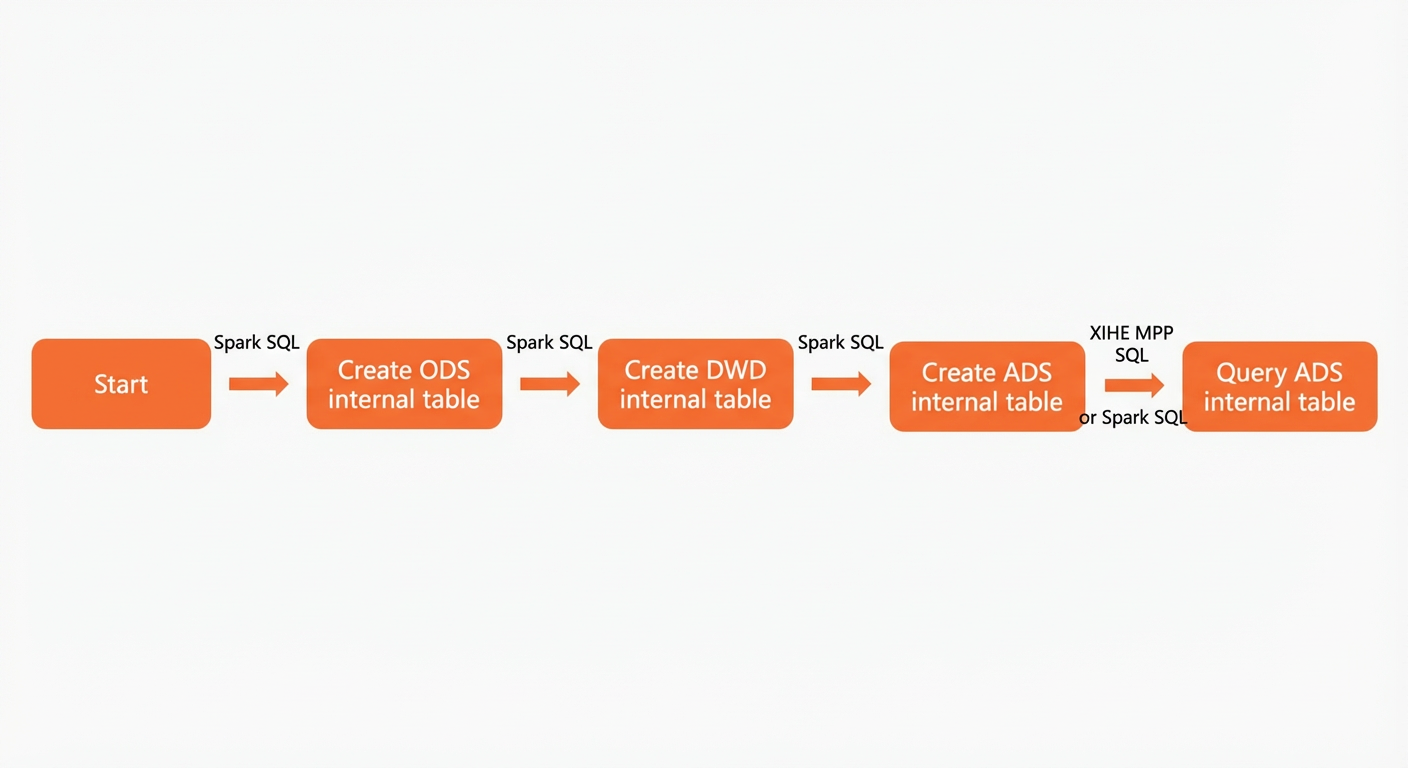
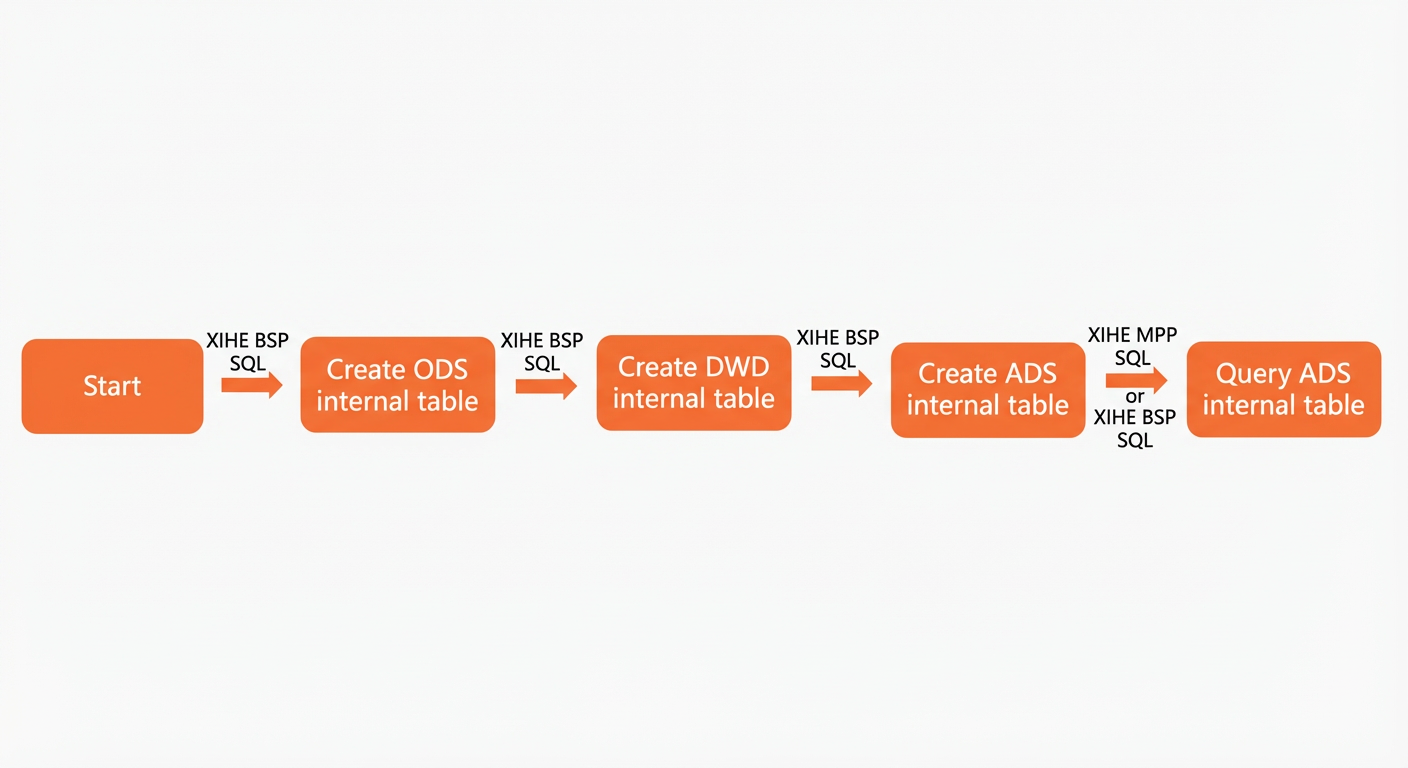
An AnalyticDB for MySQL data warehouse consists of the following three layers.
-
ODS (Operational Data Store): The layer where ETL processing is performed on source data. In real-world scenarios, the ODS layer extracts data from data sources. To simplify this tutorial, we will write test data directly to the ODS layer.
-
DWD (Data Warehouse Detail): This layer cleans and filters data from the ODS layer. This tutorial uses filtering as an example.
-
ADS (Application Data Service): The layer that provides data for business-oriented data analysis and reporting.
Spark SQL
-
Create an ODS layer table.
-
In the left-side navigation pane of the cluster details page, click .
-
In the SQL Console window, select the Spark engine and a Job-based resource group.
-
Run the following statement to create a database named
test_spark_db. To run the statement, click Execute SQL (F8).CREATE DATABASE test_spark_db; -
In the
test_spark_dbdatabase, create the partitioned ODS layer tableadb_spark_odswithout an index, and then insert data into the table.CREATE TABLE test_spark_db.adb_spark_ods (id int, name string, age int) USING adb tblproperties ( 'distributeType' = 'HASH', 'distributeColumns' = 'id', 'partitionType' = 'VALUE', 'partitionColumn' = 'age', 'partitionCount' = '200', 'indexAll' = 'false')INSERT OVERWRITE test_spark_db.adb_spark_ods PARTITION(age) VALUES (001,'Anna',18), (002,'Bob',22), (003,'Cindy',12), (004,'Dan',25);
-
-
Create a DWD layer table.
This tutorial demonstrates how to read data from the ODS layer table, filter the data, and then write the filtered data to the DWD layer table.
-
In the
test_spark_dbdatabase, create a partitioned table namedadb_spark_dwdwithout an index.CREATE TABLE test_spark_db.adb_spark_dwd ( id int, name string, age int ) USING adb TBLPROPERTIES( 'distributeType'='HASH', 'distributeColumns'='id', 'partitionType'='value', 'partitionColumn'='age', 'partitionCount'='200', 'indexAll'='false') -
(Optional) Before you query offline hot data, select the XIHE engine and the user_default (Interactive) resource group in the SQL Console window, and then run the following statements.
SET adb_config CSTORE_HOT_TABLE_ALLOW_SINGLE_REPLICA_BUILD=true; SET adb_config ELASTIC_ENABLE_HOT_PARTITION_HAS_HDD_REPLICA=true; SET adb_config ELASTIC_PRODUCT_ENABLE_MIXED_STORAGE_POLICY=true;ImportantIf you query offline hot data without running these statements, subsequent SQL statements fail to execute.
-
Switch to the Spark engine. Read data where the value in the
idcolumn is not 002 from the ODS layer tableadb_spark_ods, and write the data to the DWD layer table.INSERT OVERWRITE test_spark_db.adb_spark_dwd partition(age) SELECT id, name, age FROM test_spark_db.adb_spark_ods WHERE id != 002; -
Query data from the
adb_spark_dwdtable.SELECT * FROM test_spark_db.adb_spark_dwd;NoteWhen you use Spark SQL to run a query, the result does not display the table data. To view the table data, perform the next step.
-
Optional: On the Spark JAR Development page, find the target SQL query in the Applications and click Logs in the Actions column. You can view the table data in the logs.
-
-
Create ADS layer data.
The ADS layer contains refined data from the DWD layer for business analysis. To ensure query performance, you must index the ADS table. This tutorial demonstrates how to read data where the value in the age column is greater than 15 from the DWD layer table
adb_spark_dwdand write it to the ADS layer tableadb_spark_ads.-
In the
test_spark_dbdatabase, create a partitioned table namedadb_spark_adswith an index.CREATE TABLE test_spark_db.adb_spark_ads ( id int, name string, age int ) USING adb TBLPROPERTIES( 'distributeType'='HASH', 'distributeColumns'='id', 'partitionType'='value', 'partitionColumn'='age', 'partitionCount'='200', 'indexAll'='true') -
Read data where the value in the age column is greater than 15 from the DWD layer table
adb_spark_dwdand write the data to the ADS layer tableadb_spark_ads.INSERT OVERWRITE test_spark_db.adb_spark_ads partition(age) SELECT id, name, age FROM test_spark_db.adb_spark_dwd WHERE age > 15;
-
-
Query ADS layer table data.
AnalyticDB for MySQL Enterprise Edition, Basic Edition, and Data Lakehouse Edition clusters support offline data queries by using Spark SQL or XIHE BSP SQL, and online real-time data queries by using XIHE MPP SQL. To ensure data timeliness, this tutorial uses XIHE MPP SQL in online mode to query ADS layer table data.
-
In the SQL Console window, select the XIHE engine and the user_default (Interactive) resource group.
-
Run the following statement to query data from the ADS layer table.
SELECT * FROM test_spark_db.adb_spark_ads;The following result is returned:
+------+-------+------+
| id | name | age |
+------+-------+------+
| 4 | Dan | 25 |
| 1 | Anna | 18 |
+------+-------+------+
-
XIHE BSP SQL
-
Create an ODS layer table.
-
In the left-side navigation pane of the cluster details page, click .
-
In the SQL Console window, select the XIHE engine and a Job-based resource group.
-
Enter the following statement and click Execute SQL (F8) to create a database named
test_xihe_db.CREATE DATABASE test_xihe_db; -
Enter the following statement, and click Execute SQL (F8). This command creates the partitioned table
adb_xihe_odswithout an index in the ODS layer of thetest_xihe_dbdatabase and inserts data.CREATE TABLE test_xihe_db.adb_xihe_ods (id int, name string, age int)DISTRIBUTED BY HASH (id)PARTITION BY VALUE (age)LIFECYCLE 4INDEX_ALL='N';INSERT INTO test_xihe_db.adb_xihe_ods(id,name,age) VALUES(001,'Anna',18),(002,'Bob',22),(003,'Cindy',12),(004,'Dan',25);
-
-
Create a DWD layer table.
This tutorial demonstrates how to read data from the ODS layer table, filter the data, and then write the filtered data to the DWD layer table.
-
Enter the following statement and click Execute SQL (F8) to create a non-indexed, partitioned table
adb_xihe_dwdin thetest_xihe_dbdatabase.CREATE TABLE test_xihe_db.adb_xihe_dwd( id int, name string, age int)DISTRIBUTED BY HASH (id)PARTITION BY VALUE (age)LIFECYCLE 4INDEX_ALL = 'N'; -
Enter the following statement and click Execute SQL (F8). This statement reads data from the ODS layer table
adb_xihe_odswhere theidcolumn is not 002 and writes it to the DWD layer data tableadb_xihe_dwd.INSERT INTO test_xihe_db.adb_xihe_dwd SELECT id, name, age FROM test_xihe_db.adb_xihe_ods where id != 002; -
Enter the following statement and click Execute SQL (F8) to query the data in the
adb_xihe_dwdtable.SELECT * FROM test_xihe_db.adb_xihe_dwd;The following result is returned:
+------+-------+------+| id | name | age |+------+-------+------+| 4 | Dan | 25 || 1 | Anna | 18 || 3 | Cindy | 12 |+------+-------+------+
-
-
Create an ADS layer table.
The ADS layer data is more finely filtered from the DWD layer data and can be used directly for business analysis. This requires a certain query speed. Therefore, you must add an index when you create the ADS layer table. This tutorial demonstrates how to read data where the value in the age column is greater than 15 from the DWD layer table
adb_xihe_dwdand write it to the ADS layer tableadb_xihe_ads.-
Enter the following statement and click Execute SQL (F8) to create an indexed and partitioned AnalyticDB for MySQL table named
adb_xihe_adsin thetest_xihe_dbdatabase.CREATE TABLE test_xihe_db.adb_xihe_ads (id int, name string, age int)DISTRIBUTED BY HASH (id)PARTITION BY VALUE (age)LIFECYCLE 4; -
Enter the following statement, and click Execute SQL (F8). This statement reads data from the DWD layer data table
adb_xihe_dwdwhere the value in theagecolumn is greater than 15 and writes the data to the ADS layer data tableadb_xihe_ads.INSERT INTO test_xihe_db.adb_xihe_ads SELECT id, name, age FROM test_xihe_db.adb_xihe_dwd WHERE age > 15;
-
-
Query ADS layer data.
AnalyticDB for MySQL Enterprise Edition, Basic Edition, and Data Lakehouse Edition clusters support offline data queries by using Spark SQL or XIHE BSP SQL, and online real-time data queries by using XIHE MPP SQL. To ensure data timeliness, this tutorial uses XIHE MPP SQL in online mode to query ADS layer table data.
-
In the SQL Console window, select the XIHE engine and the user_default (Interactive) resource group.
-
Enter the following statement and click Execute SQL (F8) to query the ADS layer table data.
SELECT * FROM test_xihe_db.adb_xihe_ads;The following result is returned:
+------+-------+------+| id | name | age |+------+-------+------+| 4 | Dan | 25 || 1 | Anna | 18 |+------+-------+------+
-
Next steps
After completing this tutorial, see data import for next steps.