Build image search applications by using AnalyticDB for PostgreSQL image search APIs
This topic describes the overall process of implementing vector-based image retrieval by using the image search APIs of AnalyticDB for PostgreSQL.
Overview
Background
In the digital era, image search technology has become an indispensable part of our lives. Suppose you see a fascinating landscape painting online but do not know its origin, or you want to find products similar to a piece of clothing. We recommend that you use the image search technology of AnalyticDB for PostgreSQL. To search for images by text, you only need to enter relevant keywords, and the system provides a large number of image results for your reference. You can also search for images by images. You only need to upload an image, and the system can quickly match similar images or related information, which greatly facilitates our lives.
Definition
Image vectorization search is a method used by AnalyticDB for PostgreSQL to search and retrieve images based on image content, such as colors, shapes, and textures. Its core principle is to convert images into a mathematical representation that can be processed by computers, that is, vectors (a group of numbers).
Implementation principles
Feature extraction: First, features that can represent the image content are extracted from the image. After processing, these features can be represented as a multi-dimensional vector. These vectors must effectively and accurately reflect the features of the original image.
Vector storage: After feature extraction and vectorization are performed on all images, the images are stored in a database that supports vector capabilities, and indexes are created for fast retrieval.
Image and text retrieval: When a user submits a query image or text, feature extraction and vectorization are performed. Then, similarity metrics such as Euclidean distance and cosine similarity are used to find the most similar image feature vectors in the vector database.
Ranking and display: Based on the calculated similarity scores, the results are ranked, and the most relevant images are displayed to the user.
The overall technology stack of image search is complex and difficult to implement. Therefore, AnalyticDB for PostgreSQL integrates multiple image vector algorithms and efficient vector retrieval features to provide efficient image indexing and retrieval capabilities, helping customers quickly build image search applications.
Prerequisites
The AnalyticDB for PostgreSQL instance must meet the following conditions:
The instance has enabled vector retrieval engine optimization.
You have created a database account for the instance.
You have applied for a public endpoint for the instance.
You have added the IP address of the client to the whitelist of the instance.
A Python 3.7 or later environment is installed.
pip install alibabacloud-gpdb20160503 pip install alibabacloud-tea-OpenAPI pip install alibabacloud-tea-util pip install alibabacloud-OpenAPI-utilImportantThe version of
alibabacloud-gpdb20160503must be 3.5.1 or later.You have configured the AccessKey ID and AccessKey secret of a RAM user in environment variables. For more information, see Configure environment variables.
export ALIBABA_CLOUD_ACCESS_KEY_ID = "<YOUR_ALIBABA_CLOUD_ACCESS_KEY_ID>"
export ALIBABA_CLOUD_ACCESS_KEY_SECRED = "<YOUR_ALIBABA_CLOUD_ACCESS_KEY_SECRET>"
Preparations
Initialize the vector database: before you use the AnalyticDB for PostgreSQL vector database, initialize the vector database and the full-text retrieval features.
Create a namespace: before you create a vector index, create a namespace. You can create a new namespace or use an existing namespace as needed.
Create a document collection: create a document collection in the namespace. Create a new document collection or use an existing one based on the type and purpose of the data.
NoteYou can select an embedding model in the CreateDocumentCollection step.
Upload images
Upload a single image
Upload a local image
Upload a local image and import it to the vector database. The following code shows an example:
# -*- coding: utf-8 -*-
import os
import sys
from alibabacloud_gpdb20160503.client import Client as gpdb20160503Client
from alibabacloud_tea_OpenAPI import models as open_api_models
from alibabacloud_gpdb20160503 import models as gpdb_20160503_models
from alibabacloud_tea_util import models as util_models
from alibabacloud_tea_util.client import Client as UtilClient
class Sample:
    def __init__(self):
        pass
    @staticmethod
    def create_client(
        access_key_id: str,
        access_key_secret: str,
    ) -> gpdb20160503Client:
        """
        Initialize the client by using the AccessKey pair
        @param access_key_id:
        @param access_key_secret:
        @return: Client
        @throws Exception
        """
        config = open_api_models.Config(
            access_key_id=access_key_id,
            access_key_secret=access_key_secret
        )
        # For the endpoint, see https://api.aliyun.com/product/gpdb
        config.endpoint = f'gpdb.aliyuncs.com'
        return gpdb20160503Client(config)
    @staticmethod
    def main() -> None:
        meta_data = {metadata}
        f = open("<image_file_path>", "rb")
        client = Sample.create_client(os.environ["<ALIBABA_CLOUD_ACCESS_KEY_ID>"], os.environ["<ALIBABA_CLOUD_ACCESS_KEY_SECRET>"])
        upload_document_async_request = gpdb_20160503_models.UploadDocumentAsyncAdvanceRequest(
            region_id="<your-instance-region-id>",
            dbinstance_id="<your-instance-name>",
            namespace="<your-namespace-name>",
            namespace_password="<your-namespace-password>",
            collection="<your-collection-name>",
            file_name="<your-file-name>",
            file_url_object=f,
            dry_run=False,
            metadata=meta_data,
        )
        runtime = util_models.RuntimeOptions()
        try:
            response = client.upload_document_async_advance(upload_document_async_request, runtime)
            print("response code: %s, response body: %s\n" % (response.status_code, response.body))
        except Exception as error:
            print(error)
if __name__ == '__main__':
    Sample.main()
For the OpenAPI documentation, see UploadDocumentAsync - Asynchronously upload a document. This is an asynchronous upload API. If the call is successful, a job_id field is returned. You can query the image upload progress based on job_id. For more information about how to call the API, see Query the upload progress. The parameters are described as follows:
Parameter | Description |
your-instance-region-id | The ID of the region where the AnalyticDB for PostgreSQL instance resides. |
your-instance-name | The ID of the AnalyticDB for PostgreSQL instance. |
your-namespace-name | The name of the namespace in the preparations. |
your-collection-name | The name of the document collection in the preparations. |
your-namespace-password | The password of the namespace in the preparations. |
image_file_path | The absolute path of the local image file. |
your-file-name | The name of the image file, which must include the extension. The supported extensions are bmp, jpg, jpeg, png, and tiff. |
metadata | The metadata of the document collection in the dict format. |
Upload a remote image
Upload a remote image and import it to the vector database. The following code shows an example:
# -*- coding: utf-8 -*-
import os
import sys
from alibabacloud_gpdb20160503.client import Client as gpdb20160503Client
from alibabacloud_tea_OpenAPI import models as open_api_models
from alibabacloud_gpdb20160503 import models as gpdb_20160503_models
from alibabacloud_tea_util import models as util_models
from alibabacloud_tea_util.client import Client as UtilClient
class Sample:
    def __init__(self):
        pass
    @staticmethod
    def create_client(
        access_key_id: str,
        access_key_secret: str,
    ) -> gpdb20160503Client:
        """
        Initialize the client by using the AccessKey pair
        @param access_key_id:
        @param access_key_secret:
        @return: Client
        @throws Exception
        """
        config = open_api_models.Config(
            access_key_id=access_key_id,
            access_key_secret=access_key_secret
        )
        # For the endpoint, see https://api.aliyun.com/product/gpdb
        config.endpoint = f'gpdb.aliyuncs.com'
        return gpdb20160503Client(config)
    @staticmethod
    def main() -> None:
        file_url = "<image_file_url>"
        meta_data = {metadata}
        client = Sample.create_client(os.environ["<ALIBABA_CLOUD_ACCESS_KEY_ID>"], os.environ["<ALIBABA_CLOUD_ACCESS_KEY_SECRET>"])
        upload_document_async_request = gpdb_20160503_models.UploadDocumentAsyncRequest(
            region_id="<your-instance-region-id>",
            dbinstance_id="<your-instance-name>",
            namespace="<your-namespace-name>",
            namespace_password="<your-namespace-password>",
            collection="<your-collection-name>",
            file_name="<your-file-name>",
            file_url=file_url,
            dry_run=False,
            metadata=meta_data,
        )
        runtime = util_models.RuntimeOptions()
        try:
            response = client.upload_document_async_with_options(upload_document_async_request, runtime)
            print("response code: %s, response body: %s\n" % (response.status_code, response.body))
        except Exception as error:
            print(error)
if __name__ == '__main__':
    Sample.main()
For the OpenAPI documentation, see UploadDocumentAsync. This is an asynchronous upload API. If the call is successful, a job_id field is returned. You can query the image upload progress based on job_id. For more information about how to call the API, see Query the upload progress. The parameters are described as follows:
Parameter | Description |
your-instance-region-id | The ID of the region where the AnalyticDB for PostgreSQL instance resides. |
your-instance-name | The ID of the AnalyticDB for PostgreSQL instance. |
your-namespace-name | The name of the namespace in the preparations. |
your-collection-name | The name of the document collection in the preparations. |
your-namespace-password | The password of the namespace in the preparations. |
image_file_path | The URL path of the remote image file. |
your-file-name | The name of the image file, which must include the extension. The supported extensions are bmp, jpg, jpeg, png, and tiff. |
metadata | The metadata of the document collection in the dict format. |
Upload images in batch
Use a local file as an example. Call the OpenAPI operation to upload a local compressed package and import all images in the package to the vector database. The following code shows an example:
# -*- coding: utf-8 -*-
import os
import sys
from alibabacloud_gpdb20160503.client import Client as gpdb20160503Client
from alibabacloud_tea_OpenAPI import models as open_api_models
from alibabacloud_gpdb20160503 import models as gpdb_20160503_models
from alibabacloud_tea_util import models as util_models
from alibabacloud_tea_util.client import Client as UtilClient
class Sample:
    def __init__(self):
        pass
    @staticmethod
    def create_client(
        access_key_id: str,
        access_key_secret: str,
    ) -> gpdb20160503Client:
        """
        Initialize the client by using the AccessKey pair
        @param access_key_id:
        @param access_key_secret:
        @return: Client
        @throws Exception
        """
        config = open_api_models.Config(
            access_key_id=access_key_id,
            access_key_secret=access_key_secret
        )
        # For the endpoint, see https://api.aliyun.com/product/gpdb
        config.endpoint = f'gpdb.aliyuncs.com'
        return gpdb20160503Client(config)
    @staticmethod
    def main() -> None:
        meta_data = {metadata}
        f = open("<compress_file_path>", "rb")
        client = Sample.create_client(os.environ["<ALIBABA_CLOUD_ACCESS_KEY_ID>"], os.environ["<ALIBABA_CLOUD_ACCESS_KEY_SECRET>"])
        upload_document_async_request = gpdb_20160503_models.UploadDocumentAsyncAdvanceRequest(
            region_id="<your-instance-region-id>",
            dbinstance_id="<your-instance-name>",
            namespace="<your-namespace-name>",
            namespace_password="<your-namespace-password>",
            collection="<your-collection-name>",
            file_name="<your-file-name>",
            file_url_object=f,
            dry_run=False,
            metadata=meta_data,
        )
        runtime = util_models.RuntimeOptions()
        try:
            response = client.upload_document_async_advance(upload_document_async_request, runtime)
            print("response code: %s, response body: %s\n" % (response.status_code, response.body))
        except Exception as error:
            print(error)
if __name__ == '__main__':
Sample.main()A compressed package can contain up to 100 images.
The supported compression formats are tar, gz, and zip.
For the OpenAPI documentation, see UploadDocumentAsync. This is an asynchronous upload API. If the call is successful, a job_id field is returned. You can query the image upload progress based on job_id. For more information about how to call the API, see Query the upload progress. The parameters are described as follows:
Parameter | Description |
your-instance-region-id | The ID of the region where the AnalyticDB for PostgreSQL instance resides. |
your-instance-name | The ID of the AnalyticDB for PostgreSQL instance. |
your-namespace-name | The name of the namespace in the preparations. |
your-collection-name | The name of the document collection in the preparations. |
your-namespace-password | The password of the namespace in the preparations. |
compress_file_path | The absolute path of the local compressed package. |
your-file-name | The name of the compressed package, which must include the extension. The supported extensions are tar, gz, and zip. |
metadata | The metadata of the document collection in the dict format. |
Query the upload progress
Both single image upload and batch image upload are asynchronous APIs. You must call the progress query API to view the image upload progress.
Call the OpenAPI operation to query the image upload progress. The following code shows an example:
# -*- coding: utf-8 -*-
import os
import sys
from alibabacloud_gpdb20160503.client import Client as gpdb20160503Client
from alibabacloud_tea_OpenAPI import models as open_api_models
from alibabacloud_gpdb20160503 import models as gpdb_20160503_models
from alibabacloud_tea_util import models as util_models
from alibabacloud_tea_util.client import Client as UtilClient
class Sample:
    def __init__(self):
        pass
    @staticmethod
    def create_client(
        access_key_id: str,
        access_key_secret: str,
    ) -> gpdb20160503Client:
        """
        Initialize the client by using the AccessKey pair
        @param access_key_id:
        @param access_key_secret:
        @return: Client
        @throws Exception
        """
        config = open_api_models.Config(
            access_key_id=access_key_id,
            access_key_secret=access_key_secret
        )
        # For the endpoint, see https://api.aliyun.com/product/gpdb
        config.endpoint = f'gpdb.aliyuncs.com'
        return gpdb20160503Client(config)
    @staticmethod
    def main() -> None:
        client = Sample.create_client(os.environ["<ALIBABA_CLOUD_ACCESS_KEY_ID>"], os.environ["<ALIBABA_CLOUD_ACCESS_KEY_SECRET>"])
        get_upload_document_request = gpdb_20160503_models.GetUploadDocumentJobRequest(
            region_id="<your-instance-region-id>",
            dbinstance_id="<your-instance-name>",
            namespace="<your-namespace-name>",
            namespace_password="<your-namespace-password>",
            collection="<your-collection-name>",
            job_id="<job_id>",
        )
        runtime = util_models.RuntimeOptions()
        try:
            response = client.get_upload_document_job_with_options(get_upload_document_request, runtime)
            print("response code: %s, response body: %s\n" % (response.status_code, response.body))
        except Exception as error:
            print(error)
if __name__ == '__main__':
    Sample.main()
Call the GetUploadDocumentJob API to query the image upload progress. For the OpenAPI documentation, see GetUploadDocumentJob. When job.status='Success', the upload task is complete. The parameters are described as follows:
Parameter | Description |
your-instance-region-id | The ID of the region where the AnalyticDB for PostgreSQL instance resides. |
your-instance-name | The ID of the AnalyticDB for PostgreSQL instance. |
your-namespace-name | The name of the namespace in the preparations. |
your-collection-name | The name of the document collection in the preparations. |
your-namespace-password | The password of the namespace in the preparations. |
job_id | The job_id returned by the image upload API. |
Retrieve images
Search by text
The following code shows an example of text search:
# -*- coding: utf-8 -*-
import os
import sys
from urllib.request import urlopen
from PIL import Image
from alibabacloud_gpdb20160503.client import Client as gpdb20160503Client
from alibabacloud_tea_OpenAPI import models as open_api_models
from alibabacloud_gpdb20160503 import models as gpdb_20160503_models
from alibabacloud_tea_util import models as util_models
def show_image_text(image_text_list):
    for img, cap in image_text_list:
        # Note: the show() function may require you to install the necessary image browser components on Linux servers to take effect.
        img.show()
        print(cap)
class Sample:
    def __init__(self):
        pass
    @staticmethod
    def create_client(
        access_key_id: str,
        access_key_secret: str,
    ) -> gpdb20160503Client:
        """
        Initialize the client by using the AccessKey pair
        @param access_key_id:
        @param access_key_secret:
        @return: Client
        @throws Exception
        """
        config = open_api_models.Config(
            access_key_id=access_key_id,
            access_key_secret=access_key_secret
        )
        # For the endpoint, see https://api.aliyun.com/product/gpdb
        config.endpoint = f'gpdb.aliyuncs.com'
        return gpdb20160503Client(config)
    @staticmethod
    def query(content: str) -> []:
        client = Sample.create_client(os.environ["<ALIBABA_CLOUD_ACCESS_KEY_ID>"], os.environ["<ALIBABA_CLOUD_ACCESS_KEY_SECRET>"])
        query_content_request = gpdb_20160503_models.QueryContentRequest(
            region_id="<your-instance-region-id>",
            dbinstance_id="<your-instance-name>",
            namespace="<your-namespace-name>",
            namespace_password="<your-namespace-password>",
            collection="<your-collection-name>",
            content=content,
            top_k=3,
        )
        runtime = util_models.RuntimeOptions()
        try:
            response = client.query_content_with_options(query_content_request, runtime)
            print("response code: %s, response body: %s\n" % (response.status_code, response.body))
            if response.status_code != 200:
                raise Exception(f"query_content failed, result: {response.body}")
            image_list = []
            for match_item in response.body.matches.match_list:
                url = match_item.file_url
                caption = match_item.metadata.get("caption")
                print("url: %s, caption: %s" % (url, caption))
                img = Image.open(urlopen(url))
                image_list.append((img, caption))
            return image_list
        except Exception as error:
            print(error)
if __name__ == '__main__':
    query_content = "dog"
    show_image_text(Sample.query(query_content))
The parameters are described as follows:
Parameter | Description |
your-instance-region-id | The ID of the region where the AnalyticDB for PostgreSQL instance resides. |
your-instance-name | The ID of the AnalyticDB for PostgreSQL instance. |
your-namespace-name | The name of the namespace in the preparations. |
your-collection-name | The name of the document collection in the preparations. |
your-namespace-password | The password of the namespace in the preparations. |
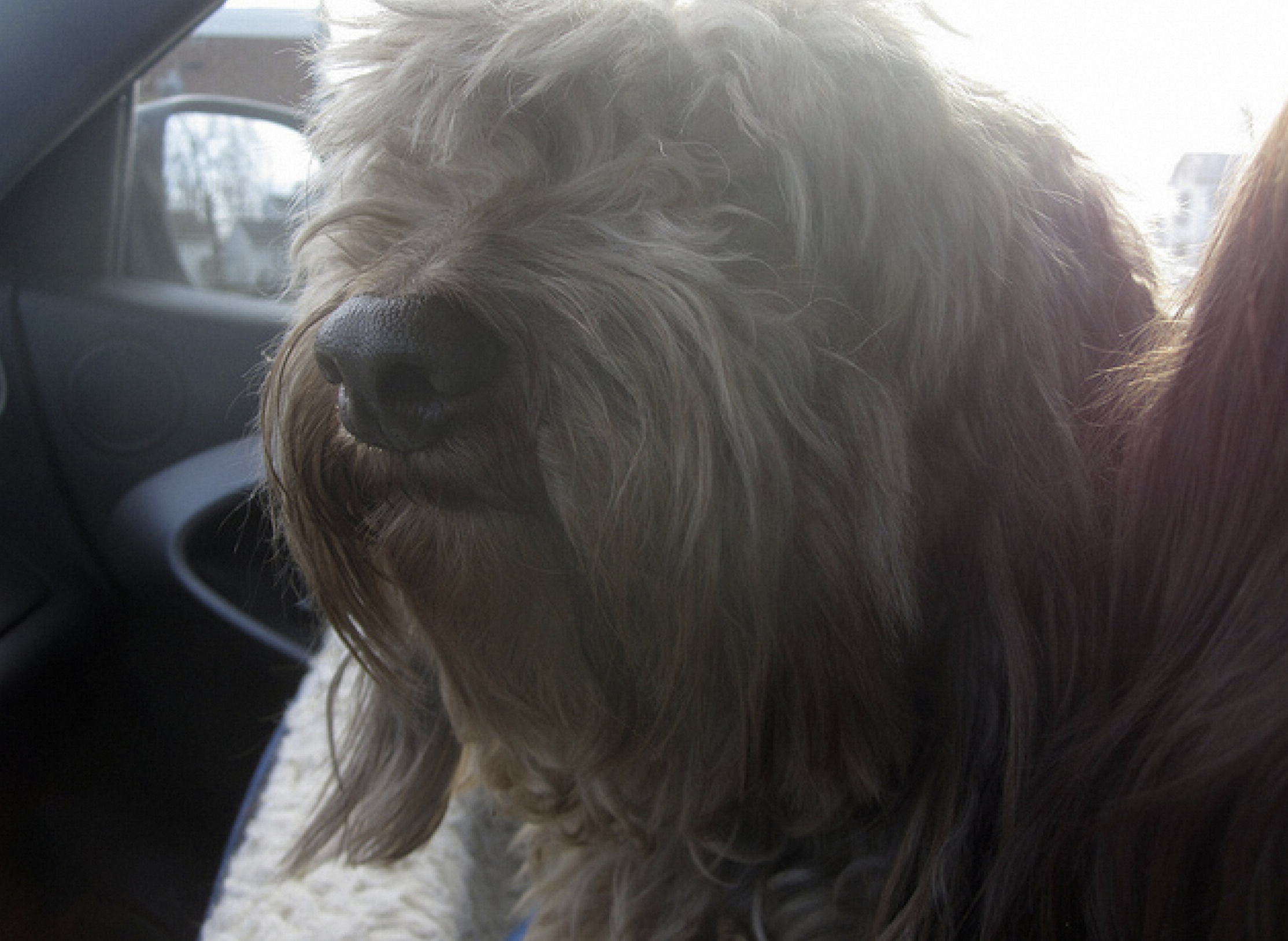
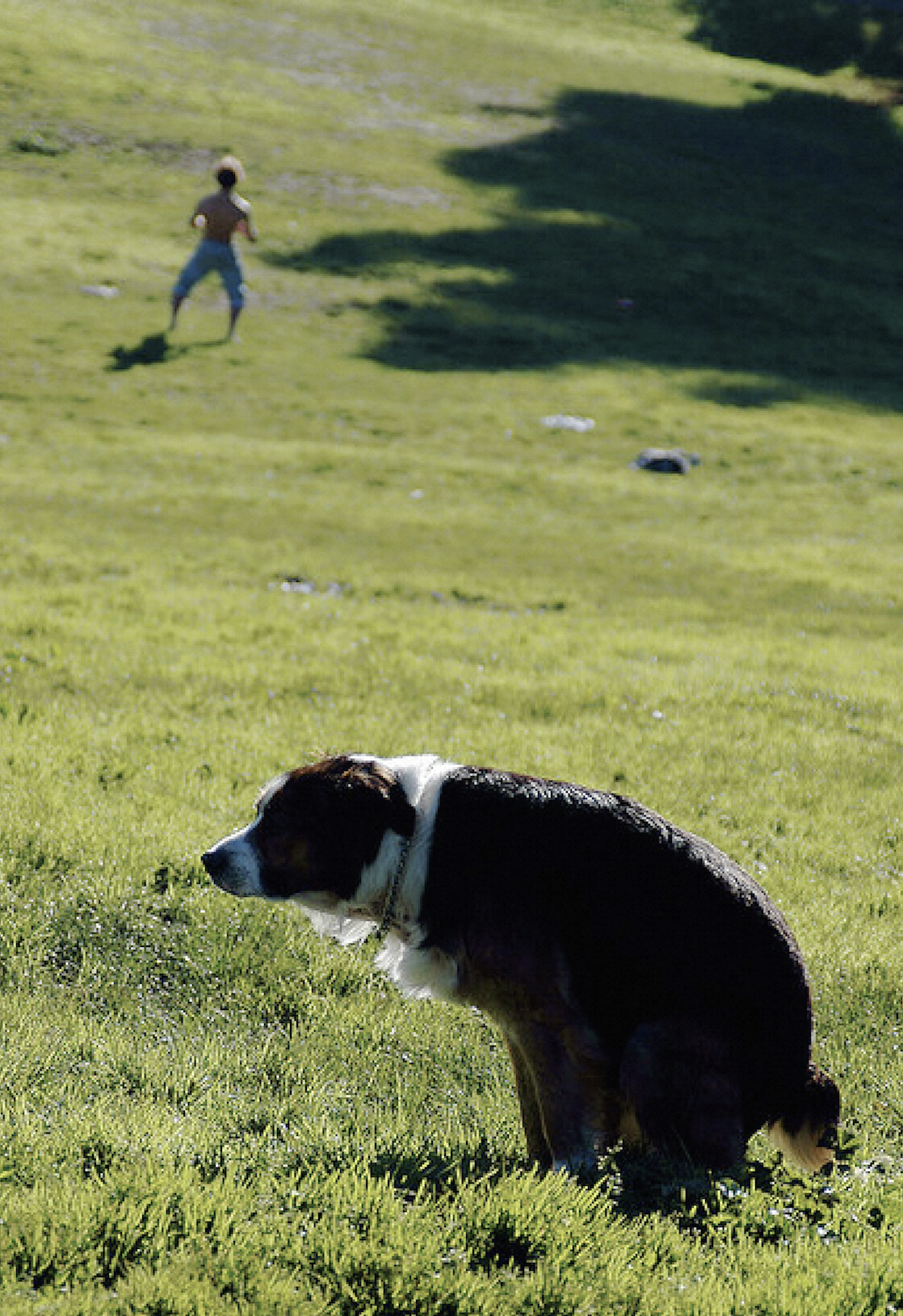
When query_content is set to "dog", the test result is as follows (the query result is related to the actually uploaded image collection):

Search by image
The following code shows an example of image search (the input image is a local image):
# -*- coding: utf-8 -*-
import os
import sys
from urllib.request import urlopen
from PIL import Image
from alibabacloud_gpdb20160503.client import Client as gpdb20160503Client
from alibabacloud_tea_OpenAPI import models as open_api_models
from alibabacloud_gpdb20160503 import models as gpdb_20160503_models
from alibabacloud_tea_util import models as util_models
def show_image_text(image_text_list):
    for img, cap in image_text_list:
        # Note: the show() function may require you to install the necessary image browser components on Linux servers to take effect.
        img.show()
        print(cap)
class Sample:
    def __init__(self):
        pass
    @staticmethod
    def create_client(
        access_key_id: str,
        access_key_secret: str,
    ) -> gpdb20160503Client:
        """
        Initialize the client by using the AccessKey pair
        @param access_key_id:
        @param access_key_secret:
        @return: Client
        @throws Exception
        """
        config = open_api_models.Config(
            access_key_id=access_key_id,
            access_key_secret=access_key_secret
        )
        # For the endpoint, see https://api.aliyun.com/product/gpdb
        config.endpoint = f'gpdb.aliyuncs.com'
        return gpdb20160503Client(config)
    @staticmethod
    def query(file_path: str) -> []:
        client = Sample.create_client(os.environ["<ALIBABA_CLOUD_ACCESS_KEY_ID>"], os.environ["<ALIBABA_CLOUD_ACCESS_KEY_SECRET>"])
        f = open(file_path, 'rb')
        filename = os.path.basename(file_path)
        query_content_request = gpdb_20160503_models.QueryContentAdvanceRequest(
        query_content_request = gpdb_20160503_models.QueryContentRequest(
            region_id="<your-instance-region-id>",
            dbinstance_id="<your-instance-name>",
            namespace="<your-namespace-name>",
            namespace_password="<your-namespace-password>",
            collection="<your-collection-name>",
            file_url_object=f,
            file_name=filename,
            top_k=3,
        )
        runtime = util_models.RuntimeOptions()
        try:
            response = client.query_content_advance(query_content_request, runtime)
            print("response code: %s, response body: %s\n" % (response.status_code, response.body))
            if response.status_code != 200:
                raise Exception(f"query_content failed, result: {response.body}")
            image_list = []
            for match_item in response.body.matches.match_list:
                url = match_item.file_url
                caption = match_item.metadata.get("caption")
                print("url: %s, caption: %s" % (url, caption))
                img = Image.open(urlopen(url))
                image_list.append((img, caption))
            return image_list
        except Exception as error:
            print(error)
if __name__ == '__main__':
    query_file_path = "<image_file_path>"
    show_image_text(Sample.query(query_file_path))
The parameters are described as follows:
Parameter | Description |
your-instance-region-id | The ID of the region where the AnalyticDB for PostgreSQL instance resides. |
your-instance-name | The ID of the AnalyticDB for PostgreSQL instance. |
your-namespace-name | The name of the namespace in the preparations. |
your-collection-name | The name of the document collection in the preparations. |
your-namespace-password | The password of the namespace in the preparations. |
image_file_path | The local address of the image to be retrieved. You must enter an absolute path. |
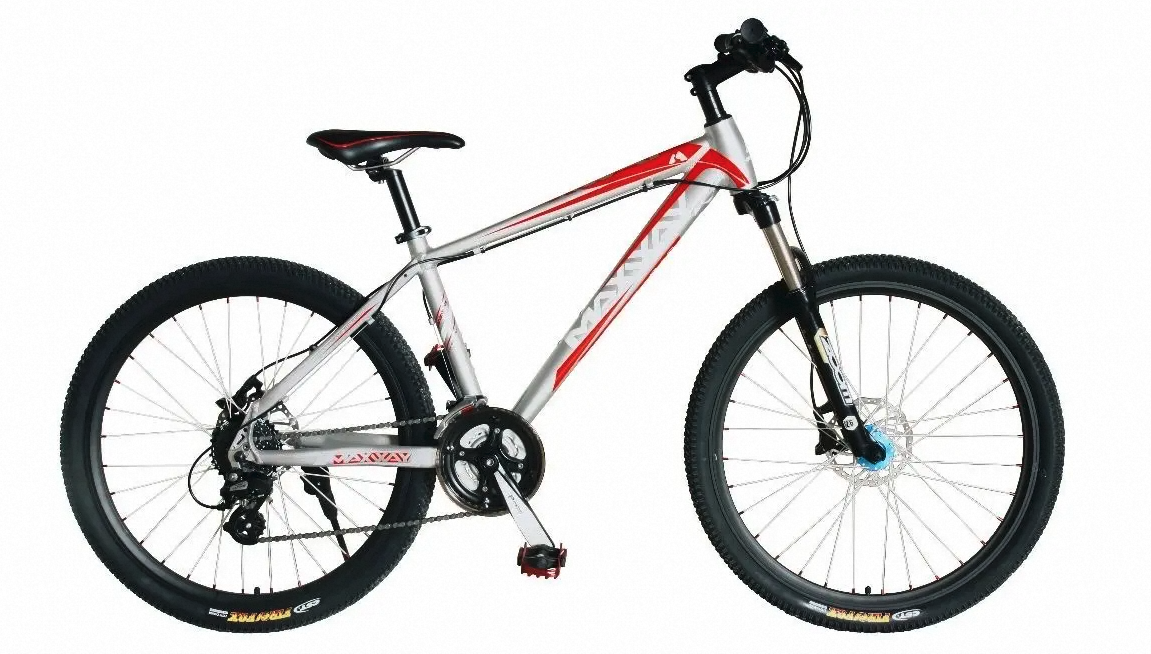
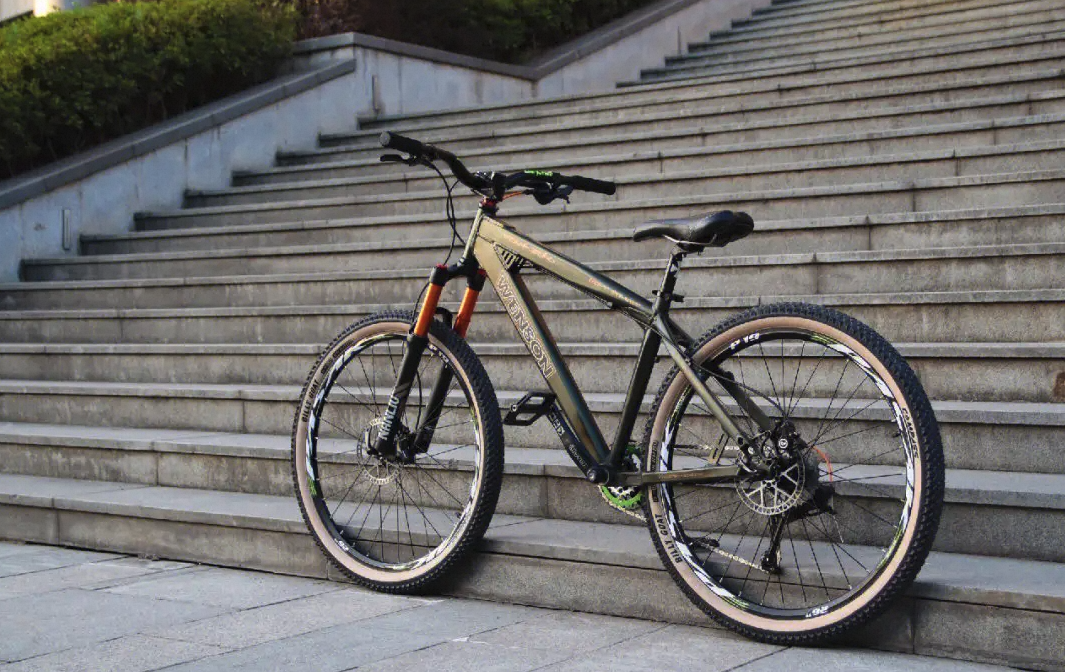
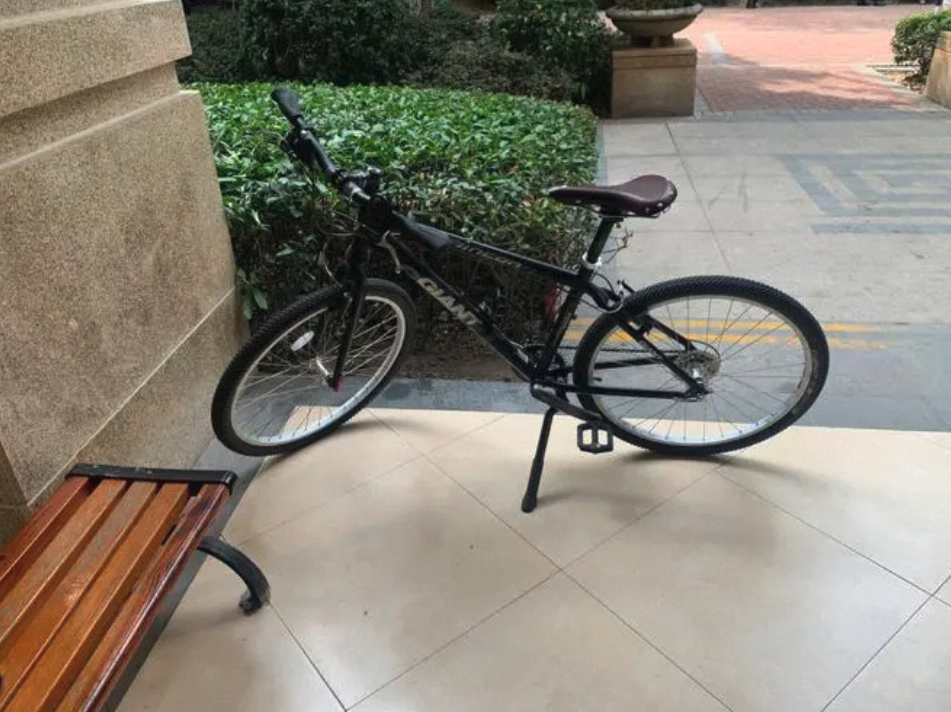
Enter a bicycle image. The query result is as follows (the query result is related to the actually uploaded image collection):
References
Implement multi-modal retrieval by using Streamlit
Introduction to Streamlit
Streamlit is a Python framework for machine learning and data visualization. It can convert data scripts into web applications with just a few lines of code. The framework is written in pure Python and does not require frontend experience.
Quick start: Streamlit tutorial.
The installation method is as follows:
pip install streamlit
Implement text-to-image search by using Streamlit
Use Streamlit to demonstrate the simple text-to-image search feature. The following code shows an example:
# -*- coding: utf-8 -*-
import os
import streamlit as st
from alibabacloud_gpdb20160503.client import Client as gpdb20160503Client
from alibabacloud_tea_OpenAPI import models as open_api_models
from alibabacloud_gpdb20160503 import models as gpdb_20160503_models
from alibabacloud_tea_util import models as util_models
class Sample:
    def __init__(self):
        pass
    @staticmethod
    def create_client(
        access_key_id: str,
        access_key_secret: str,
    ) -> gpdb20160503Client:
        """
        Initialize the client by using the AccessKey pair
        @param access_key_id:
        @param access_key_secret:
        @return: Client
        @throws Exception
        """
        config = open_api_models.Config(
            access_key_id=access_key_id,
            access_key_secret=access_key_secret
        )
        # For the endpoint, see https://api.aliyun.com/product/gpdb
        config.endpoint = f'gpdb.aliyuncs.com'
        return gpdb20160503Client(config)
    @staticmethod
    def query(content: str) -> []:
        client = Sample.create_client(os.environ['ALIBABA_CLOUD_ACCESS_KEY_ID'], os.environ['ALIBABA_CLOUD_ACCESS_KEY_SECRET'])
        query_content_request = gpdb_20160503_models.QueryContentRequest(
            region_id='{your-instance-region-id}',
            dbinstance_id='{your-instance-name}',
            namespace='{your-namespace-name}',
            namespace_password='{your-namespace-password}',
            collection='{your-collection-name}',
            content=content,
            top_k=3,
        )
        runtime = util_models.RuntimeOptions()
        try:
            response = client.query_content_with_options(query_content_request, runtime)
            print("response code: %s, response body: %s\n" % (response.status_code, response.body))
            if response.status_code != 200:
                raise Exception(f"query_content failed, result: {response.body}")
            image_list = []
            for match_item in response.body.matches.match_list:
                url = match_item.file_url
                caption = match_item.metadata.get("caption")
                print("url: %s, caption: %s" % (url, caption))
                image_list.append((url, caption))
            return image_list
        except Exception as error:
            print(error)
# markdown
st.header('Text-to-Image Search Demo')
text_query = st.chat_input("Enter a search keyword")
if text_query is None:
    st.text("Search keyword: ")
else:
    st.text("Search keyword: %s" % text_query)
if text_query:
    image_text_list = Sample.query(text_query)
    for url, cap in image_text_list:
        st.image(url)
        st.text("Description: " + cap)
The parameters are described as follows:
Parameter | Description |
your-instance-region-id | The ID of the region where the AnalyticDB for PostgreSQL instance resides. |
your-instance-name | The ID of the AnalyticDB for PostgreSQL instance. |
your-namespace-name | The name of the namespace in the preparations. |
your-collection-name | The name of the document collection in the preparations. |
your-namespace-password | The password of the namespace in the preparations. |
Test results
The query result is related to the actually uploaded text:
On the Text-to-Image Search Demo page, after you enter the search keyword skiing, the system returns two skiing-related images (a person in a cyan jacket skiing on a snowy slope and a person in a dark jacket wearing goggles and holding ski poles standing on the snow), verifying that the text-to-image search feature can correctly retrieve matching images based on the input text.