Manage ACK clusters by using a Cloud-native API Gateway instance
To ensure service stability, you can deploy multiple Container Service for Kubernetes (ACK) clusters in a peer-to-peer manner to achieve high availability. A Cloud-native API Gateway instance supports access from multiple ACK clusters. An instance is associated with multiple clusters, combines services with identical names, and implements load balancing among multiple services. You can use the feature together with the health check feature of Cloud-native API Gateway to automatically detect service availability and implement automatic traffic switching upon failures in an efficient manner. This topic describes how to use a Cloud-native API Gateway instance to manage multiple ACK clusters.
Prerequisites
Two ACK clusters are created. For more information, see Create an ACK managed cluster.
-
Deploy services with the same name in both clusters. This topic uses the
httpbinservice as an example. The following YAML file shows a sample configuration.
Background
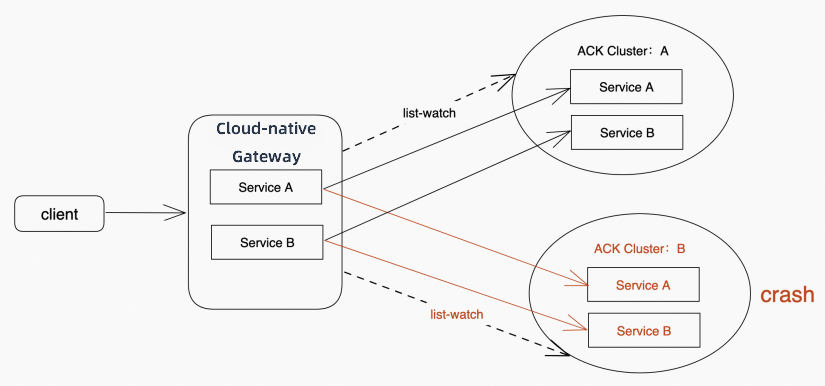
In production practices, if high business stability is required, you can deploy multiple ACK clusters in a peer-to-peer manner to ensure high availability. For example, Cluster A is deployed in Zone A and Cluster B is deployed in Zone B. The same services are deployed in the two clusters. If a cluster fails, traffic is switched to services in the other cluster.
Cloud-native API Gateway provides the multi-cluster access feature to meet the high-availability deployment requirements of your business. If a Cloud-native API Gateway instance is associated with both Cluster A and Cluster B, the instance combines the services with identical names in the two clusters into one service. The name of the combined service is the same as the original service names, but the IP address list of the combined service contains all the IP addresses of the two services. If Cluster A or B fails, all traffic is automatically distributed to the normal cluster by using the routing capability of the instance. We recommend that you use this feature together with the active health check feature of the instance. The active health check feature allows the instance to actively detect the IP address availability of services. This helps implement automatic traffic switchover.
In the following figure, a Cloud-native API Gateway instance manages Services A and B in two ACK clusters. If a crash occurs in Cluster B, you can still access Services A and B in Cluster A by using the instance. All traffic is automatically switched to Cluster A without human intervention.
Step 1: Add ACK service sources to the Cloud-native API Gateway instance
Log on to the API Gateway console.
In the left-side navigation pane, click . In the top navigation bar, select a region.
On the Instance page, click the target instance ID.
In the left-side navigation pane, click Service. Then, click the Source tab.
-
Click Create Source. In the Create Source panel, set Source Type to ACK, configure the parameters, and then click OK. For more information, see Manage service sources.
After the sources are created, you can view them in the source list. The list displays columns for Name/ID, Source Type, Associated Object, Update Time, and Actions. To remove a source, click Delete in the Actions column. A gateway instance supports multiple ACK clusters as service sources at the same time. Adding a new source does not affect existing sources or the services associated with them.
Step 2: Add Services A and B to the Cloud-native API Gateway instance
Log on to the API Gateway console.
In the left-side navigation pane, click . In the top navigation bar, select a region.
On the Instance page, click the target instance ID.
In the left-side navigation pane, click Service. Then, click the Services tab.
-
Click Create Service. In the Create Service panel, set Service Source to ACK. Select a Namespace and a service from the Services list, and then click OK. For more information, see Create a service.
After you create the service, the httpbin service appears in the service list. The health check status is Healthy, the port is
8080, the service source is Container Service for Kubernetes (ACK), and the namespace is default.
Step 3: Add a routing rule for the services in the Cloud-native API Gateway instance
Create an HTTP API. For more information, see Create an HTTP API.
Click the target API and click Create Route in the upper-left corner.
-
On the Create Route page, configure the parameters and then click Save and Publish. For more information, see Create a route.
In this example, set the route name to
httpbin-routeand select the domain namehttpbin.com. For path matching, select Prefix, enter/, and select the Case-sensitive checkbox. For the backend service, select Single Service, choosehttpbinas the service name, set the service port to8080, and select HTTP as the service protocol. If the two ACK clusters contain services that share the same path but require independent routes, use different domain names or request headers to distinguish the routing rules and avoid route conflicts.
Check the result
Clusters A and B are normal
-
On the Services page, check the service addresses.
Two IP addresses are displayed.
The httpbin service has two service addresses,
192.168.0.203and192.168.0.164, and their health check status is Healthy. -
Access the Cloud-native API Gateway instance multiple times. The following code shows that two different hostnames are returned:
curl <Instance endpoint>/version[user@host ~]$ curl http://env-crqcu8xxx-cn-hangzhou.alicloudapi.com/version version: v1 hostname: httpbin-779f4b9dd6-kcvql [user@host ~]$ curl http://env-crqcu8xxx-cn-hangzhou.alicloudapi.com/version version: v1 hostname: httpbin-78b7c66df-nnrtg [user@host ~]$
Cluster A fails
-
Remove the httpbin service from Cluster A.
In this case, only one IP address is available, as shown in the following figure:
The record shows that the httpbin service has a Healthy health check status at the service address
192.168.0.203on port8080. -
Access the Cloud-native API Gateway instance multiple times. The following code shows that only one hostname is returned:
curl <Instance endpoint>/version[user@host ~]$ curl http://env-crqcxxxx-cn-hangzhou.alicloudapi.com/version version: v1 hostname: httpbin-779f4b9dd6-kcvql